Orders
Follow, find and export orders
Watch a branch's open orders as they come in, find any past order by number, name or phone, and download the list as a CSV file.
Tried on a demo store on 29 November 2026
Before you start
- Your role needs See orders. To download the list, it also needs Export orders. The owner and managers have both; cashiers and staff can see orders but not export them.
- All orders appears once your store's site sends its orders to Helm. Until then the page says Not part of your store's setup.
- Open orders come from a branch's POS. A branch must be connected to the store to show them.
Watch the steps
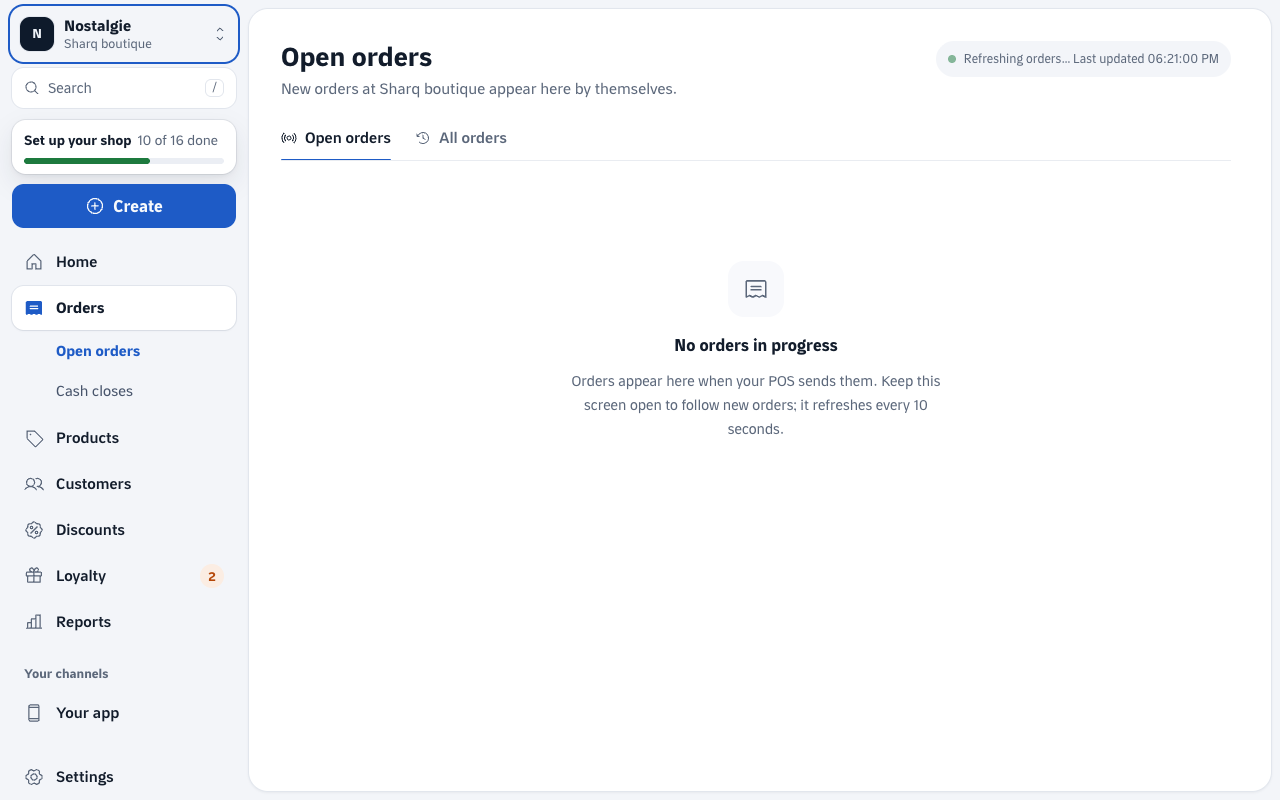
- In the menu, under Orders, select Open orders.
- The board shows one branch at a time. Switch branch at the top of the menu.
- New orders appear every 10 seconds. Keep the page open.
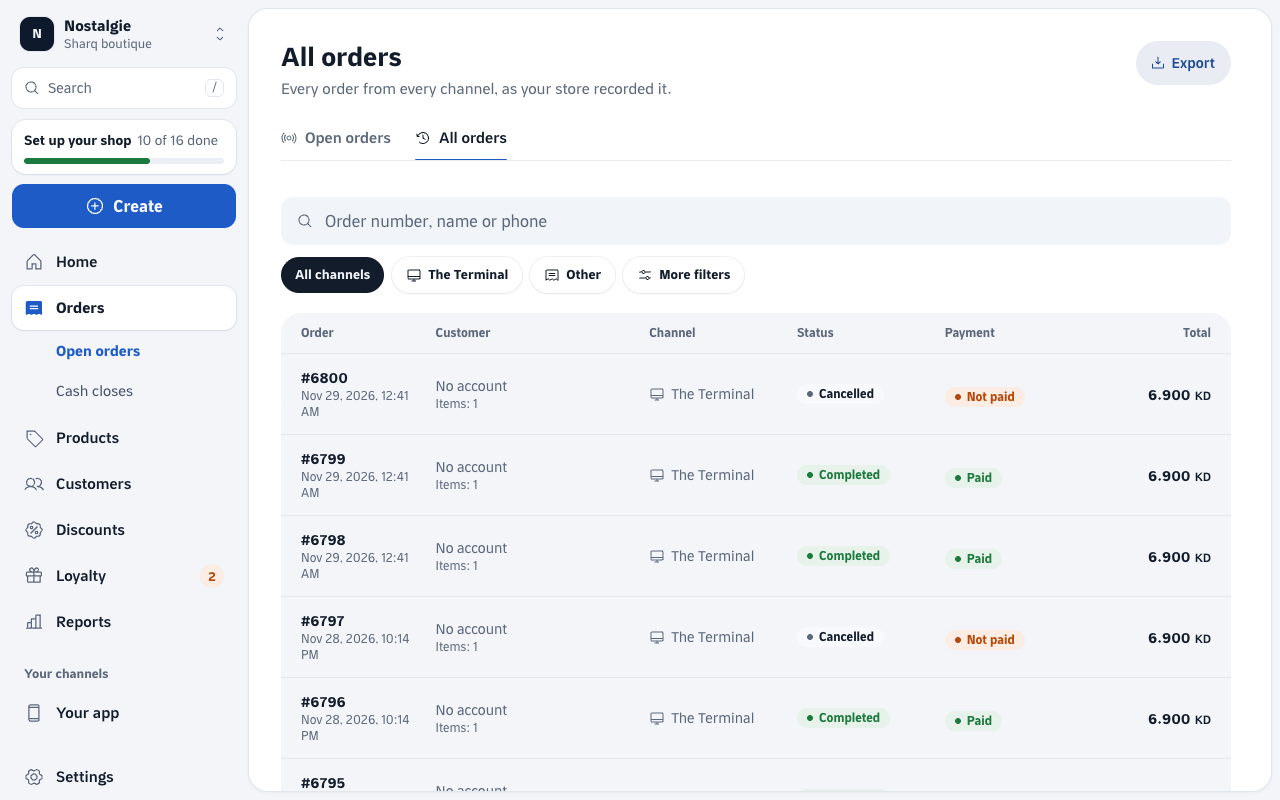
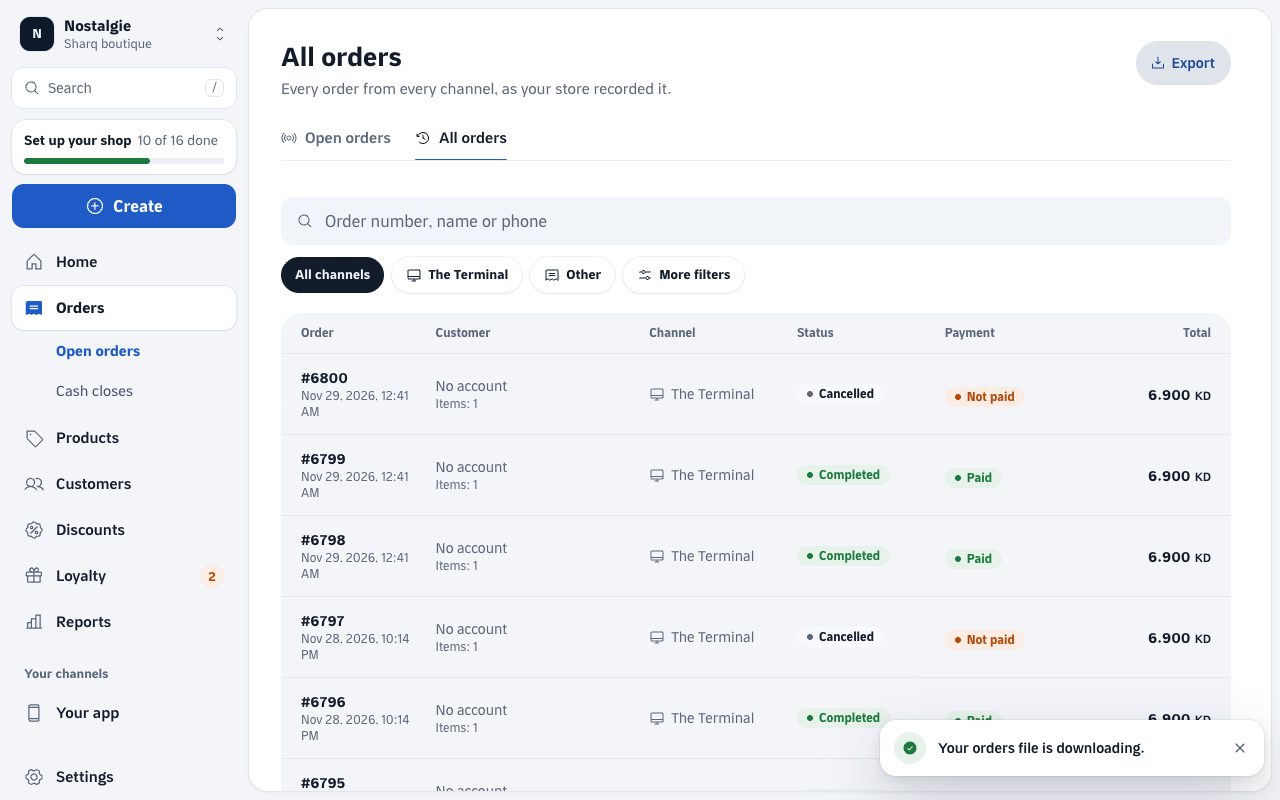
- All orders lists every order from every channel.
- Type an order number, a name or a phone number.
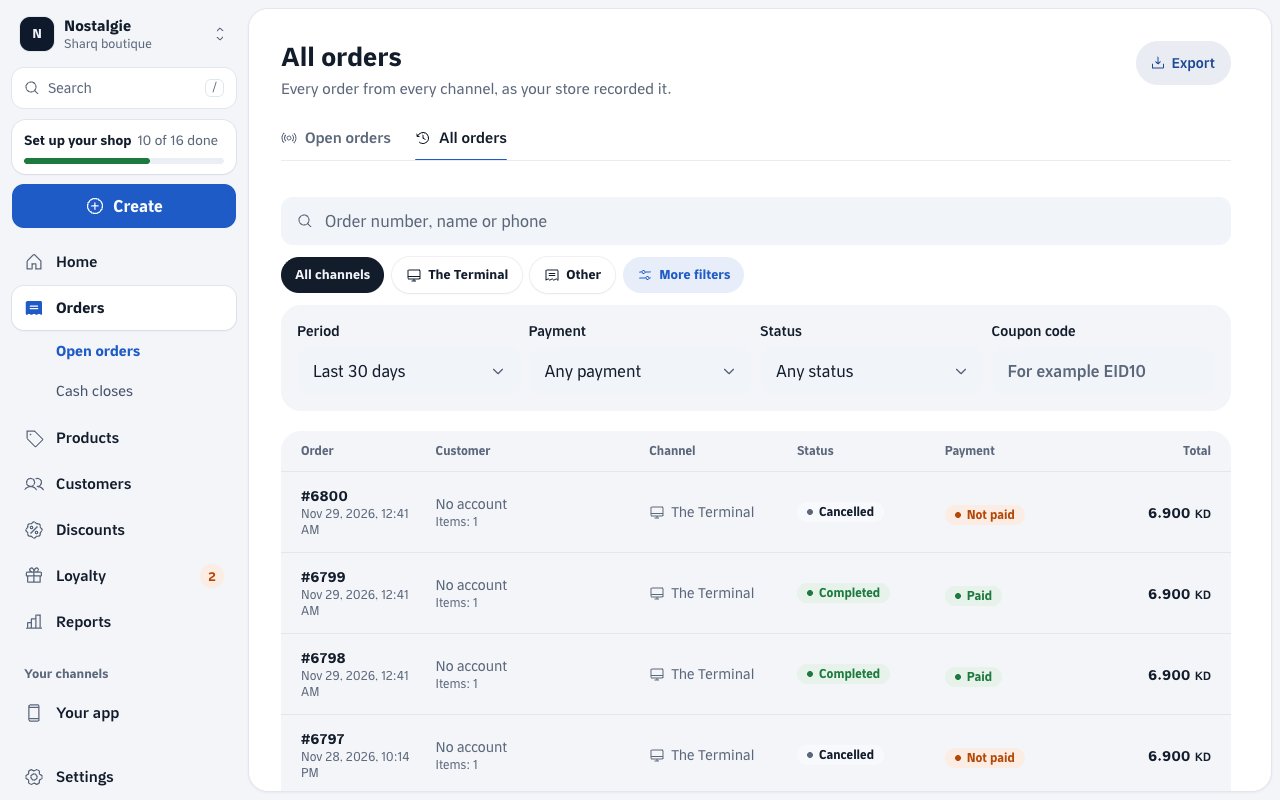
- Pick one channel, or More filters for the period, payment, status and coupon.
- Period, payment, status and coupon code. The list starts at the last 30 days.
- Select a row to see its lines, total, customer and payment.
- Downloads the orders you're looking at as a CSV file.
Follow open orders
Open the board
In the side menu:OrdersOpen ordersThe page is called Open orders. It shows the branch chosen at the top of the menu. To see another branch, select the branch name there and pick it.
Pick what to see
The chips show how many orders are in each stage: All, New, Preparing and Ready. A Late chip appears only while an open order has had no update from the POS for 5 minutes, with the hint An order out for delivery has no chip of its own; it shows under All.
Open an order
Select an order's card to see its progress (for example Step 2 of 3: Preparing), its lines and its total. Orders that have just been completed, cancelled or refunded sit under Just finished.
Find any order
Open All orders
On the Open orders page, select the All orders tab. It lists every order from every channel, newest first. Use the arrows at the bottom to move between pages.
Search
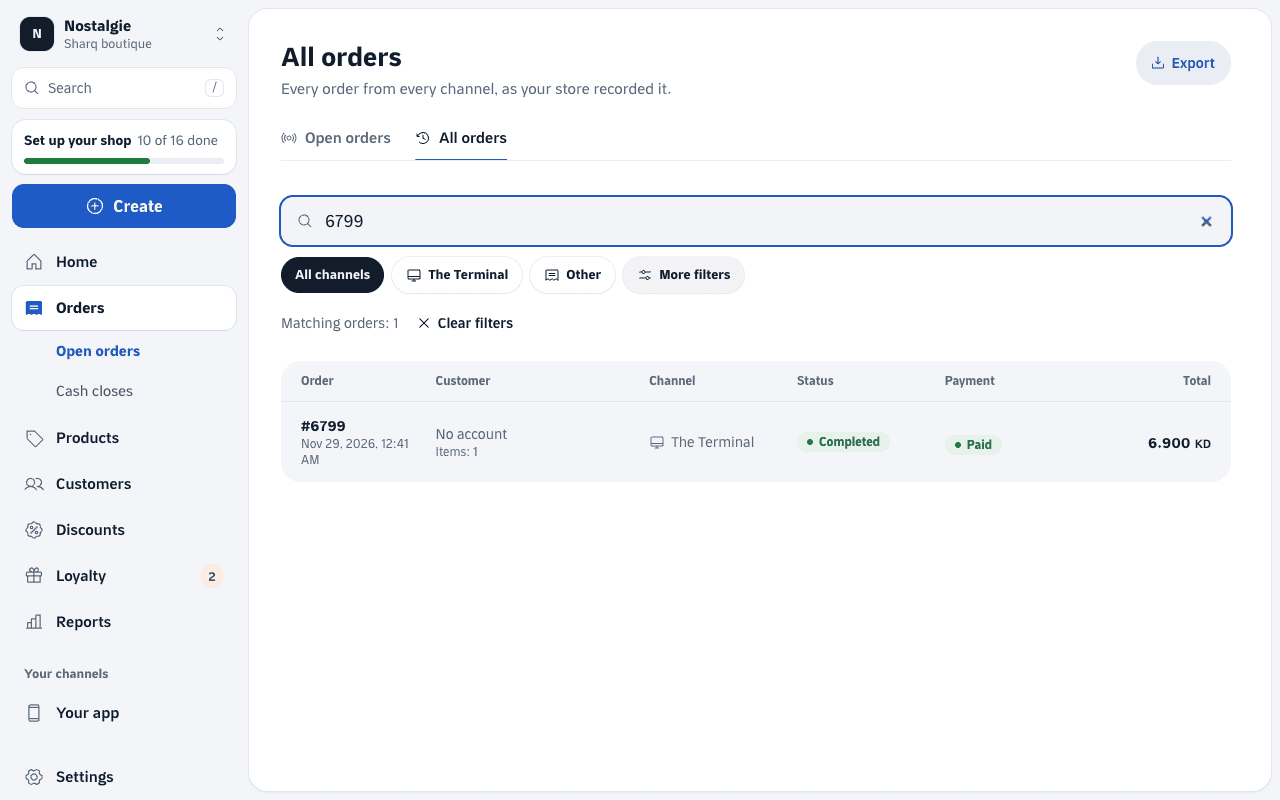
In the search box, type an order number, a customer's name or a phone number. The list narrows as you type, and shows Matching orders: 1, for example.
Filter
Choose a channel chip, such as The Terminal, or All channels. Select More filters for the rest:
The button then shows how many are on, for example More filters (1). Select Clear filters to see every order again.
Open the order
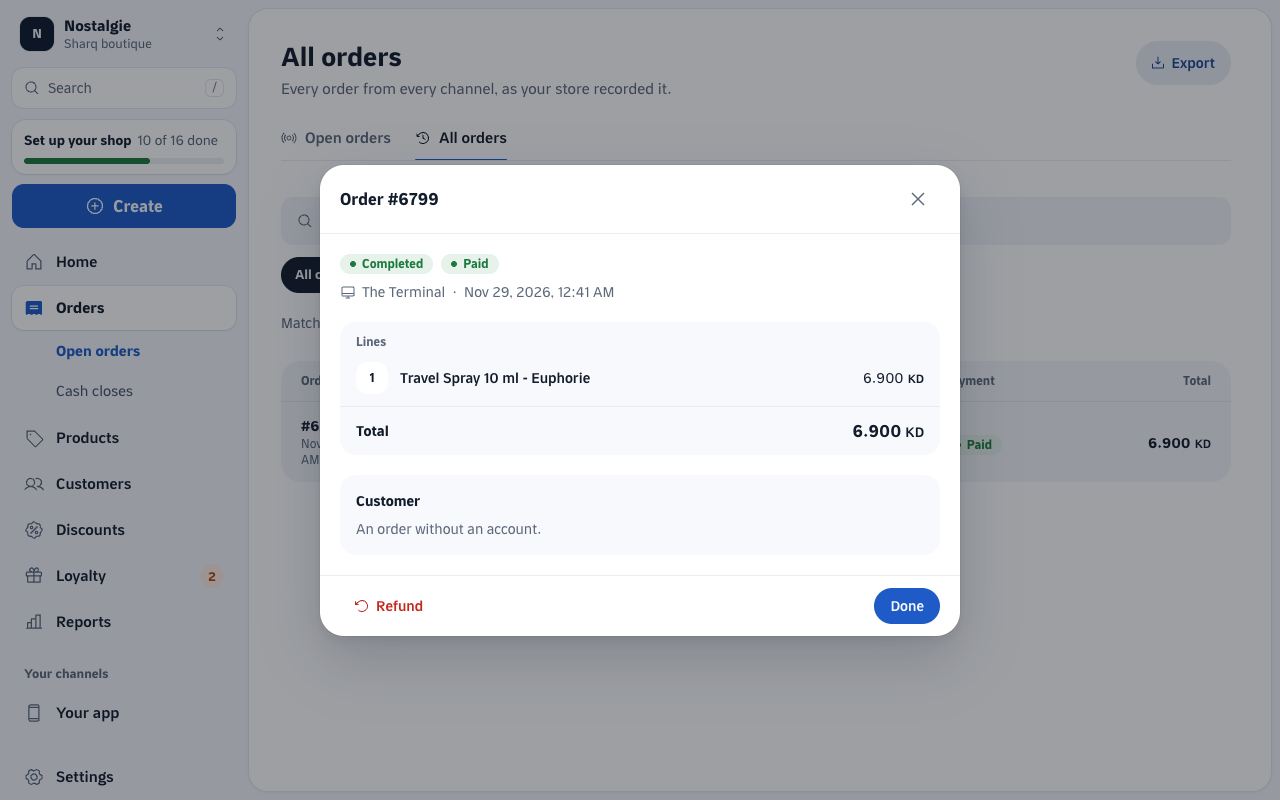
Select its row. The order opens with its status, payment, channel and time, its Lines and Total, and the Customer. Select Done to close it.
For Fragrance and cosmetics
One order found
Search
Clear filters
The order
Export the list
Show the orders you want
On All orders, set the search and filters. The export follows them.
Export
Select Export. It shows Preparing… while Helm builds the file.
What happens next
- You see and your browser saves a CSV file named after the date and time, for example orders-20261129-1516.csv.
- Each row is one order, in 17 columns: order number, date, status, payment status, currency, total, refunded amount, the customer's name, email and phone, the number of items, the channel, the branch, the payment method, coupons, and the order's and customer's IDs.
- Status and payment are short codes (for example completed, paid), and the branch is an ID, not its name. A phone number that starts with + gets an apostrophe in front, so spreadsheets keep it as text.
- Email and phone are blank unless your role also holds See customers.
- The file is saved as UTF-8, so spreadsheet apps show Arabic names correctly.
If something goes wrong
Helm couldn't build the file this time. Nothing was downloaded. Select Export again.
Under More filters, choose a shorter Period, or add a filter, then select Export again.
Normal on Open orders until the branch's POS sends an order. Keep the page open; it refreshes every 10 seconds.
Normal on All orders until your store's first order arrives.
The search covers too many orders. Choose a shorter period or search by order number, name or phone.
Change the filters, or select Clear filters to see every order.
Select Retry.
The branch chosen at the top of the menu isn't connected to the store yet, so it has no open orders. Choose another branch, or ask your Portus contact to connect it.
Check your connection, then select Retry.
Your role doesn't hold See orders. Ask the account owner to add it to your role.
Your role doesn't hold Export orders, or your store's plugin is out of date. The owner can add the permission to your role.