Products
Add a fragrance product with its sizes, in tola, ml or g
On a fragrance store, add a perfume, oil or oud from Helm, with one price or with sizes, each an exact quantity and unit with its own price. Helm saves it to your shop and adds it to your product list.
Tried on a demo store on 29 November 2026
Before you start
- This article is for fragrance stores (Retail). The Perfume section, the usual sizes, the tola units, Verified net content and Catalogue settings show only on a Retail store whose shop keeps product details and perfume details. Other stores add products with the same form, without these parts.
- Your role needs the Edit the menu and products permission. The owner has it.
- Your plan needs Helm's product catalogue. Without it, the Catalogue page says Your products come from your shop system and show here read only. and there is no Add button.
- Know the product's sizes and a price for each one.
Watch the steps
- In Products, All products, select Add.
- A physical product with sizes or shades, stock and a barcode.
- The main language is required. The other languages are optional.
- Choose at least one.
- Further down, under Perfume. The physical form decides which units the sizes can use.
- Helm offers the usual sizes for the product type.
- Type a quantity, choose a unit, then Add size.
- Every size needs its own price.
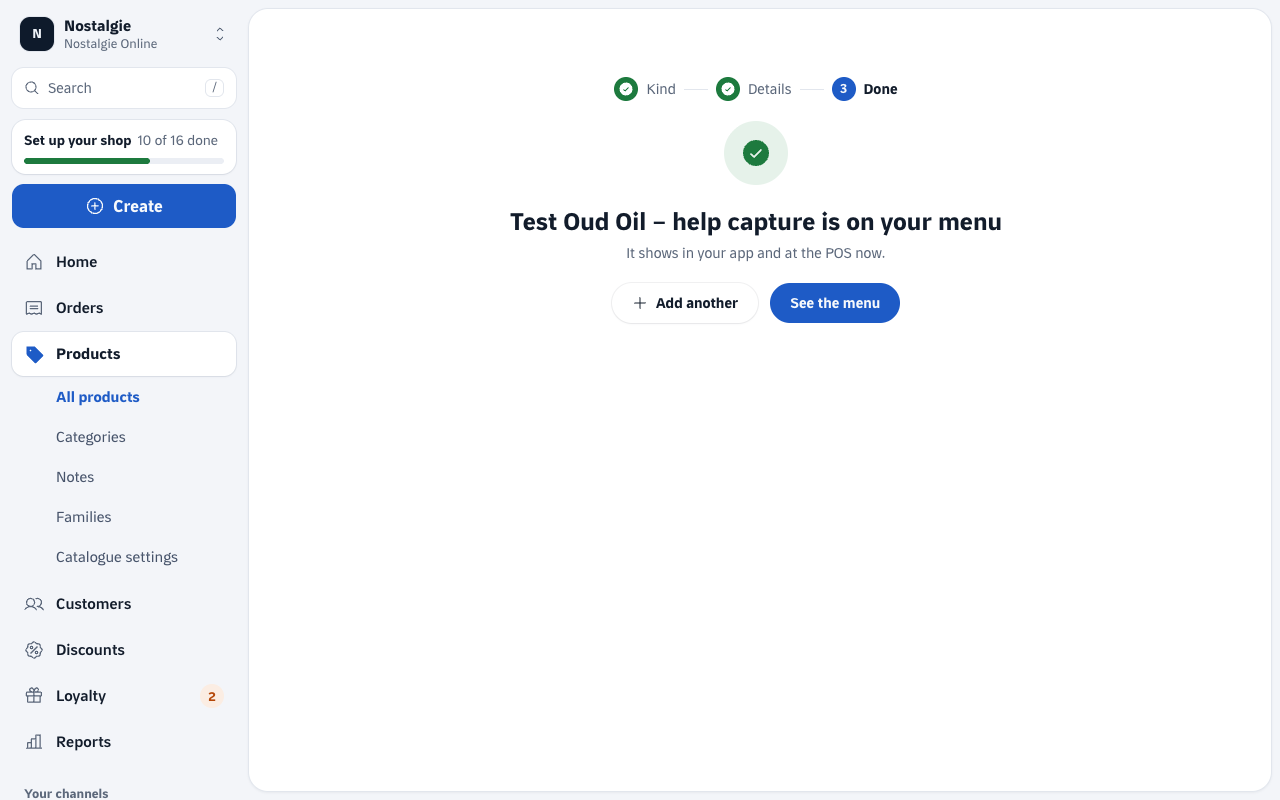
- Helm saves it to your shop.
- Add another, or go back to the list.
Add the product
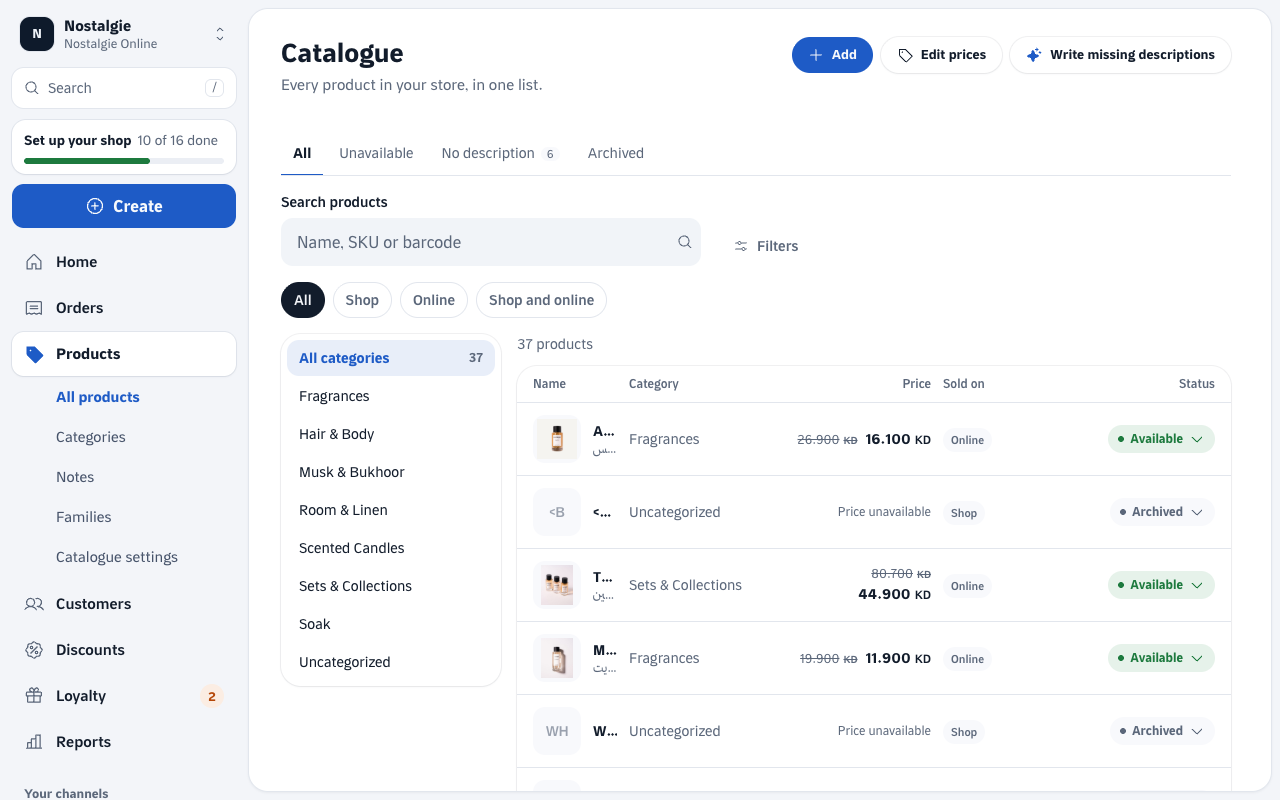
Open the catalogue
In the side menu:ProductsAll productsThe page is called Catalogue.
Start a new product
Select Add.
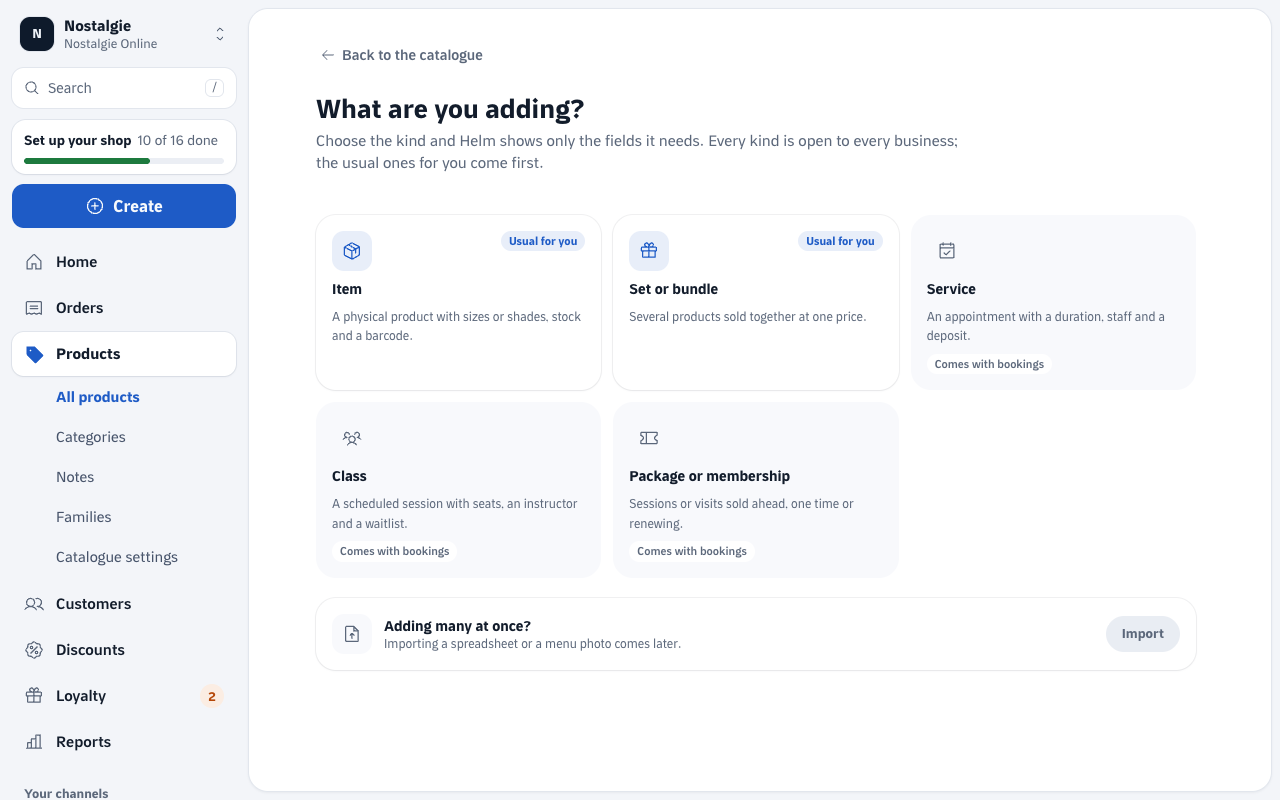
Choose what you're adding
Under What are you adding?, choose Item: A physical product with sizes or shades, stock and a barcode. The form Add a product opens.
The other usual kind on a store like this is Set or bundle. Cafés see Menu item and Meal or combo first instead. Service, Class and Package or membership say Comes with bookings and can't be chosen yet.
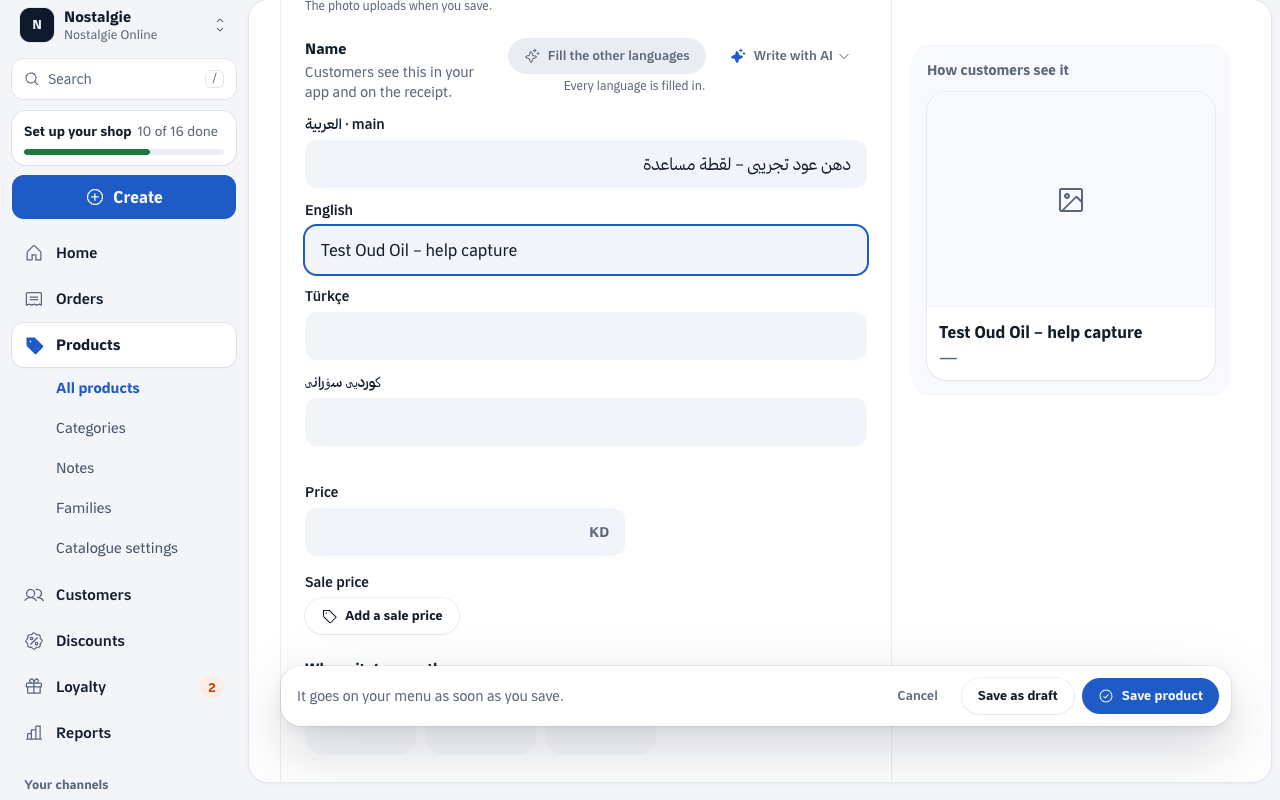
Name it
Under Name, enter the name in the box marked main. It's required. The boxes for your store's other languages are optional.
Choose where it goes
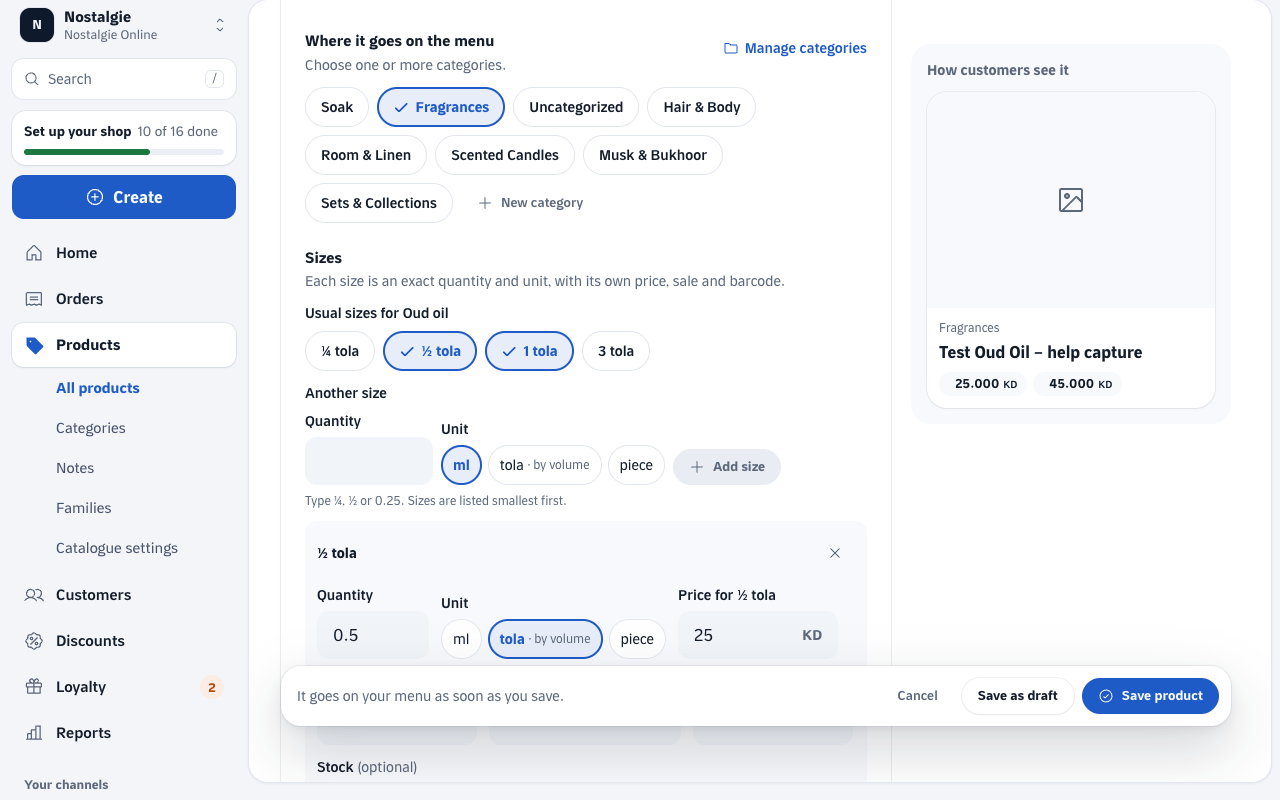
Under Where it goes on the menu, choose one or more categories. To make one, select New category.
Scroll down to Perfume
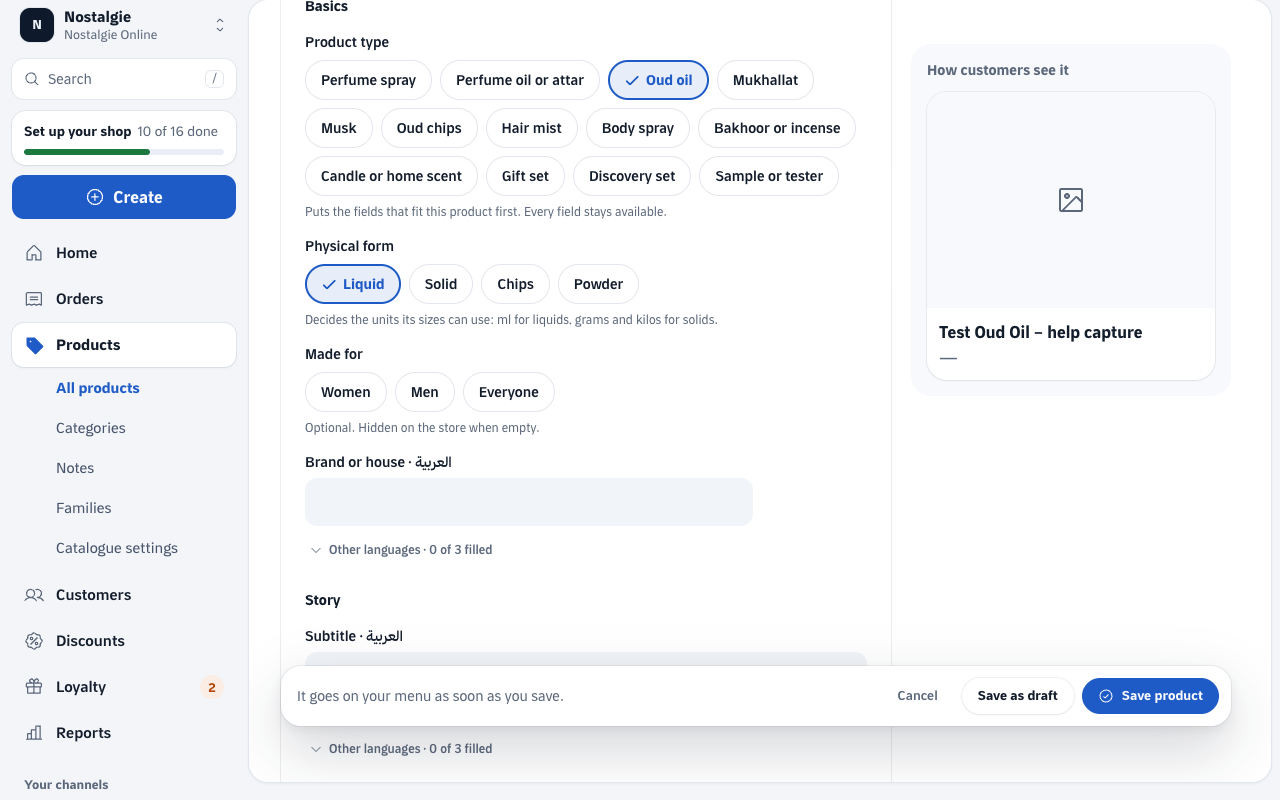
Scroll down to Perfume, then Basics.
Say what it is
Under Product type, choose one, for example Oud oil. Helm fills in the type's usual Physical form when none is chosen.
Check the physical form
Change the Physical form if it doesn't fit the product.
The physical form decides which units the sizes can use:
Choose the sizes
Sizes are optional. For a product sold in one size only, add none and enter its Price.
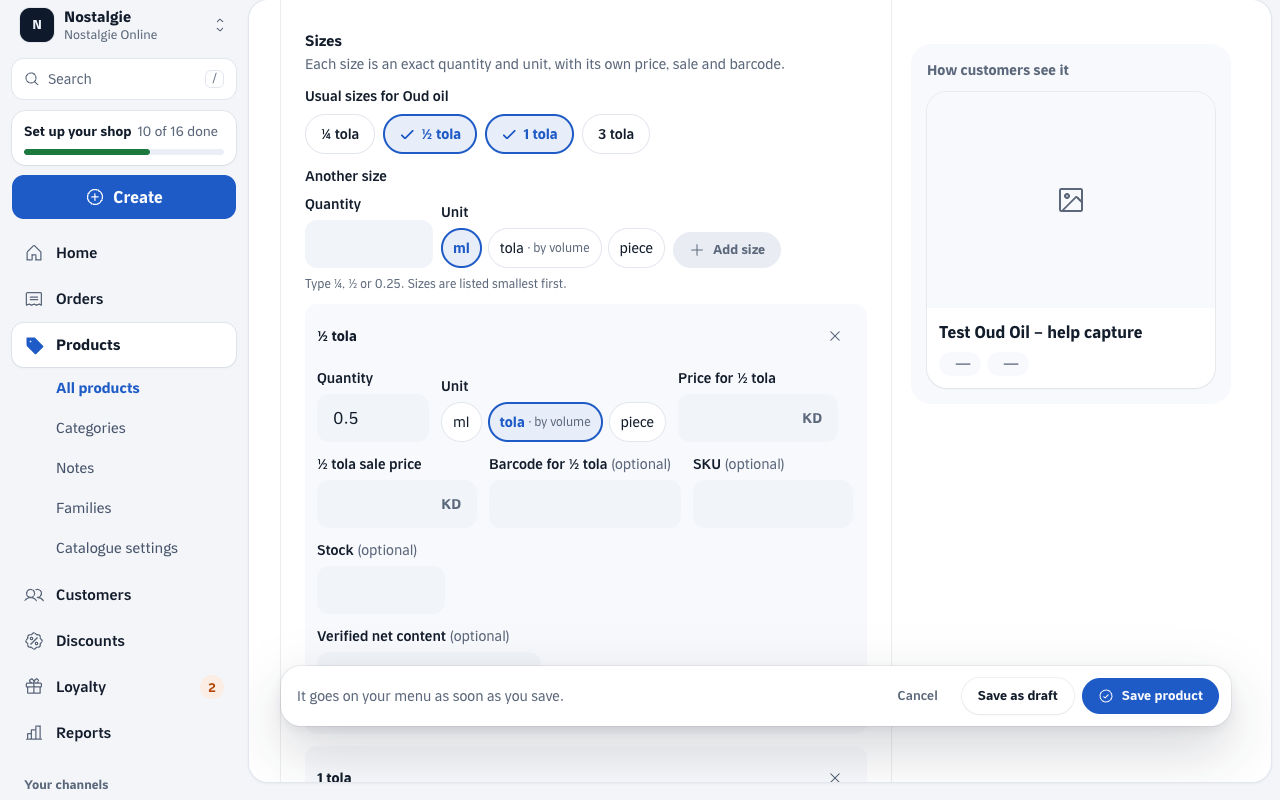
Scroll back up to Sizes, and under Usual sizes for … tick the sizes you sell.
Enter another size, if you need one
For a size that isn't listed, under Another size, enter the Quantity and choose the Unit. You can enter ¼, ½ or 0.25.
Add the size
Select Add size. Each size gets its own row, smallest first.
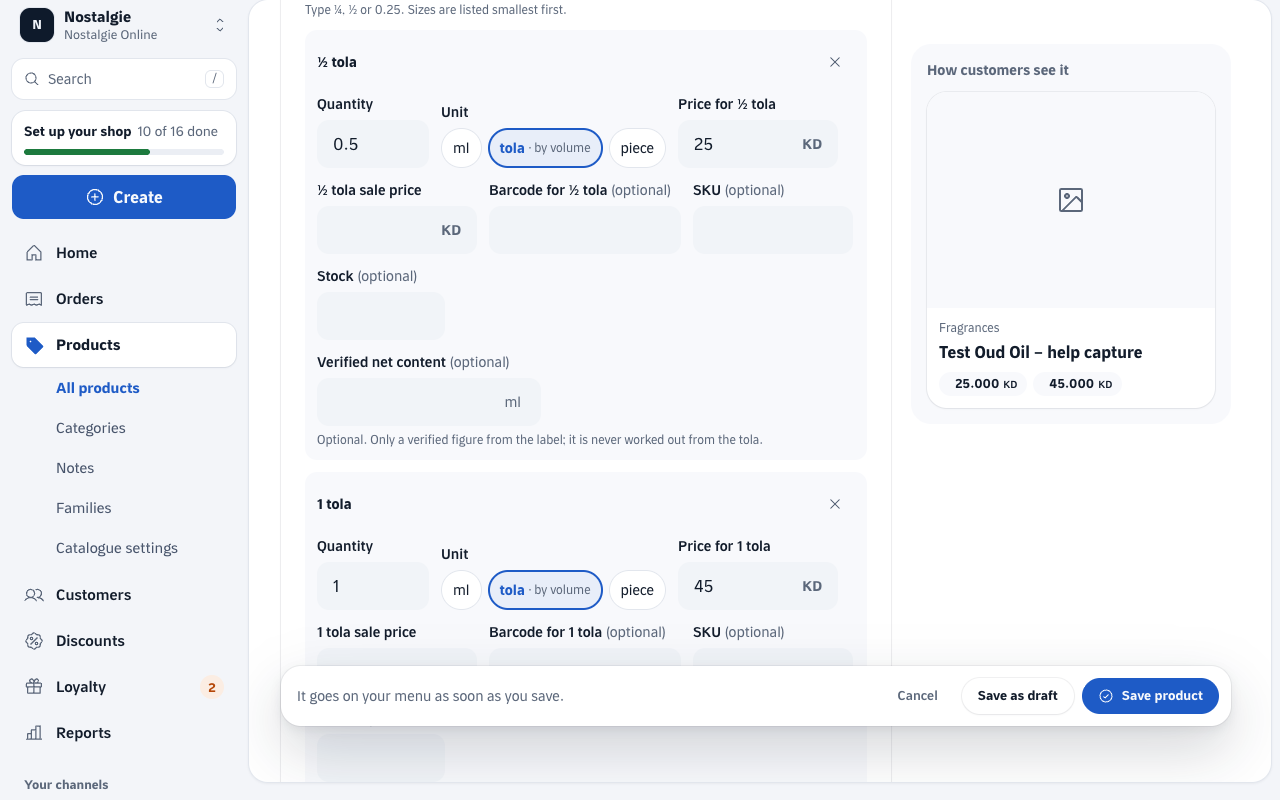
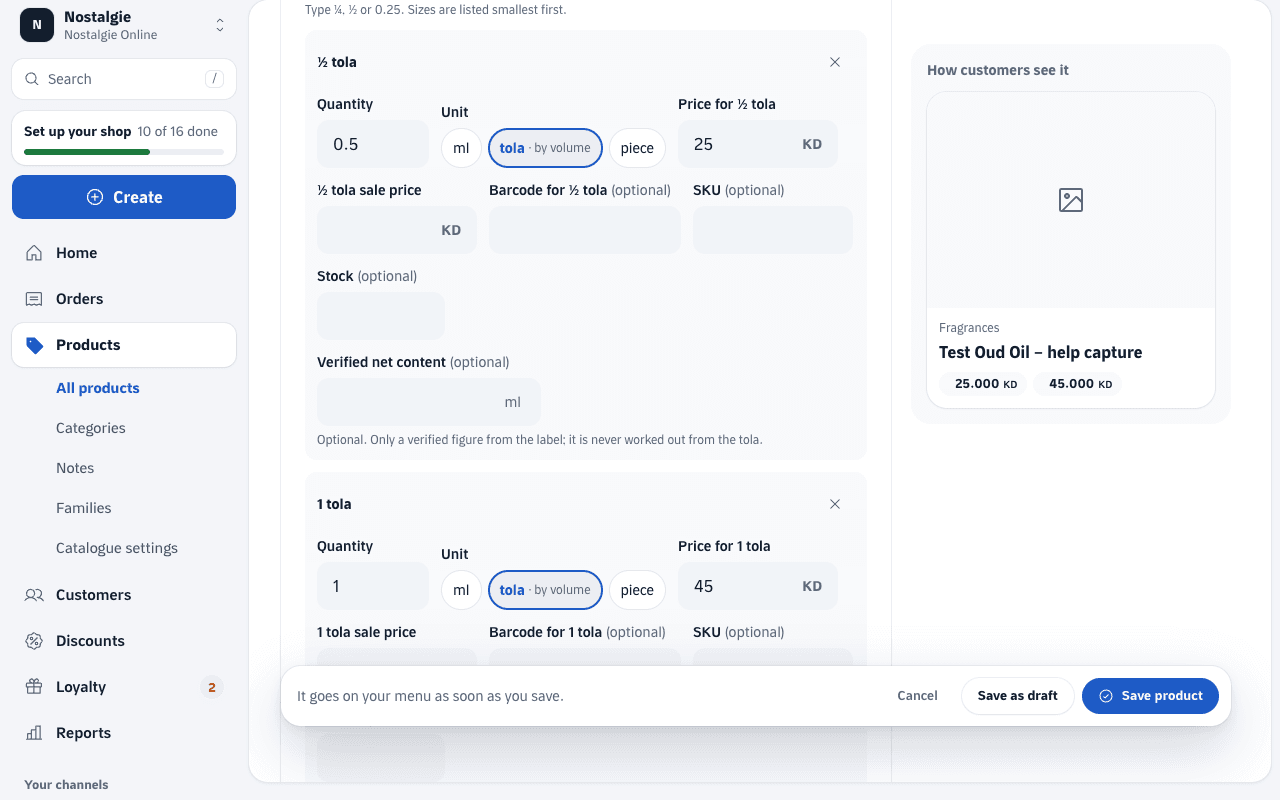
Price each size
In each size's row, enter the price, for example Price for ½ tola. Optional: a sale price, a barcode, an SKU and the Stock. For a tola size, optional: the Verified net content from the label.
Once a product has sizes, it has no single price: each size has its own price and its own sale price.
Save it
Select Save product. To keep it off the menu for now, select Save as draft instead.
Later, to put a draft on the menu, open the product, select More options, and under Show on the menu change Draft, hidden to On the menu, then Save changes.
The usual sizes Helm offers depend on the product type. Some of them:
They're only a starting point, and only the units the physical form allows are shown.
What happens next
- You see and It shows in your app and at the POS now.
- After Save as draft, you see … is saved as a draft instead. Customers don't see it until you put it on the menu.
- Select Add another to add the next product, or See the menu to go back to the list.
Each size, priced on its own
Unit
Price for ½ tola
Verified net content
How customers see it
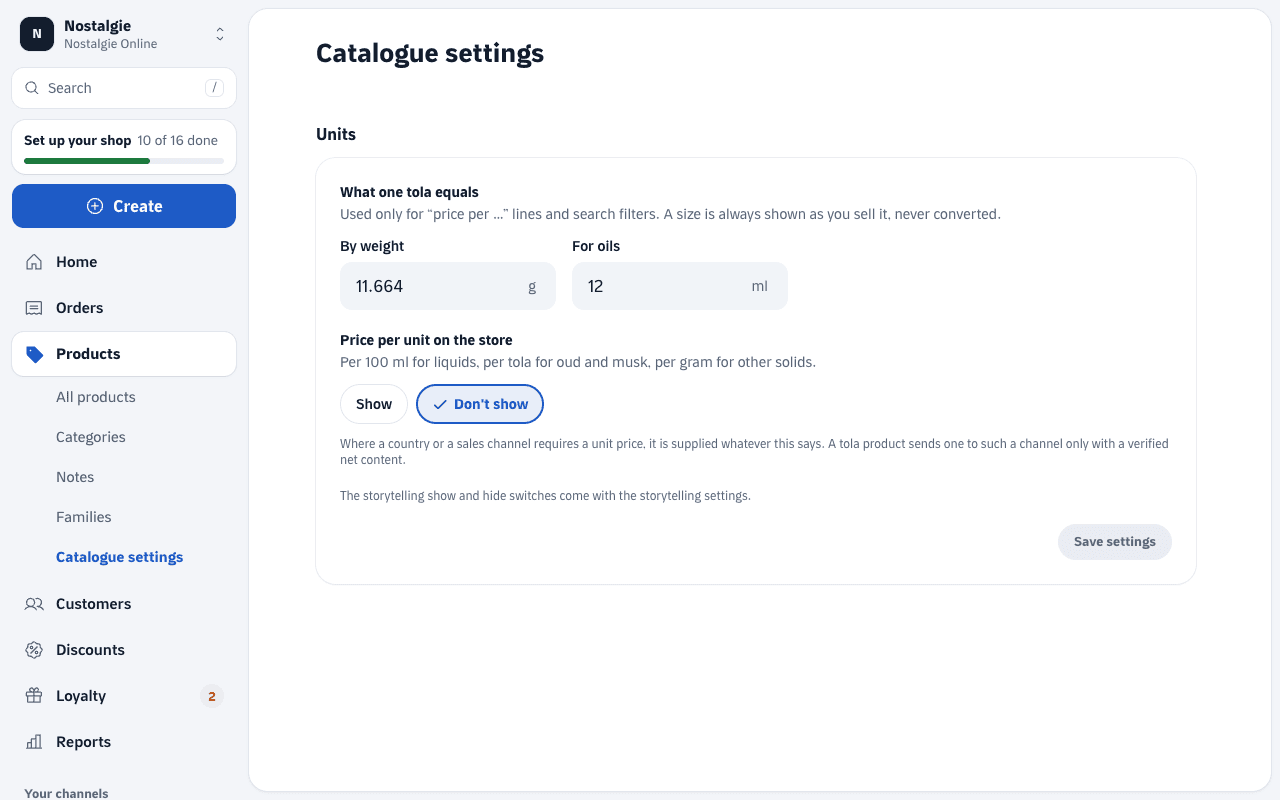
What one tola equals
Helm uses your store's tola only for "price per …" lines and search filters.
Open the units
In the side menu:ProductsCatalogue settingsUnder Units, What one tola equals has two boxes: By weight, in g, and For oils, in ml.
Enter the figures
Enter the figures your store uses.
Save
Select Save settings.
Price per unit
Under Price per unit on the store, choose Show or Don't show.
What one tola equals
By weight
For oils
If something goes wrong
No physical form is chosen yet. Scroll down to Perfume, Basics, and choose one under Physical form.
Type the name in the box marked main, then save again.
Choose a category under Where it goes on the menu.
The product has no sizes and no Price. Type a price, or add sizes.
A size has no price yet. Type a price in each size's row.
Fix the size's Quantity.
Each size can appear only once. Remove the repeat.
Choose a unit the form allows, or change the Physical form.
Lower the sale price, or remove it.
Fix one of the barcodes.
Nothing was saved. Check your connection and select Save product again.
Your role doesn't hold Edit the menu and products, or your plan shows products read only. Ask the owner.