Account and settings
Set up your online store's shop settings
Choose how your online store shows prices, where it sells and ships, how checkout works and which page is which. See whether your own domain is switched on.
Tried on a demo store on 29 November 2026
The Online store part of Settings holds two pages: Shop settings and Domain. Your store's name and logo are on Business details: see Set your business name, logo and languages.
Before you start
- Your plan includes an online store. Without one, Settings doesn't show the Online store group.
- For Shop settings: you're the owner, or a manager whose role holds Edit settings. Managers don't hold it unless the owner adds it.
- For Domain: only the owner sees it.
Watch the steps
- In Settings, under Online store, select Shop settings.
- Helm marks the values recommended for your type of business. One button applies them to prices, selling and checkout.
- Your currency comes from your market. Choose where its code goes and the separators.
- Used for taxes and shipping. The country is a two-letter code, such as KW.
- All countries, or only the ones you list.
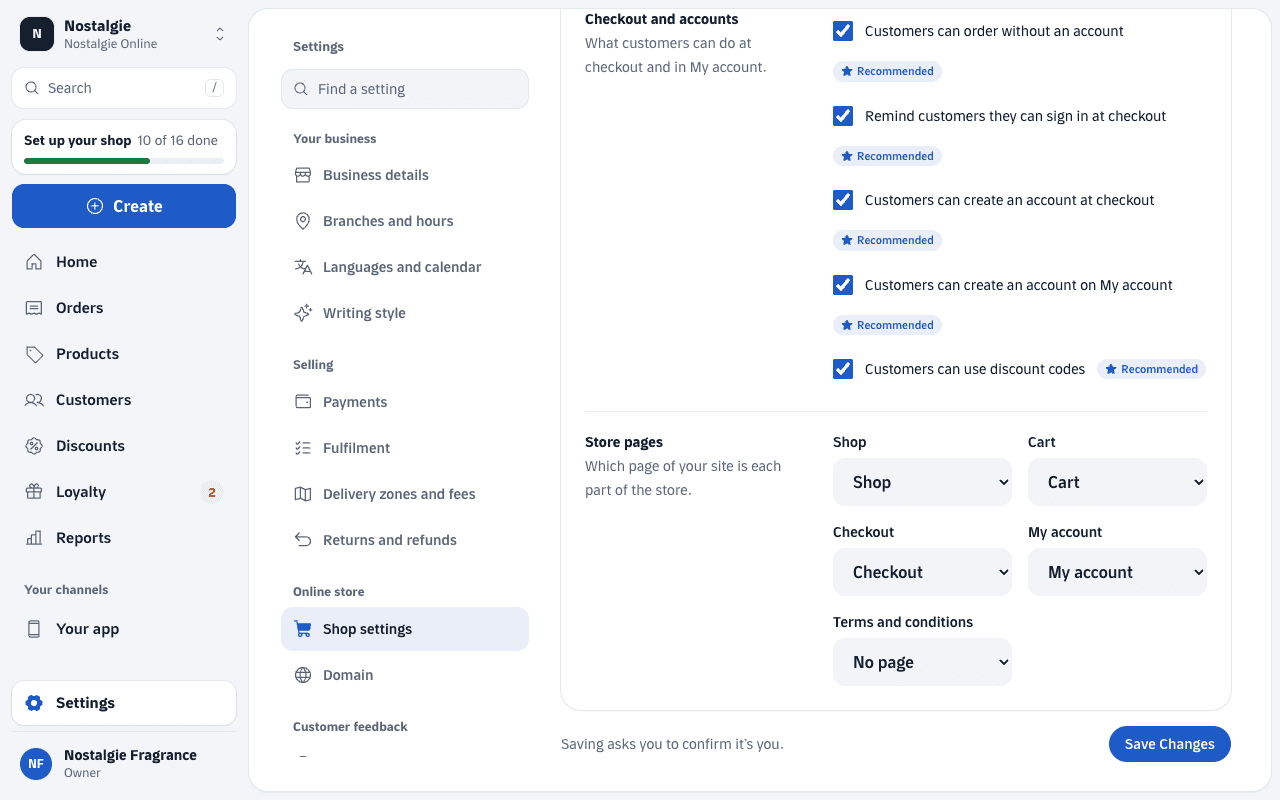
- Guest orders, accounts and discount codes: tick what customers can do.
- Which page of your site is the shop, cart, checkout, My account and terms.
- Select Save Changes, then confirm it's you with your 6-digit code.
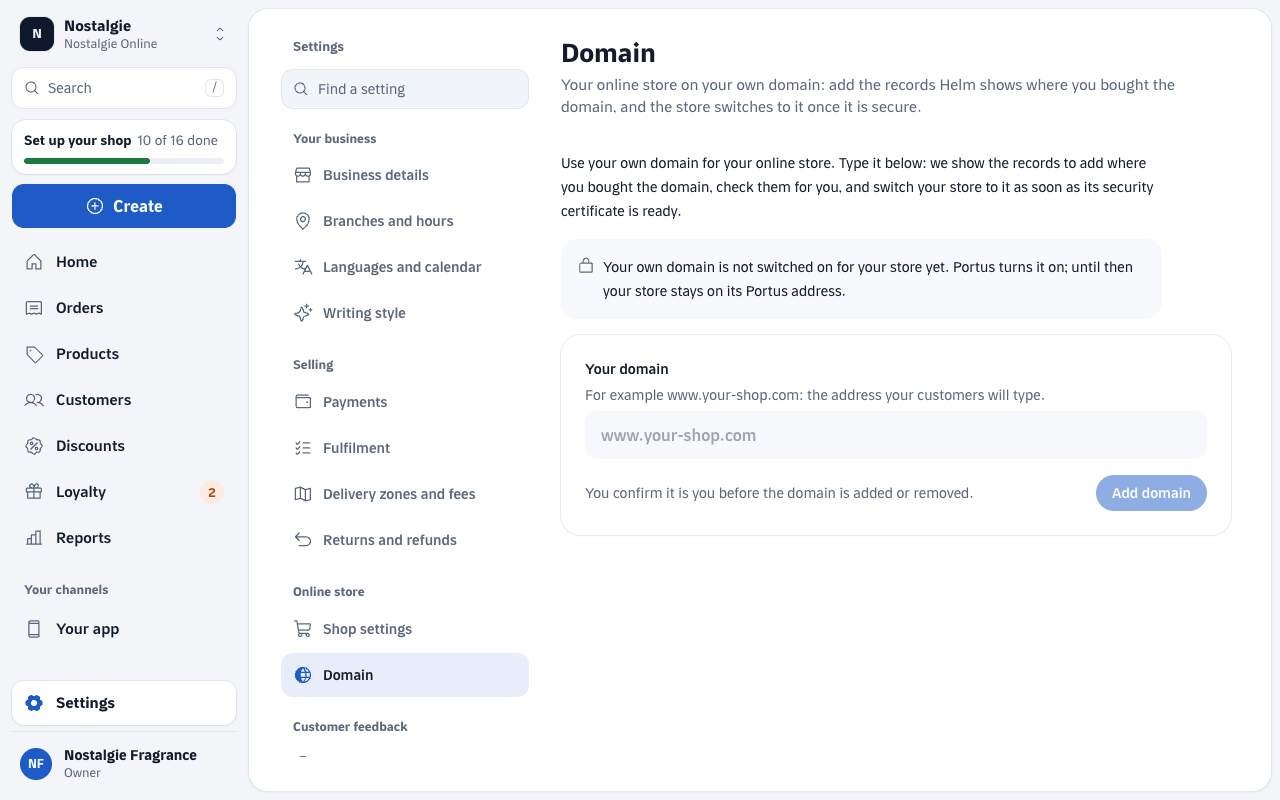
- On Domain, Helm says whether your own domain is switched on. Portus turns it on.
Set your shop settings
Open Shop settings
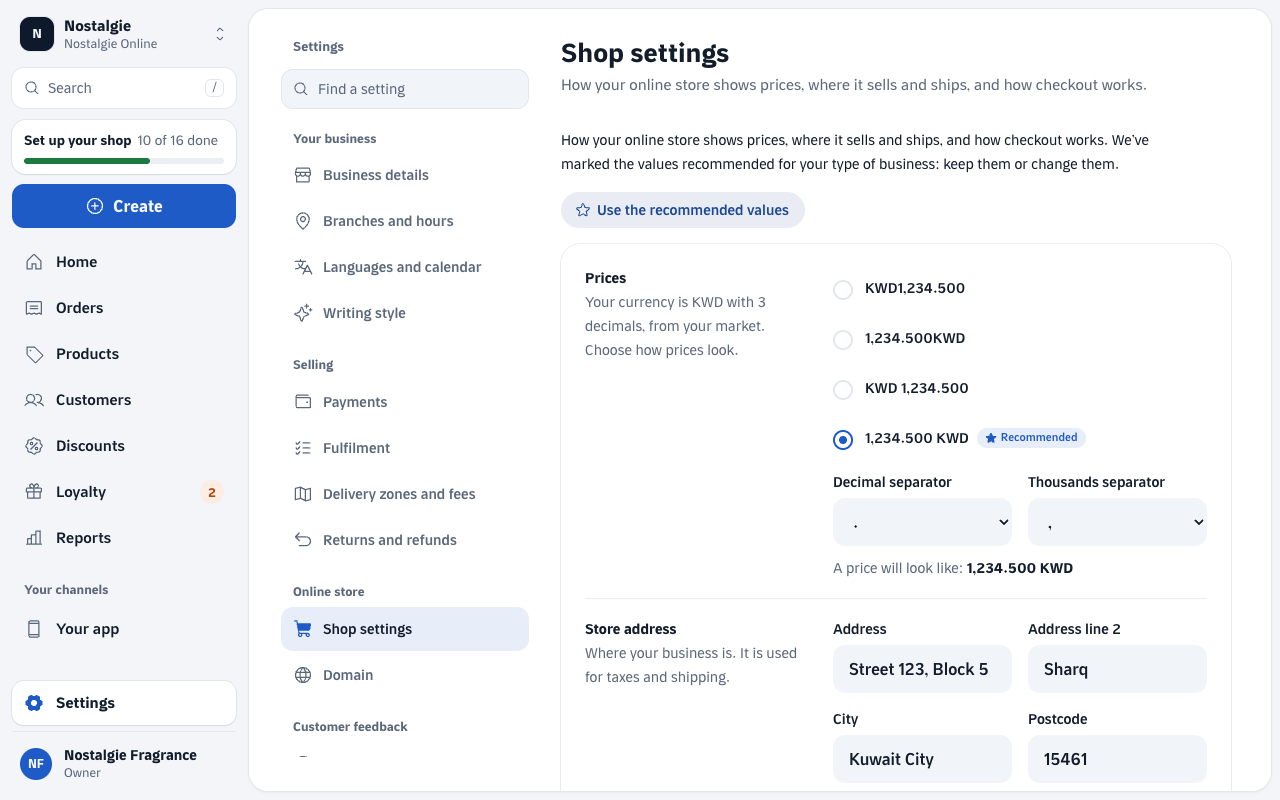
In the side menu:SettingsOnline storeShop settingsThe page is called Shop settings. It opens with the values your online store holds now.
Use the recommended values (optional)
Values recommended for your type of business carry a Recommended tag. Select Use the recommended values to apply them to the price format, where you sell and ship, and the checkout ticks. Your store address and store pages stay as they are. You can still change anything before saving. The button shows only when your type of business has recommended values.
Prices
Your currency and its decimals come from your market, for example KWD with 3 decimals in Kuwait. Choose where the currency code goes, then the Decimal separator and the Thousands separator. A price will look like: shows the result, for example
1,234.500 KWD.Store address
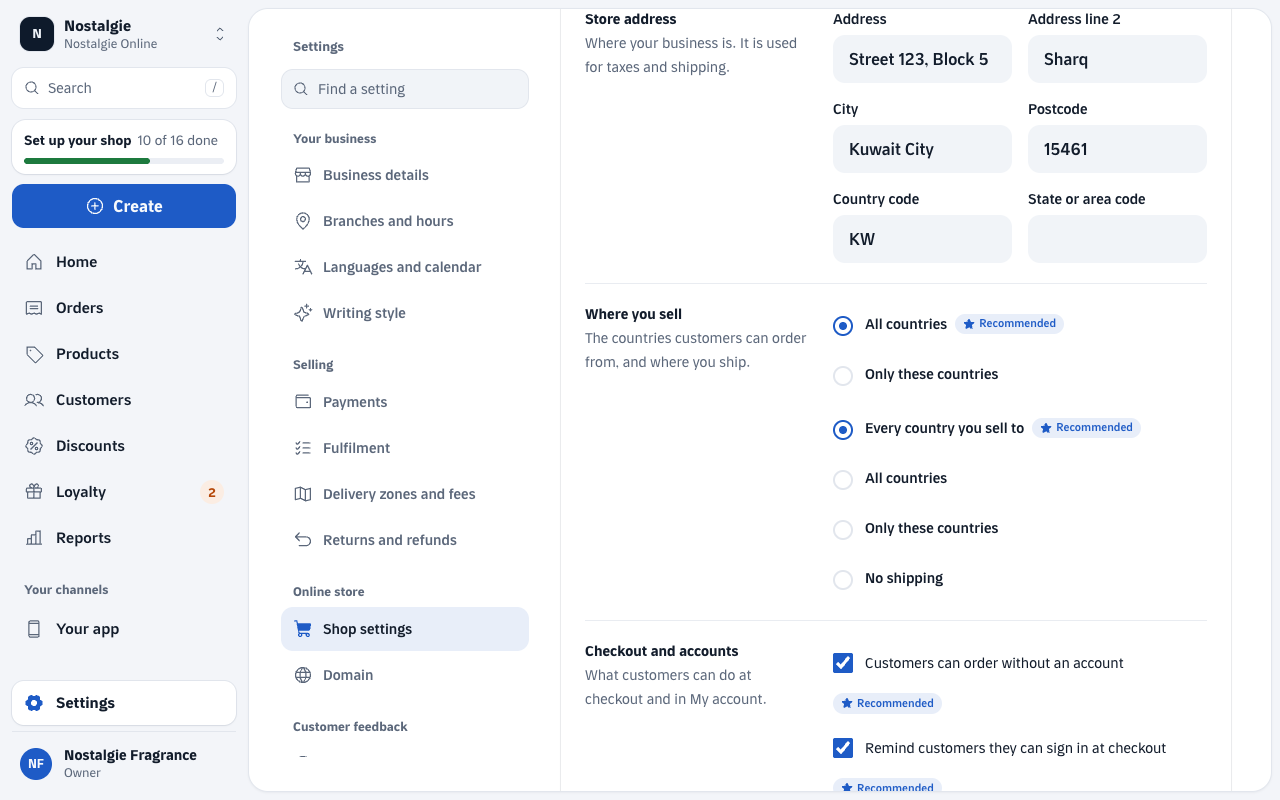
Fill in Address, Address line 2, City and Postcode. In Country code, type two letters, such as KW. State or area code is optional.
Where you sell
Under Where you sell, the first choice is where customers can order from:
The second choice is where you ship: Every country you sell to, All countries, Only these countries or No shipping.
Checkout and accounts
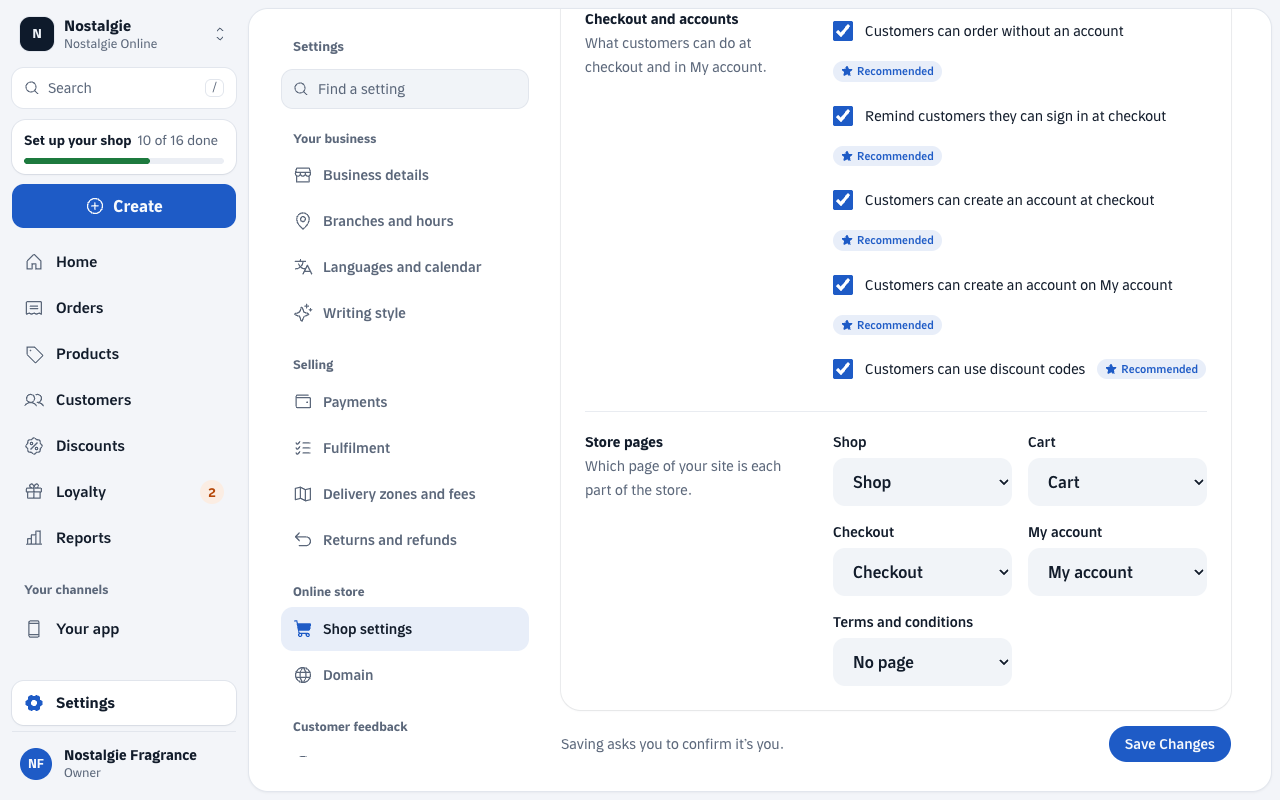
Tick what customers can do:
- Customers can order without an account
- Remind customers they can sign in at checkout
- Customers can create an account at checkout
- Customers can create an account on My account
- Customers can use discount codes
Store pages
For Shop, Cart, Checkout, My account and Terms and conditions, choose the page of your site that plays that part, or No page.
Save
Select Save Changes. Helm shows Confirm it’s you: enter your 6-digit code and select Confirm. Where your browser supports it, you can select Use Face ID, Touch ID or a security key instead. If you signed in a short while ago, Helm may not ask.
Checkout, pages and saving
Checkout and accounts
Store pages
Save Changes
See whether your own domain is on
Open Domain
In the side menu:SettingsOnline storeDomainThe page is called Domain. Only the owner sees it.
Read the message
While your own domain isn't switched on, Helm shows Add domain stays greyed out. To use your own domain, contact Portus.
Domain
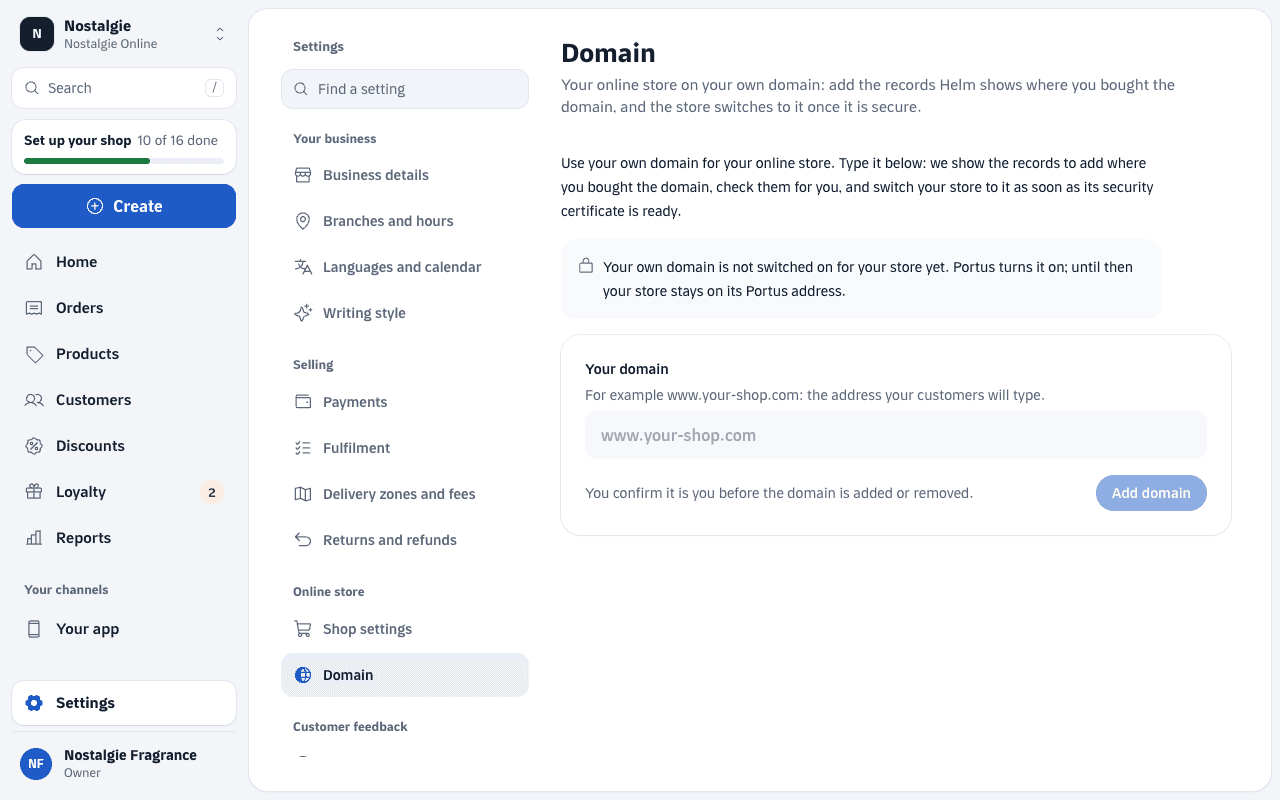
Not switched on yet
What happens next
- After saving shop settings, you see Your online store uses the new settings.
If something goes wrong
Your online store isn't connected yet, or its connector needs updating. Contact Portus.
Choose a different Thousands separator or Decimal separator.
Country code takes two letters only.
Under Only these countries, type each country as two letters, separated by commas.
You chose Only these countries but listed none. Add at least one, or choose All countries. The same goes for
Someone else saved shop settings meanwhile. Reload the page, make your changes again and save.
Nothing was saved. Contact Portus.
Nothing was saved. Select Save Changes again.
Your plan has no online store, or your role doesn't hold Edit settings. Domain shows to the owner only.