Get started
Set your business name, logo and languages
Give your store its name, logo and brand colour on Business details, and choose the languages customers can use and your primary language.

Tried on a demo store on 29 November 2026
Before you start
- Your role needs the Edit settings permission. The owner has it.
- For the logo, have a PNG, JPEG or WebP image, 128 to 2048 px on each side and up to 2 MB. A square logo looks best.
Watch the steps
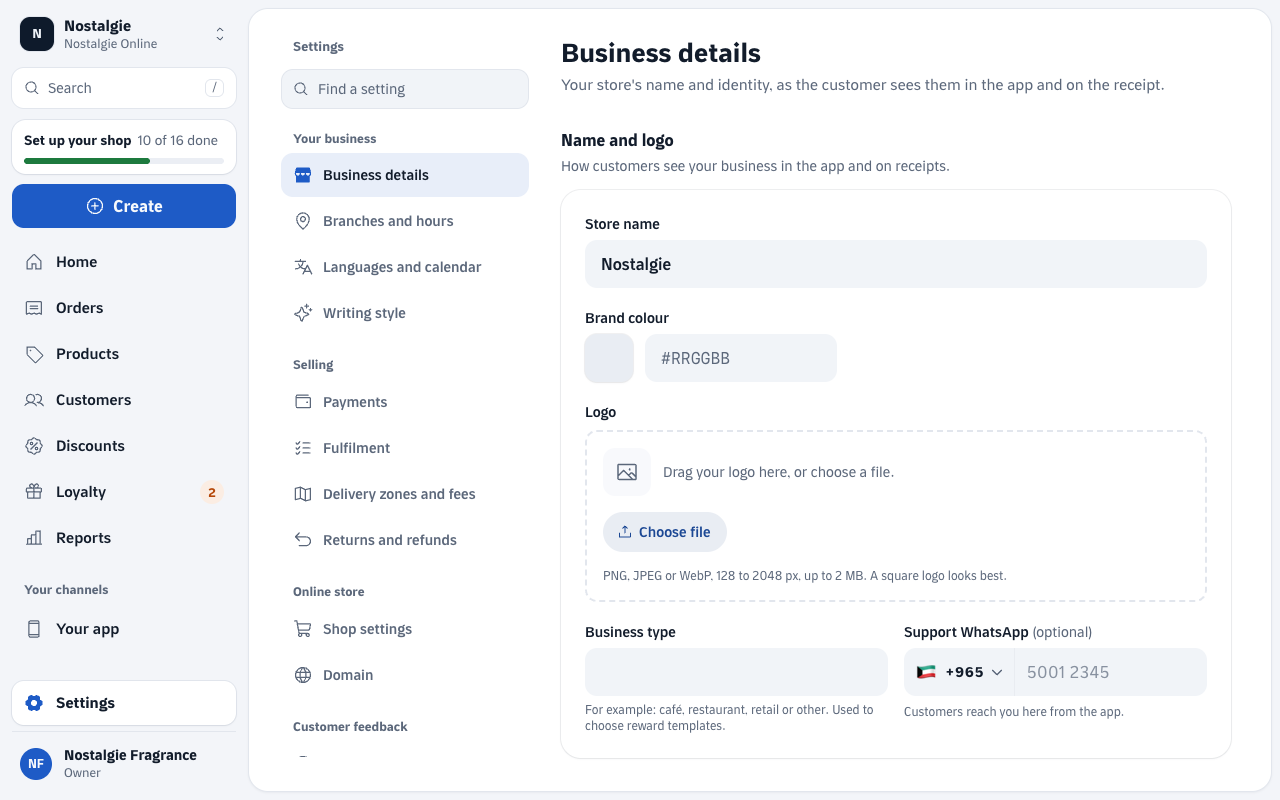
- In Settings, under Your business, select Business details.
- The name customers see in the app and on receipts.
- Drag your logo here, or select Choose file. It's saved as soon as it uploads.
- Optional: your business type, and a WhatsApp number for support.
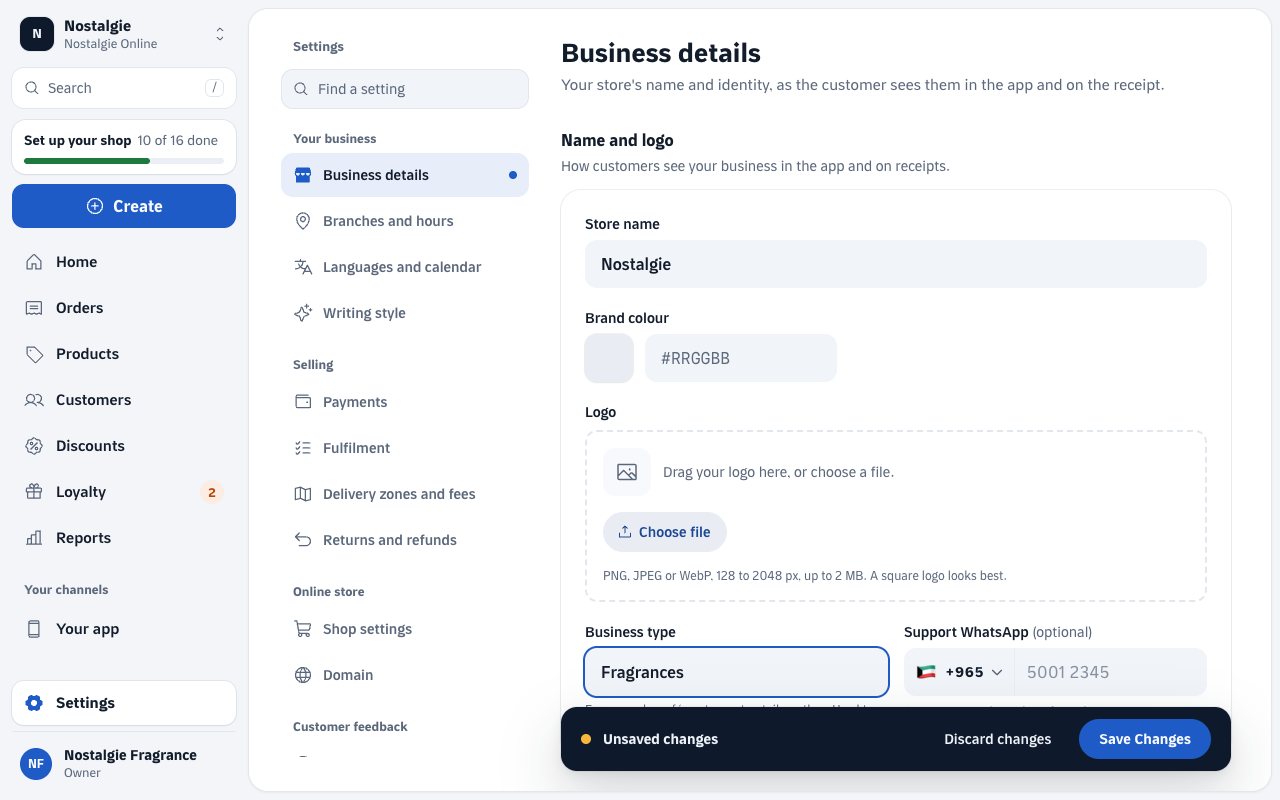
- Select Save Changes, or Discard changes to go back.
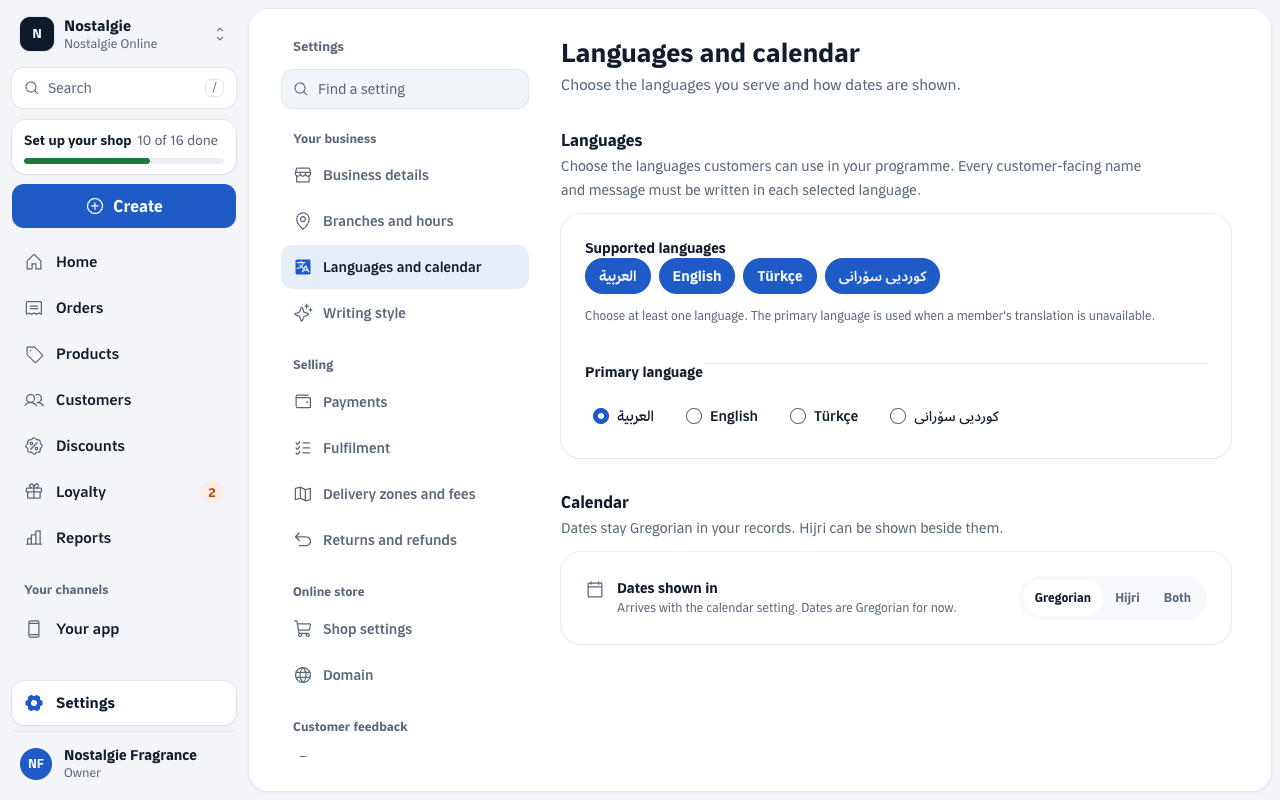
- On Languages and calendar, select each language customers can use.
- Used when a member's translation is unavailable. Then save.
Set your name and logo
Open Business details
In the side menu:SettingsBusiness detailsThe page is called Business details. Its first part is Name and logo.
Your store's name
Type it in Store name. It can't be left empty.
Your brand colour (optional)
Under Brand colour, select the colour square to pick a colour, or type its code, for example
#1F4E79.Your logo
Under Logo, drag your image into the box, or select Choose file. A bar shows the upload. When it's done, Helm shows your logo On light and On dark, as it will look on a light and a dark background.
Your business type and support number (optional)
In Business type, describe what you do.
For Café and roastery, Counter-service restaurant, Full-service restaurant
For example: café or restaurant.
For Fragrance and cosmetics, Abaya, Fashion, Health and beauty shop, Pharmacy and beauty
For example: retail.
In Support WhatsApp, add the number customers can reach you on from the app.
Save
As soon as you change something, a bar shows Unsaved changes. Select Save Changes. To go back to what was saved, select Discard changes.
Name and logo
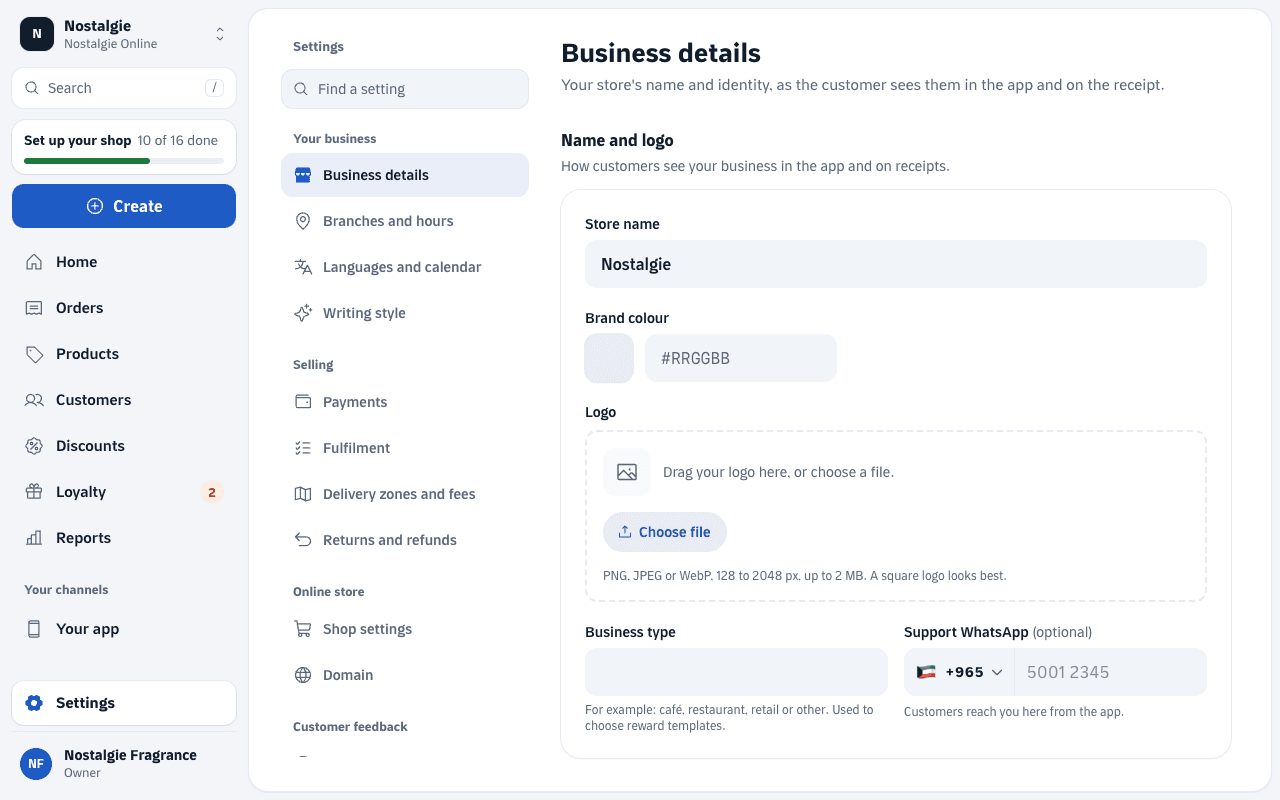
Business details
Store name
Choose file
Choose your languages
Open Languages and calendar
In the side menu:SettingsLanguages and calendarOutside the Gulf, the entry is called Languages.
Choose the languages customers can use
Under Supported languages, select each language to turn it on or off. Every customer-facing name and message must be written in each language you choose. At least one language must stay on.
Choose the primary language
Under Primary language, choose one of the languages you turned on. It's used when a member's translation is unavailable. If you turn off the primary language, Helm makes the first language still on the primary one.
Save
Select Save Changes in the bar at the bottom.
What happens next
- You see and the bar closes.
- Customers see your business this way in the app and on receipts.
If something goes wrong
Store name is empty. Type your store's name, then select Save Changes.
The colour code isn't complete. Type six letters or digits after #, for example #1F4E79, or pick the colour from the square.
Save Changes stays greyed out until every field above is right. Look for the field or message marked in red.
The Support WhatsApp number isn't complete, and Save Changes stays greyed out. Enter the complete number, or leave the field empty.
Turn on at least one language under Supported languages, and choose one of them as the Primary language.
Nothing was saved. Select Save Changes again.
Helm takes PNG, JPEG or WebP only. Save your logo as PNG and choose it again.
Make the file smaller, or save it as JPEG or WebP, and choose it again.
The logo needs at least 128 px on each side, and no more than 2048 px.
Your logo was not changed. Check your connection, then select Choose file (or Replace logo) again.
Helm takes PNG, JPEG or WebP files only. Save your logo in one of them and choose it again.
Resize the logo to 2048 px or less on each side, and choose it again.
The file may be damaged. Export your logo again, then choose the new file.
Your logo was not changed. Try a PNG or JPEG file, or try again later.
Wait a few seconds, then select Choose file (or Replace logo) again.
Helm can't show the saved logo. Select Replace logo and upload it again.
Your role doesn't hold Edit settings. The owner can add it to your role.