Staff and roles
Add a team member and give them a role
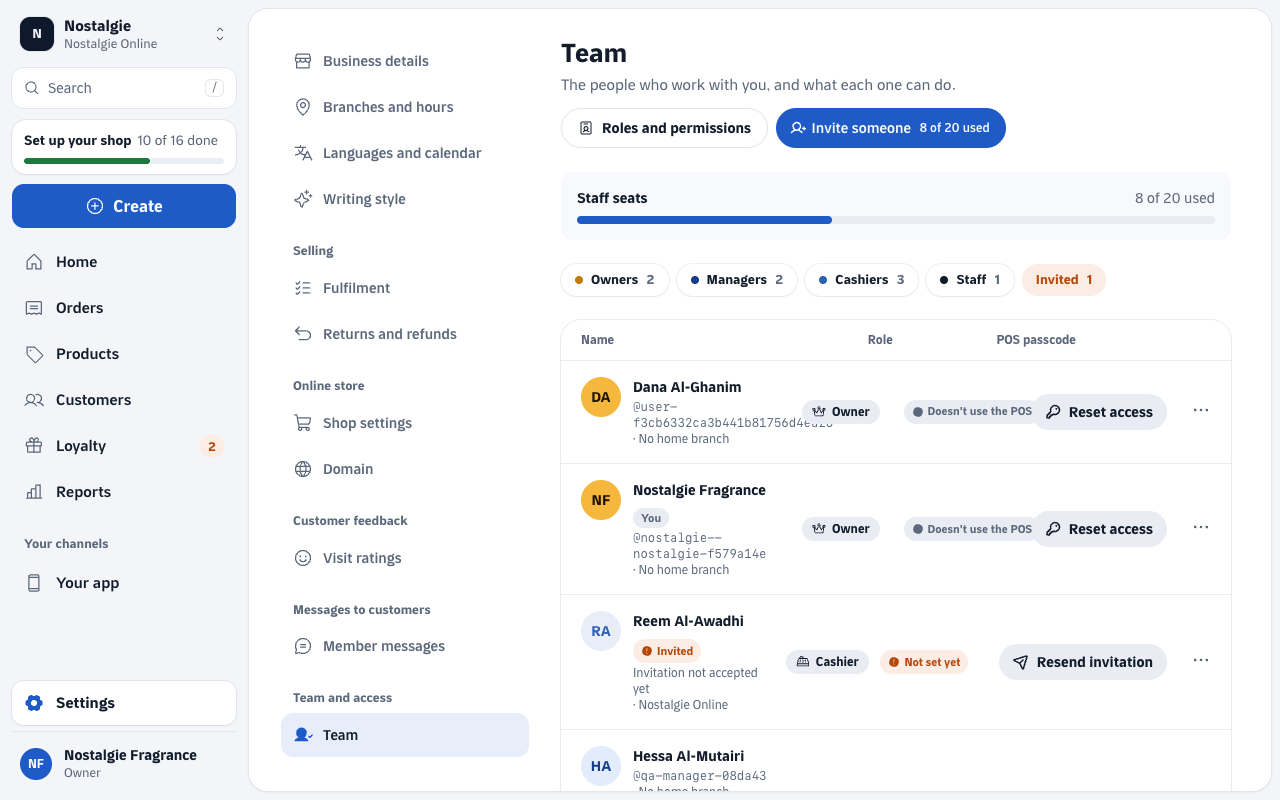
Invite a manager, cashier or staff member from the Team page. Helm creates their sign-in, and for the POS a branch and a PIN, and shows them to you once to hand over.

Tried on a demo store on 29 November 2026
Before you start
- Your role needs the Invite staff or the Manage staff permission. The owner has both.
- Your plan needs a free staff seat. The Team page shows how many are used, for example "9 of 20 used".
- For a manager, have their email address. For a cashier or staff member, know which branch they work at.
Watch the steps
In this video
- On the Team page, select Invite someone.
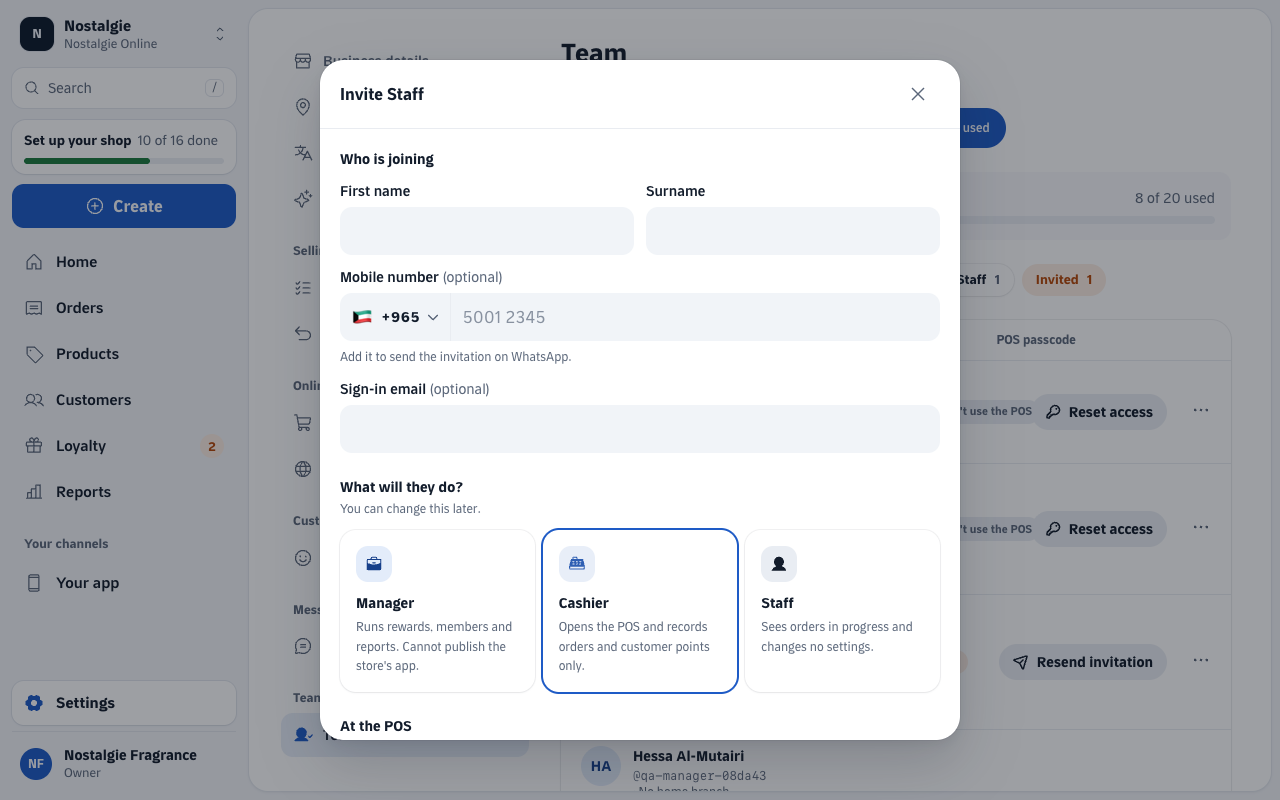
- Enter their first name and surname.
- Manager, Cashier or Staff. Each card says what that role can do.
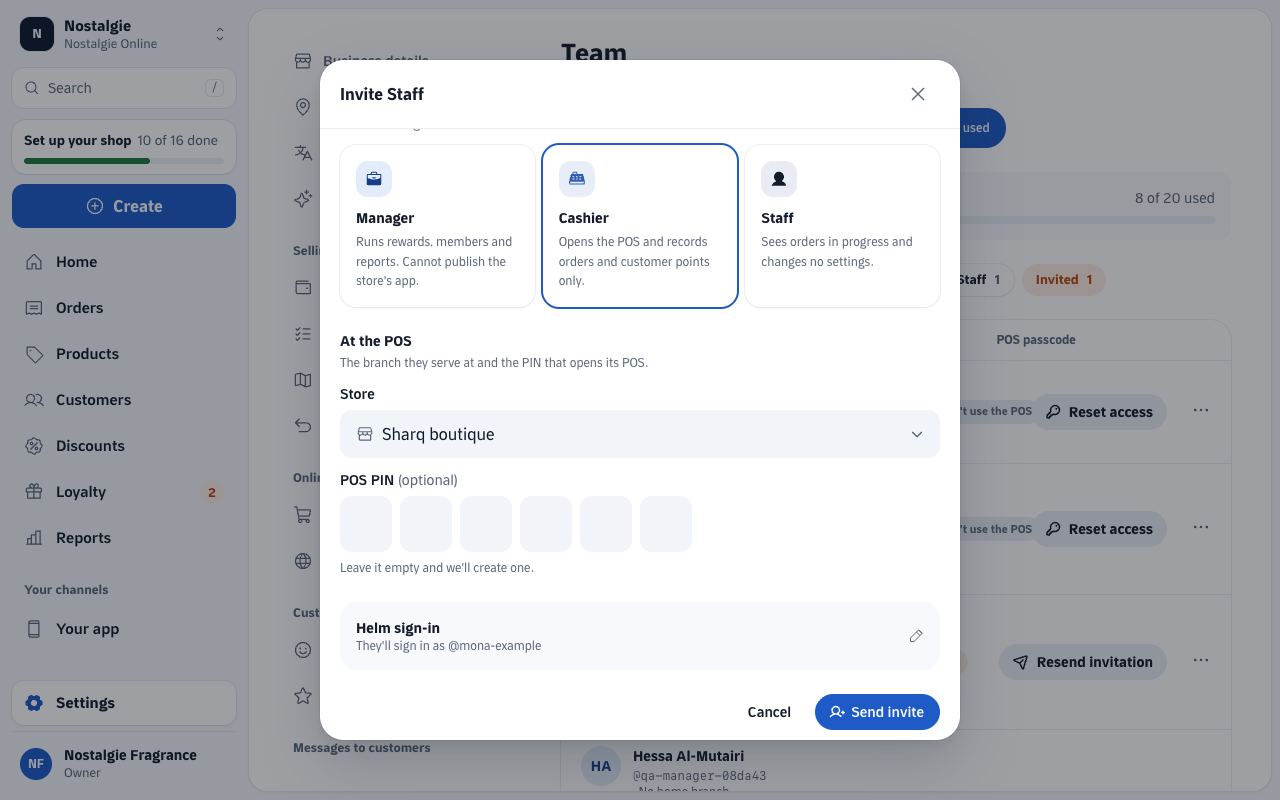
- A cashier or staff member works at one branch's POS.
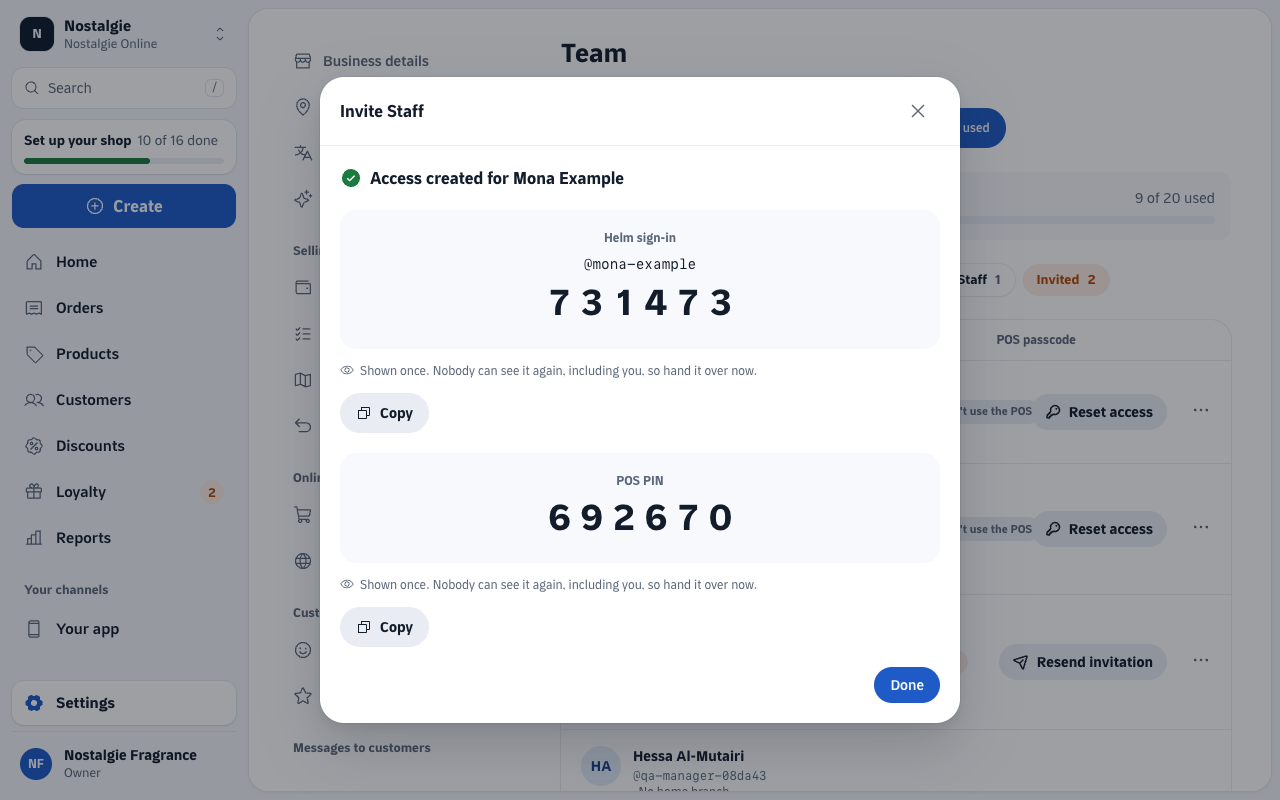
- Helm creates their sign-in and POS PIN.
- They're shown once. Copy them, or give them to the person now.
Invite them
Open the Team page
In the side menu:SettingsTeamThe page is called Team.
Open the invite form
Select Invite someone. The form Invite Staff opens.
Who is joining
Enter their First name and Surname. Optional: add their Mobile number, so you can send the invitation on WhatsApp.
Choose what they will do
Under What will they do?, choose one. You can change it later.
Their email, for a manager
For a Manager, enter their Sign-in email. Managers sign in to Helm with it. For a cashier or staff member it's optional.
Their branch, for the POS
For a Cashier or Staff member, under At the POS, choose their Store. Optional: type a six-digit POS PIN. Leave it empty and Helm creates one.
Send the invite
Optional: open Helm sign-in to choose their Username and Initial code. Leave them and Helm creates both. Then select Send invite. If Helm shows Confirm it’s you, enter your own six-digit code.
For Fragrance and cosmetics
What happens next
- You see with their Helm sign-in, and for the POS their POS PIN.
- Select Copy, or Send on WhatsApp or Send by SMS when Helm offers them, then Done.
- They appear on the Team page as Invited until they first sign in.
What you hand over
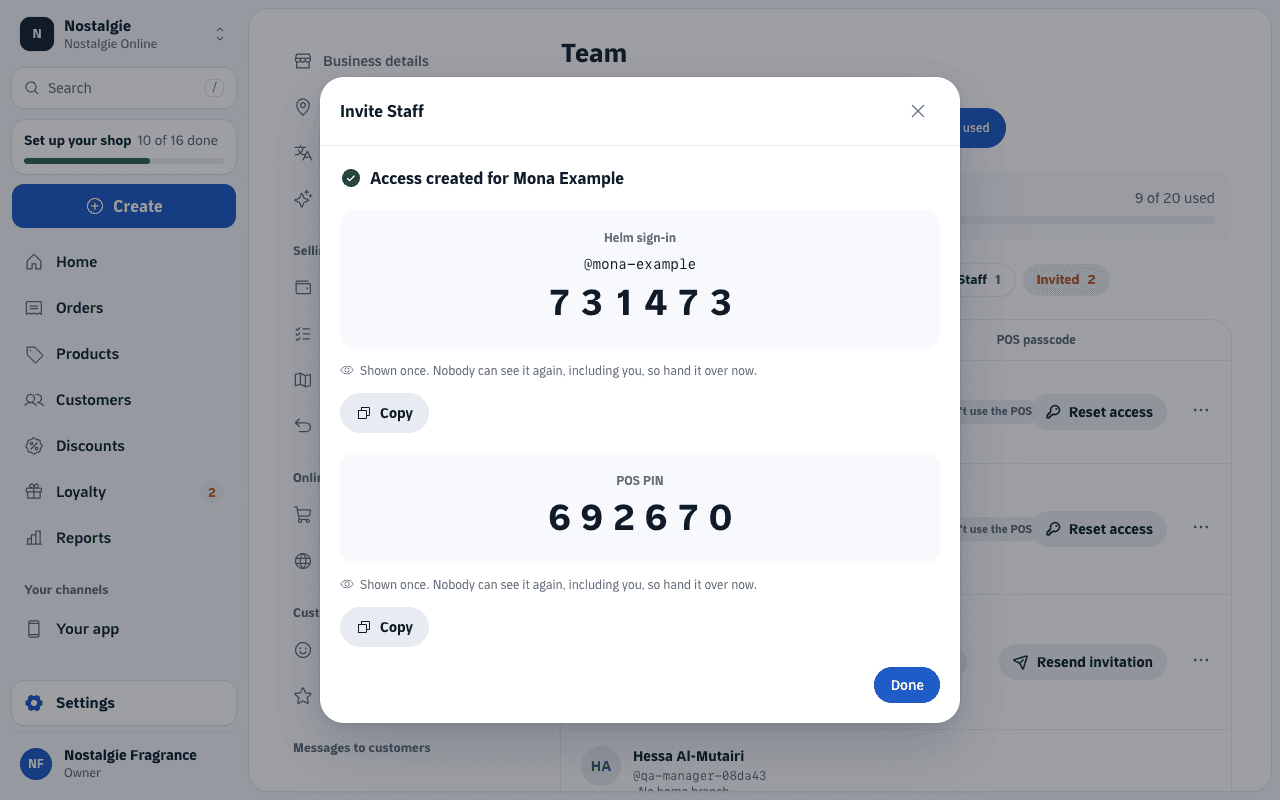
Helm sign-in
POS PIN
Done
Change their role later
Open their menu
On the Team page, open the ⋯ menu on their row.
Change the role
Select Change role, choose the new role, then select Change role again to confirm. A cashier or staff member also needs a store.
If something goes wrong
Every staff seat is in use, and Invite someone is greyed out. Remove someone who has left, or select Talk to us to upgrade. Without the See the plan and billing permission you see Ask your owner to review the plan. instead.
Helm couldn't read your seats. Select Try again.
Choose a Store, then select Send invite again.
Both First name and Surname are needed, up to 40 characters each.
The person exists but has no POS PIN yet. Select Send invite again: Helm sets only the PIN this time.
Nothing was created. Try once more.
Your role doesn't hold Invite staff or Manage staff. The owner can add it to your role.