Staff and roles
Reset a team member's sign-in code
When someone forgets their code or it's locked, give them a new sign-in code from the Team page. They use it once in Helm or on The Terminal, then choose their own.
Tried on a demo store on 29 November 2026
Before you start
- Your role needs the Reset sign-in codes permission. The owner and the manager have it.
- You can reset the code only of someone who works at your branches and whose every permission you hold yourself.
- Have your own 6-digit sign-in code ready. Helm may ask for it before it makes the new code.
- If the person's row says Invited, they haven't signed in yet: select Resend invitation instead. See Add a team member and give them a role.
Watch the steps
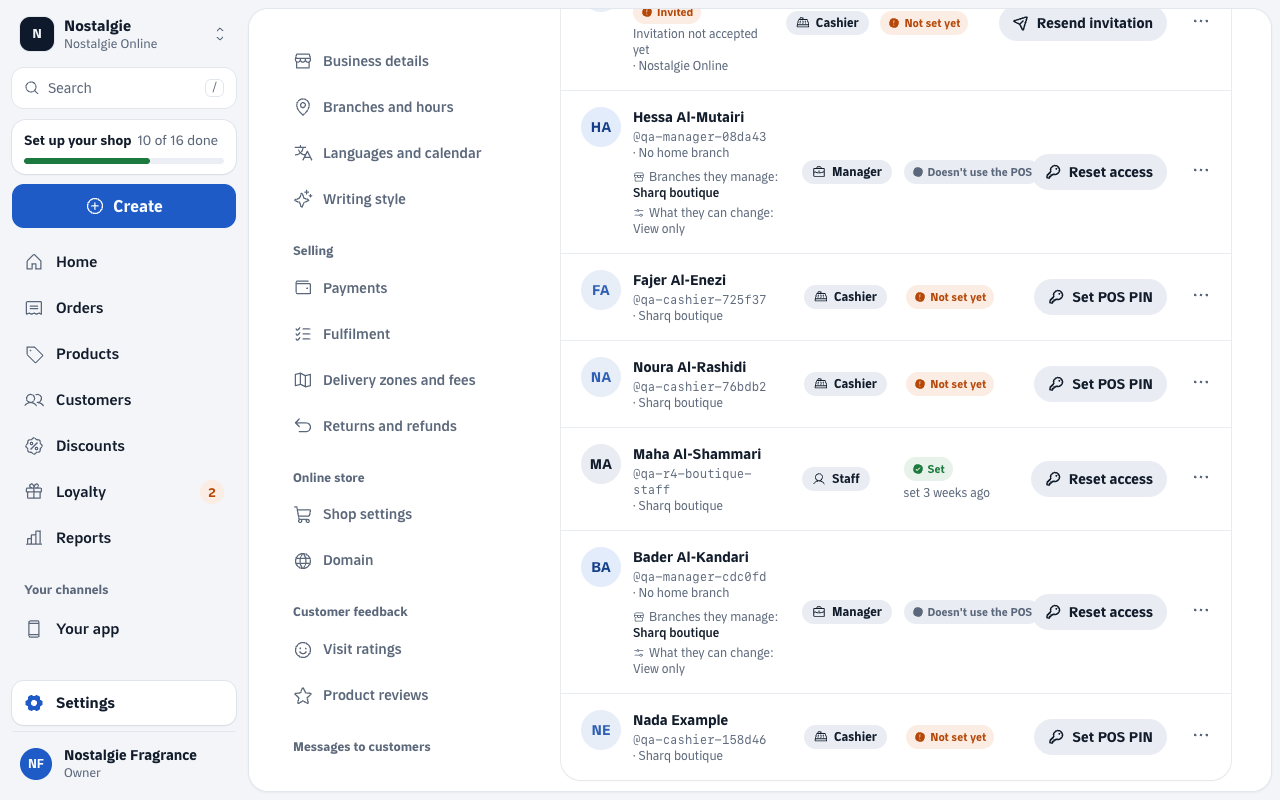
- On the Team page, find the person's row. If its button says Reset access, select it.
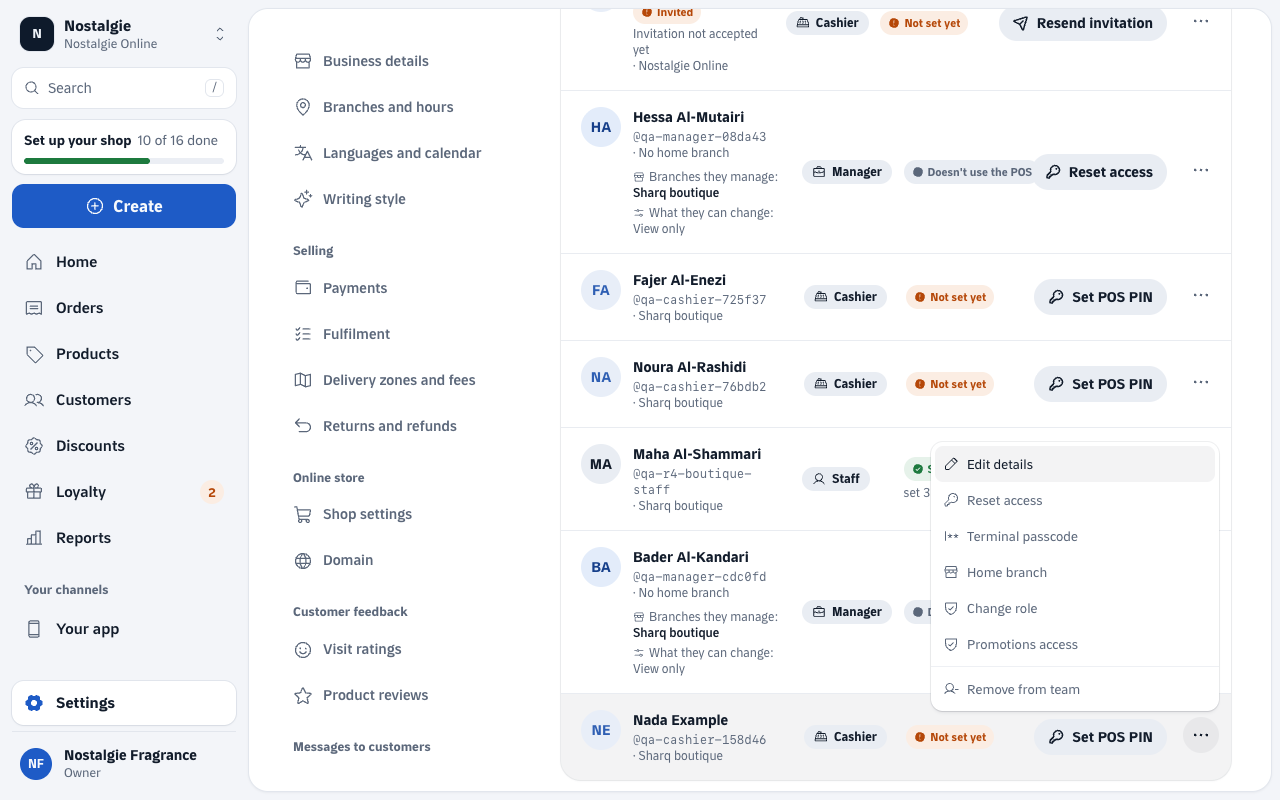
- If the button says Set POS PIN or Unlock POS, open ⋯ and select Reset access.
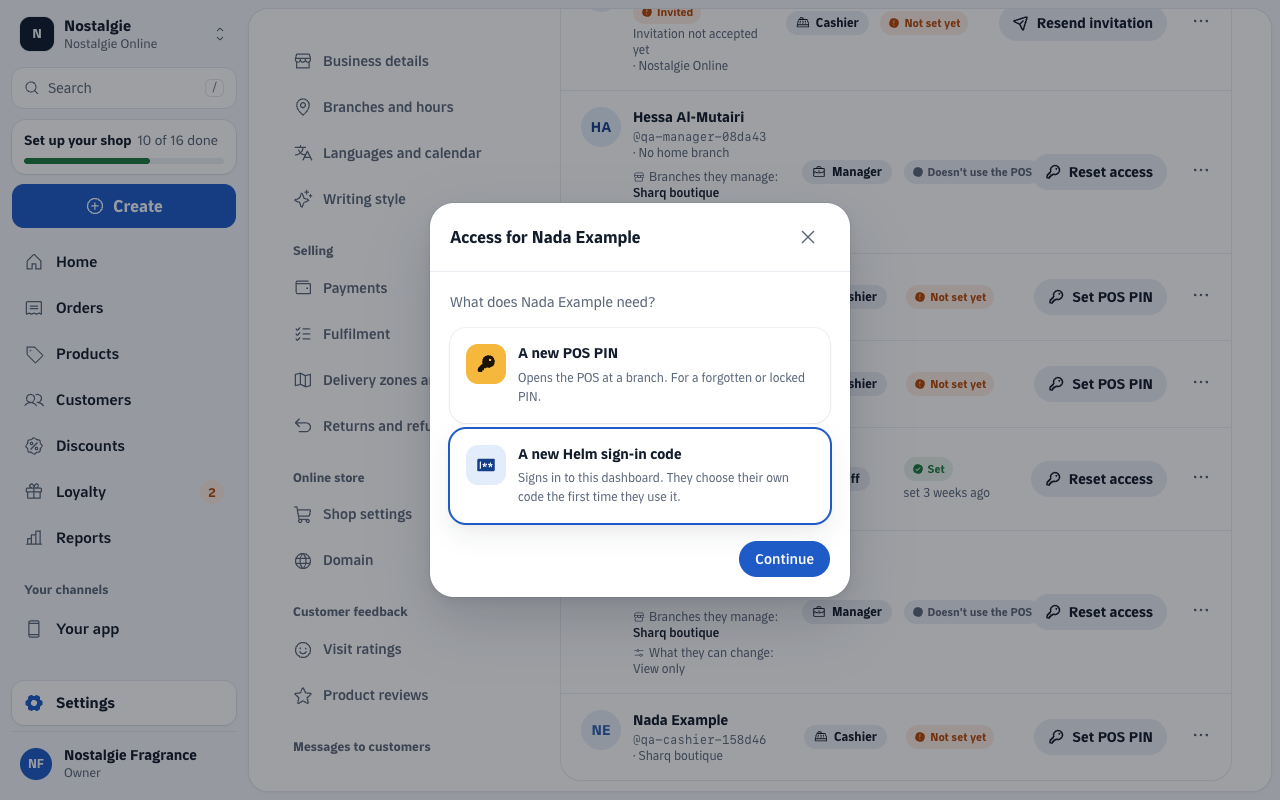
- Choose A new Helm sign-in code. It's the code they use in Helm and on The Terminal.
- Select Continue.
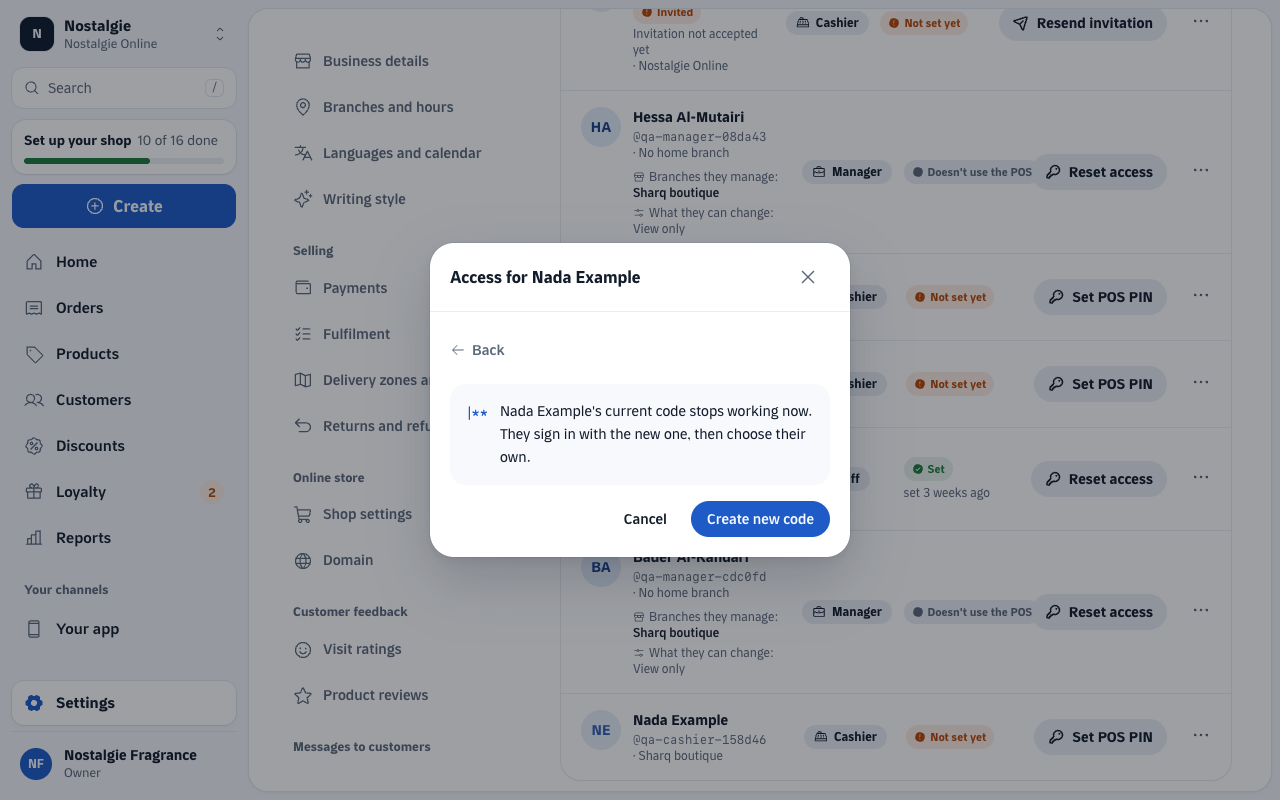
- Their current code stops working as soon as you create the new one.
- Select Create new code.
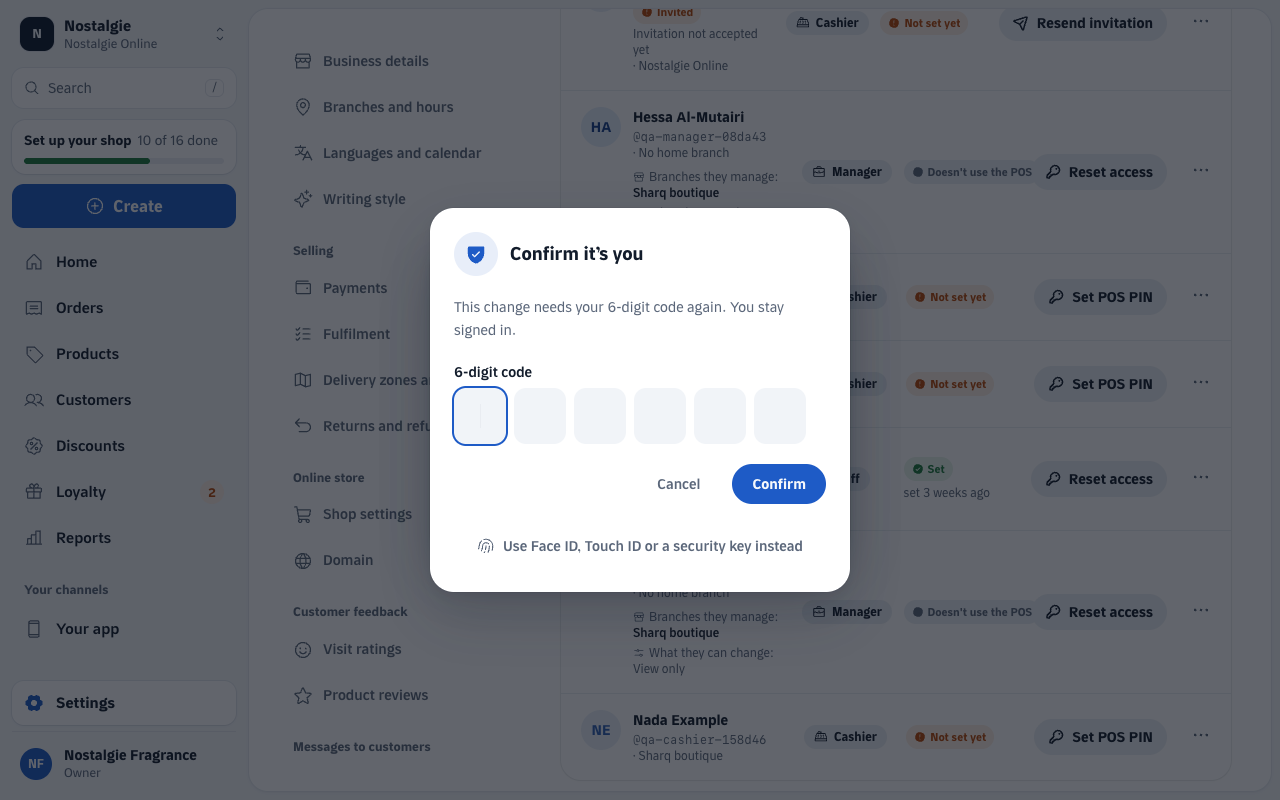
- If Helm asks, enter your own 6-digit code and select Confirm.
Give them a new sign-in code
Open the Team page
In the side menu:SettingsTeamOpen Reset access
Find the person's row. If its button says Reset access, select it. If it says Set POS PIN or Unlock POS, open the ⋯ menu on their row and select Reset access. The window Access for and their name opens.
Choose the sign-in code
Under What does Nada Example need? (with their name), choose A new Helm sign-in code, then select Continue. For someone who doesn't use the POS, such as a manager without a branch, Helm skips this question.
Create it
Helm says Select Create new code.
Confirm it's you, if asked
If Helm shows Confirm it’s you, enter your own code under 6-digit code and select Confirm. Or select Use Face ID, Touch ID or a security key instead. If your code is wrong, Helm shows under the field. After too many tries it shows
Hand it over
Helm shows Helm sign-in with their username and the new code. Select Copy, or Send on WhatsApp or Send by SMS when Helm offers them, then select Done.
For Fragrance and cosmetics
Which one to choose
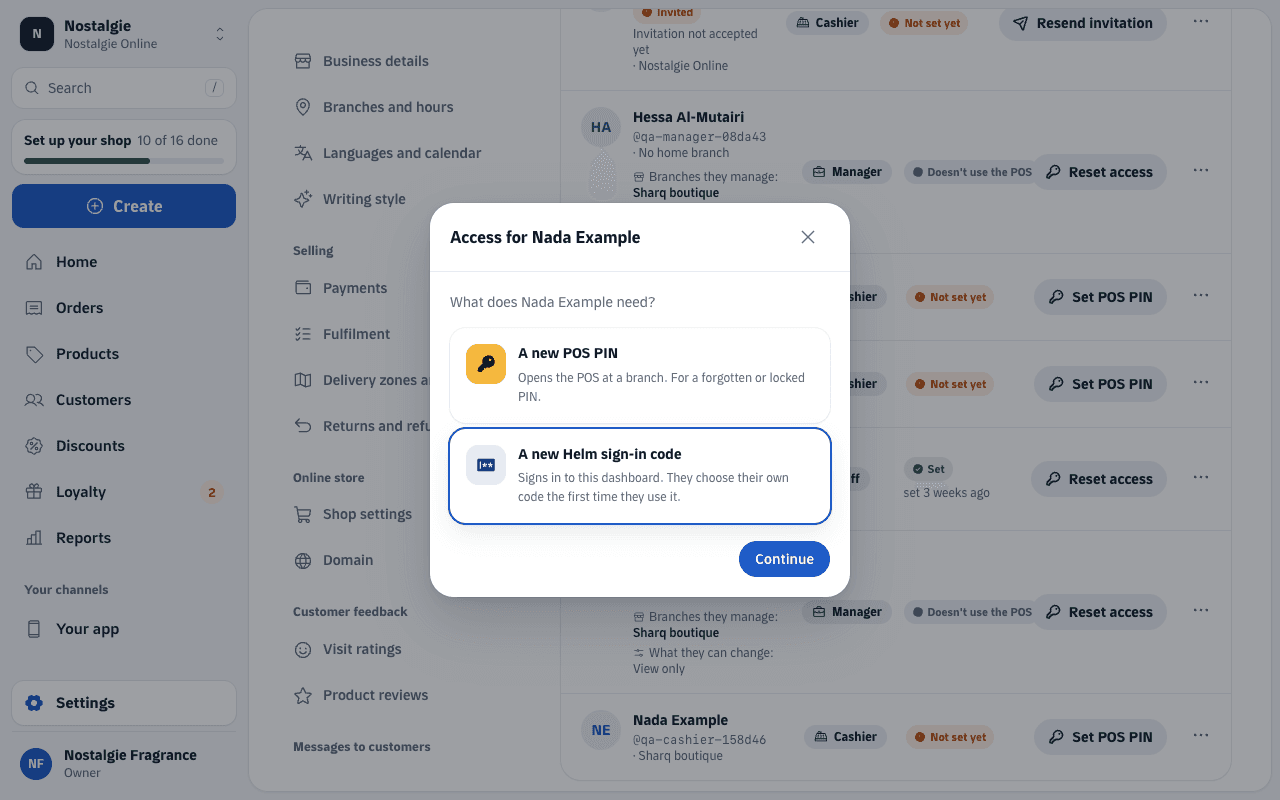
A new POS PIN
A new Helm sign-in code
What happens next
- You see with their name.
- Their old code stops working at once, and they are signed out of Helm and The Terminal. Face ID, Touch ID or security keys they set up for Helm stop working too.
- If their code was locked after too many wrong tries, the lock is cleared.
- The new code works for 72 hours. The first time they use it, in Helm or on The Terminal's keypad, they choose their own code. See Sign in to the POS for the first time.
Check whether they have a code
To see a person's code state without changing it, open the ⋯ menu on their row and select Terminal passcode. It says whether their passcode is Set or Not set, when they must choose their own, and whether it's Locked or Switched off. Nobody can see the code itself. If it says , follow the steps above.
If something goes wrong
Nothing changed, and their old code still works. Try once more. It also appears when Portus refuses the reset: you can't reset your own code this way (your own row still shows Reset access, but it won't work), nor that of someone who holds a permission you don't, works outside your branches, or was removed from the team. To change your own code, use Forgot your code? Sign in by email on the sign-in page: see Sign in to Helm for the first time.
Your role doesn't hold Reset sign-in codes. Ask the owner to add it to your role. Or the person is still Invited: select Resend invitation instead.
A new sign-in code lasts 72 hours. Reset it again and hand it over sooner.
The Terminal shows this. Check that they typed the code under Helm sign-in, not a POS PIN. If the keypad is locked after too many wrong tries, wait for the countdown: see Sign in to the POS for the first time.