Get started
Sign in to the POS for the first time
Type your six-digit passcode on The Terminal's keypad to open the register, lock it when you step away, and get a new passcode if you forget yours.
Tried on a demo store on 29 November 2026
Before you start
- The iPad is paired to your branch and shows Enter your passcode. If it doesn't, a manager pairs it first: Pair an iPad with The Terminal.
- Your manager added you on Helm's Team page and gave you the code shown under Helm sign-in. That first code works for 72 hours: Add a team member and give them a role.
- Your role can use the register at this branch.
Watch the steps
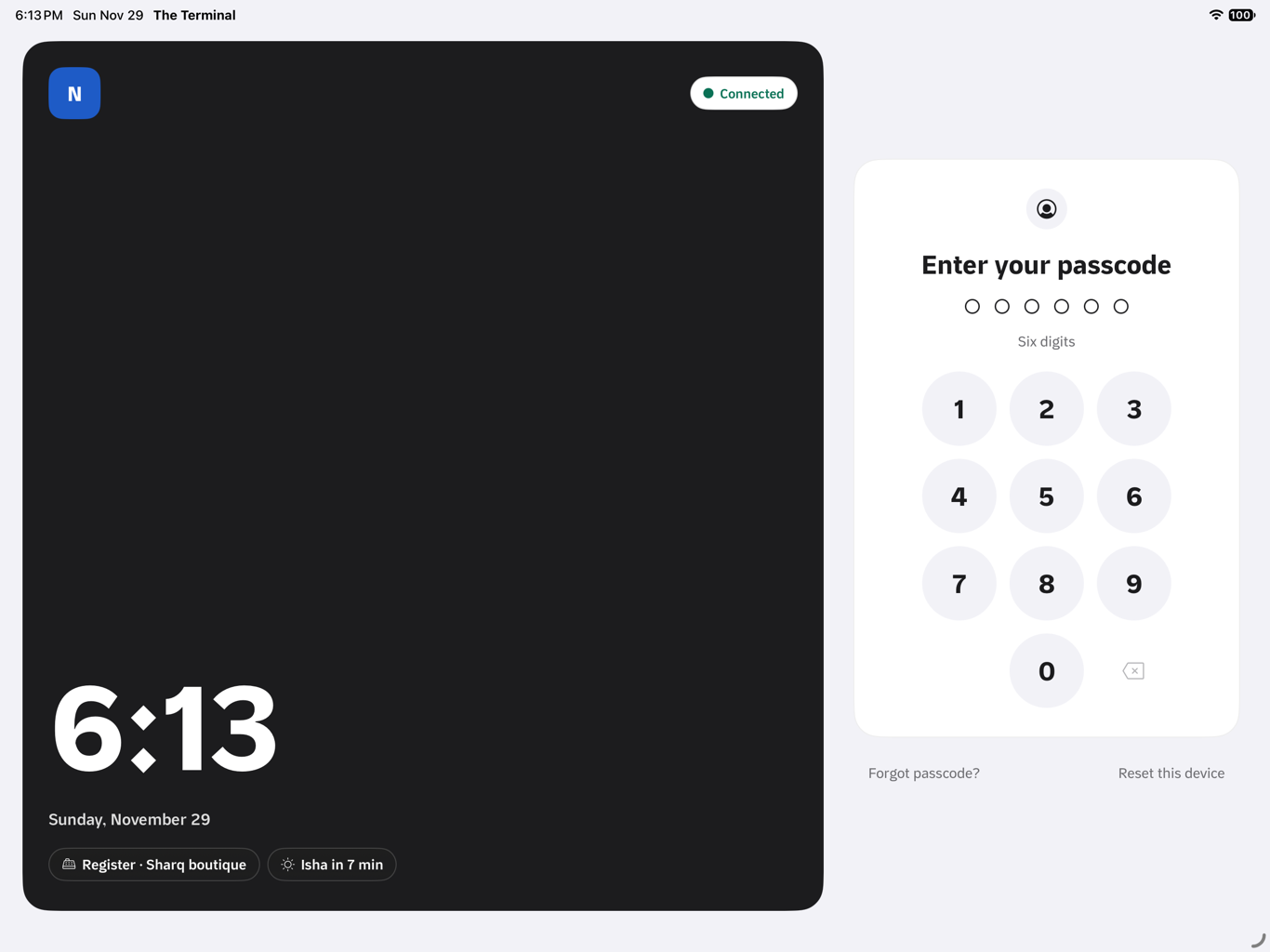
- The keypad asks for your passcode. Tap your six digits; there's no name to pick.
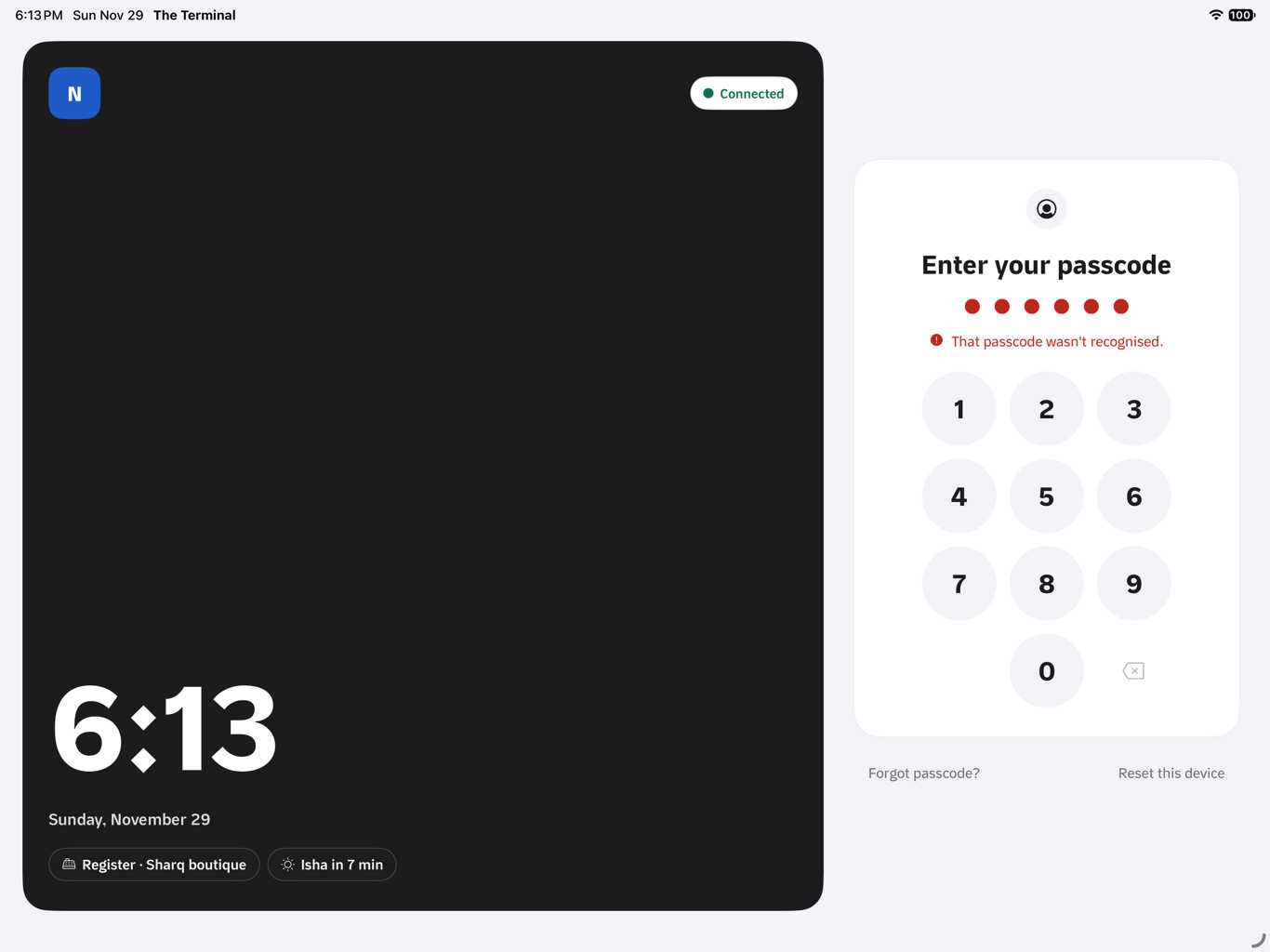
- The dots turn red and say the passcode wasn't recognised. Tap it again.
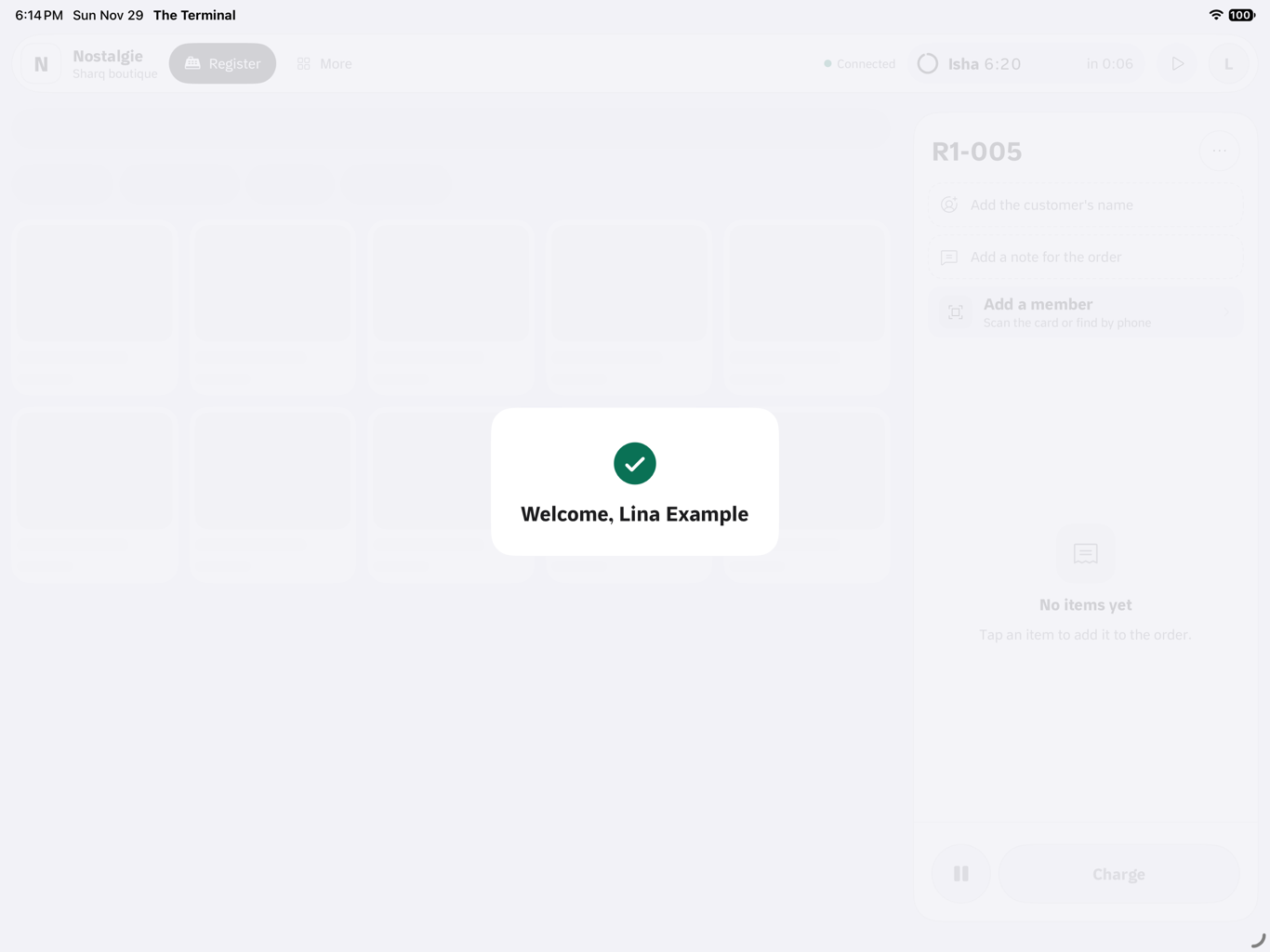
- The Terminal checks your code, then greets you by name for a moment.
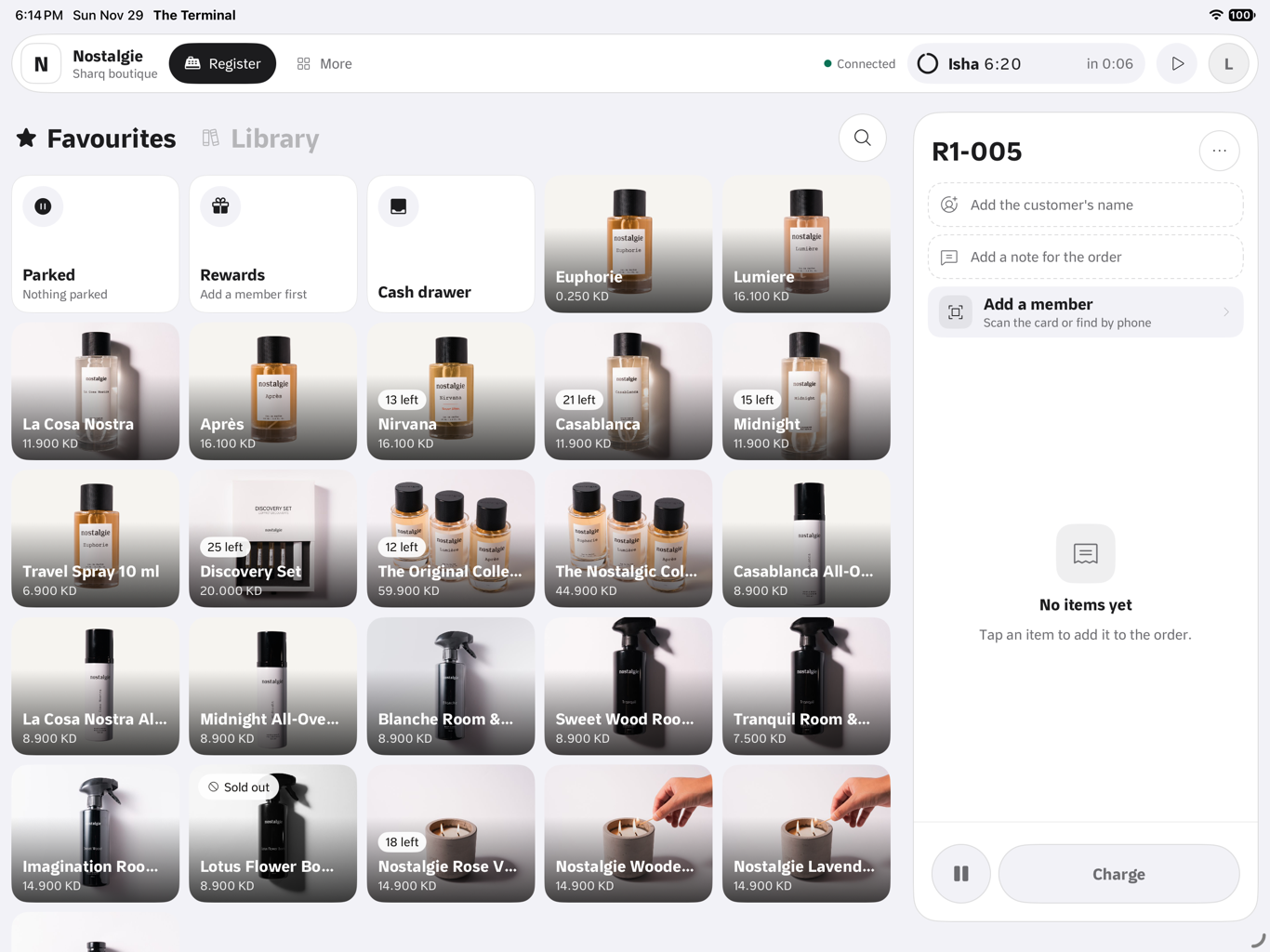
- The register opens. Your initial in the top corner shows who is signed in.
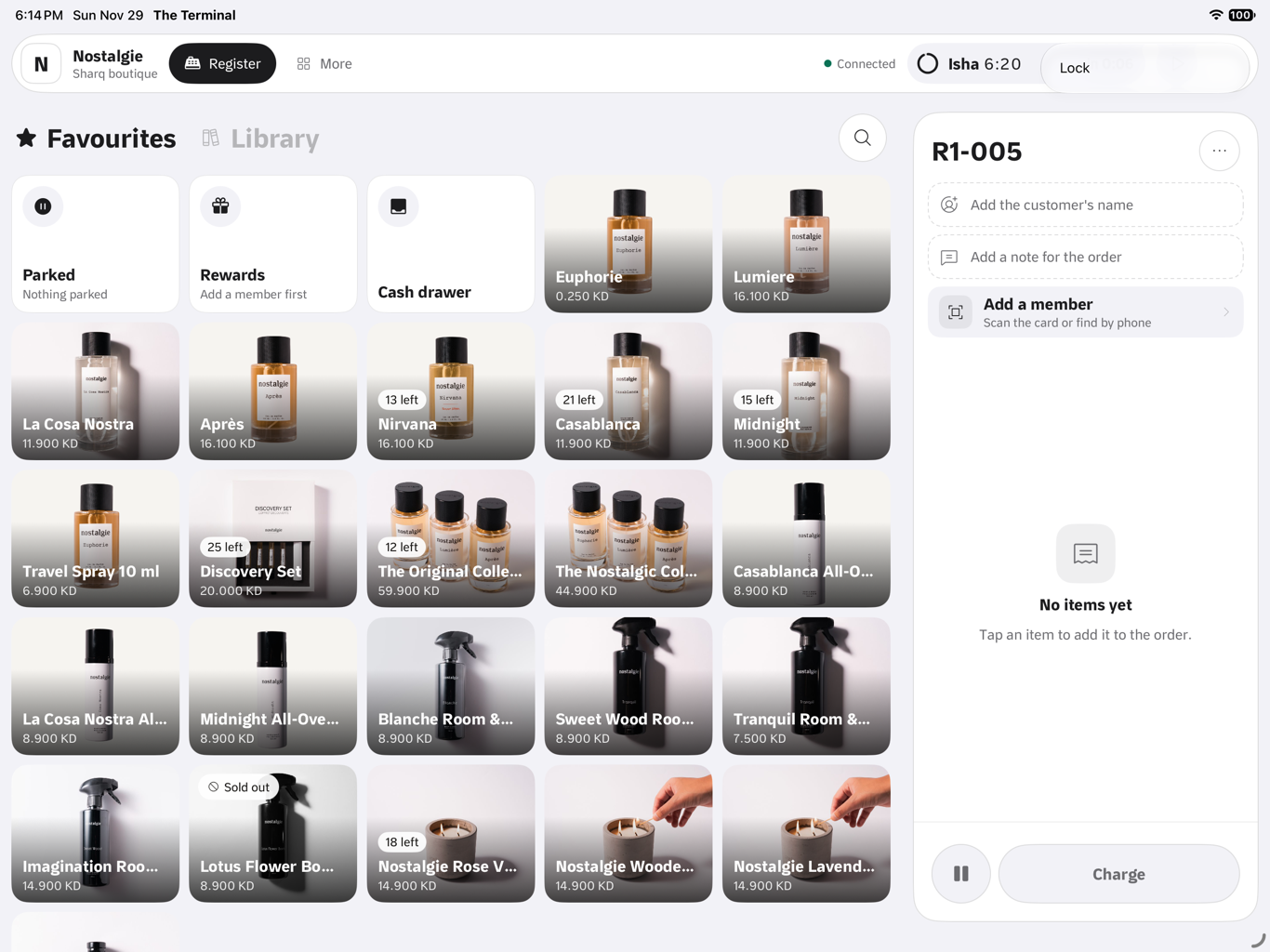
- Select your initial, then Lock. The next person signs in with their own passcode.
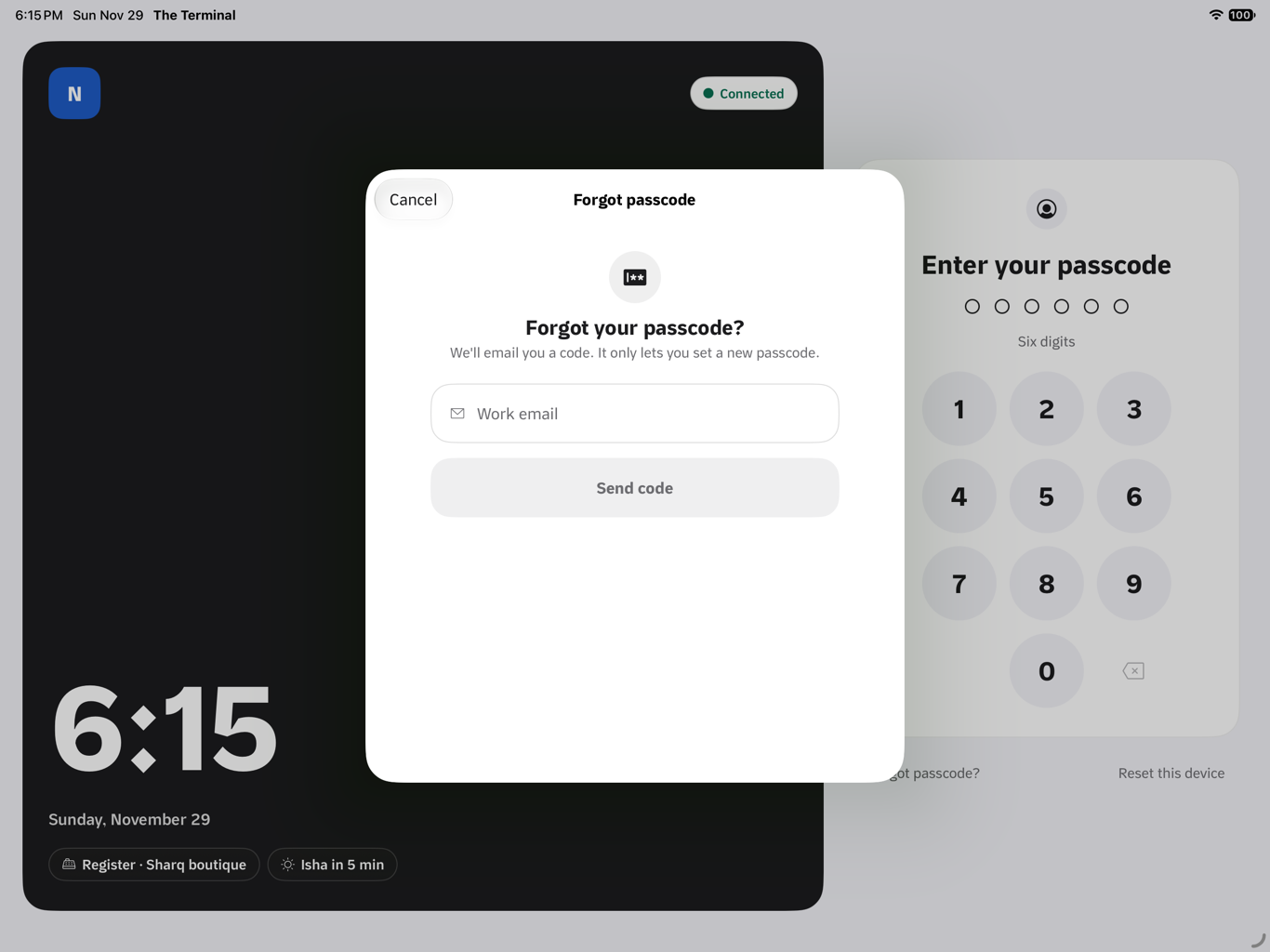
- Forgot yours? Select Forgot passcode? under the keypad.
- Enter your work email and select Send code. The code only lets you set a new passcode.
Sign in
Find the keypad
On the iPad, The Terminal shows Enter your passcode, six empty dots and Six digits. Beside it you see the branch and the job, for example Register · Sharq boutique, and Connected.
Tap your six digits
Tap your passcode on the keypad. The first time, that's the code your manager gave you when they added you in Helm, shown under Helm sign-in, not the POS PIN: the keypad refuses the POS PIN and counts it as a wrong try. After the sixth digit, The Terminal shows by itself; there's nothing to confirm. To fix a digit before the sixth, tap the delete key.
Choose your own passcode, if asked
If your code is the one from your invite, The Terminal shows Choose your own passcode: Tap six new digits. Avoid repeated digits and runs like 123456.
Confirm your own passcode
When it says , tap the same six digits again.
For Fragrance and cosmetics
What happens next
- You see with your name, for a moment.
- The register opens: the products, and an empty order with . The top bar shows the store and branch, Register, and your initial.
- Everything you do now is recorded under your name, until you lock the iPad or your shift ends.
The keypad
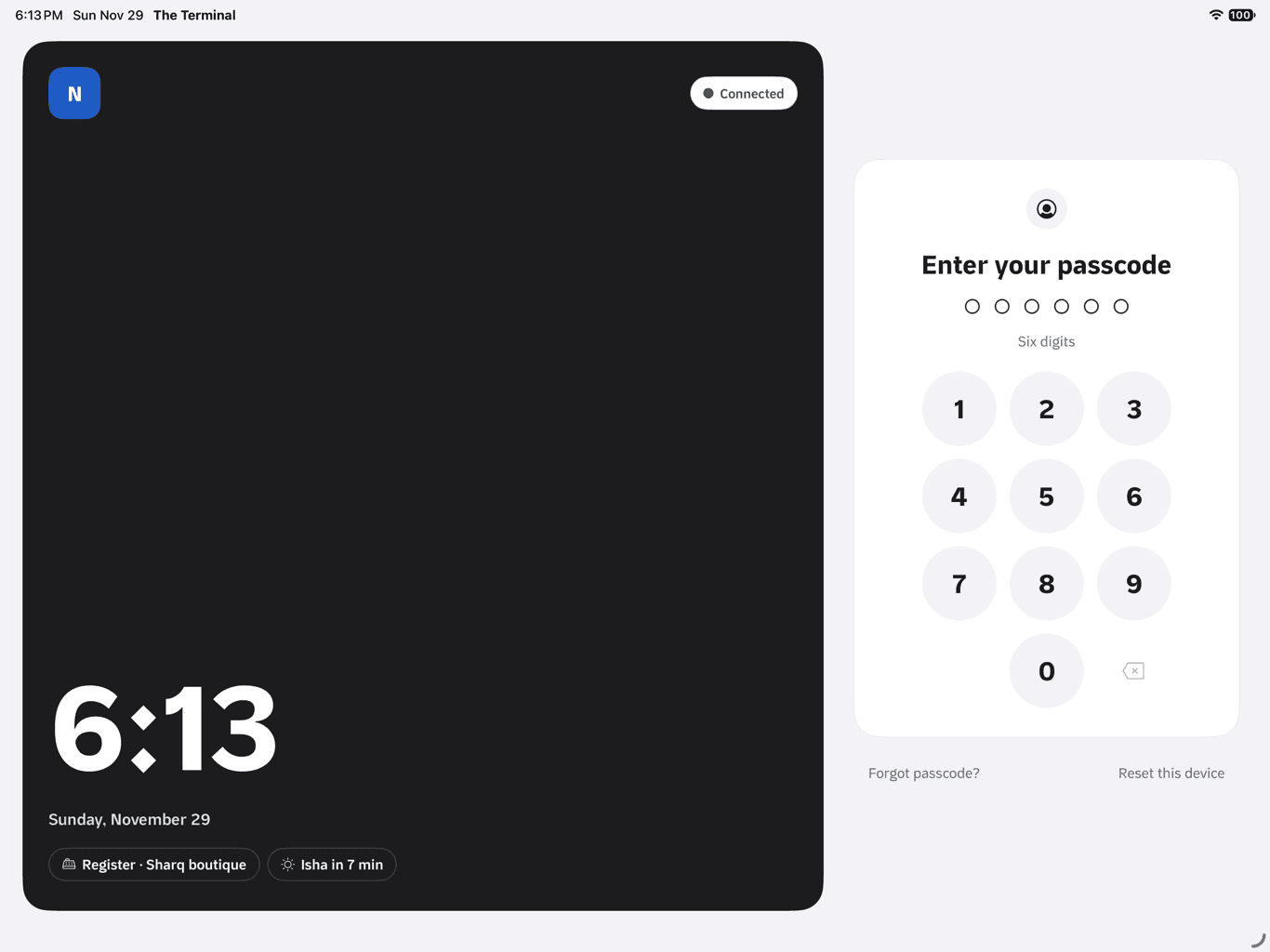
Branch and job
Connected
Six dots
Forgot passcode?
Reset this device
Lock and switch person
Open your menu
Tap your initial in the top corner of the screen.
Lock
Tap Lock. The keypad comes back and your session ends. The iPad stays paired.
The next person signs in
The next person taps their own passcode. Each sale is recorded under whoever is signed in.
If you forgot your passcode
Open Forgot passcode
On the keypad, tap Forgot passcode?. The window Forgot passcode opens:
Enter your email
Under Work email, enter the email your account uses.
Send the code
Tap Send code.
Enter the code
On Enter the code, enter the six-digit code from the email. It works once and expires in 10 minutes. Didn't get it? Tap Send a new code or Use a different email.
Sign in
Tap Sign in.
Set a new passcode
On Set a new passcode, tap six new digits.
Confirm the new passcode
Tap the same six digits again to confirm. The register opens.
If something goes wrong
The six digits don't match anyone who can sign in at this register. Check the code and tap it again. The same message shows for a code from an invite that's more than 72 hours old, and for someone who was removed from the team or whose role can't use this register. Ask your manager.
Five wrong passcodes in a row on this iPad, across everyone, lock the keypad, by default for 1 minute. The countdown shows the time left. Each further five wrong tries doubles the wait, up to 15 minutes. Every refused passcode counts, including one from a removed person, from someone with no access here, or an expired invite code. A right passcode resets the count.
After 50 wrong passcodes in a row on this iPad, across everyone, the keypad stops working on this iPad. A manager resets the device in Helm.
There were too many tries in a short time. Wait a minute, then try again.
The step you tried needs the connection, for example sending an email code or setting a new passcode. Try again when the iPad is back online.
The iPad lost its connection. You can still sign in: The Terminal shows and checks your passcode on the iPad. Forgot passcode? needs the connection.
The iPad hasn't reached the store for more than 12 hours, so it can't check passcodes. Connect it to the internet.
When you chose a new passcode, the second entry was different. Tap the new passcode again, twice.
The Terminal can't accept that passcode. Choose another, or select Use this to take the one The Terminal suggests.
The code from the email is wrong, used or older than 10 minutes. Select Send a new code.
You typed a phone number. Use your work email instead.
A session lasts at most 12 hours. Tap your passcode to start a new one.
Your session was ended, for example from Helm. Tap your passcode to sign in again.