Get started
Pair an iPad with The Terminal
Make a one-time activation code in Helm, then enter it on the iPad, so The Terminal works as a register or another job at your branch.
Tried on a demo store on 29 November 2026
Before you start
- Making a code needs the Manage devices permission in Helm. The owner has it, and managers have it by default.
- Have the iPad with The Terminal installed, connected to the internet. A new iPad, or one that was reset, opens on Sign in.
- Know which branch the iPad will work at, and what it will do there, for example Register.
Watch the steps
In Helm
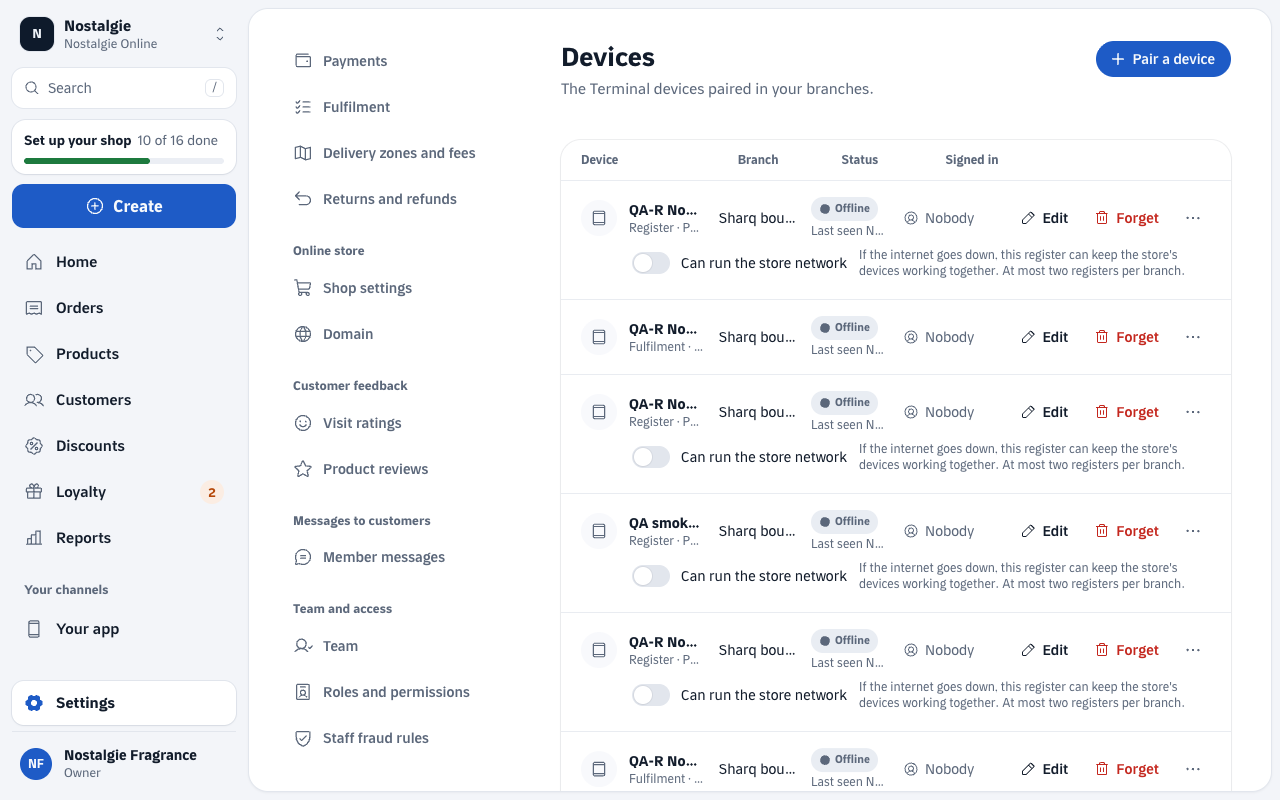
- On the Devices page, select Pair a device.
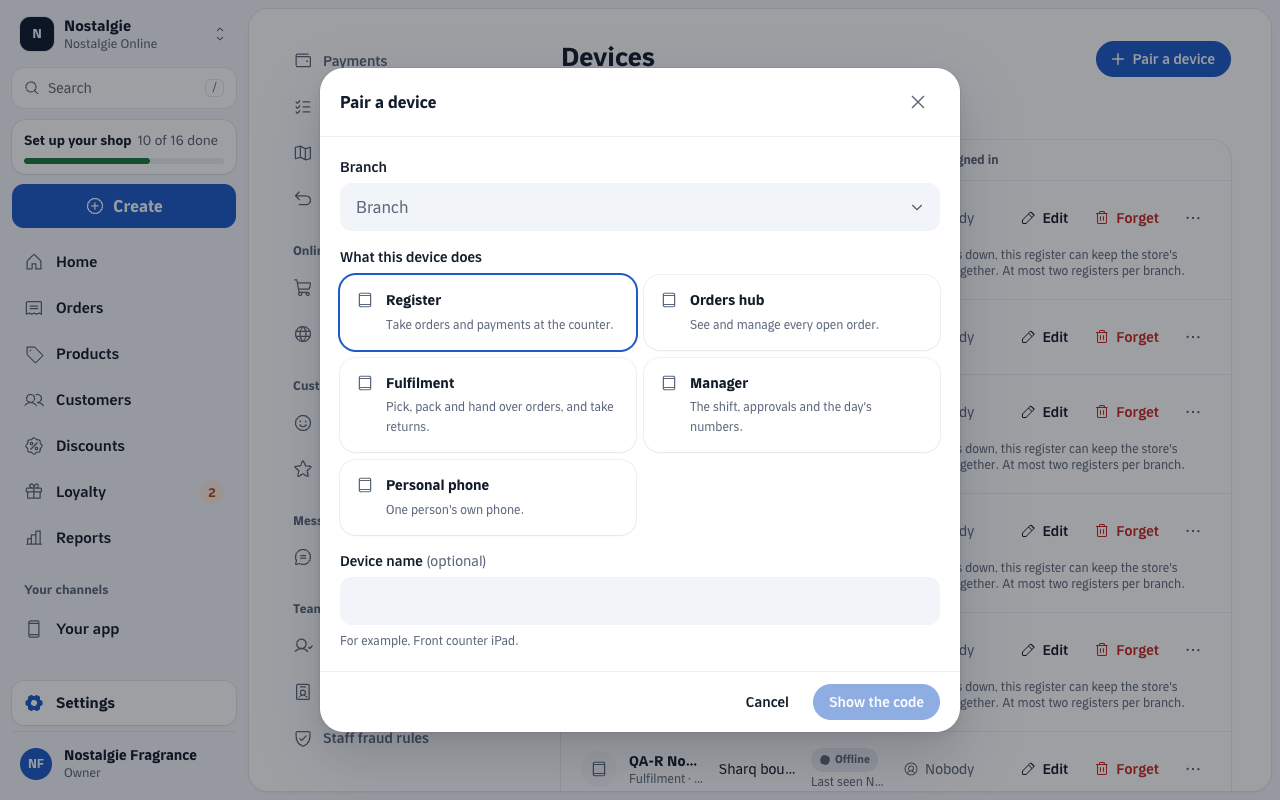
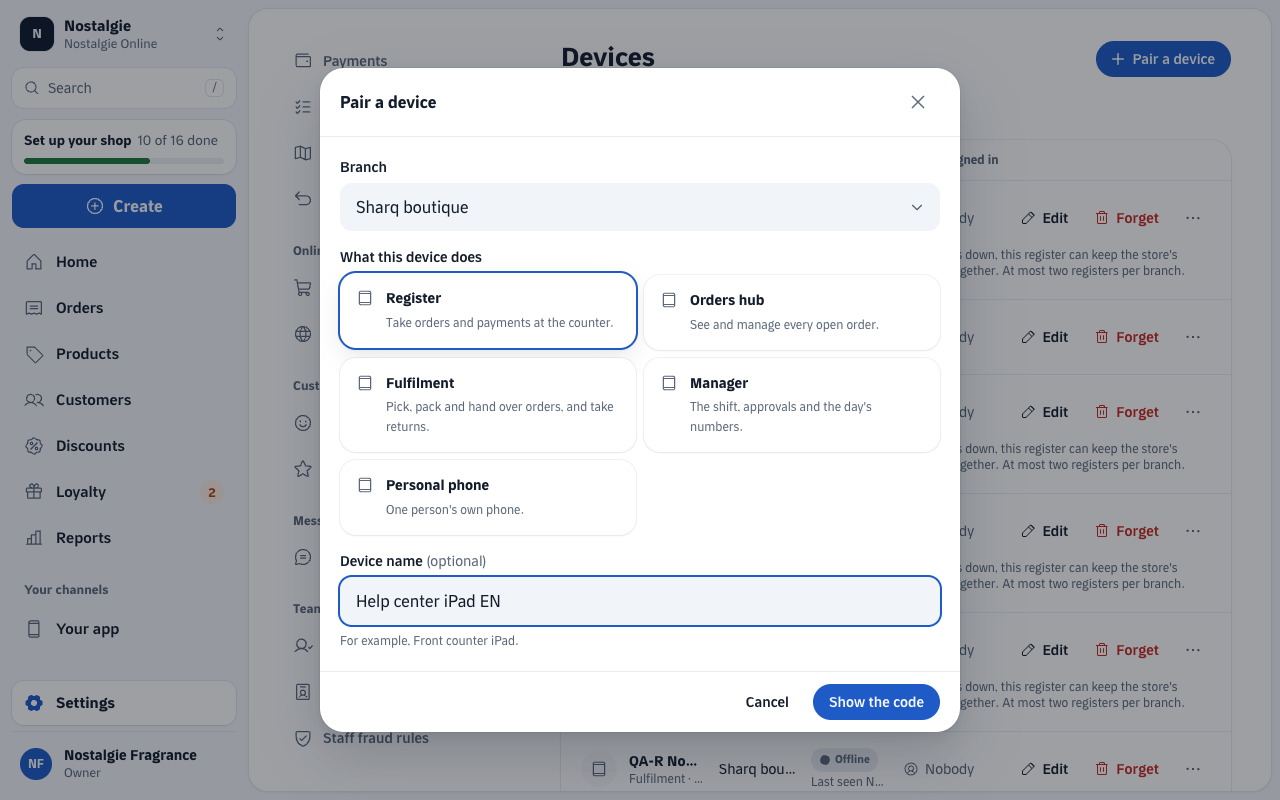
- Choose the branch where the iPad will work.
- Under What this device does, choose Register to sell at the counter.
- Optional: name the device. Then select Show the code.
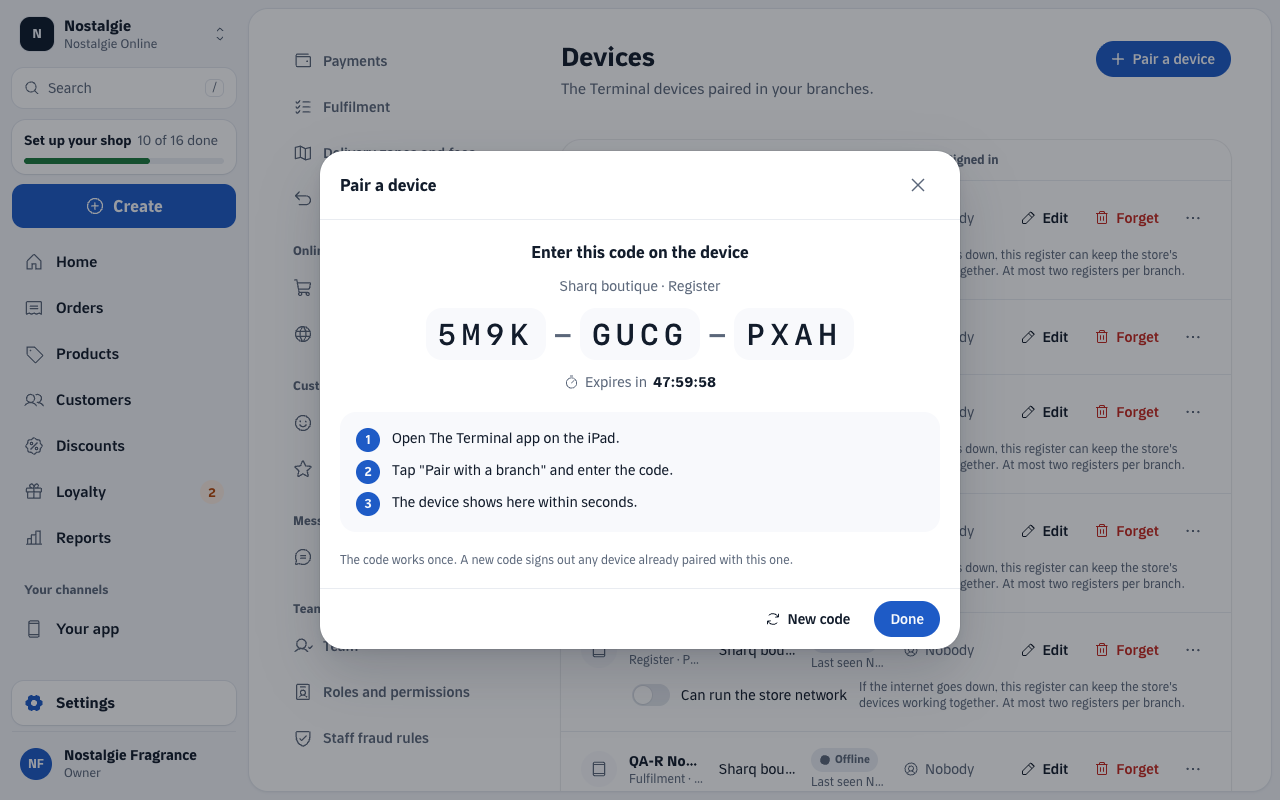
- Twelve letters and numbers, valid for 48 hours. Keep this open while you go to the iPad.
On the iPad
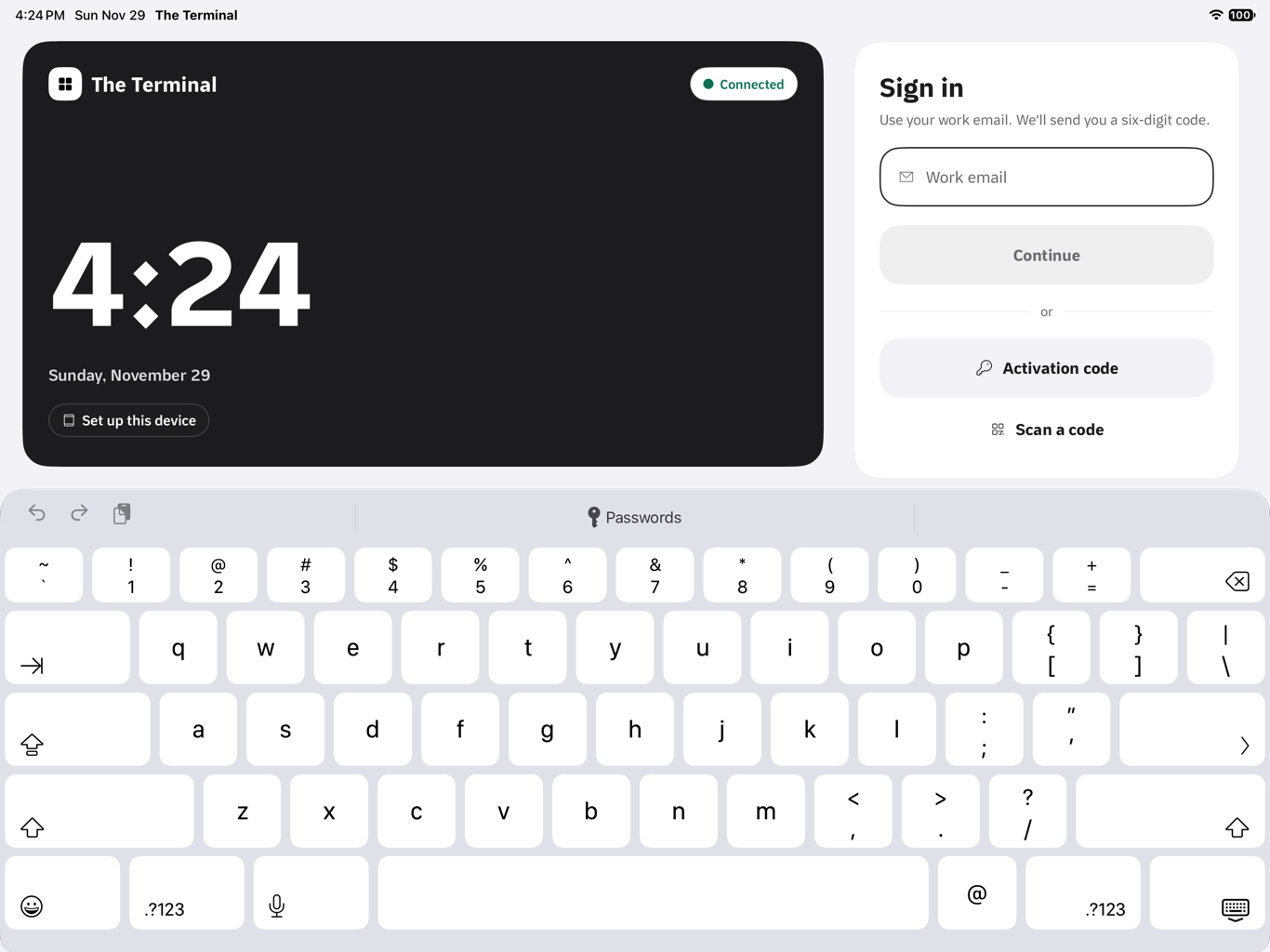
- On The Terminal's Sign in screen, select Activation code.
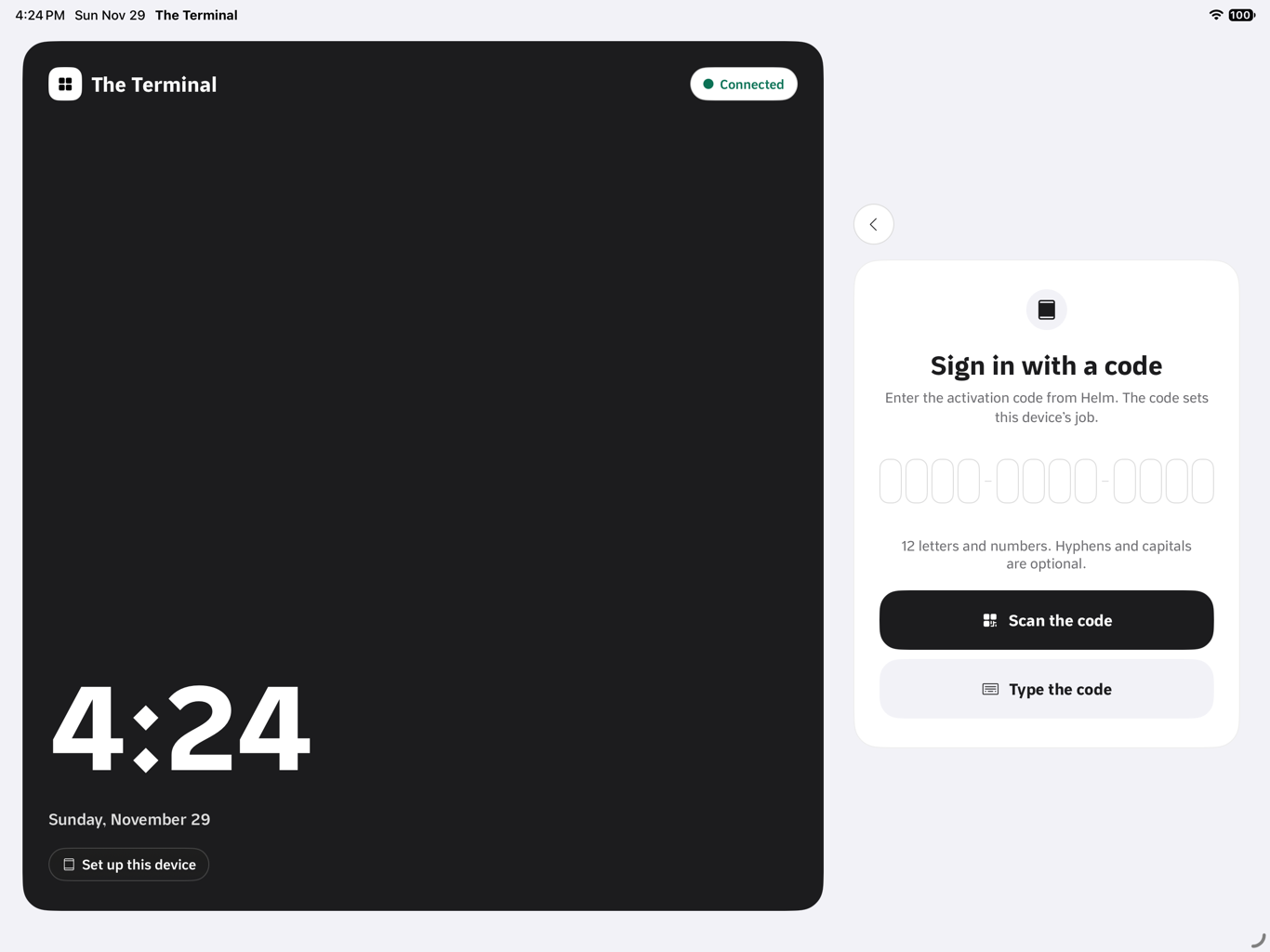
- Select Scan the code or Type the code.
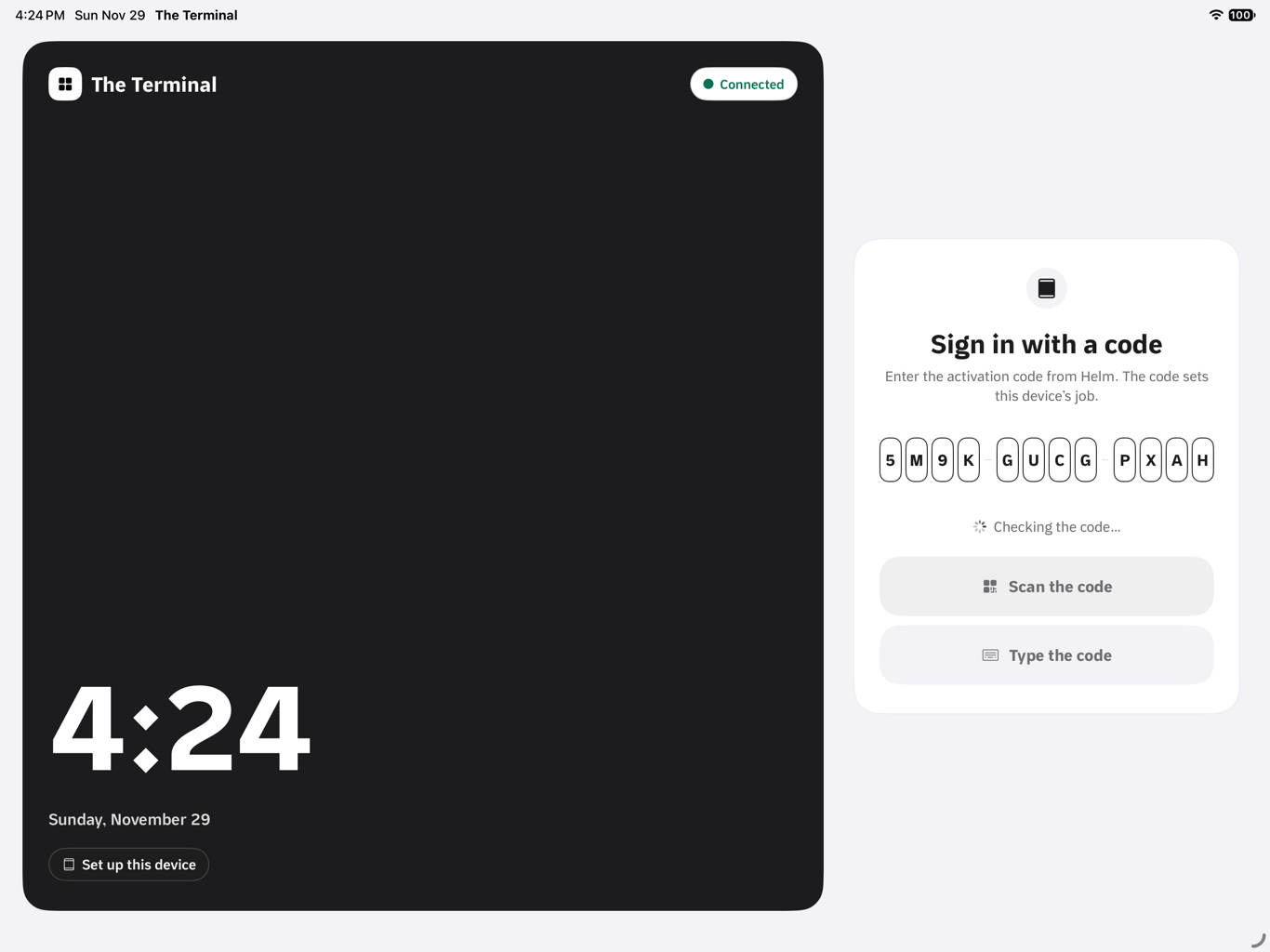
- After the twelfth character, The Terminal checks the code with Portus.
- The store, the branch and what the iPad will become.
- If it's right, select Activate.
- The iPad is paired. Each person now signs in with their passcode.
Make the code in Helm
Open the Devices page
In the side menu:SettingsDevicesThe page is called Devices and lists the iPads already paired in your branches.
Open Pair a device
Select Pair a device.
Choose the branch
Under Branch, choose where the iPad will work. With one branch, Helm chooses it for you.
Choose what the device does
Under What this device does, choose one. Each card says what that job is for. The list shows only the jobs your store uses.
Other jobs can appear, depending on what your store uses.
For Café and roastery, Counter-service restaurant, Full-service restaurant
For example Station display, Pickup window, Expo, Drive-thru, Customer display and Host stand. A Station display also asks Which station.
For Salon and spa
For example Host stand and Front desk.
Name it, if you like
Optional: under Device name, type a name, for example "Front counter iPad".
Show the code
Select Show the code. Helm shows Enter this code on the device, the branch and job, the code in three groups of four, and Expires in with the time left.
If you signed in a while ago, Helm first asks Confirm it’s you: enter your 6-digit code and select Confirm. New code asks the same.
Helm's window lists three steps and says to tap "Pair with a branch". On the iPad, that button is called Activation code.
Enter it on the iPad
Open The Terminal
Open The Terminal on the iPad.
Open Activation code
On Sign in, tap Activation code. To go straight to the camera, tap Scan a code instead.
Choose how to enter it
The screen Sign in with a code opens. Tap Scan the code or Type the code.
Scan or type the code
Point the camera at the code, or enter it on the keyboard. Hyphens and capitals are optional. After the twelfth character, the iPad shows
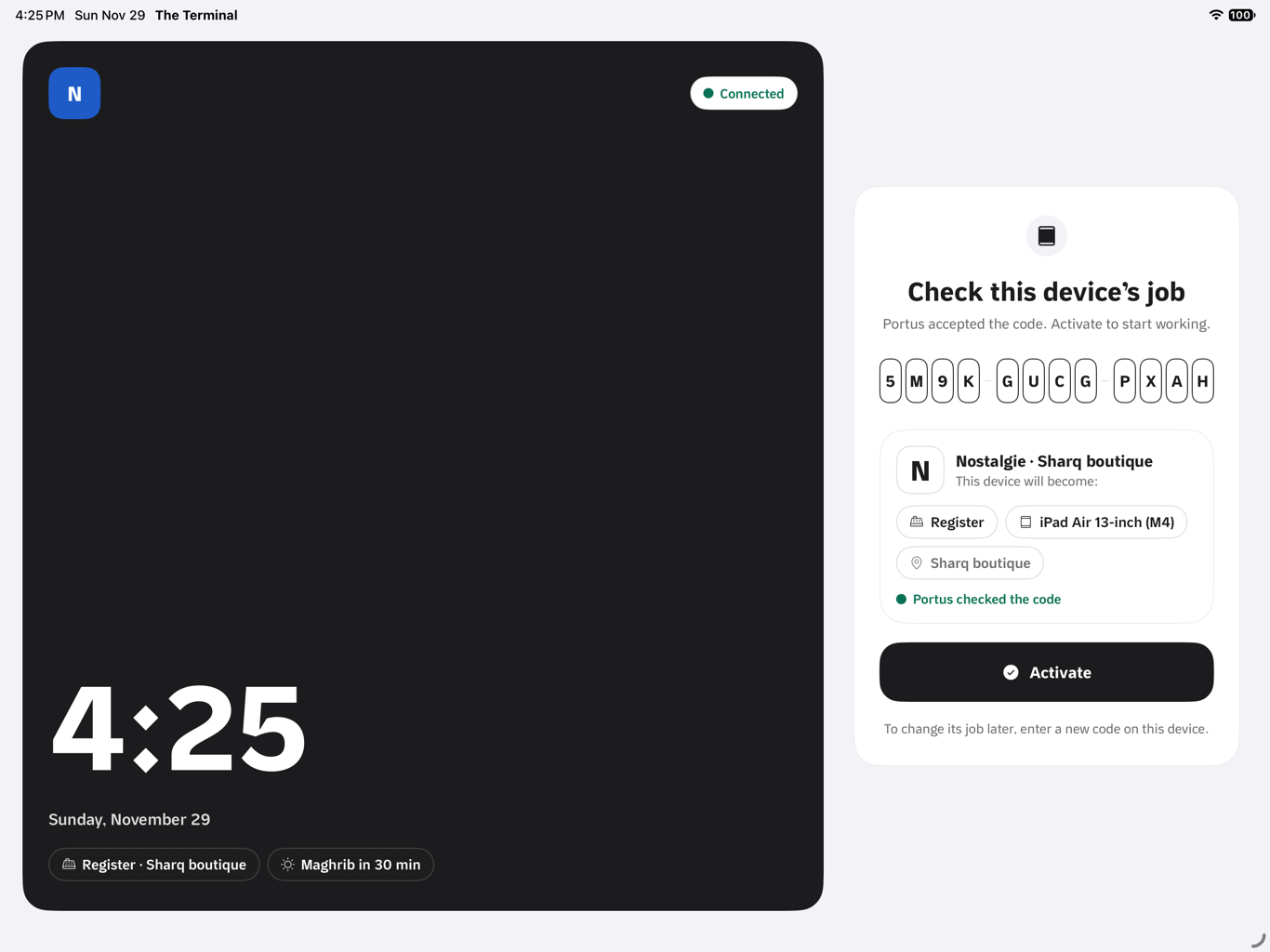
Check this device's job
The screen Check this device’s job shows the store and branch, This device will become: with the job, the device name and the branch, and .
Activate
If it's right, tap Activate.
For Fragrance and cosmetics
What happens next
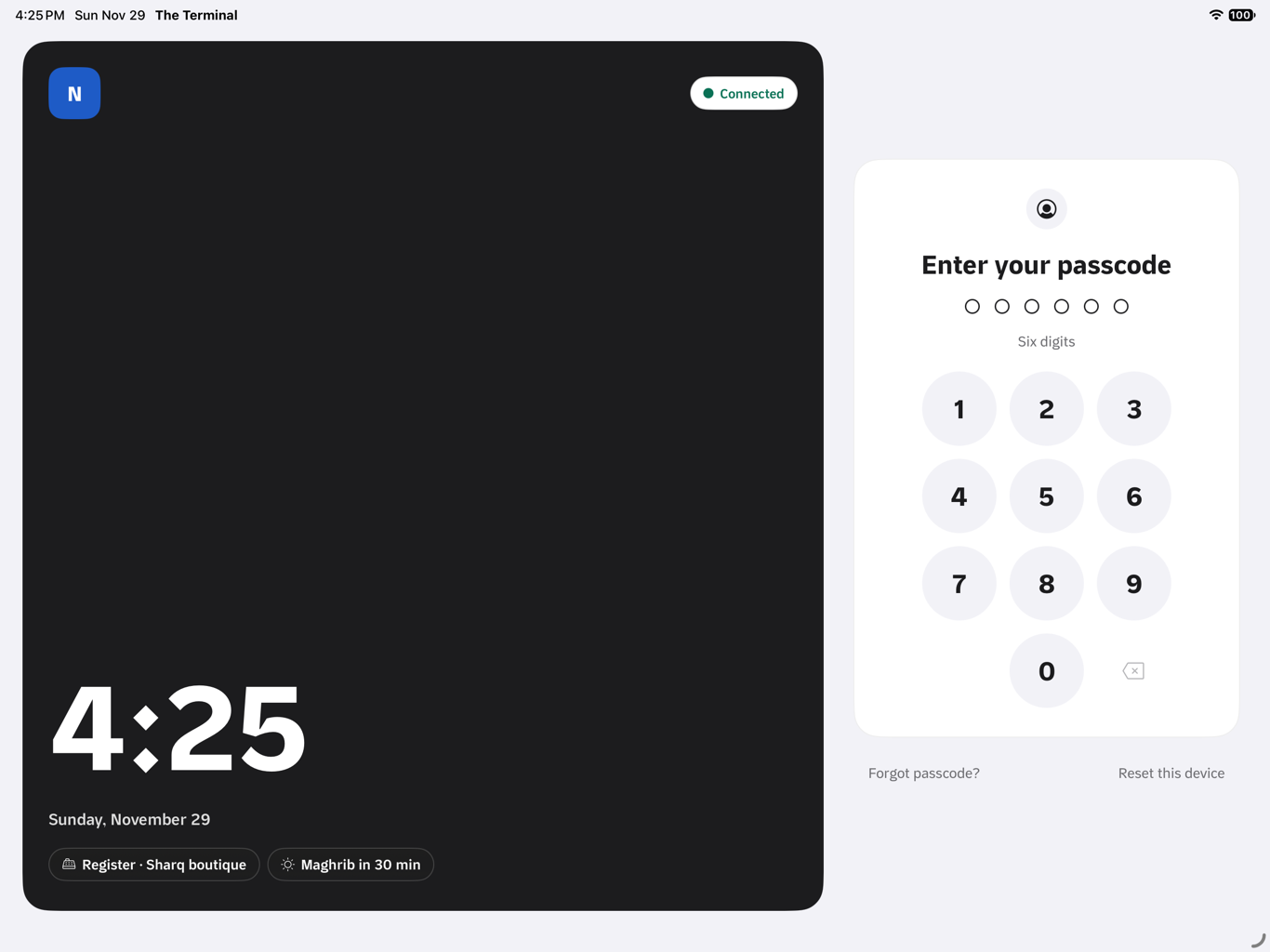
- The iPad opens on Enter your passcode. Each team member signs in there with their own passcode.
- In Helm, the iPad appears on the Devices page with its branch, its job and Paired with the date. Select Done to close the code.
- The code is used up. It can't pair a second iPad.
- If the iPad has its own name, Helm lists it by that name. To change the name or the branch later, select Edit on its row.
The code to enter
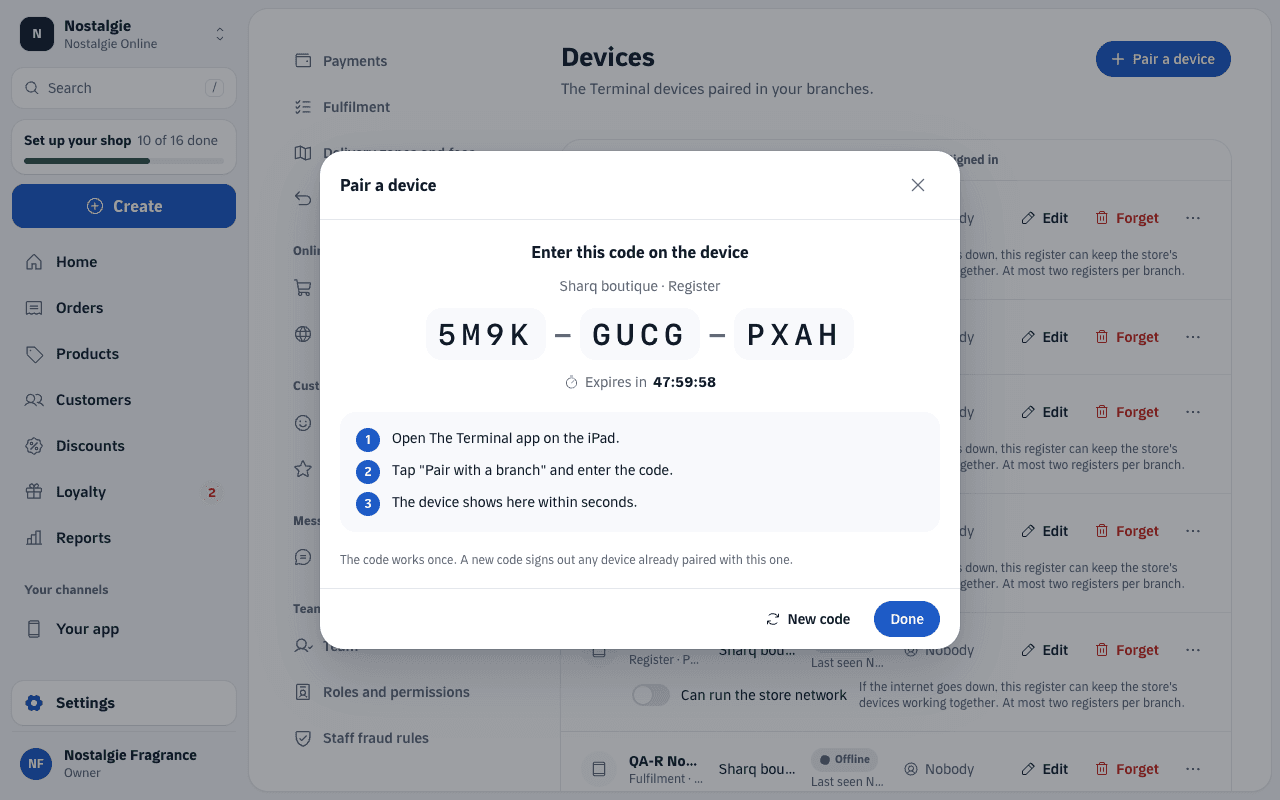
The code
Expires in
New code
Done
If something goes wrong
The code is wrong, already used, replaced by a new code, or older than 48 hours. The boxes clear. Check the code and type it again, or make a new one in Helm.
Portus accepted the code, but this iPad refused to switch to it, so the code is used up. It happens when an iPad that already worked for another store still has cash records to file. Deal with the cause below, then make a new code in Helm.
This iPad worked for another store and its day is still open. Close the day on it, then pair it with a new code.
This iPad's cash records from its last store are filed when that business day ends. Try again after that with a new code. When you sign in with email instead, the iPad says
The iPad can't leave its pairing yet. A manager checks it first.
You typed a character that never appears in a code. Look again at that character in Helm.
The code is too short. Type all twelve characters.
The camera read a QR code that isn't a Portus activation code. Scan the code from Helm, or select Type the code.
The iPad needs the internet to check the code. Connect it, then try again.
Wait a minute before you enter the code again.
Helm shows this when the 48 hours are over. Select New code and use the new one.
Helm couldn't make the code. A branch that only sells online can't have a register: choose a store branch, then select Show the code again.
The iPad says Someone selected Forget or New code for it in Helm. Make a new code and pair it again.
A device that was reset in Helm
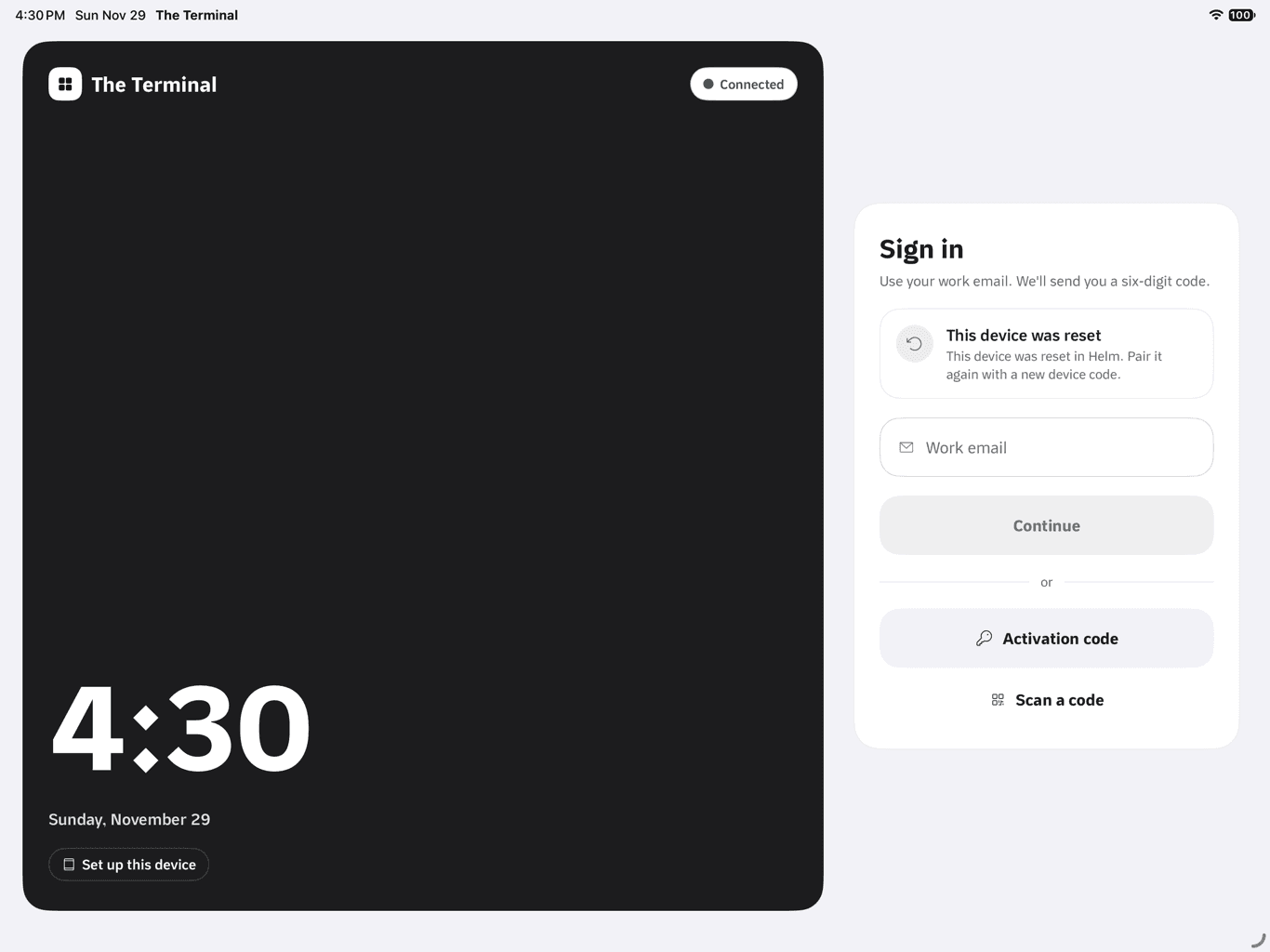
This device was reset
Your role doesn't have Manage devices, so Helm hides Devices. Opened by a direct link, the page says Devices need the device permission. Ask the owner to add it to your role.