Reports
Download, export or print a report
Save a Reports page as an Excel workbook, a CSV or a PDF, choose which reports go in, or download and print one report on its own.
Tried on a demo store on 29 November 2026
Before you start
- Your role needs the See sales reports permission. The owner and the manager have it. There's no separate permission to export: if you can see a report, you can download it.
- Sales by staff member is in the list only when your role also has See sales per staff member.
- To read the figures themselves, see Read your sales reports.
Watch the steps
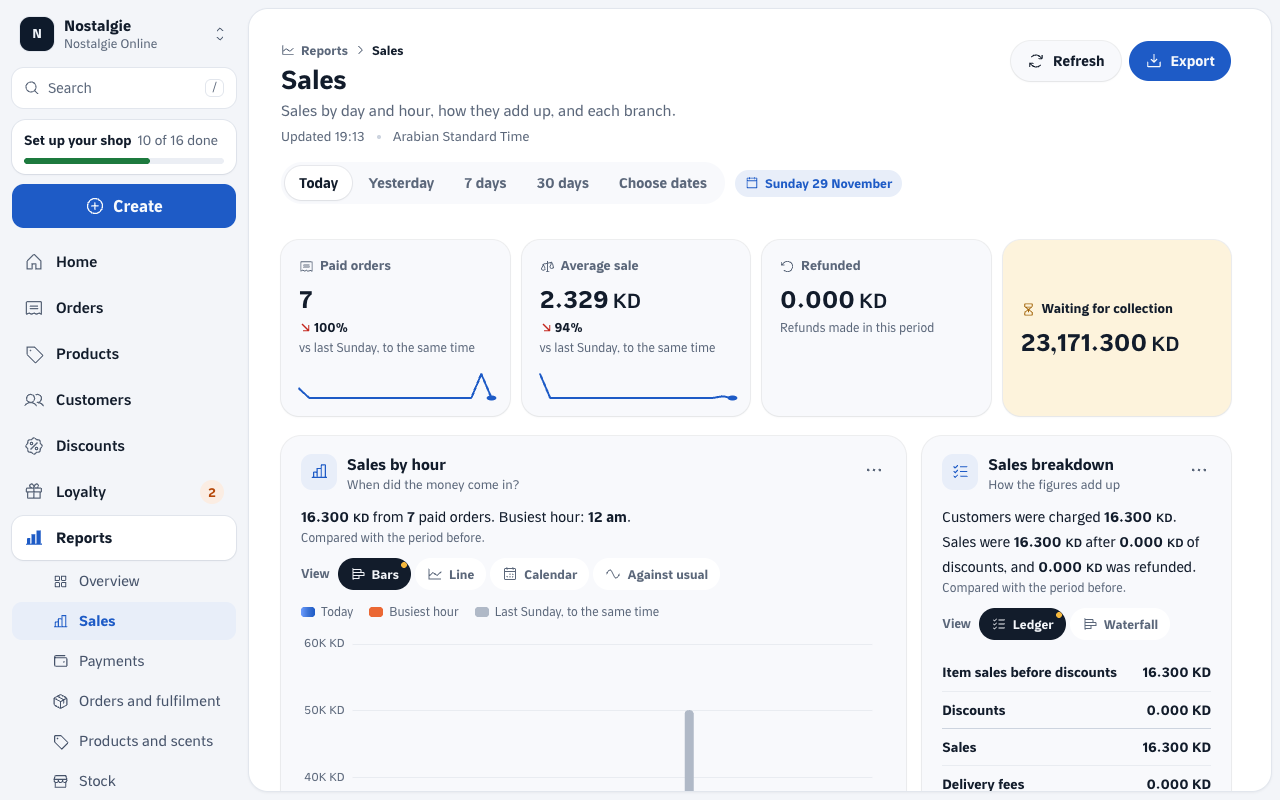
- On any report page, select Export.
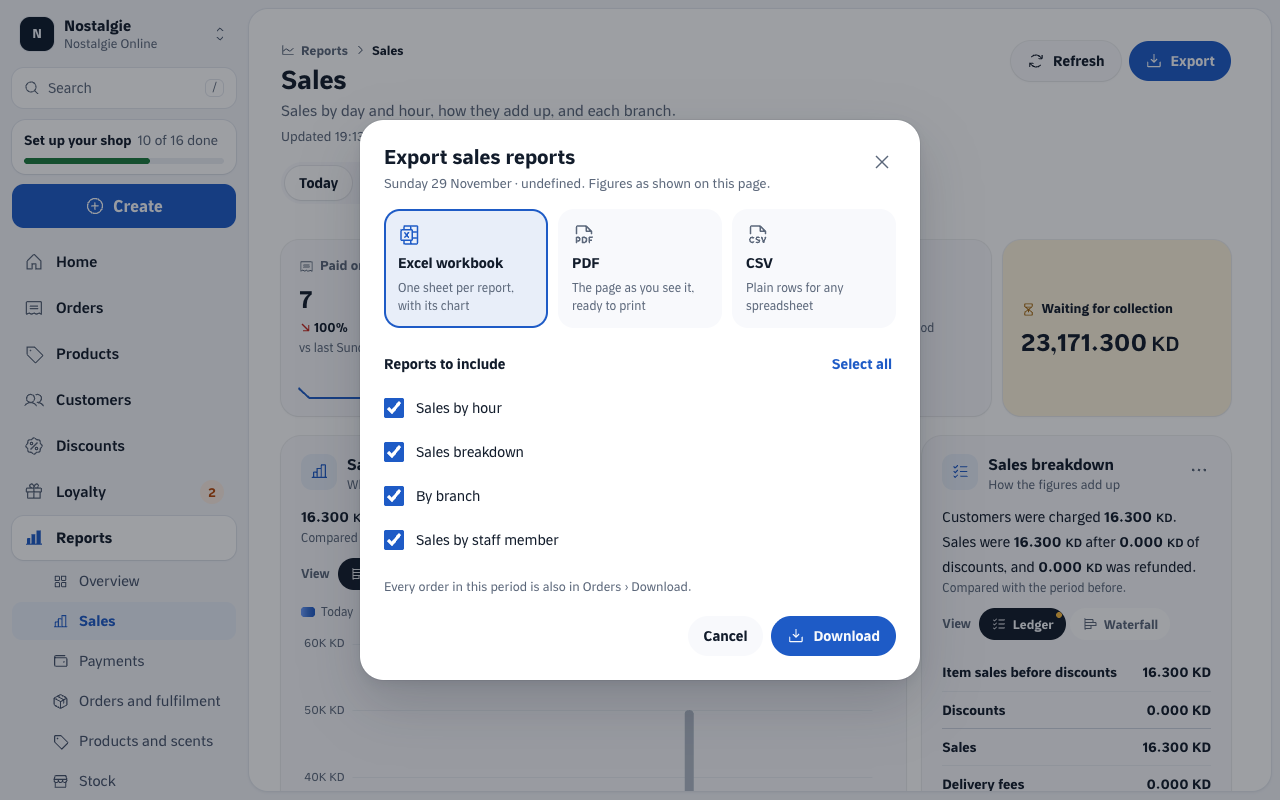
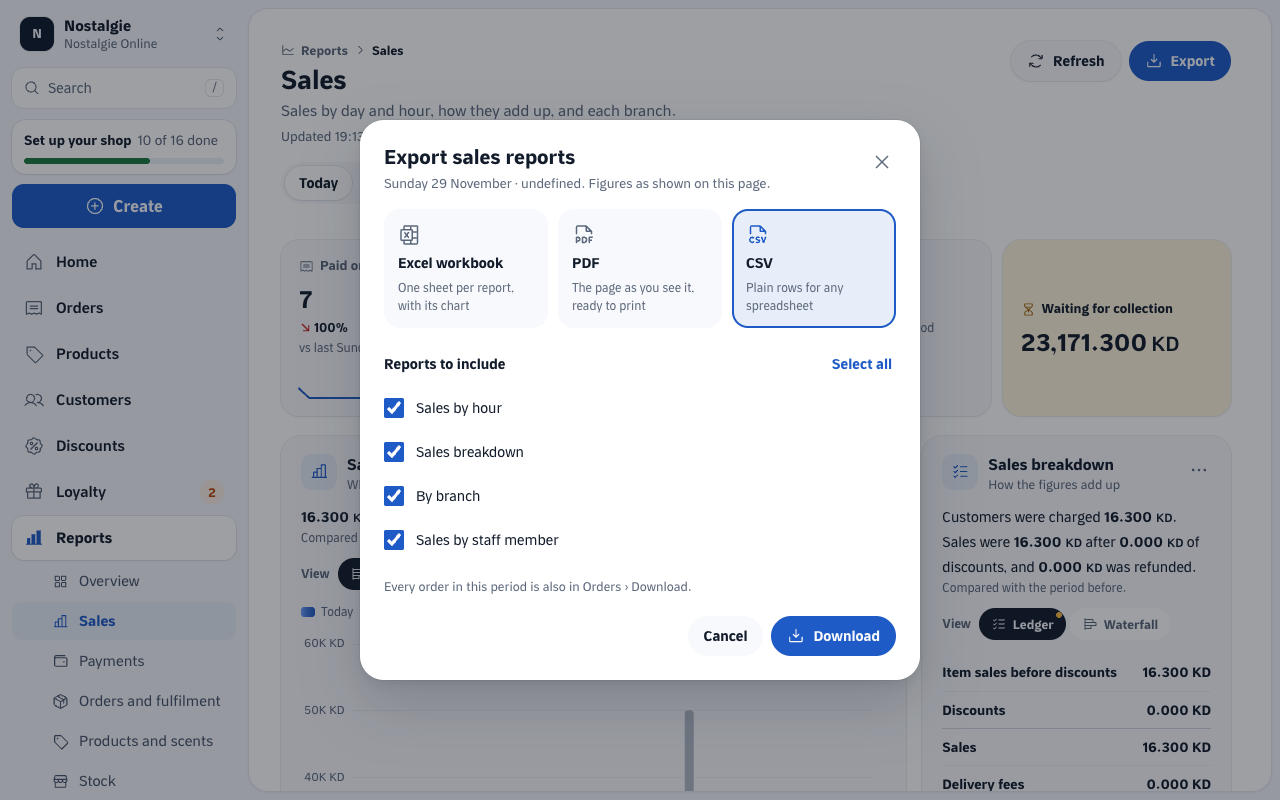
- Excel workbook, PDF or CSV.
- One report gives a .csv file; several give a .zip.
- Every report on the page is ticked. Untick the ones you don't need.
- Helm builds the file and your browser saves it.
- Prints the whole page. Your browser's print window opens.
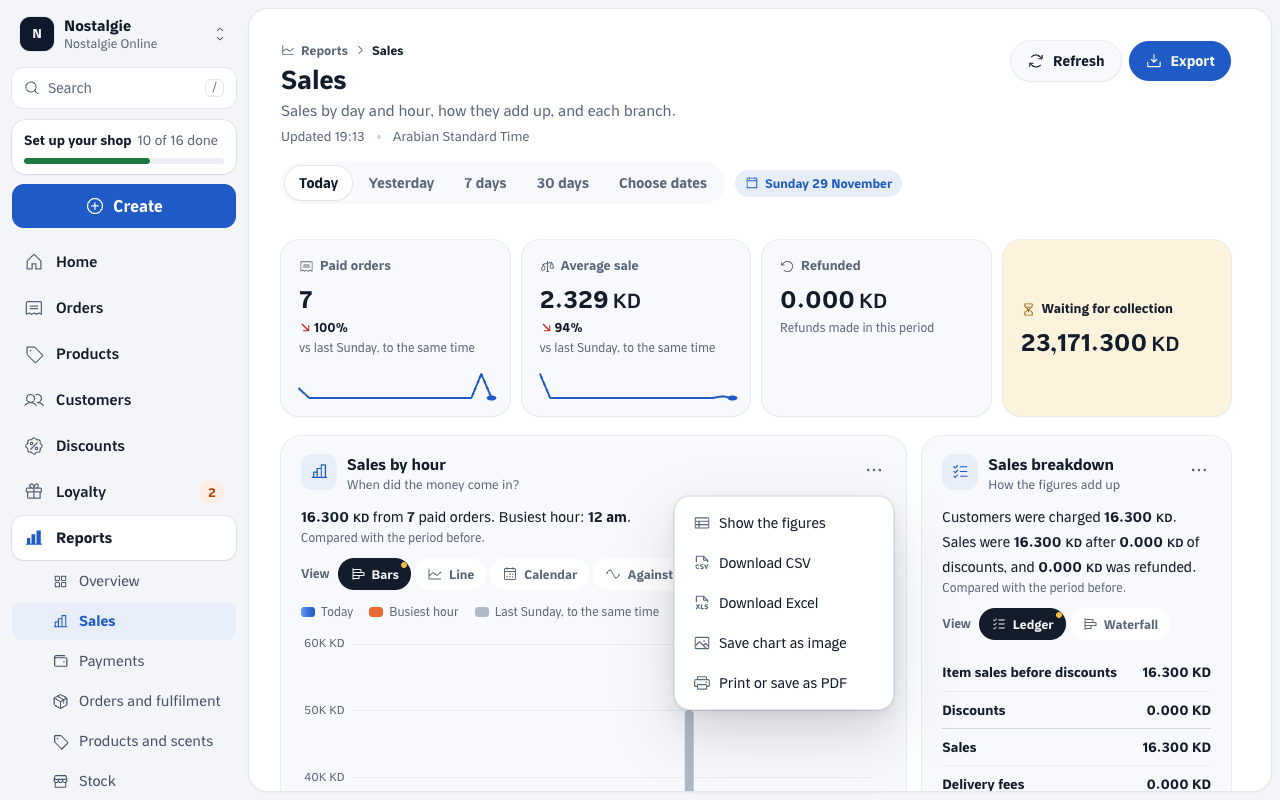
- Each report's ⋯ menu downloads or prints just that report.
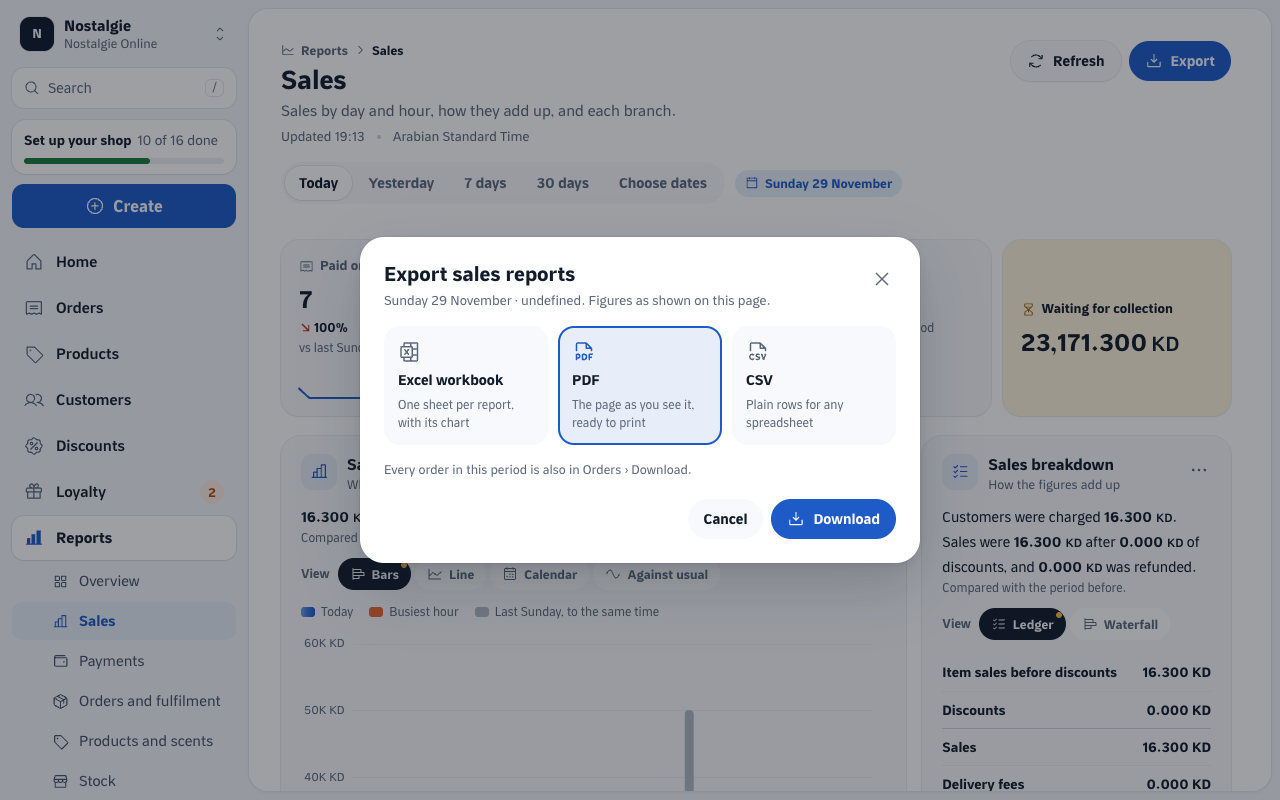
Export a report page
Open the report page
In the side menu:ReportsSalesAny report page works the same way, for example Overview or Payments. Choose the days and, with more than one branch, the branch first: the file follows them.
Open Export
Select Export at the top of the page. Export sales reports opens. Under the title it shows the days and branch the file will cover, and Figures as shown on this page.
Choose the file
Under the title, choose one. Excel workbook is chosen when the dialog opens.
Choose the reports
For an Excel workbook or a CSV, under Reports to include, every report on the page is ticked. Untick the ones you don't want. Select all ticks them all again, or, when all are ticked, clears them.
Download
Select Download. It shows Preparing… while Helm builds the file, and the dialog closes when it's done.
Export sales reports
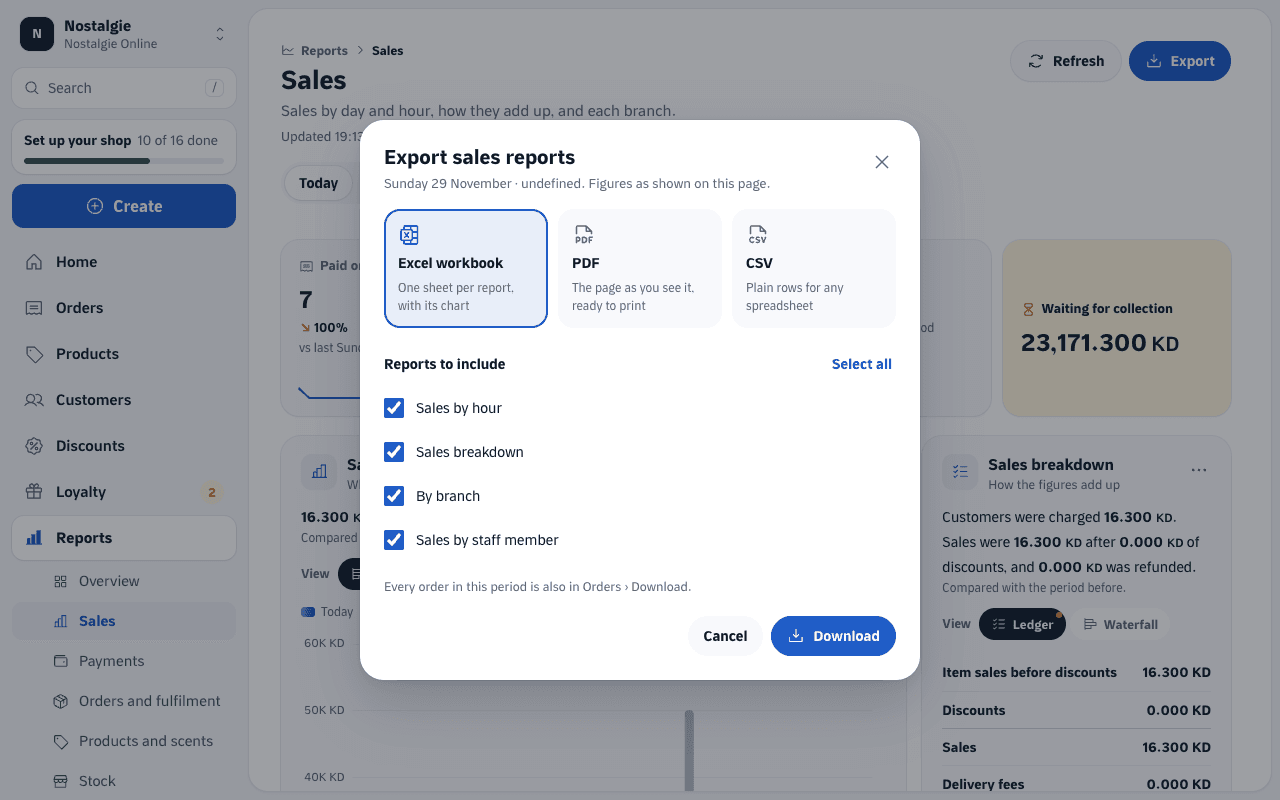
Excel workbook
Select all
Every order
Download
What happens next
- You see . The file is named after the page and its dates, for example Helm-Sales-sales-2026-11-29.xlsx, or a .zip for several CSV files.
- The file covers the same days and branch as the page. A list, such as best sellers, can hold more rows in the file than the page shows, but not without limit: up to 50 rows for a ranking such as best sellers, and up to 500 for a stock list. A longer list is cut at that number, and Helm doesn't warn you.
- In the Excel workbook, the About these figures sheet says which Report, Branch, Period and Currency the figures are for, Figures as of (when Helm added them up), when it was Exported, and the Definitions of a sale. In Arabic the sheets read right to left.
- A CSV file starts with the report's title, its one-line answer and the same details, then the table. Money is written as numbers, with the currency in the column heading.
- A report that couldn't be finished is left out of the file. So is a report whose figures changed while you exported, for example because you chose other days. The Excel workbook names it under Not included (could not be finished). A CSV or zip just leaves it out, and the downloaded message still shows: open the zip and check every report you chose is in it.
Print the page or save it as a PDF
Choose PDF
In Export sales reports, choose PDF. Reports to include goes away: the PDF is the whole page.
Open the print window
Select Download. The dialog closes and your browser's print window opens. There's no downloaded message and no file name from Helm: your browser names the PDF when you save it.
Print or save
Choose a printer, or choose to save as PDF in your browser's print window, then print or save.
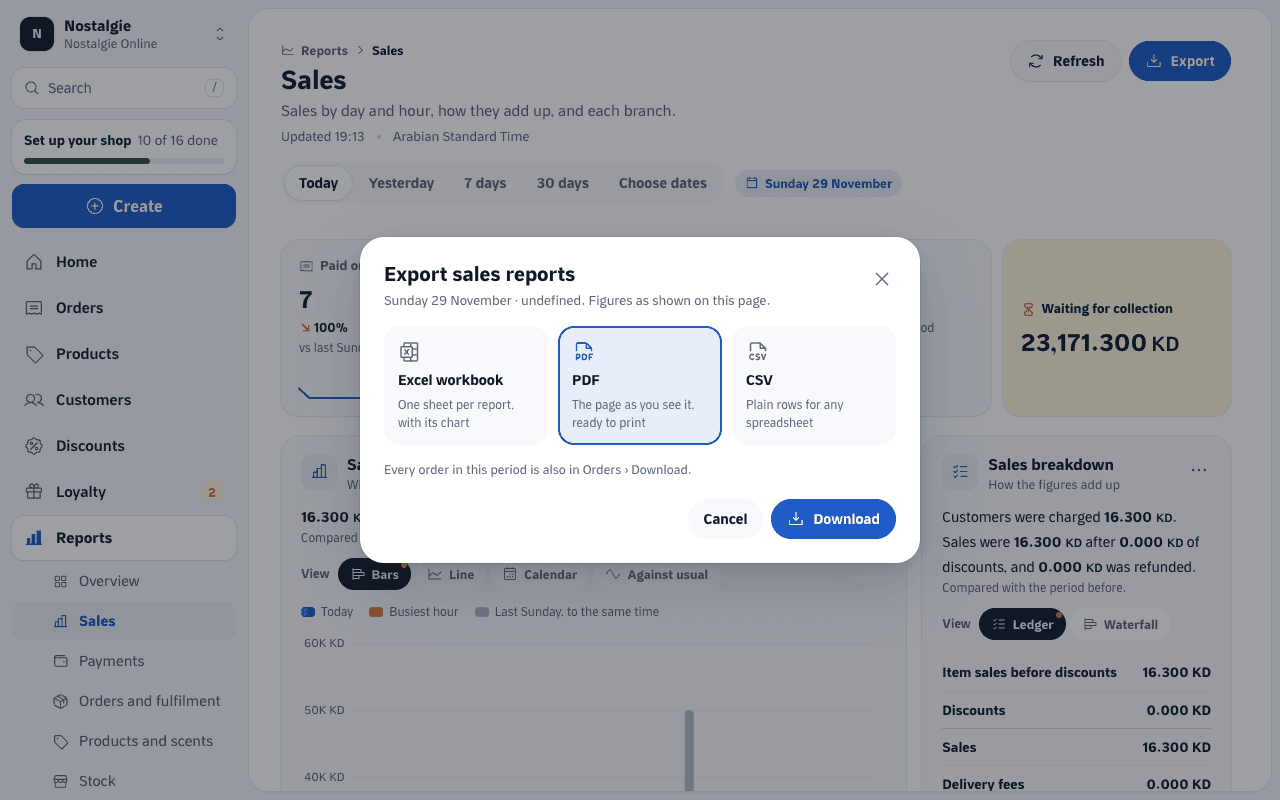
Download
The printed page has the page title and its days and branch at the top, then the reports as you see them, without Helm's menu and buttons. Each chart prints in the view you chose for it.
Download or print one report
Open the report's menu
On the report, select ⋯ in its top corner.
Choose what to save
One report's menu
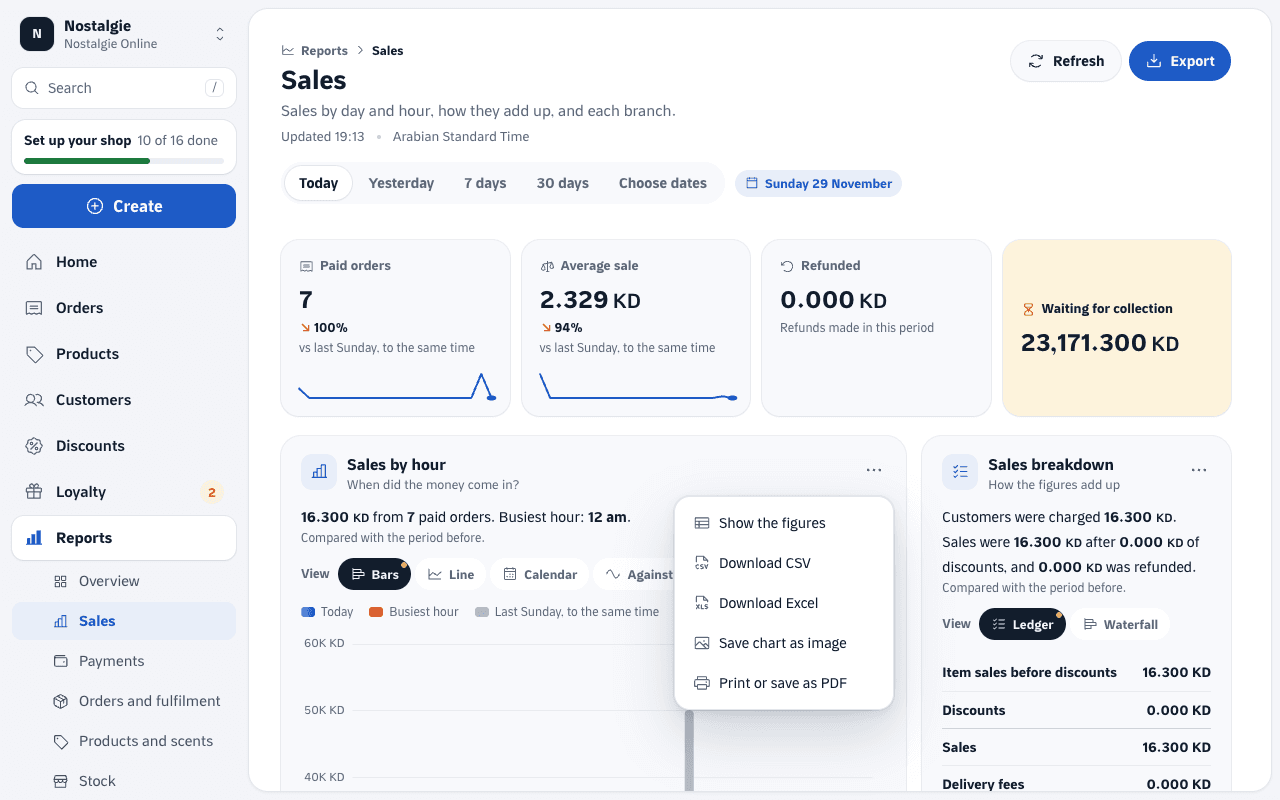
⋯
Save chart as image
The file is named after the report and its first day, for example Helm-report-by_time-2026-11-29.csv.
If something goes wrong
None of the chosen reports could be finished, so no file was made, and the dialog stays open. Select Cancel, then Refresh on the page, and export again. A single report's Download CSV or Download Excel shows the same message when it fails.
No report is ticked. Tick one, or select Select all.
Only reports showing figures are listed. A report that shows a message instead of figures has nothing to export.
The page's reports are still loading. Wait a moment. The Coming later page has no Export, as it has no figures.
Your role doesn't hold See sales reports. With only View loyalty reports, you see Reports in the menu but not the sales pages or Export. The owner can add See sales reports to your role.