Reports
Read your sales reports
What the Reports pages count, how to choose the days and branch, what each figure on the Sales page means, and how to export them.

Tried on a demo store on 29 November 2026
Before you start
- Your role needs the See sales reports permission. The owner and the manager have it. To see Sales by staff member, it also needs See sales per staff member; the owner and the manager have that too.
- Your store must be connected and selling through Portus. Until it is, Reports shows Reports are not set up for this store yet.
- Figures for your loyalty members are on Home and on the Loyalty report page: see Read the figures on Home.
Watch the steps
- In the menu, select Reports. It opens on the Overview.
- Today, Yesterday, 7 days, 30 days, or dates you choose.
- The dates every figure on the page covers.
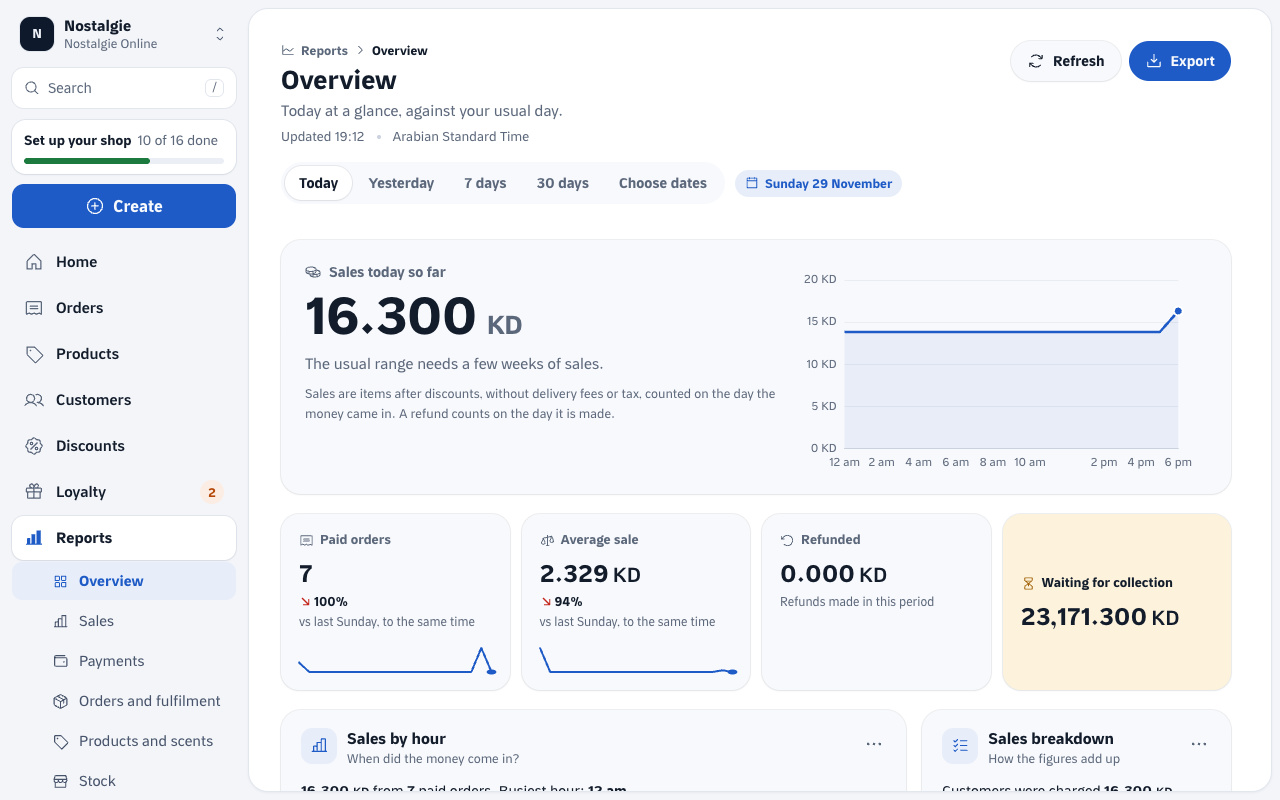
- The period's sales in one figure, with the day drawn hour by hour.
- Each report page is listed under Reports in the menu.
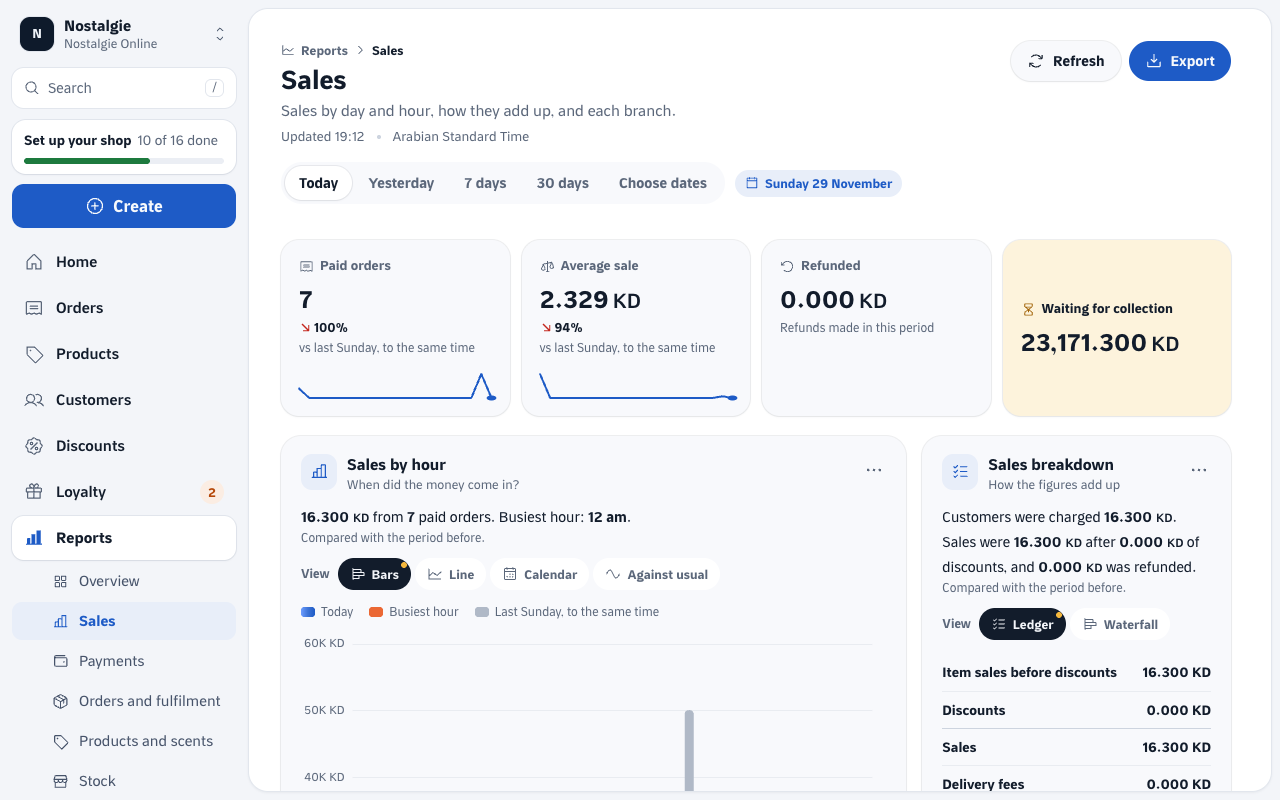
- Paid orders, average sale, refunds and what is still waiting to be collected.
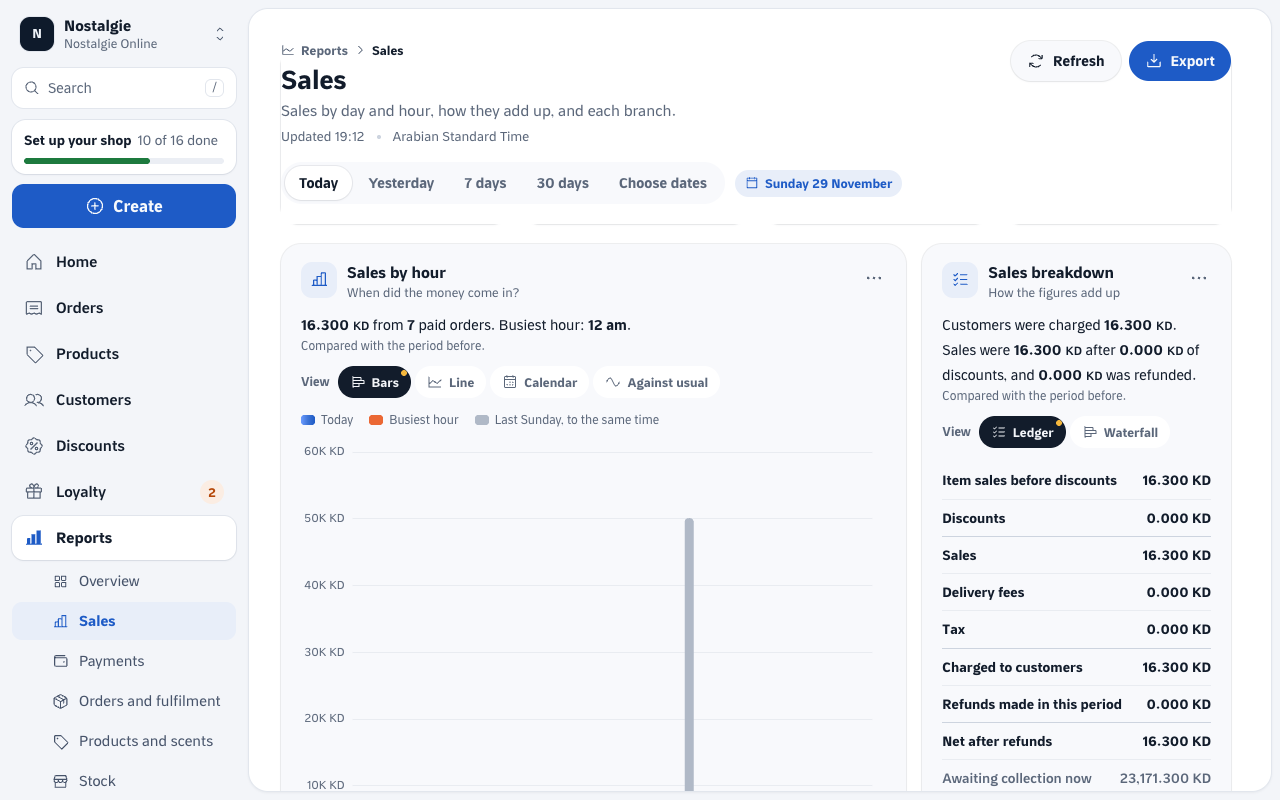
- When the money came in. For more than one day it reads by day.
- How the figures add up, from item sales to the net after refunds.
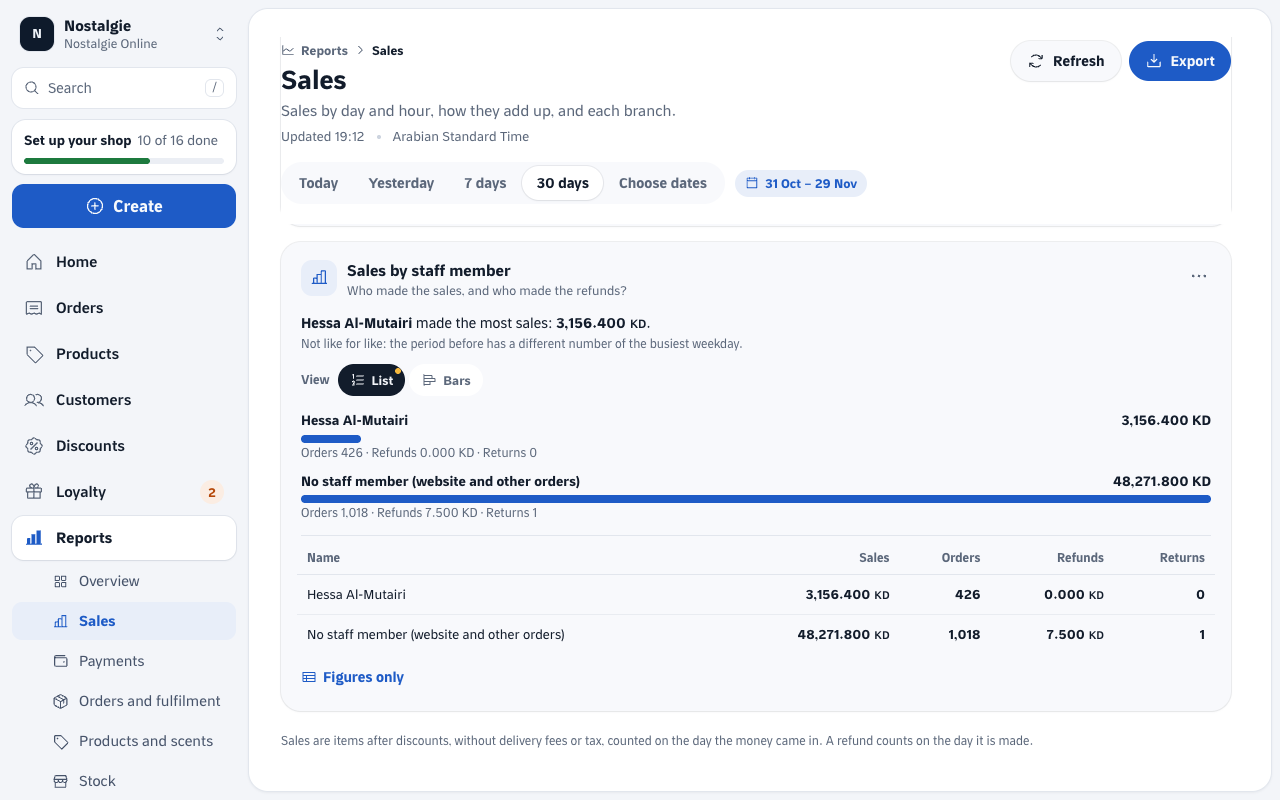
- Who made the sales, and who made the refunds.
- Download the page's reports.
- Excel, PDF or CSV, and which reports to put in it.
Open your reports
Open Reports
In the menu, select Reports. It opens on the Overview: Today at a glance, against your usual day.
Choose the days
Select Today, Yesterday, 7 days or 30 days. 7 days and 30 days end today. For other days, select Choose dates, set From and To, then select Show; you can choose up to 31 days.
The dates the figures cover show beside the buttons, for example Sunday 29 November.
Choose the branch
With more than one branch, choose one in Branch, or All branches. With one branch, there's nothing to choose.
Go to another report page
Under Reports in the menu, select a page. The Overview also lists them at the bottom, under Every report page. The days and branch you chose follow you from page to page.
Overview
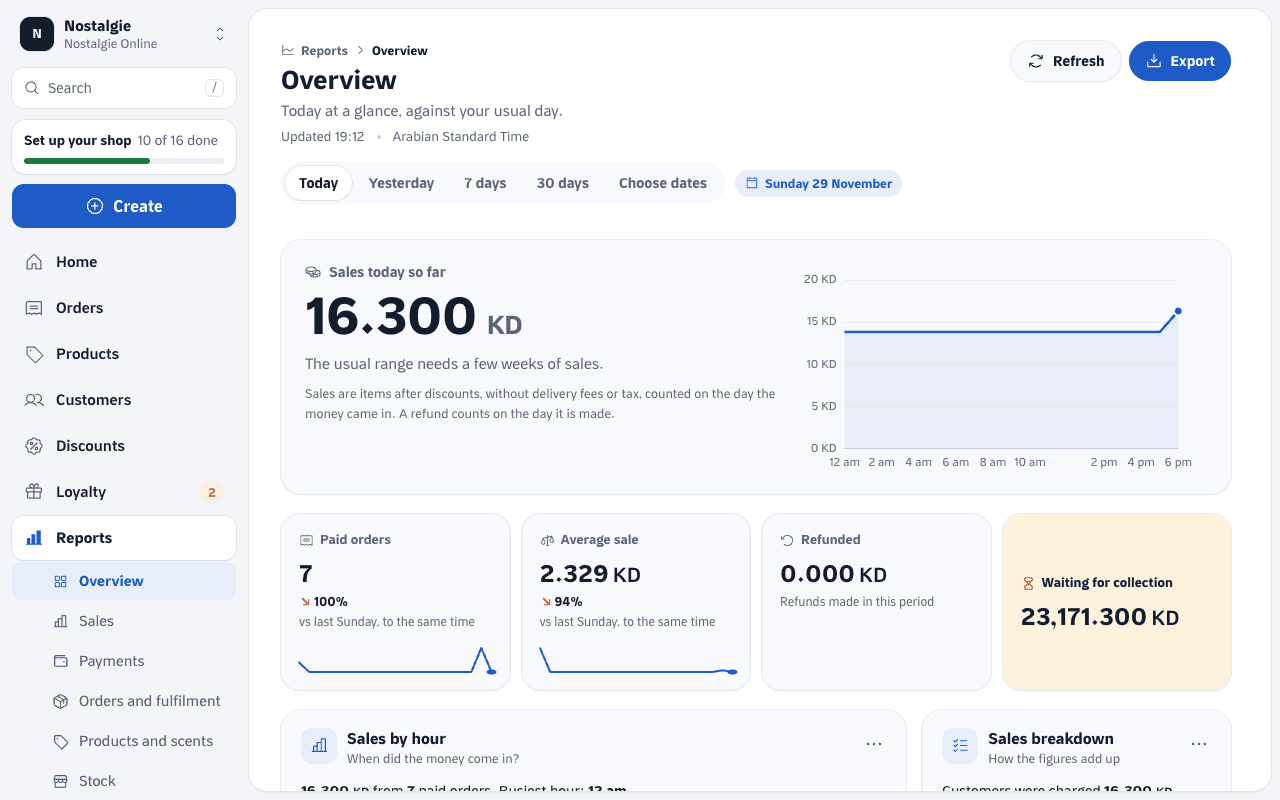
Period
Updated
Sales today so far
Export
The report pages
Which pages and reports you see depends on your type of business.
For Fragrance and cosmetics
On a fragrance store, Reports has these pages.
What counts as a sale
Every report page ends with the same line: Sales are items after discounts, without delivery fees or tax, counted on the day the money came in. A refund counts on the day it is made.
- Sales are the items sold, after discounts. Gift wrap counts as an item. Delivery fees and tax are not in Sales.
- The day of a sale is the day the money came in. An order paid on delivery or at collection is not a sale yet: it's in Waiting for collection until the money is collected (or, on some stores, until the order is marked completed).
- A refund counts on the day it is made, not on the day of the sale. It never changes the number of orders.
- Not sales: orders that are unpaid, failed, on hold, drafts or cancelled. A cancelled order that was already refunded keeps its sale and its refund.
- Imported orders brought in from another system are not counted in these reports.
- Tips and service charges are in neither Sales nor Charged to customers.
- Layby and pay-later orders at the POS are never counted as collected until the money really comes in.
- The days follow your store's time zone and your business day start. The time zone shows under the page title, for example Arabian Standard Time. With a day start after midnight, a sale made before it counts on the day before.
Read the Sales page
Open the Sales page
In the side menu:ReportsSalesRead the four figures
Read the change
Under Paid orders and Average sale, an arrow shows the change against the period before:
A change under half a percent shows —.
Read the reports
Each report starts with a question and a one-line answer, for example 16.300 KD from 7 paid orders. Busiest hour: 12 am. Then come the chart and the table.
Sales
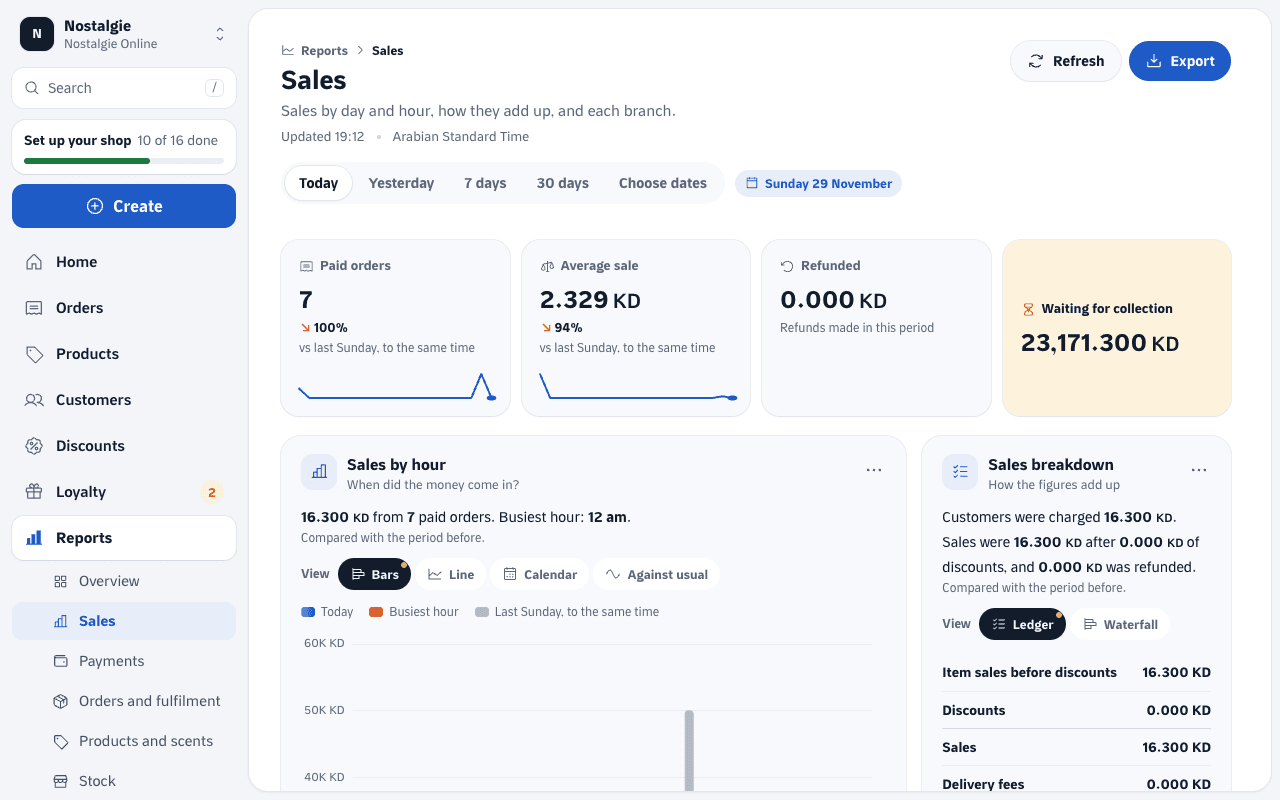
Paid orders
Average sale
Refunded
Waiting for collection
The reports on the Sales page
Sales by staff member
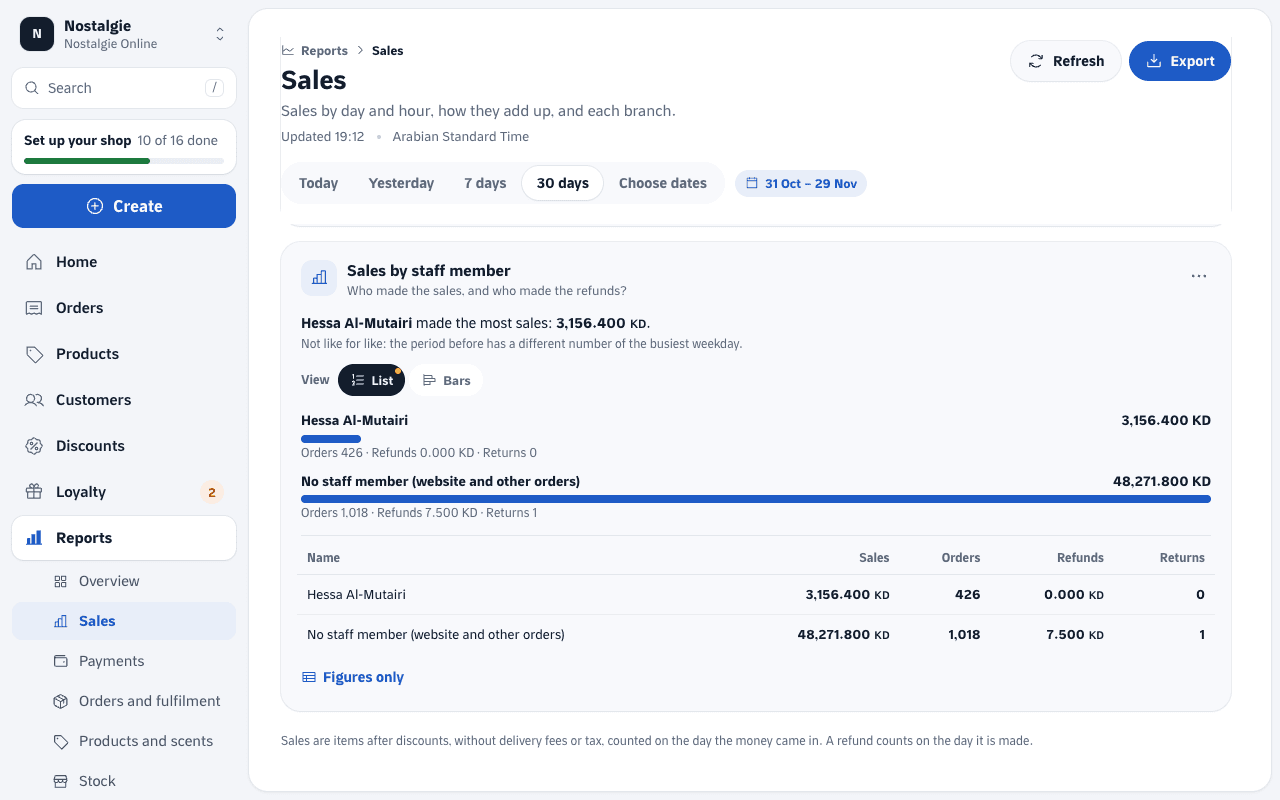
The answer
View
No staff member
Figures only
In Sales by staff member, some rows aren't one person:
Change how a report looks
Pick a view
Next to View, select another way to draw the report, for example Bars, Line or Calendar. The first one is the Recommended view. Helm remembers your choice for you; other people keep their own.
See the figures
Select Show the figures to add the table under the chart, or Figures only to show the table alone.
Export the figures
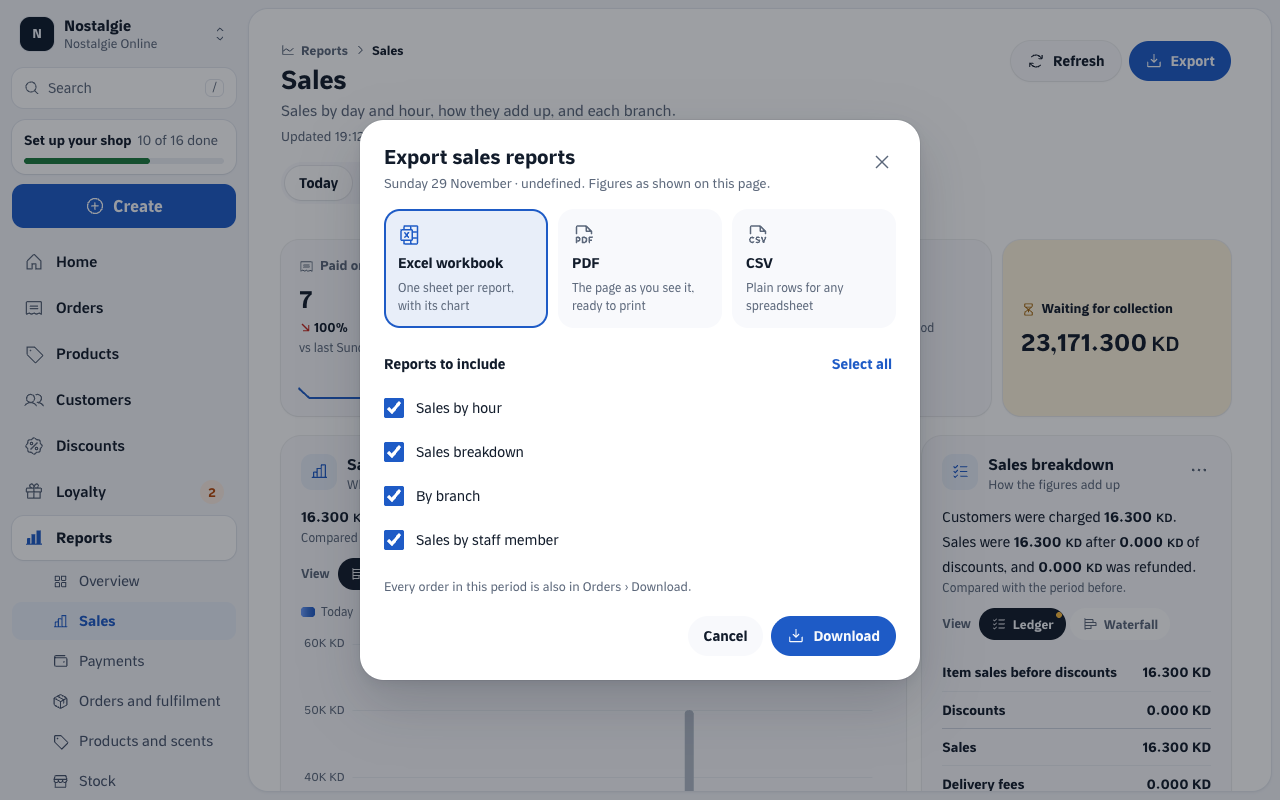
Open Export
On the report page, select Export. Export sales reports opens with the page's days and branch.
Choose the file
Choose the reports
For Excel or CSV, under Reports to include, tick the ones you want, or use Select all. Then select Download.
What happens next
- For Excel or CSV, you see : the file is named after the page and its dates. A PDF shows no message: it is saved from the print window.
- The file holds the figures as shown on the page, for the same days and branch.
- A report that couldn't be finished is left out, and the Excel workbook names it under Not included (could not be finished).
- To get every order of the period one by one, use the Orders page, as the dialog says: Every order in this period is also in Orders › Download.
If something goes wrong
Helm shows nothing rather than a half-counted figure. Select Refresh, or try again in a few minutes.
Choose a shorter period.
The store took too long to answer. Select Refresh.
In Choose dates, set From on or before To, no more than 31 days apart.
Your website's Perks plugin is too old to answer the reports. Update it, then reload the page.
Your store isn't connected yet. Sales reports appear once it is.
The Overview compares today with your usual day once it has a few weeks of sales. Until then it shows today's figure alone.
Helm keeps each answer for up to a minute. The time after Updated says when it was read. Select Refresh to ask again.
Sales leave out delivery fees and tax, and orders still waiting for collection. Charged to customers in Sales breakdown includes fees and tax.
No sale, or nothing for this report, in the days you chose. Choose a longer period.
Your role doesn't hold See sales per staff member. The owner can add it to your role.
Your role doesn't hold See sales reports. The owner can add it to your role.