The POS (The Terminal)
Park an order and resume it
Park an order on The Terminal so you can serve the next customer, then resume it from Parked orders, or discard it.

Tried on a demo store on 29 November 2026
Before you start
- Sign in to The Terminal on the register with your own passcode: Sign in to the POS for the first time.
- Put at least one product in the order, as in Make a sale.
- Discarding a parked order needs Void before payment, which owners and managers have. Anyone else needs a manager's approval.
Watch the steps
- The order has a product in it, here one Euphorie for 0.250 KD on R1-017.
- Select the pause button beside Charge.
- A new, empty order starts (R1-018). Parked now shows 1 and Tap to resume.
- Or open More (…) at the top of the order and select Parked 1.
- Each order shows its number, the products, when and by whom it was parked, and its total. Select it to resume.
- R1-017 is back with its products, priced again. Charge it as usual.
- In Parked orders, swipe the order towards the start of the screen and select Discard.
- The list says No parked orders.
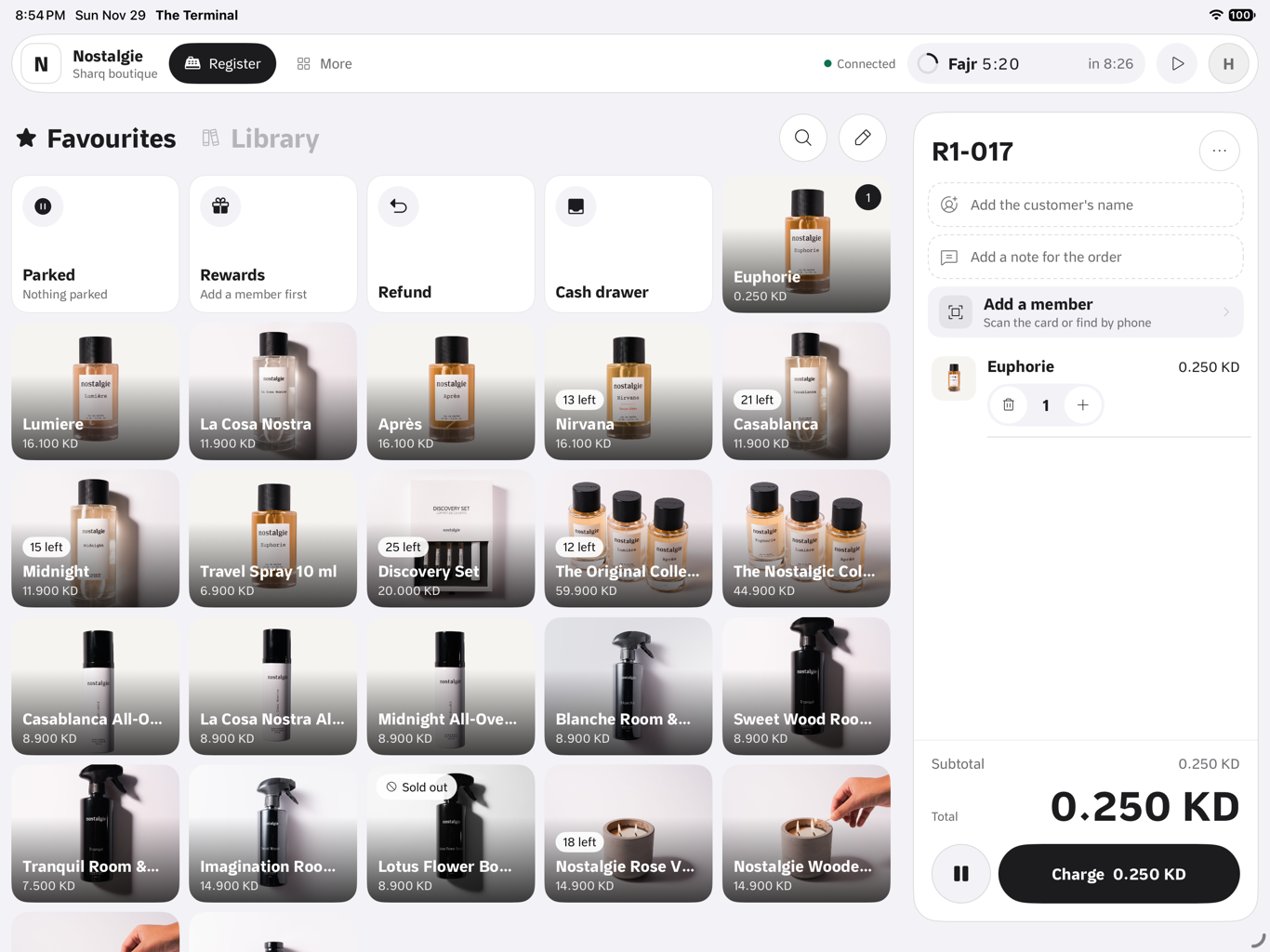
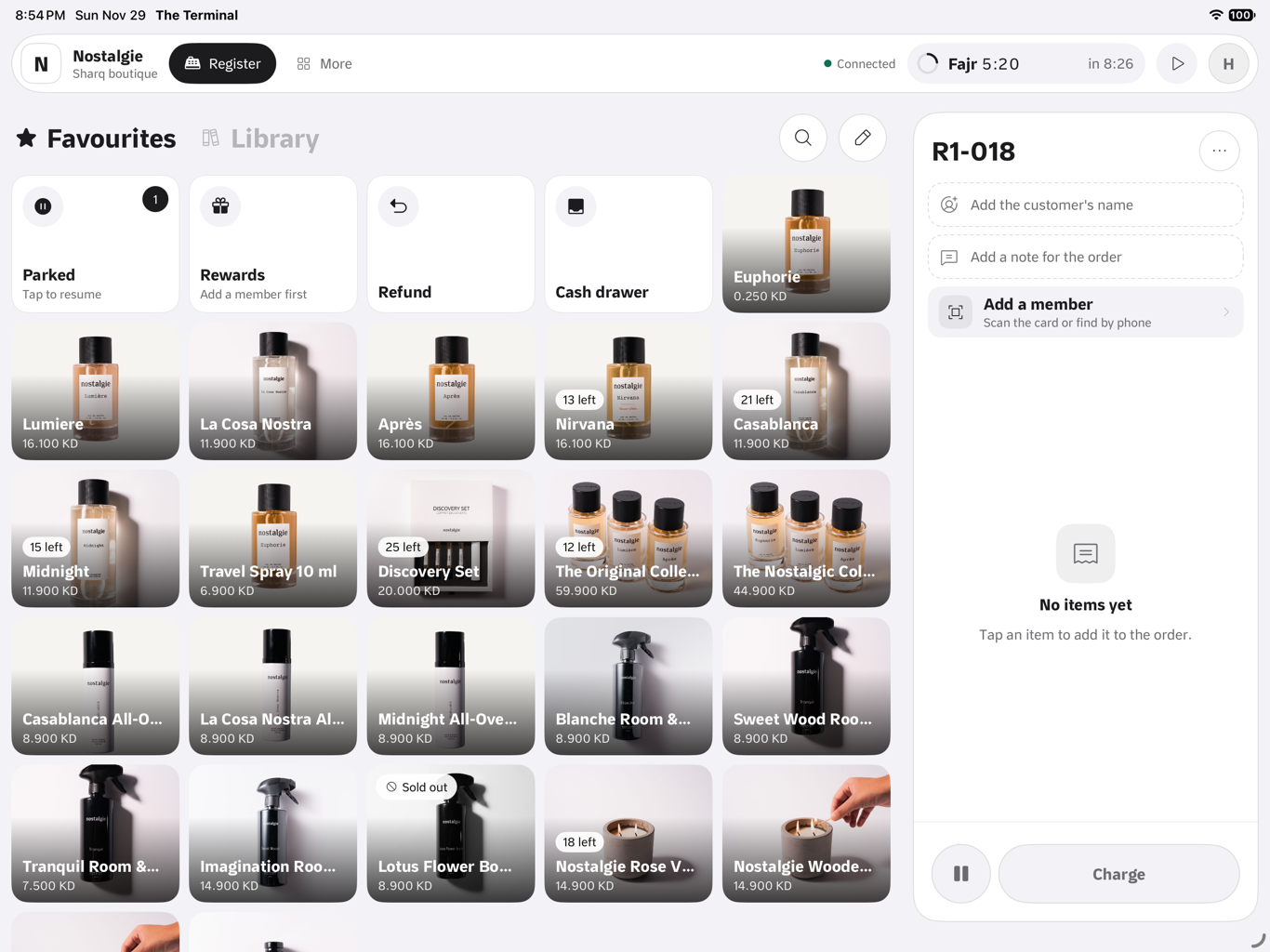
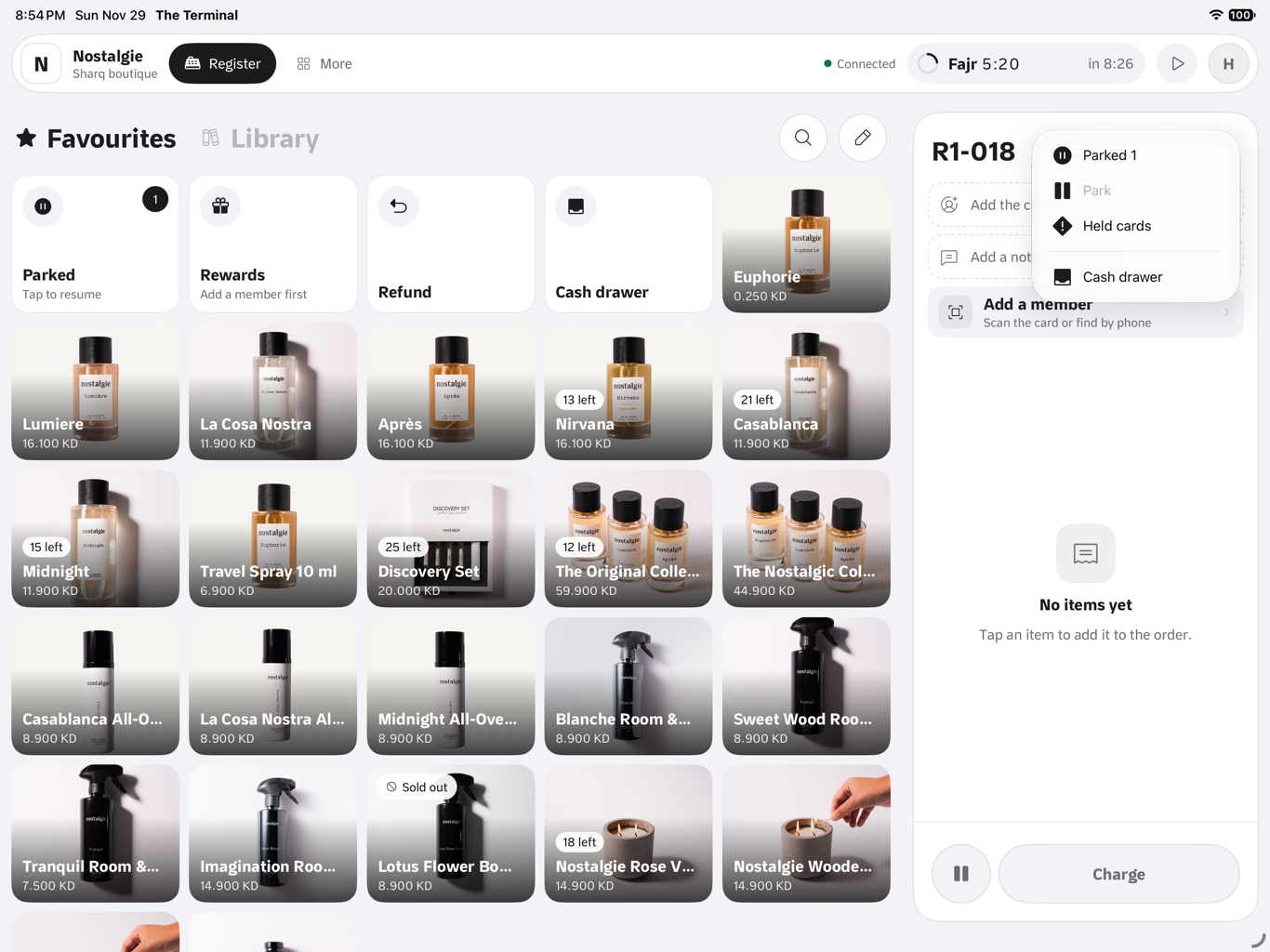
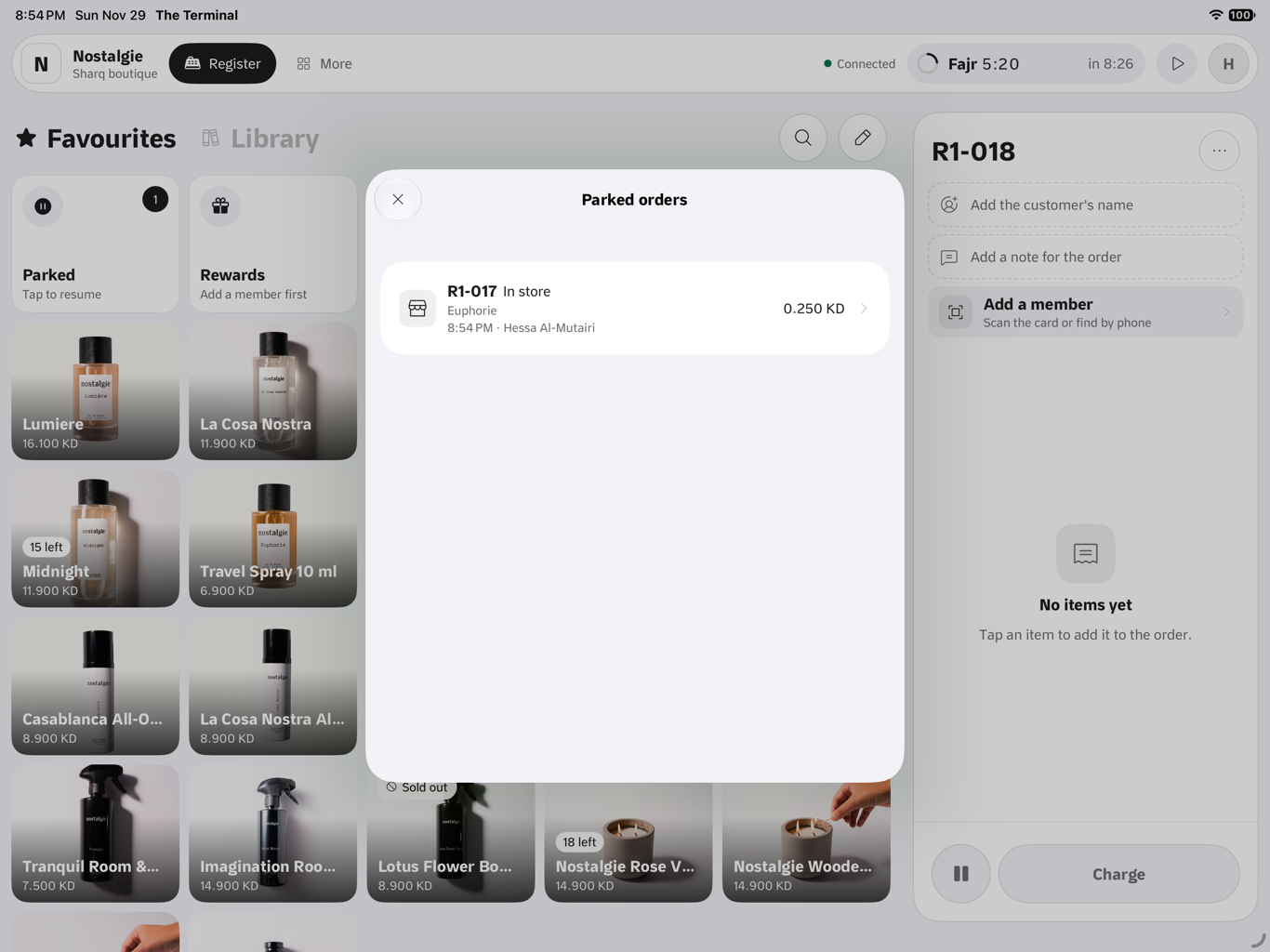
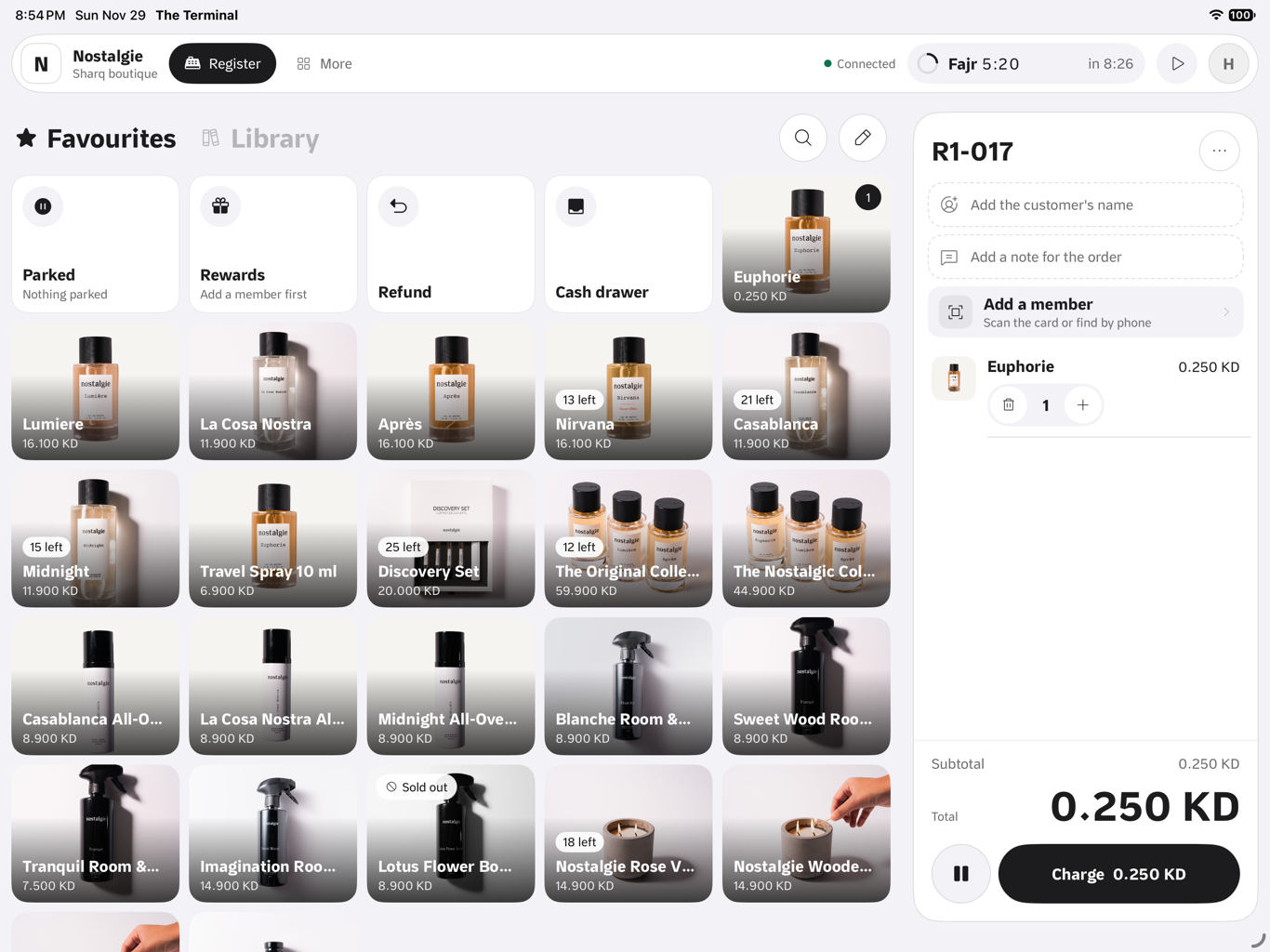
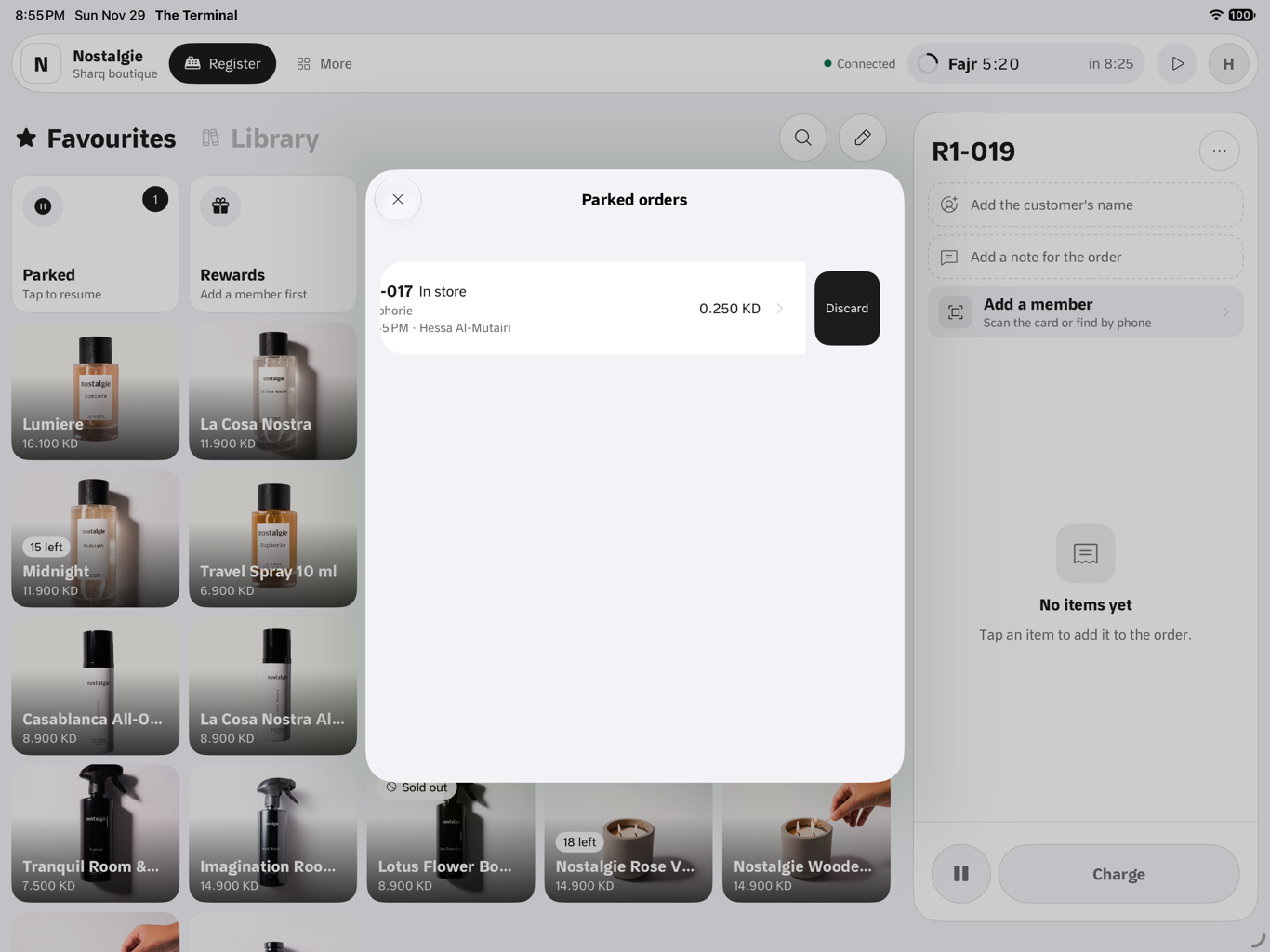
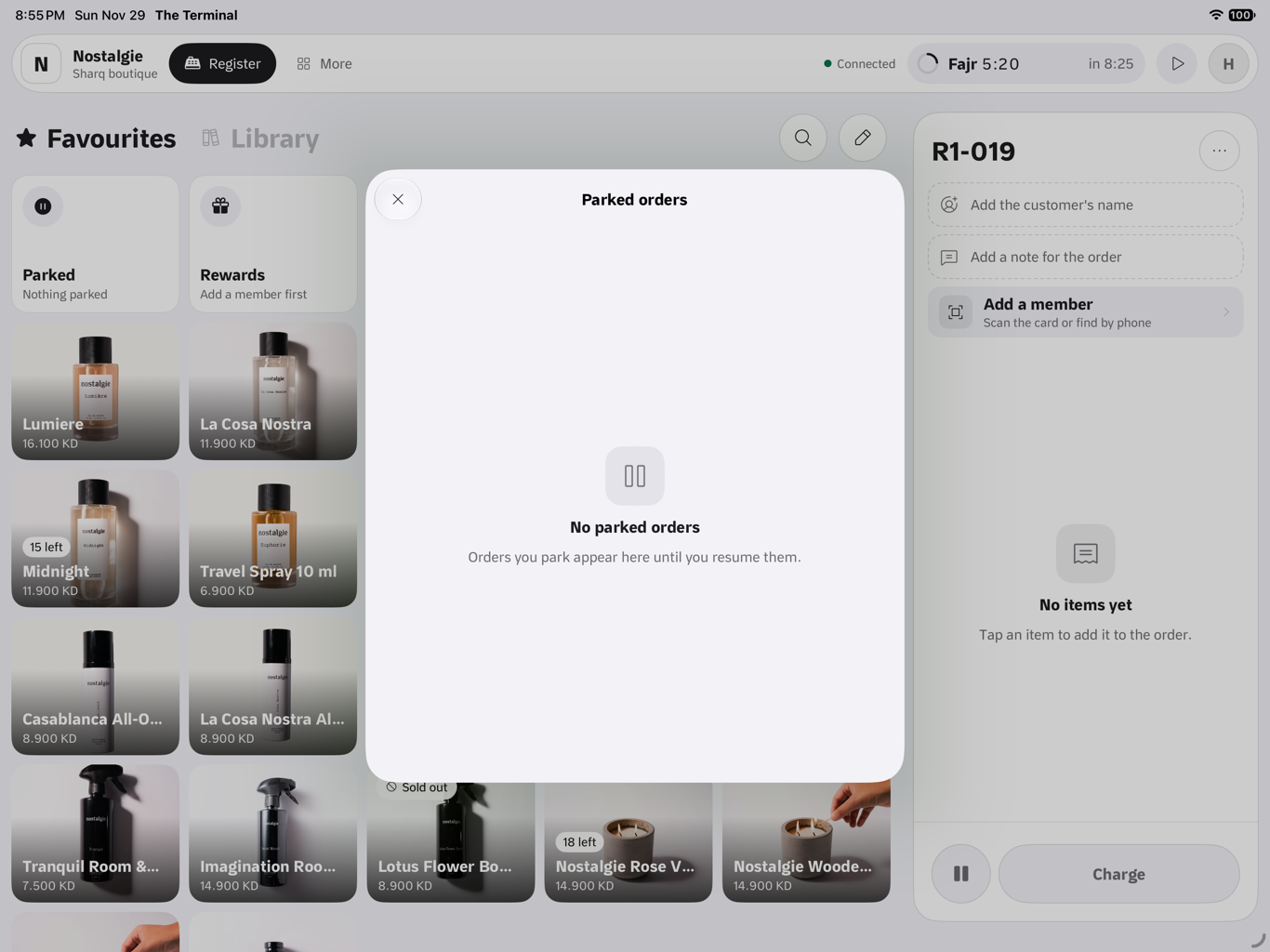
To set an order aside while you serve someone else, and pick it up again later, follow these steps:
Park the order
Select Park
Under the order's total, select the pause button beside Charge. Or open More (the … button at the top of the order) and select Park.
Start the next order
The order leaves the register and a new, empty order starts with the next ticket number. Serve the next customer as usual.
Recall a parked order
Open Parked orders
Open More (…) and select Parked, which shows how many are waiting, for example Parked 1. If your register shows the Parked quick action, you can select it instead: it says , or when the list is empty.
Choose the order
Parked orders lists each one with its ticket number, the order type, the products, the time it was parked, who parked it, and the total it had when it was parked. The newest is at the top. Select the order.
Carry on
The order comes back to the register as it was, with the same ticket number, products, member, order name and note. Charge it as in Make a sale.
Discard a parked order
Swipe the order
In Parked orders, swipe the order towards the start of the screen.
Select Discard
Select Discard. If your role doesn't have Void before payment, a manager approves it first (Void the ticket). The order leaves the list.
What happens next
- A parked order is kept on this iPad only. It stays through a lock, a restart of the app and a change of person, but another register doesn't see it.
- No order is made in the store while an order is parked. It becomes an order only when it is charged, so a parked order takes no payment and is not in the orders list.
- The total in the list is the one from when the order was parked. When you recall it, the store prices it again, so the total can change if a price changed meanwhile.
- If a reward was on the order and its hold ran out while the order was parked, the order comes back at full price, with Discarding an order gives its reward back.
- When someone signs in while another person's order is open, they can select Start new: the other person's order is parked under their name, and appears in Parked orders.
Parked orders
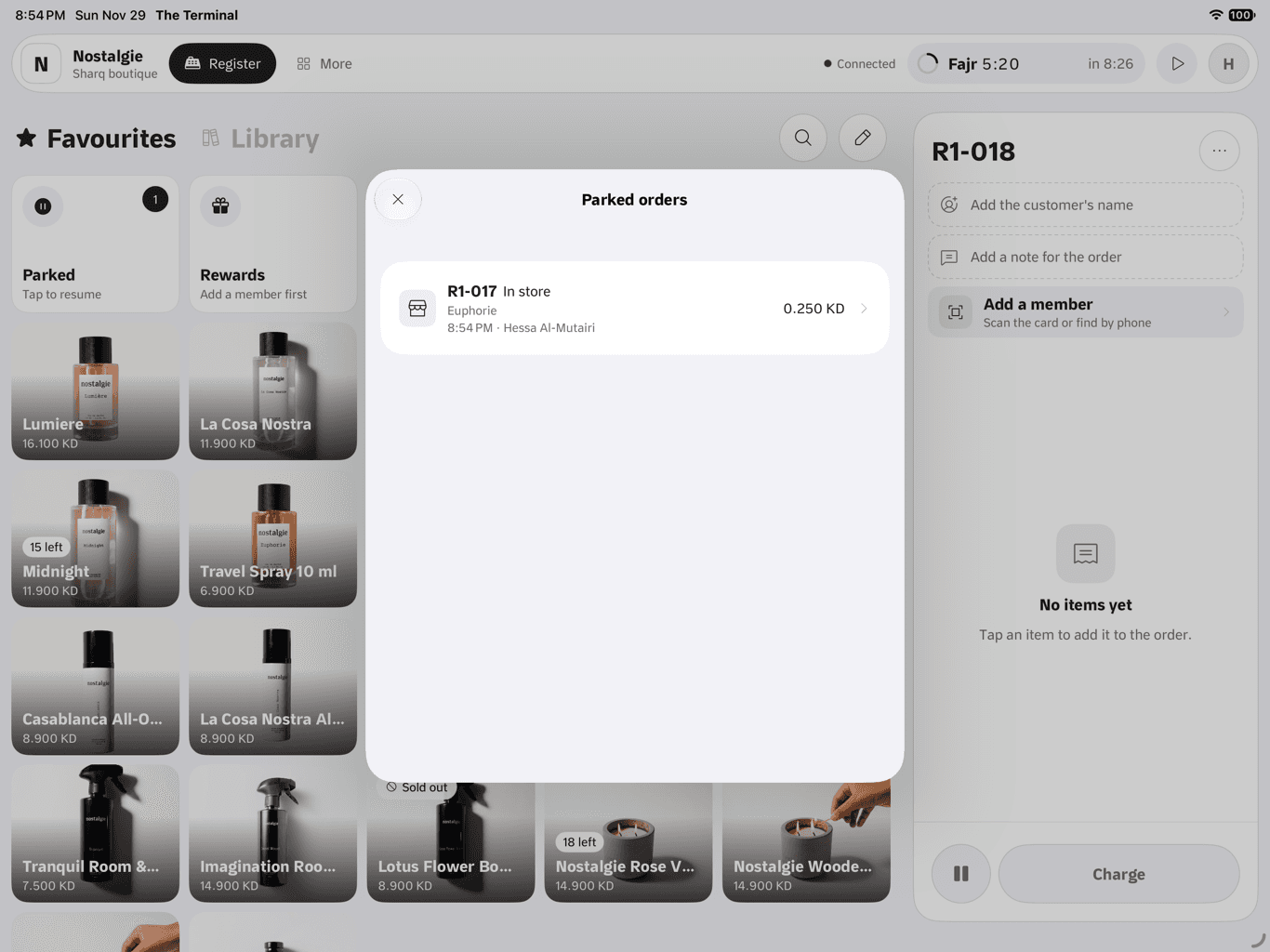
Ticket number and type
When and who
Total
Close
If something goes wrong
The iPad couldn't save the parked list, so the order stays where it was. Try again.
Nothing is parked on this iPad. An order parked on another register stays on that register.
A product in the recalled order sold out or was taken off sale while it was parked. Remove the line, then charge.
The product's options changed in Helm while the order was parked. Remove the line and add the product again.
A price changed since the order was priced. Check the new total with the customer, then charge.
You can recall the order, but it can't be priced or charged until the connection is back.