The POS (The Terminal)
Make a sale
Ring up a sale on The Terminal's register. Find products by category or search, set the quantity and options, charge the total and take cash.
Tried on a demo store on 29 November 2026
Before you start
- Selling needs the Sell at the register permission, and taking cash needs Record cash. Owners, managers, cashiers and the Boutique staff role have both.
- Sign in to The Terminal on the register with your own passcode: Sign in to the POS for the first time.
- Open the drawer before you take cash, so the cash is counted in it: Open the drawer.
Watch the steps
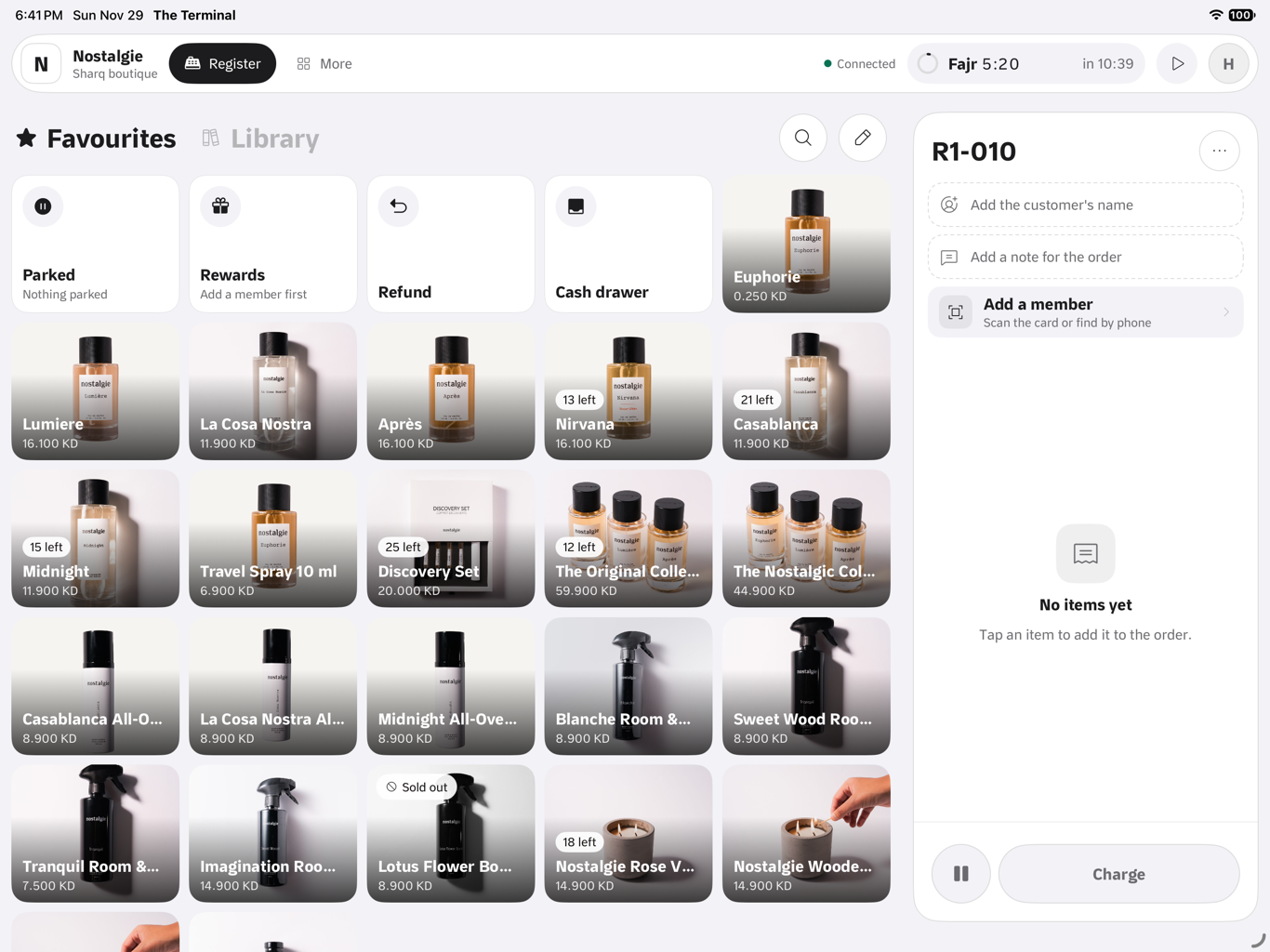
- The register opens on Favourites: your quick actions and the products you sell most. The order is on the right.
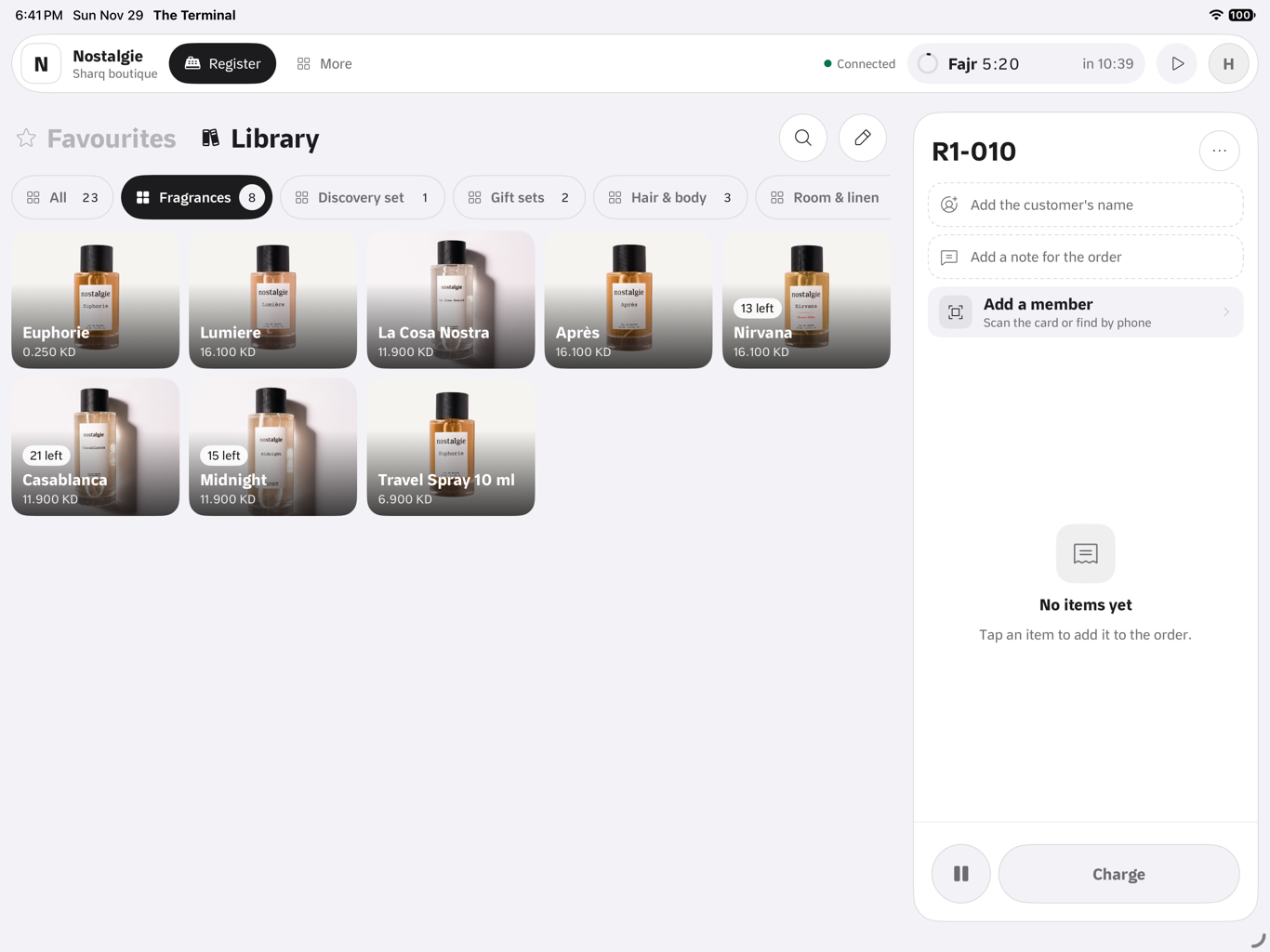
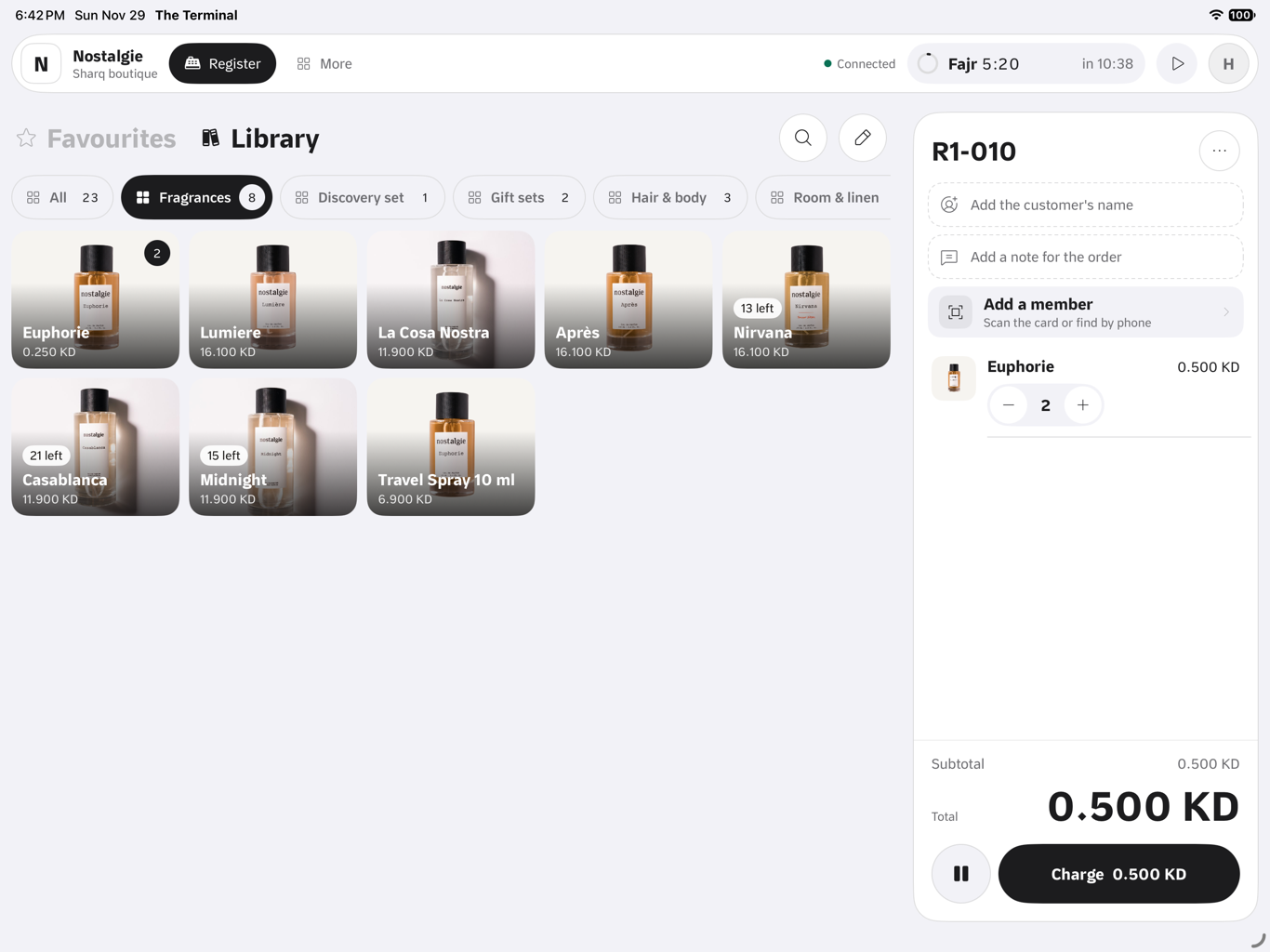
- Select Library, then a category. Each tile shows the name and the price.
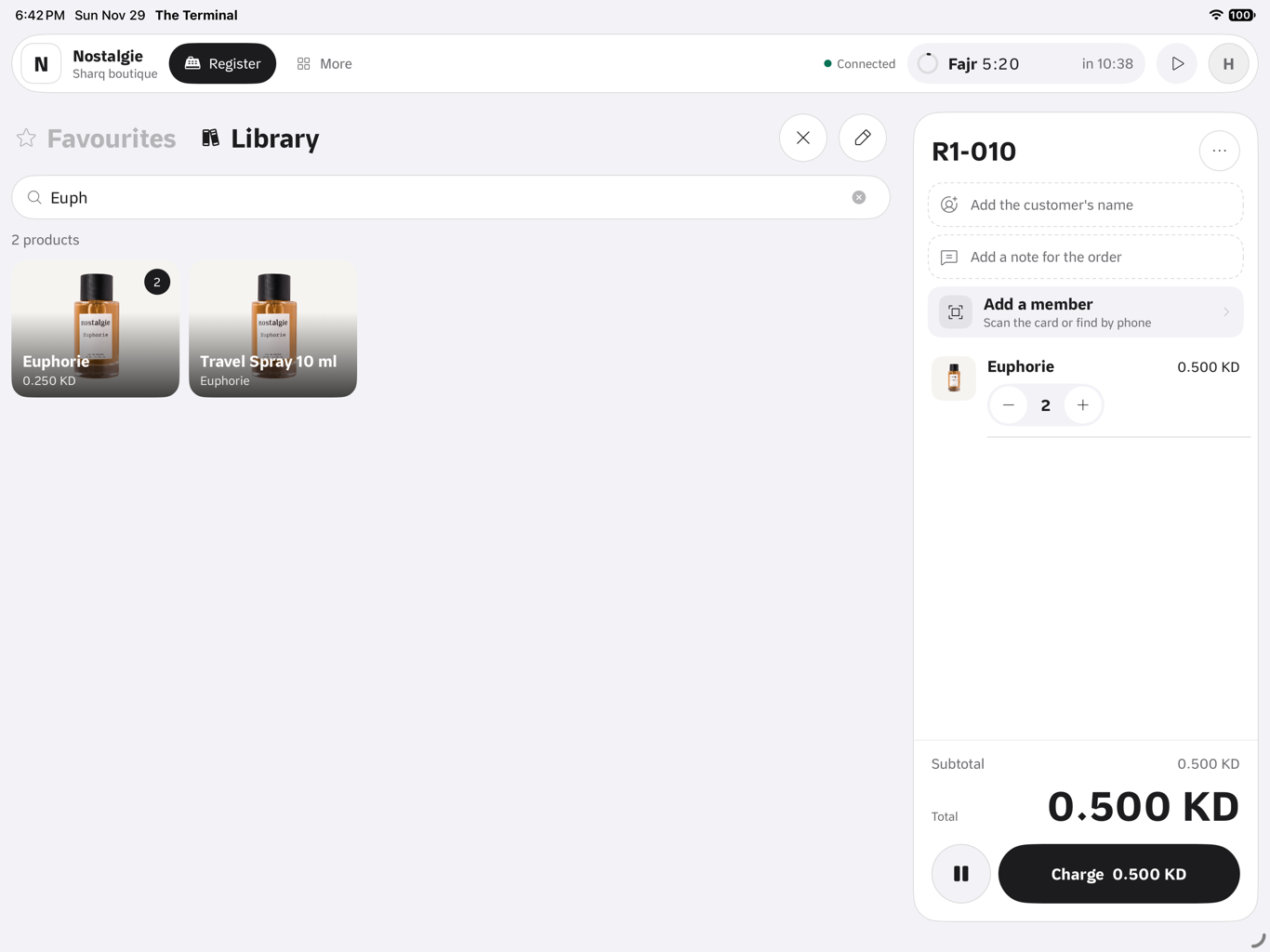
- Select the search button, then type part of the name in the search field. Here: "Euph" finds 2 products.
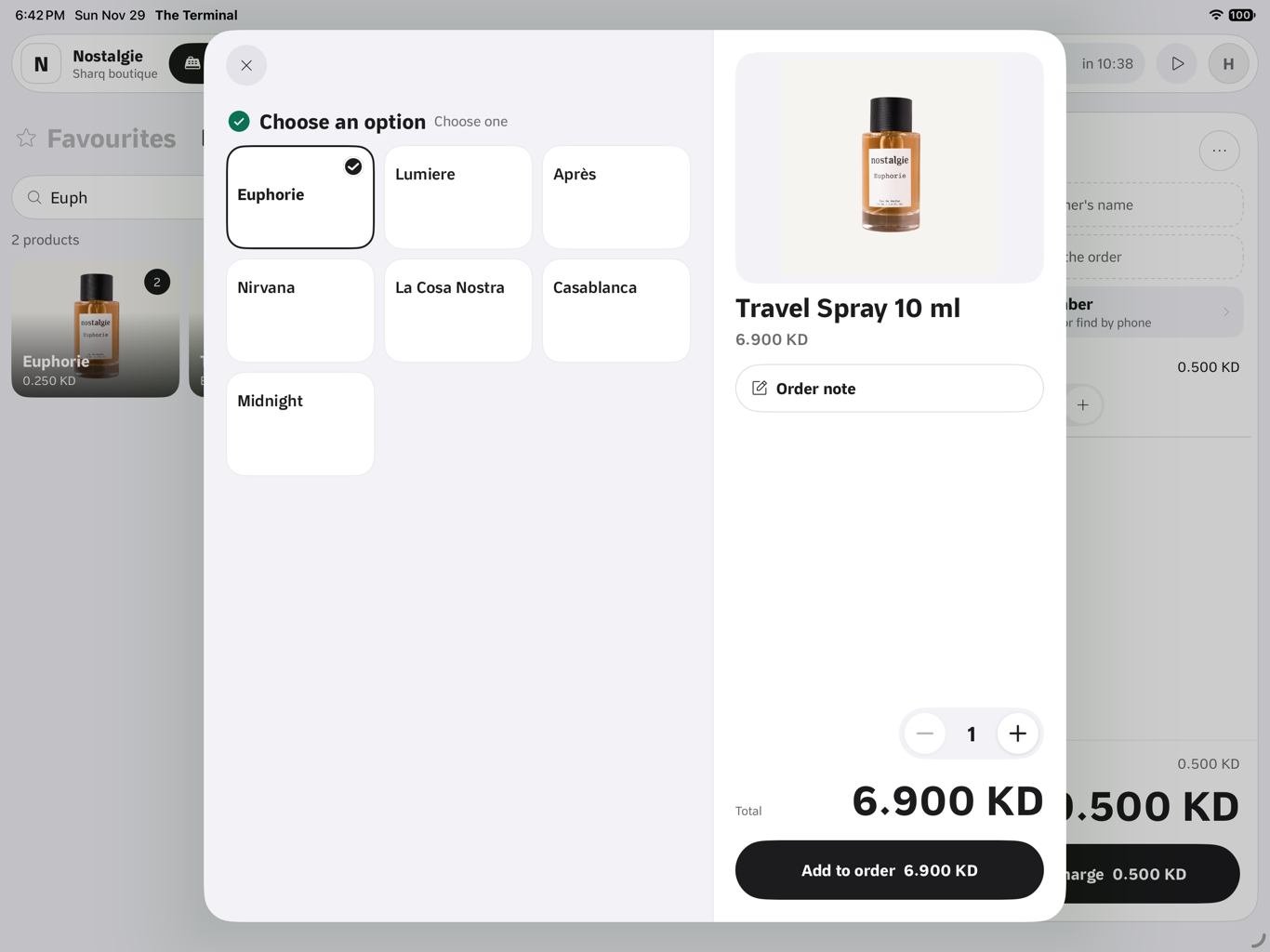
- A product with options opens a window. Choose one, set the quantity, then select Add to order.
- Each tap adds one. Use + and − on the line to change the quantity.
- Check the total, then select Charge.
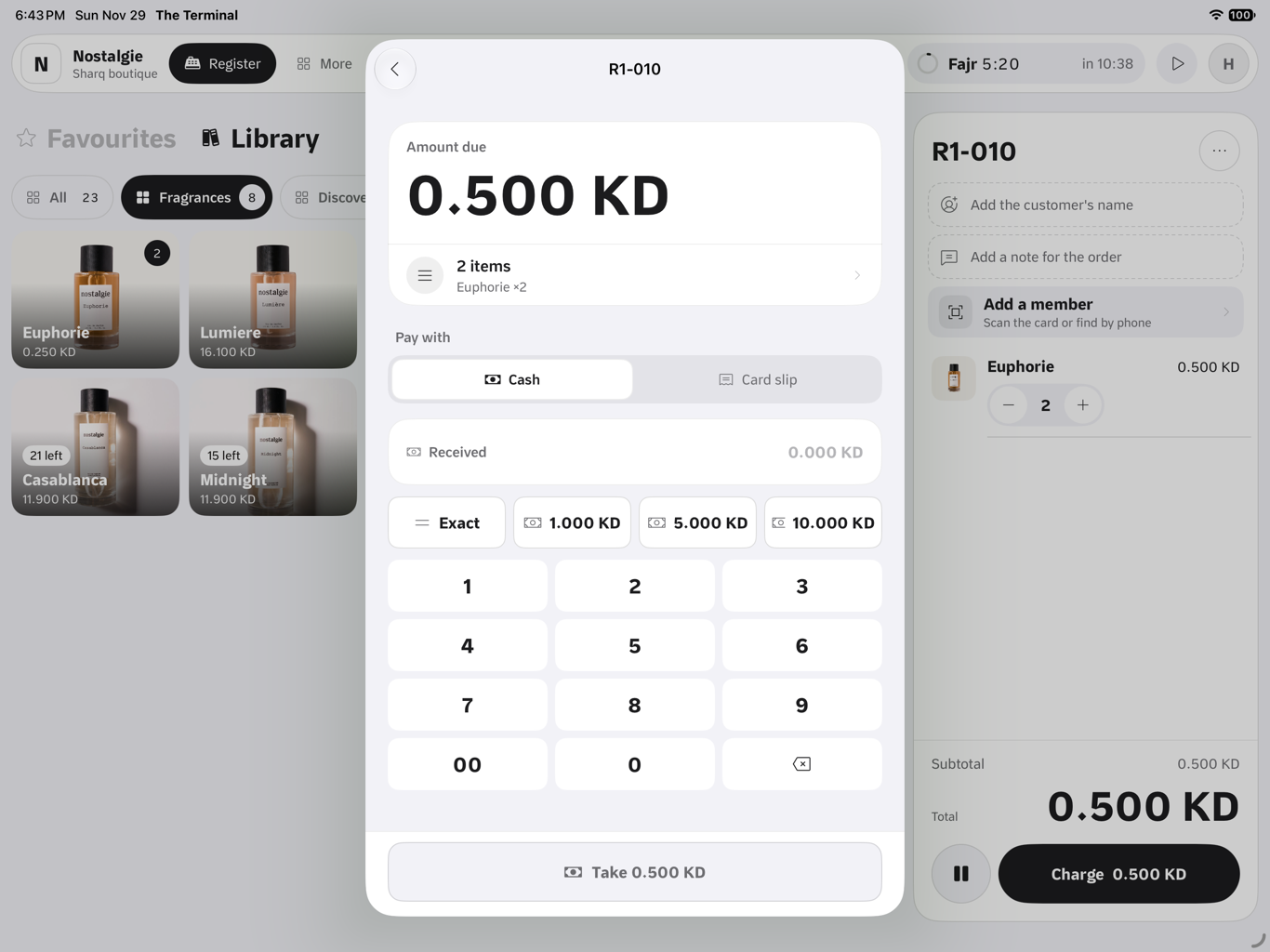
- The amount due is at the top. Under Pay with, keep Cash.
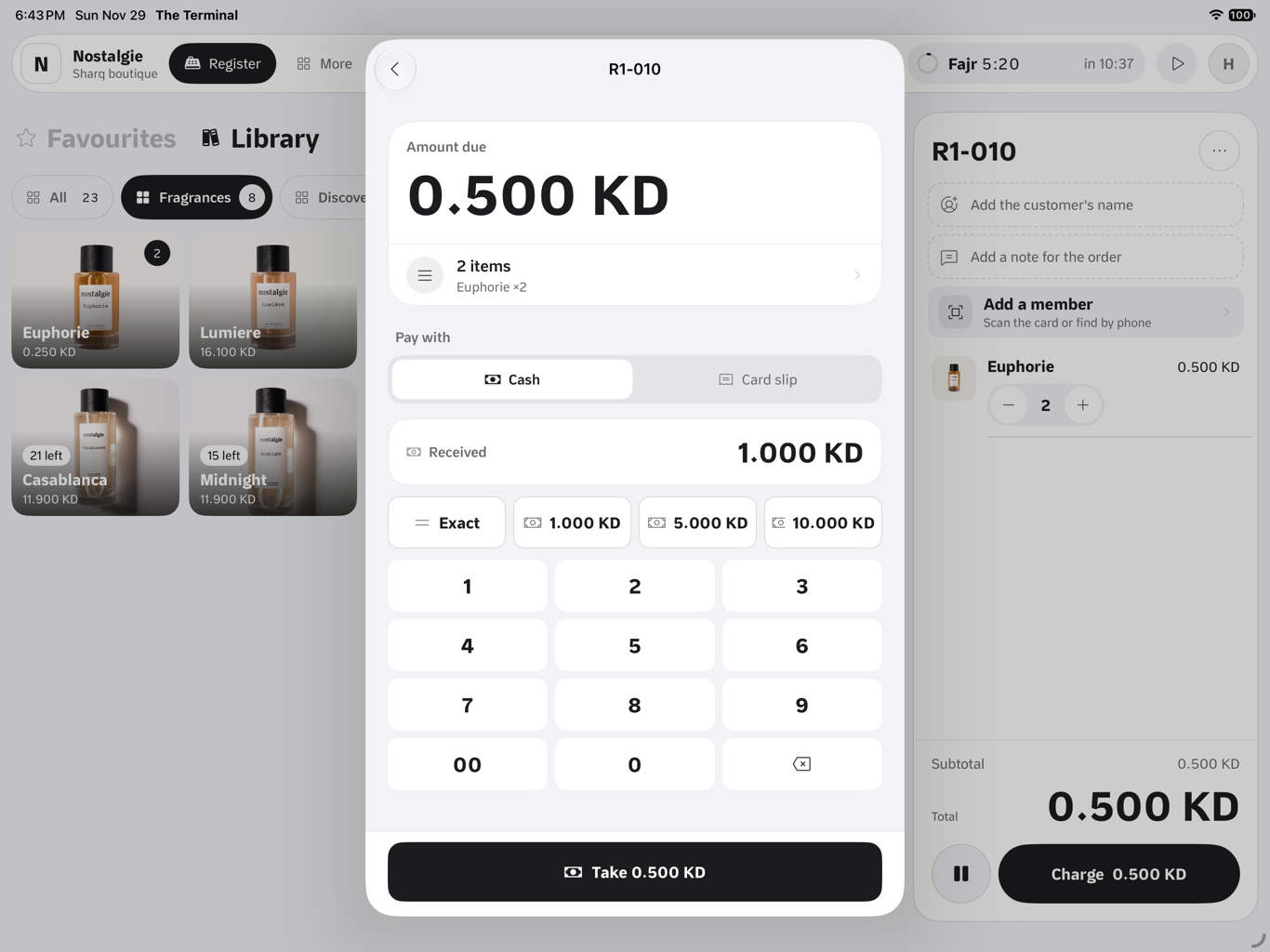
- Select a note, here 1.000 KD, or type the amount on the keypad.
- Select Take 0.500 KD.
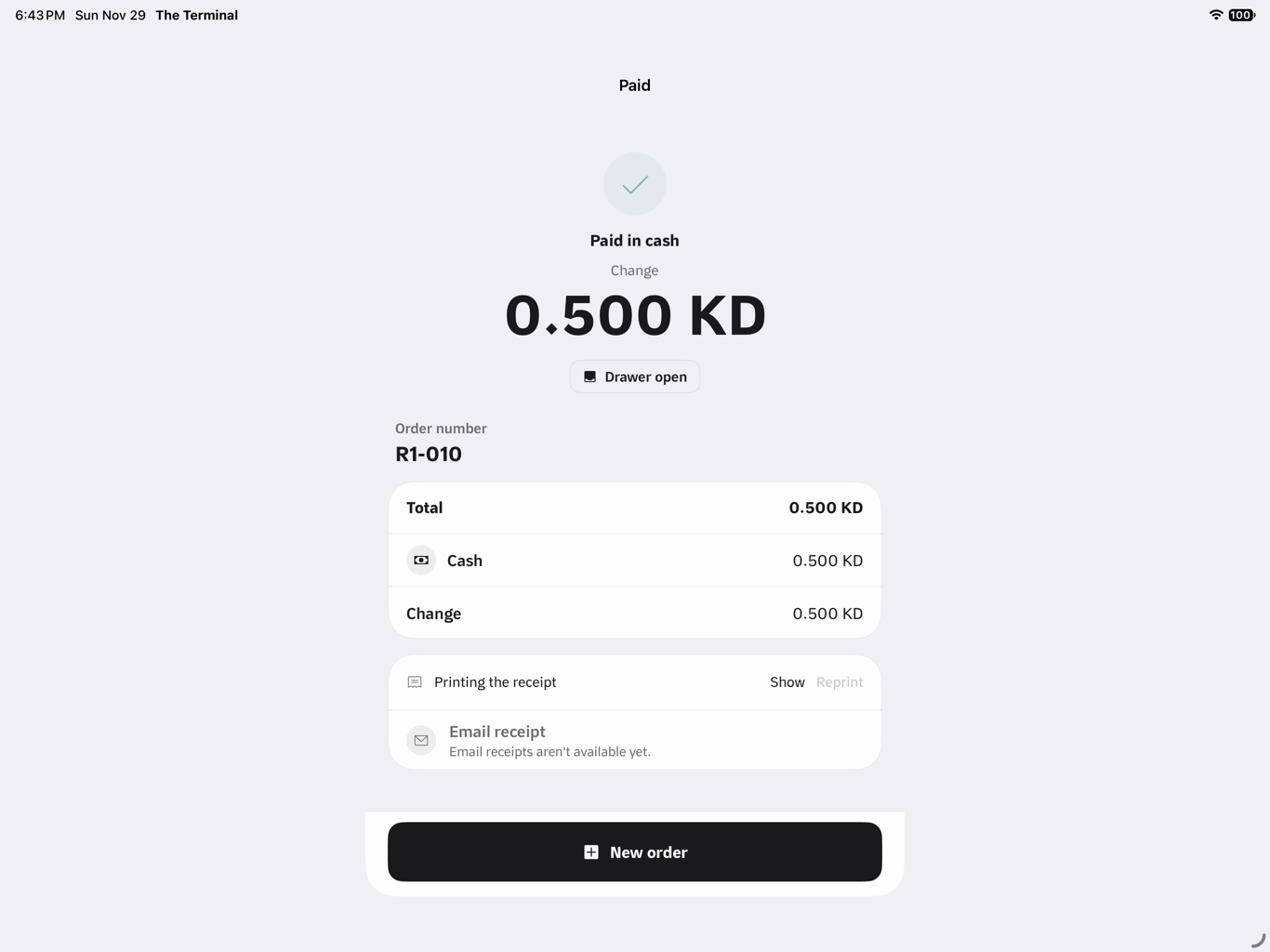
- The screen shows the change to give back and the order number. Select New order for the next customer. If your store locks the register after each sale, this screen can close at once.
Add products to the order
Find the product
The register opens on Favourites. To see everything, select Library, then a category, or All. A tile can show how many are left, for example 13 left, or Sold out.
To search, select the search button and type part of the product's name, in English or Arabic. The list shows how many match, for example . Select the × button to close the search.
Add it
Select the tile. A product without options goes straight into the order; each tap adds one more.
A product with options, such as a size, opens a window first. Choose under each heading, for example Choose an option, Choose one. Set the quantity with + and − and select Add to order. Until everything required is chosen, the button says what is still missing.
Check the order
The order on the side lists each line with its quantity and price. Select + or − to change a quantity. At 1, the bin removes the line; removing a line needs Void before payment, which owners and managers have, otherwise a manager approves it. Under the lines you see Subtotal, any Discount and Tax, and the Total.
When the register sees that the drawer is closed, a bar above Charge says with Open it. Select it to open the drawer before you take cash.
Take cash
Charge
Select Charge, which shows the total, for example Charge 0.500 KD. The payment window opens with the Amount due and the items.
Choose Cash
Under Pay with, select Cash. When the register sees that the drawer is closed, it says and holds the payment: select Open the drawer and count the float, as in Open the drawer. The sale and the amount stay as they are. If the register can't tell whether the drawer is open, it doesn't stop the sale, so don't rely on this message: open the drawer first.
Enter what the customer gave you
Select Exact or a note, such as 1.000 KD, 5.000 KD or 10.000 KD. Or type the amount on the keypad: it fills from the right, so 1, 0, 0, 0 is 1.000 KD. Received shows the amount. Take stays off until Received covers the amount due.
Take the payment
Select Take 0.500 KD, which shows the amount due.
For Fragrance and cosmetics
What happens next
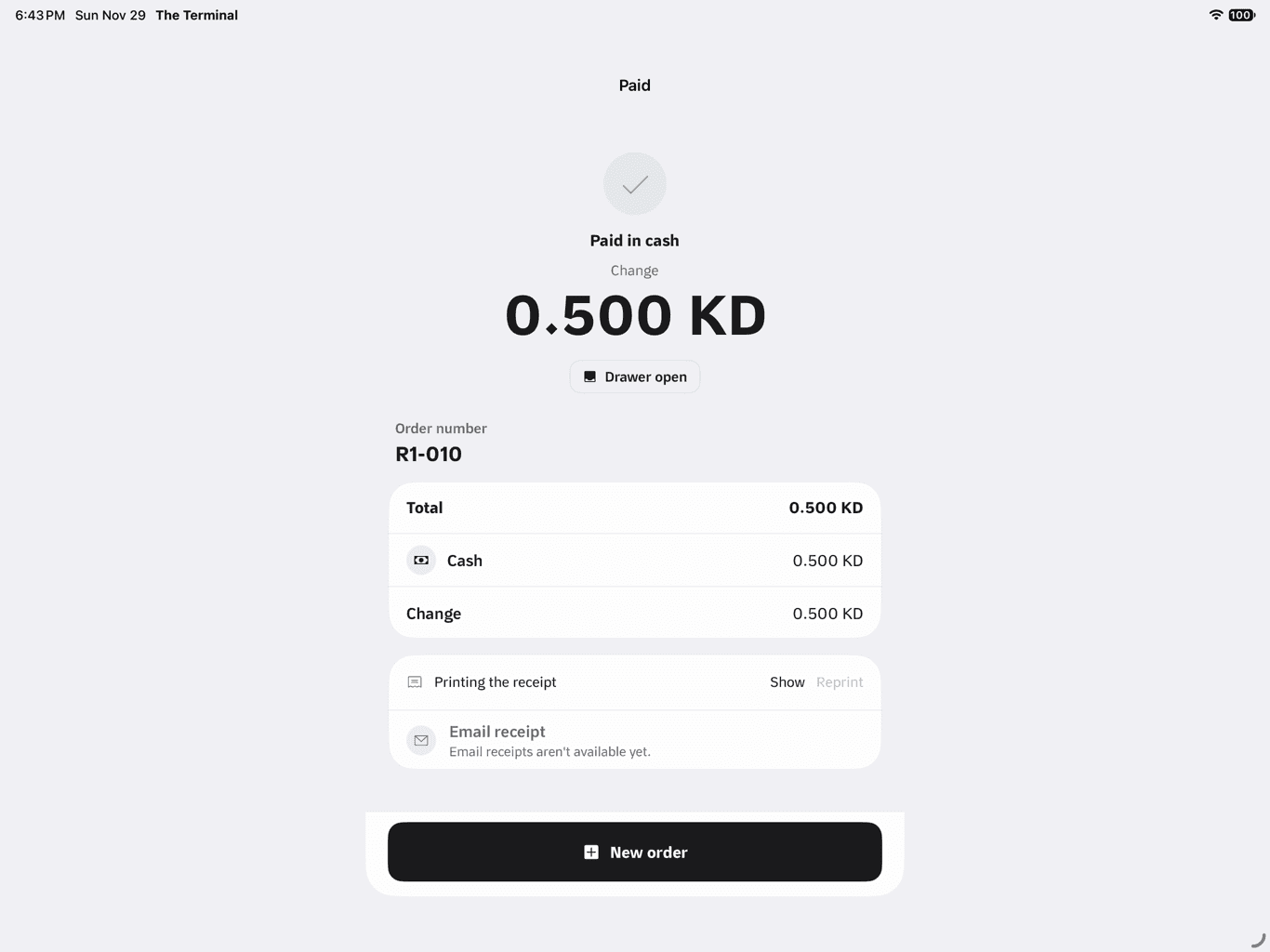
- The window shows Paid in cash and, in large figures, the Change to give back. With no change it shows Amount paid and . shows this was a cash sale with change due.
- Below are the Order number, the Total, the Cash row and the Change. The Cash row shows the amount paid towards the order, not the note the customer handed over; that figure was under Received on the previous screen. The receipt row says , or , with Show and Reprint. Email receipt isn't available yet.
- Select New order to start the next sale. The cash sale is added to the drawer's Drawer activity and to its Expected in the drawer.
- If your store has Lock after each sale switched on in Helm (In the side menu:SettingsDevicesAuto-lock), the register locks after the sale, and the next person signs in with their own passcode.
Paid
Change
Order number
Total and payment
Receipt
New order
If something goes wrong
The Terminal can't reach the store, so it can't price the order or record a payment. Check the internet connection, then try again.
The store hasn't priced the order yet, so no total is shown and you can't charge. Wait a moment or check the connection.
The store didn't answer with a price. Try again.
A price changed since you added the item. Check the new total with the customer, then charge.
A product in the order sold out or was taken off sale. The line is marked . Remove it, then charge.
The product's options changed in Helm. Remove the line and add the product again.
The register sees that the drawer is closed. Select Open the drawer in the window, open it, and the payment goes through.
The register sees that the drawer is closed, and your role can't open it. Ask a manager to open it.
This order is paid, or being paid, online. Check before you take any money.
You chose Card slip without a reference. Enter the code from the card machine's slip.
Enter at least the amount due.
The payment didn't go through. Select Retry charge.
The store didn't confirm the payment. Select Retry charge; it finishes the same payment.
Your role can't sell or take cash. Ask the owner to add Sell at the register or Record cash to your role.
The iPad couldn't save the order. Nothing changed. Try again.