Fix a problem
A sign-in code doesn't work
For anyone whose code is refused on The Terminal's keypad or on Helm's sign-in page, and for the manager who helps them.
Tried on a demo store on 29 November 2026
Before you start
- Don't keep guessing. On The Terminal, every wrong code counts against the whole iPad, for everyone: after 50 in a row the iPad stops accepting codes until a manager resets it in Helm.
- Don't type the POS PIN on The Terminal's keypad. The keypad refuses it and counts it as a wrong try.
Try these, in order
Check which code you're typing
On The Terminal's keypad, type your own code: the first time, it's the one your manager gave you under Helm sign-in, not the POS PIN. After that, it's the six digits you chose yourself. The same code signs you in to Helm, on Personal code with your username or email.
Wait for the countdown
If The Terminal shows , just wait until the countdown ends, then type the code once, carefully. Nothing needs resetting. In Helm, after 10 wrong codes in a row, code sign-in stops for 15 minutes, and longer each time after that. While your code is locked in Helm, The Terminal's keypad refuses it too, and each try counts toward the iPad's lock.
In Helm, sign in by email
In Helm, select Forgot your code? Sign in by email, or the Email tab, and use the code Helm emails you. This way in isn't locked by wrong personal codes. Then choose a new code: see Sign in to Helm for the first time.
On The Terminal, use Forgot passcode
On the keypad, select Forgot passcode?, enter your Work email and select Send code. The emailed code lets you set a new passcode. It needs the iPad to be online. See Sign in to the POS for the first time.
Ask a manager to reset your access
No work email, or still stuck? A manager or the owner opens your row on Helm's Team page, selects Reset access and chooses A new Helm sign-in code. That also clears a lock on your code. The new code works for 72 hours; the first time you use it, you choose your own. See Reset a team member's sign-in code.
If the whole iPad is locked, reset the device
If The Terminal says , nobody can sign in on that iPad, and waiting doesn't help. Only then, a manager with the Manage devices permission opens In the side menu:SettingsDevices in Helm, where the iPad shows Locked, opens its ⋯ menu and selects New code. If Helm shows Confirm it’s you, they enter their own 6-digit code. The iPad is signed out and its pairing ends. Enter the new code on the iPad: it works once, within 48 hours. See Pair an iPad with The Terminal.
A code The Terminal refuses
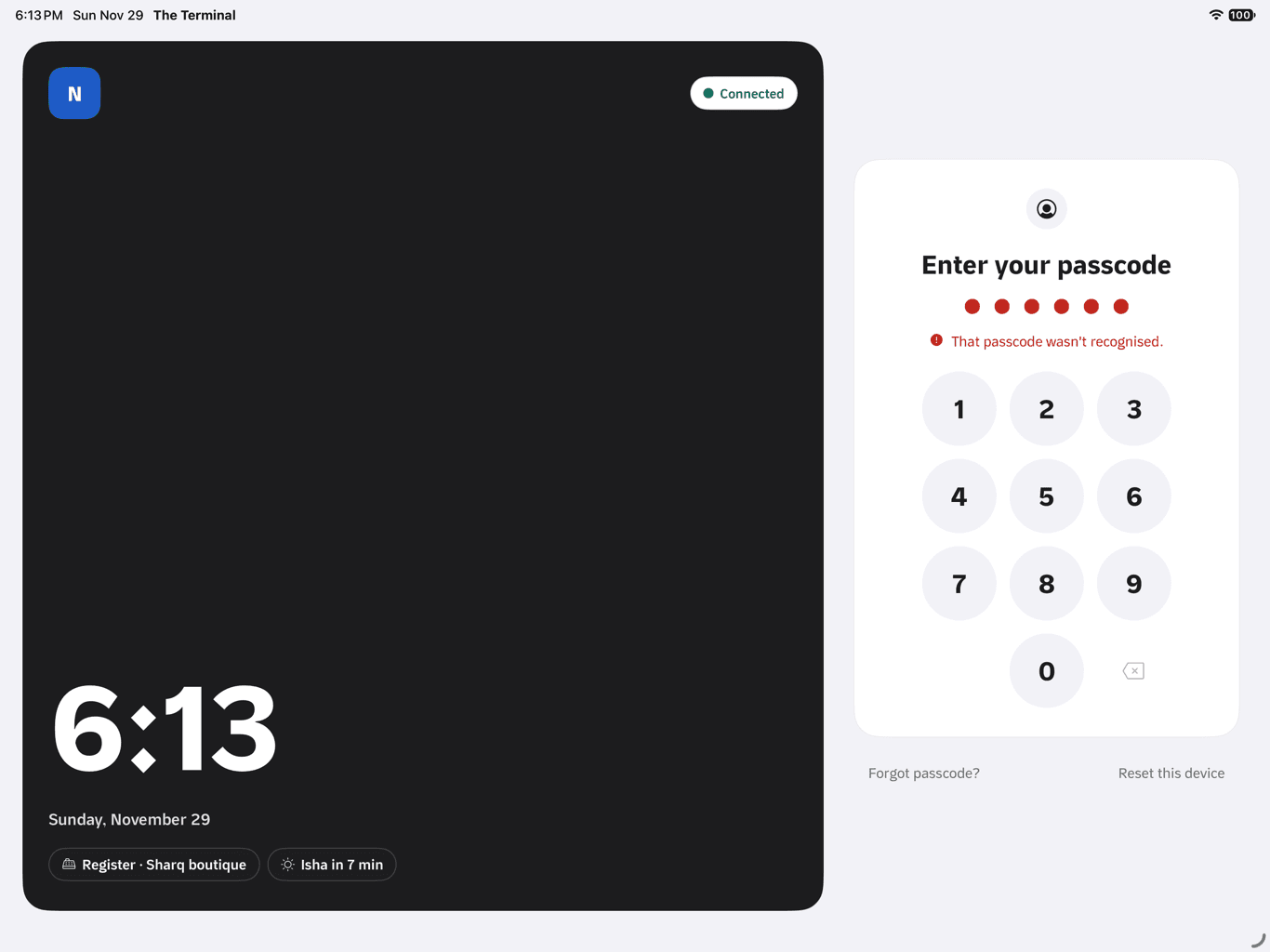
That passcode wasn't recognised.
What the manager chooses
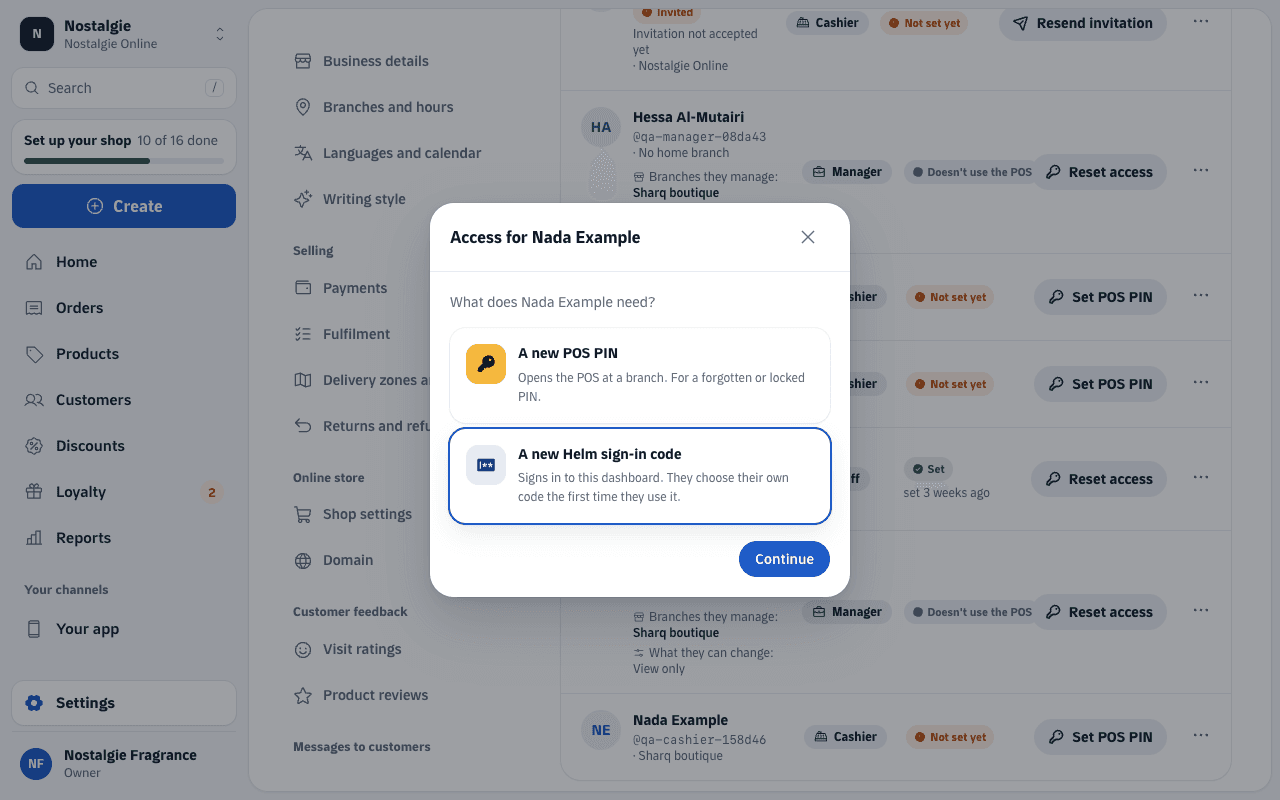
A new Helm sign-in code
A new POS PIN
If something goes wrong
The Terminal shows this. The six digits don't match anyone who can sign in at this register. It's the same message for a POS PIN, for a first code that's more than 72 hours old, for a code that's locked in Helm after 10 wrong codes, and for someone who was removed from the team or whose role can't use this register. Check the code; if it still fails, ask a manager to reset your access.
Five wrong codes in a row on this iPad, from anyone, lock the keypad for 1 minute. Each further five doubles the wait, up to 15 minutes. Just wait for the countdown; a right code resets the count.
After 50 wrong codes in a row on this iPad, from anyone, the keypad stops working on it. Waiting doesn't help. A manager with Manage devices selects New code for the iPad on Helm's Devices page, which signs it out and ends its pairing, then pairs it again with that code within 48 hours.
The iPad can't check codes while it's been offline that long. Connect it to the internet, then try again.
Helm shows this. The username or the code is wrong, a first code is more than 72 hours old, or code sign-in is locked after 10 wrong codes. Use Forgot your code? Sign in by email, or ask a manager for a new sign-in code.
Helm had too many tries in a short time. Wait a few minutes, then try again.
Still not working
Ask the owner or a manager to check your row on Helm's Team page: open ⋯ and select Terminal passcode. It shows whether your passcode is Set, Locked or Switched off. If it still fails after a reset, send the owner the time, the branch, which iPad, and a photo of the screen. Never send the code itself.