The POS (The Terminal)
Record a card payment from the slip
The customer pays on your card machine, then you record the payment on The Terminal with the approval code printed on the card slip.
Tried on a demo store on 29 November 2026
Before you start
- Your role needs the Record a card terminal slip permission. Managers and cashiers have it.
- In a retail shop, the drawer must be open: Open the drawer.
- Put the products in the order, as in Make a sale.
Watch the steps
- Take the card on your card machine first. Then select Charge, and under Pay with, select Card slip.
- Type the AUTH or APPROVAL code printed on the card slip. The keyboard opens by itself.
- Select Take with the amount due on it.
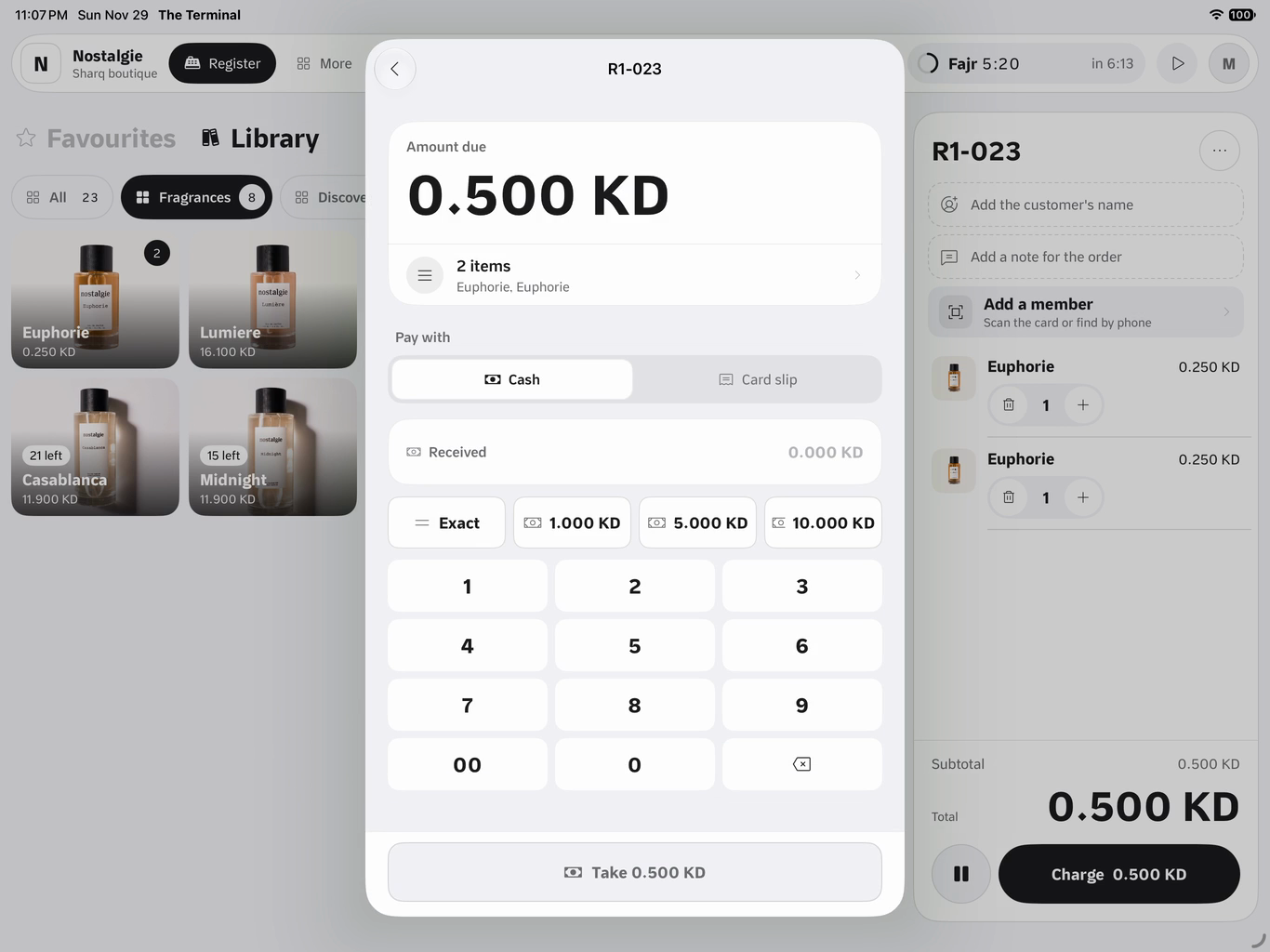
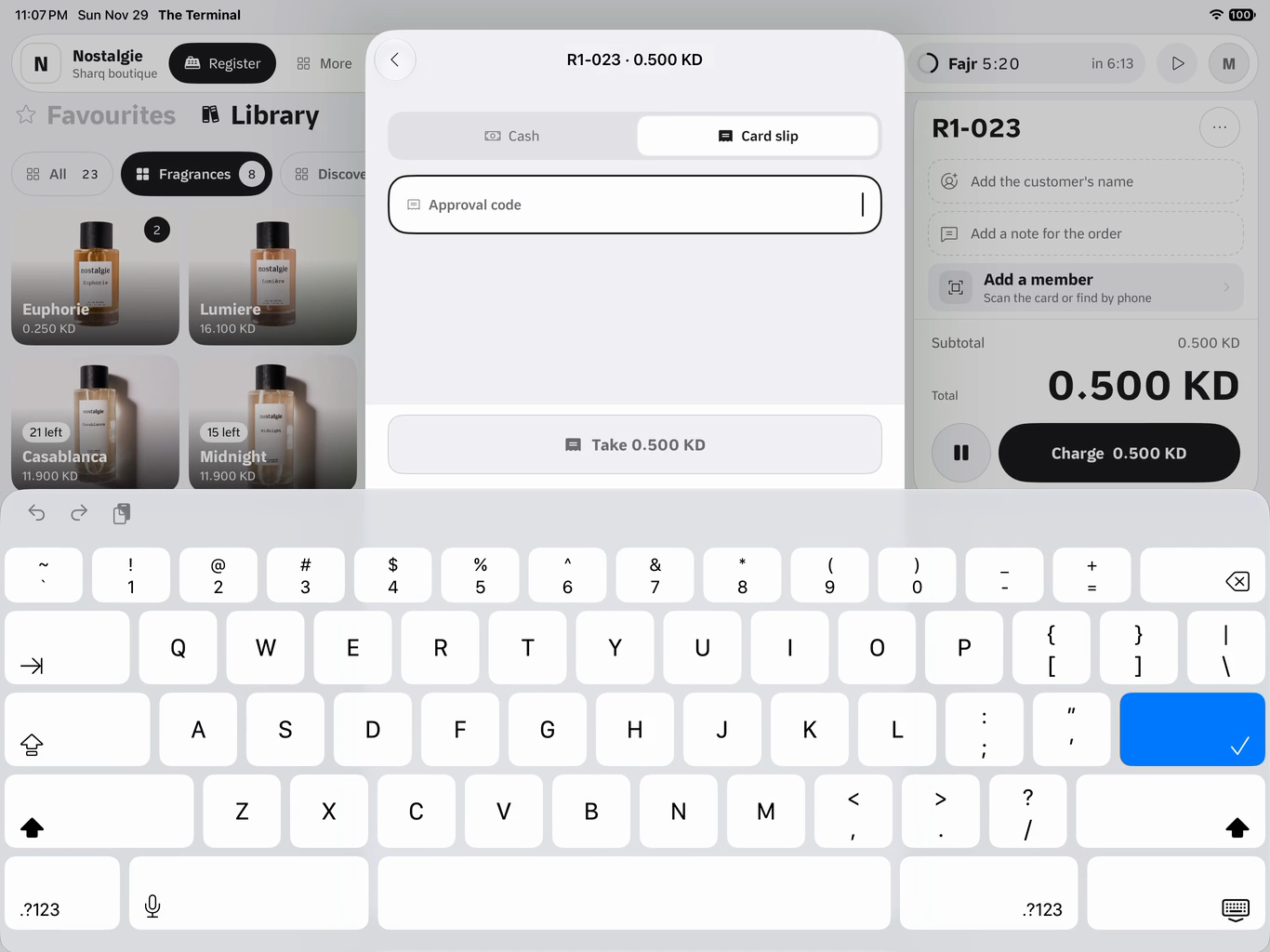
To record a payment the customer made on your card machine, follow these steps:
Record the card payment
Take the card on the card machine
Enter the amount due on your card machine and let the customer pay. Keep the card slip it prints.
Choose Card slip
On the order, select Charge. Under Pay with, select Card slip.
Type the approval code
In Approval code, type the AUTH or APPROVAL code printed on the slip, for example A1B2C3. Letters become capitals, and spaces and other signs are left out. The code can have up to 8 characters.
Select Take
Select Take with the amount due on it, or press Return on the keyboard.
Start the next sale
The payment shows as Approved. Select New order.
What happens next
- The sale is recorded as paid by card, for the full amount due, with the approval code.
- The drawer doesn't open: no cash was taken.
- The Z report counts it under Card slip in Sales by tender.
If something goes wrong
Your role doesn't hold Record a card terminal slip. Ask the owner or a manager.
In a retail shop, the drawer must be open before a card payment too. Select Open the drawer, or ask a manager. Nothing has been recorded yet.
Compare the code with the slip. If it matches, select Take: the note never blocks the payment.
The payment didn't reach the store. Select Retry charge. Don't take the card again: the customer has already paid on the machine.