The POS (The Terminal)
Count and close the drawer
At the end of the day, count the cash in the drawer on The Terminal, check the difference, close the session and read the Z report.
Tried on a demo store on 29 November 2026
Before you start
- Your role needs the Close a cash drawer or shift permission. Managers have it. In stores where each cashier has their own drawer, a cashier closes their own; otherwise ask a manager.
Watch the steps
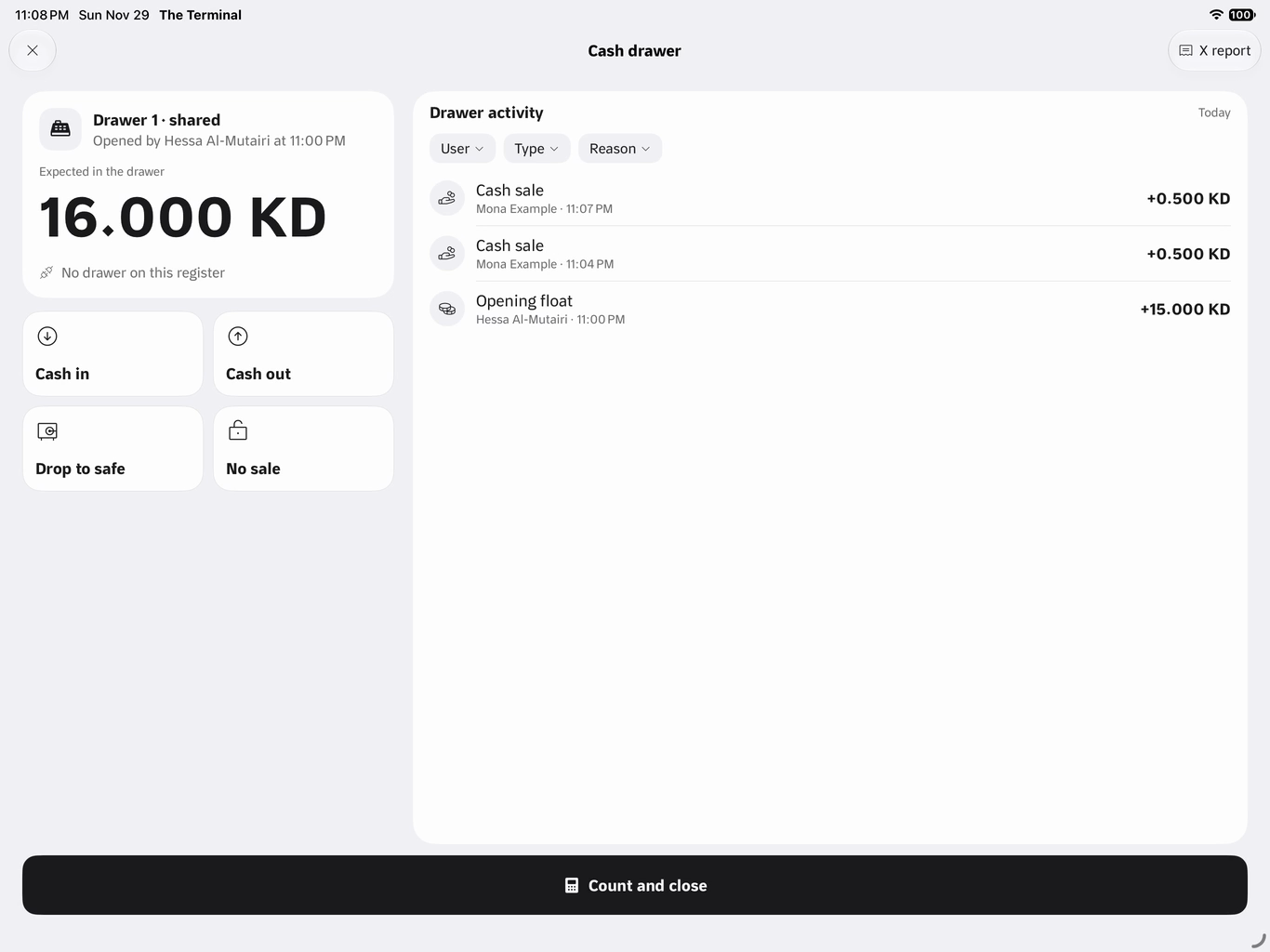
- Select Cash drawer. It shows who opened the drawer, the cash Expected in the drawer, and the day's activity.
- Select Count and close.
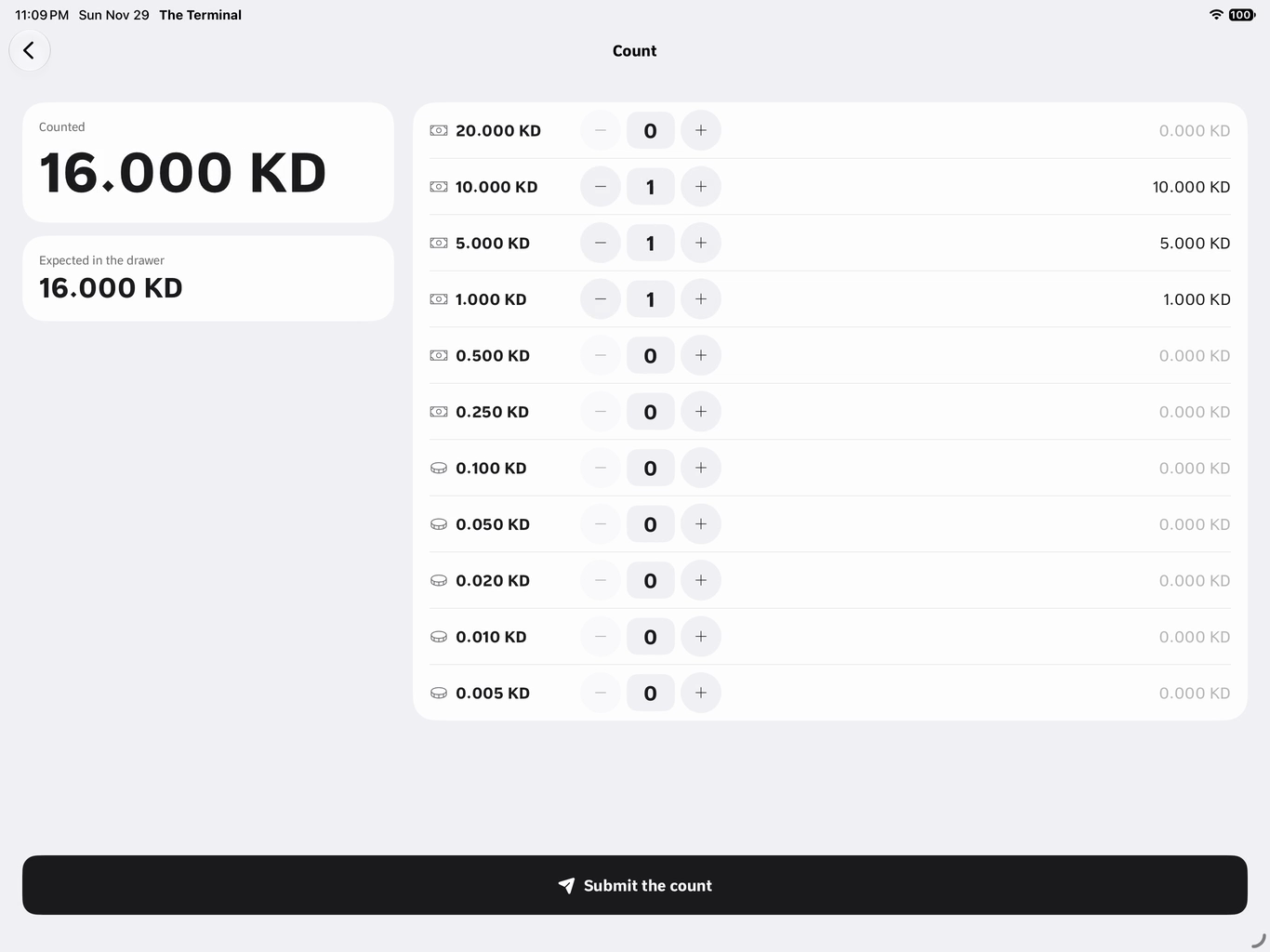
- For each note and coin, tap + once for every piece in the drawer.
- Counted adds it up. Here it matches Expected in the drawer. Then select Submit the count.
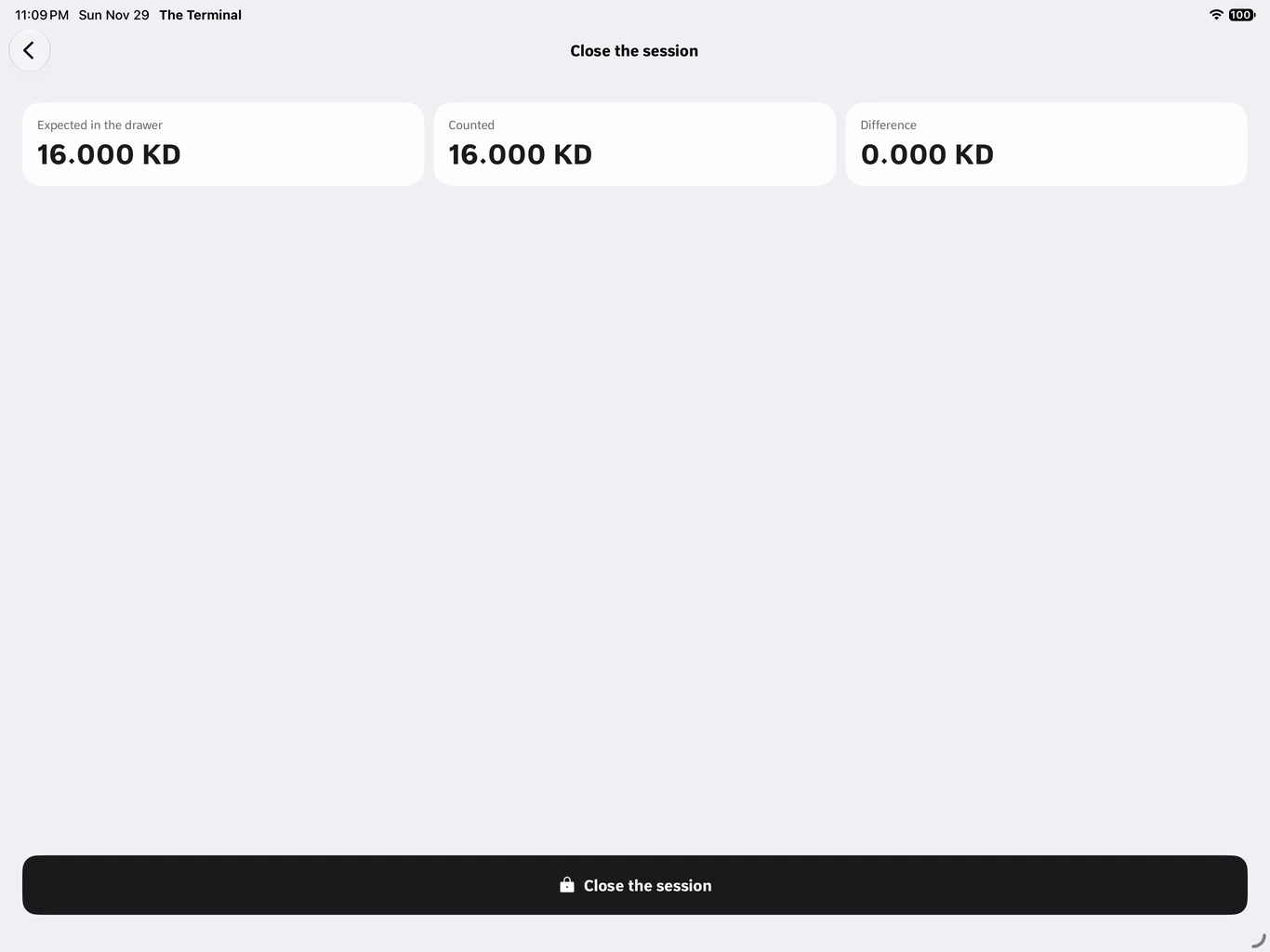
- Expected in the drawer, Counted and Difference. Here the difference is 0.000 KD.
- Select Close the session.
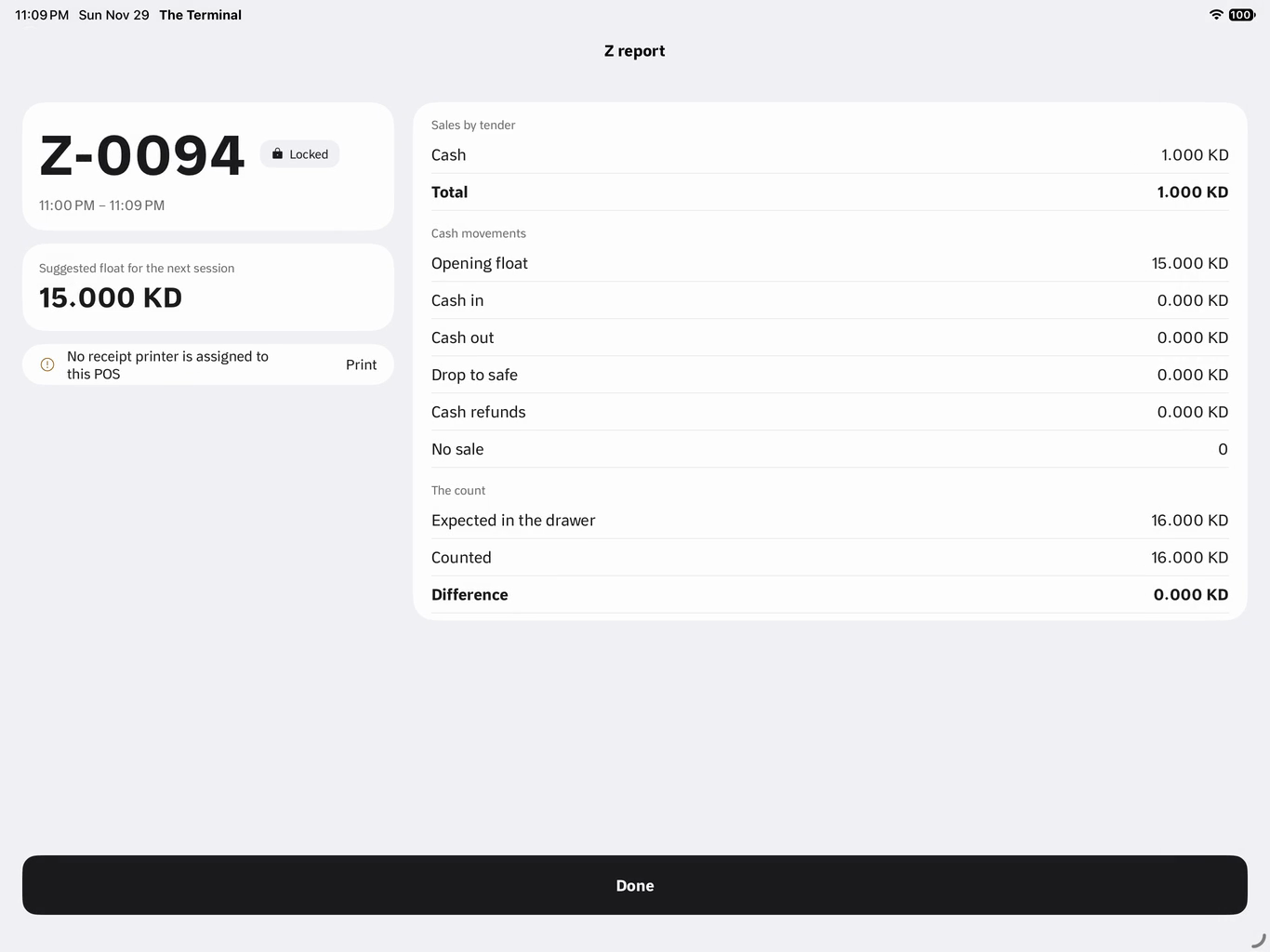
- Sales by payment type, cash movements and the count, under a Z number.
- Suggested float for the next session: the cash to leave in the drawer.
To count the drawer and close it at the end of the day, follow these steps:
Count the drawer
Open the cash drawer
On the register, select Cash drawer. Check who opened it and the cash Expected in the drawer.
Start the count
Select Count and close.
Count each note and coin
For each note and coin, tap + once for every piece in the drawer, or − to take one off. Counted adds it up as you go.
Submit the count
Select Submit the count. The page Close the session shows Expected in the drawer, Counted and the Difference.
Explain a big difference
If the difference is over your store's limit, choose a Reason: Wrong change given, Missing cash, Miscount or Other. Without the close permission, a manager approves it too.
Close the session
Select Close the session. The Z report opens.
Read the Z report and finish
Check the report, then select Done.
The Z report
The Z report has its own number, for example Z-0094, and shows Locked. It shows:
- Sales by tender: cash and card slip, and their Total.
- Cash movements: Opening float, Cash in, Cash out, Drop to safe, Cash refunds and No sale.
- The count: expected, counted and the difference.
- Suggested float for the next session: the same opening float as this session, to leave in the drawer.
The Z report doesn't print by itself. To print it, select Print beside the printer row, if a receipt printer is assigned to the register.
What happens next
- The drawer shows The drawer is closed. The next time it's opened, it suggests the float to leave, for example "Leave 15.000 KD, as at the last close": Open the drawer.
If something goes wrong
Your role doesn't hold Close a cash drawer or shift. A manager closes the drawer.
A cash or card payment is still waiting for the store, under These block the final close. Clear each item listed there, then close.
Someone took or added cash after you counted. Count the drawer again.
Choose a Reason, or ask a manager to close the drawer.
The session is closed, but the iPad is offline. Open the Z report once the connection is back.
Your store runs one session per business day, and today's is closed.