The POS (The Terminal)
Take a cash payment
Charge an order in cash on The Terminal. Enter what the customer gave you, select Take, and hand back the change the screen shows.
Tried on a demo store on 29 November 2026
Before you start
- Your role needs the Record cash permission. Managers and cashiers have it.
- The drawer must be open before the first cash sale: Open the drawer.
- Put the products in the order, as in Make a sale.
Watch the steps
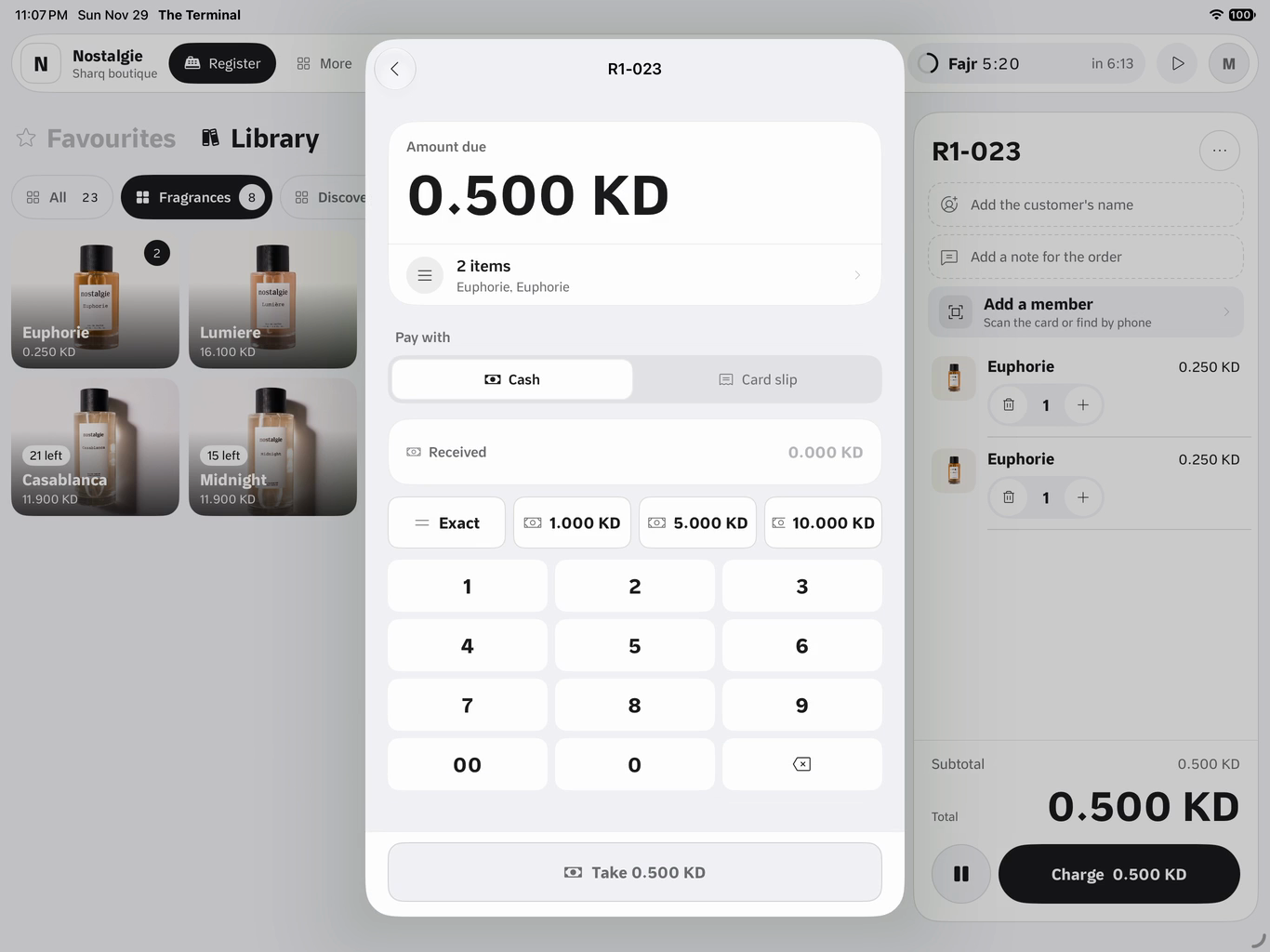
- Select Charge. The payment window shows the Amount due. Under Pay with, Cash is chosen.
- Tap the note they gave you, or Exact. Or type the amount on the keypad.
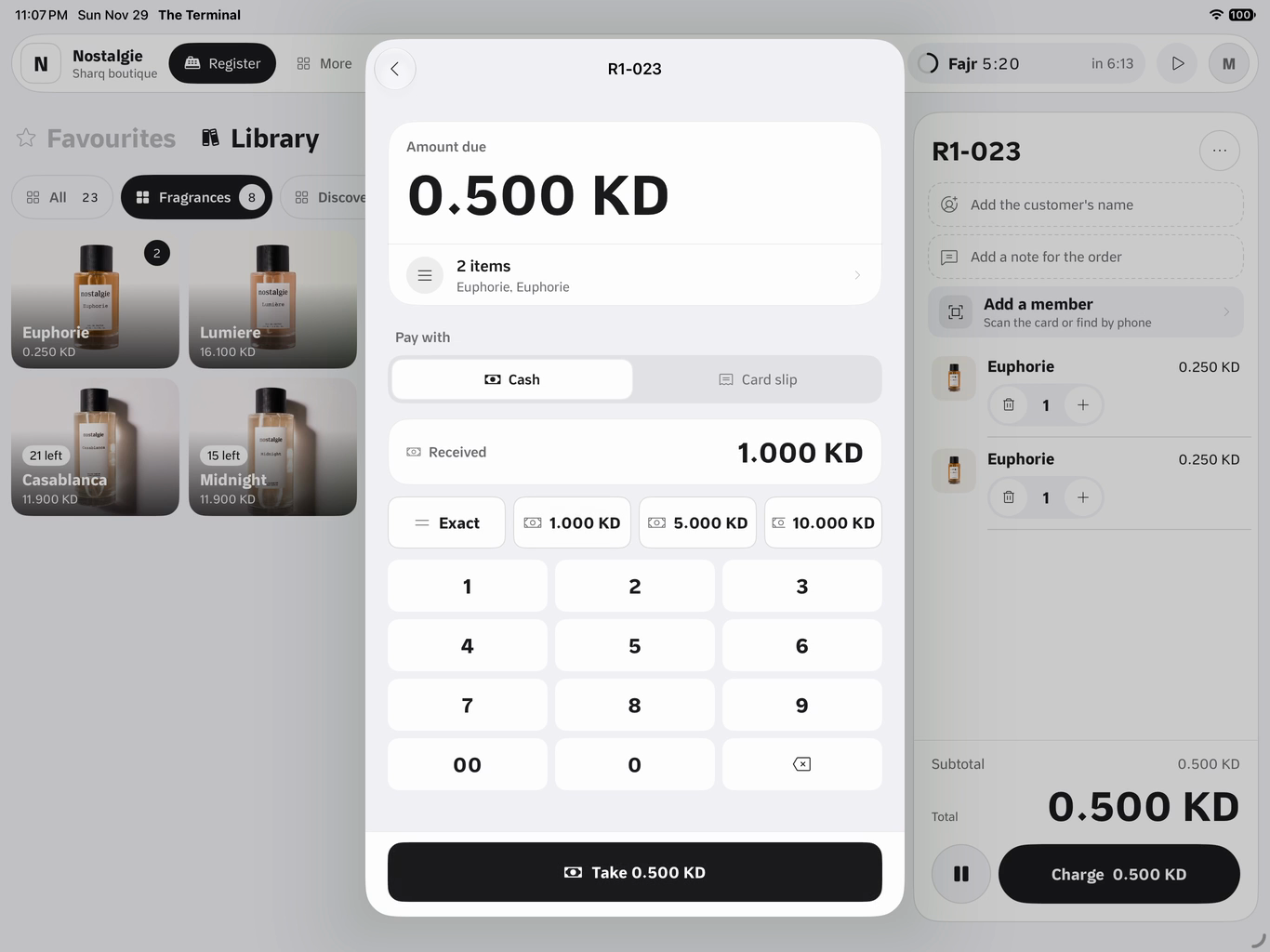
- Received shows the amount. Here, 1.000 KD for an order of 0.500 KD.
- Select Take. It turns on once Received covers the amount due.
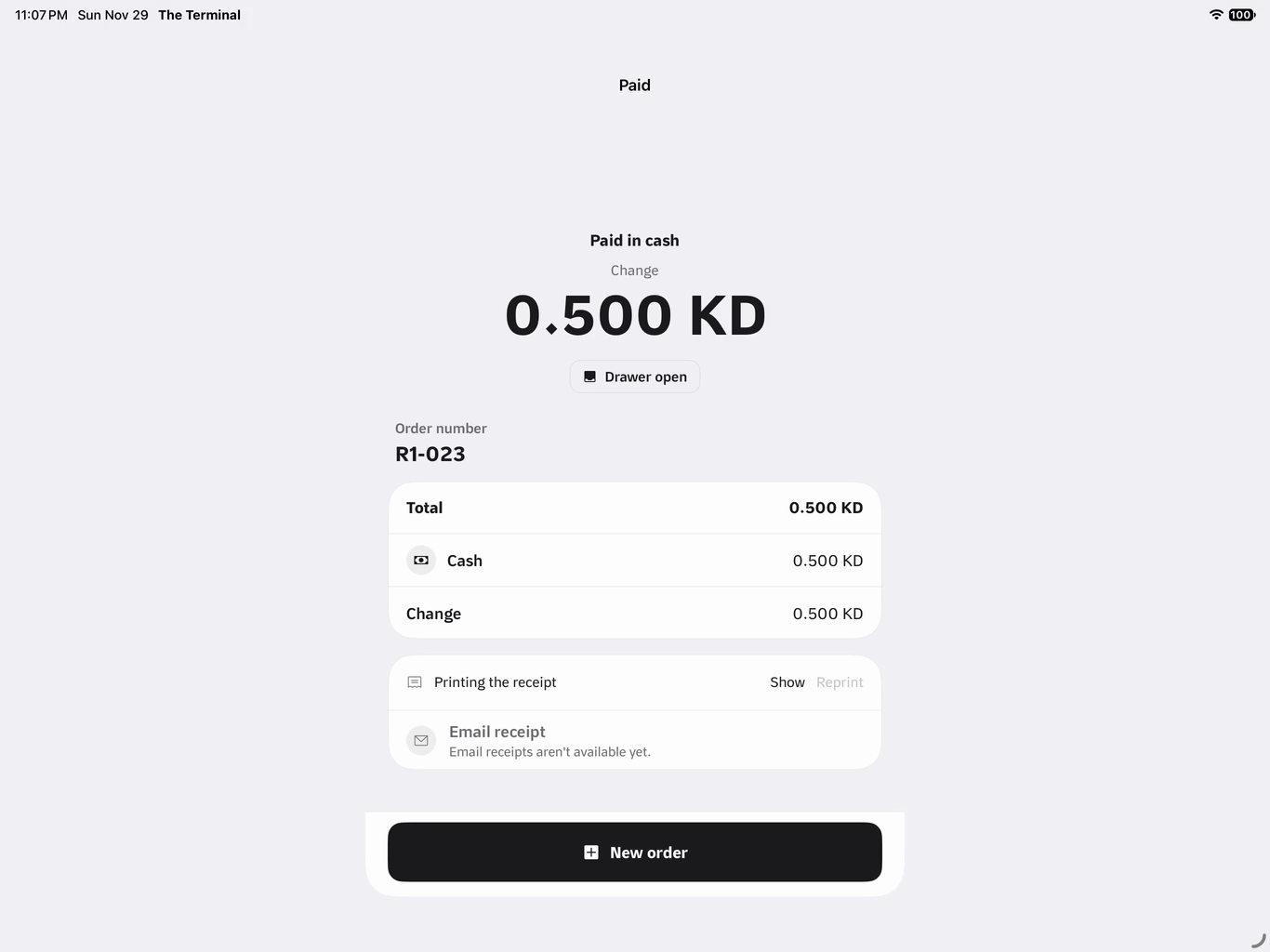
- Paid in cash shows the Change to hand back, here 0.500 KD, and Drawer open: put the cash in and take the change out.
- Select New order to start the next sale.
To charge an order in cash, follow these steps:
Take the cash
Open the payment window
On the order, select Charge. The window shows the Amount due. Under Pay with, Cash is the first choice.
Enter what the customer gave you
Tap the note the customer gave you. The buttons show Exact and up to three notes above the amount due, in your store's currency. Or type the amount on the keypad. The decimal point is placed for you: in Kuwaiti dinars, 5, 0, 0, 0 enters 5.000.
Received shows the amount.
Select Take
Select Take with the amount due on it. The button stays off until Received is at least the amount due.
Hand back the change
Paid in cash shows the Change to hand back. When the customer paid the exact amount, it shows Amount paid and Exact, no change.
Start the next sale
Select New order.
What happens next
- The sale is recorded with its order number, and the cash is added to what the drawer should hold.
- The Terminal opens the cash drawer, when one is connected to the register's receipt printer.
- The receipt prints on the register's receipt printer. If there is no printer, or it fails, the receipt shows on the screen with Reprint.
- In some shops the register locks itself after every sale. If yours does, read the change straight away. The next person signs in with their own personal code.
If something goes wrong
The drawer must be open to take cash. Select Open the drawer. If you see "Opening the drawer needs the cash close permission. Ask a manager.", ask a manager to open it. Nothing has been recorded yet.
Received is less than the amount due. Tap a bigger note or type the right amount.
The payment didn't reach the store. Select Retry charge. The order is never charged twice.
The iPad is offline. Check the Wi-Fi, then try again.
Your role doesn't hold Record cash. Ask the owner or a manager.