Customers and loyalty
Set how members earn points
Choose how many points an order earns, how part points round, and whether a branch or sales channel earns differently. Check any amount in the points calculator first.

Tried on a demo store on 29 November 2026
Before you start
- Your role needs the Edit programme permission. The owner has it, and decides who else gets it. Without it the page is view only.
- The points calculator also needs View promotions.
- Your programme is set up. If it isn't, start with Start and publish your loyalty programme.
- Loyalty is part of the Perks plans. If you don't see Loyalty in the menu, your plan doesn't include it.
Watch the steps
- In the menu, select Loyalty, then How members earn.
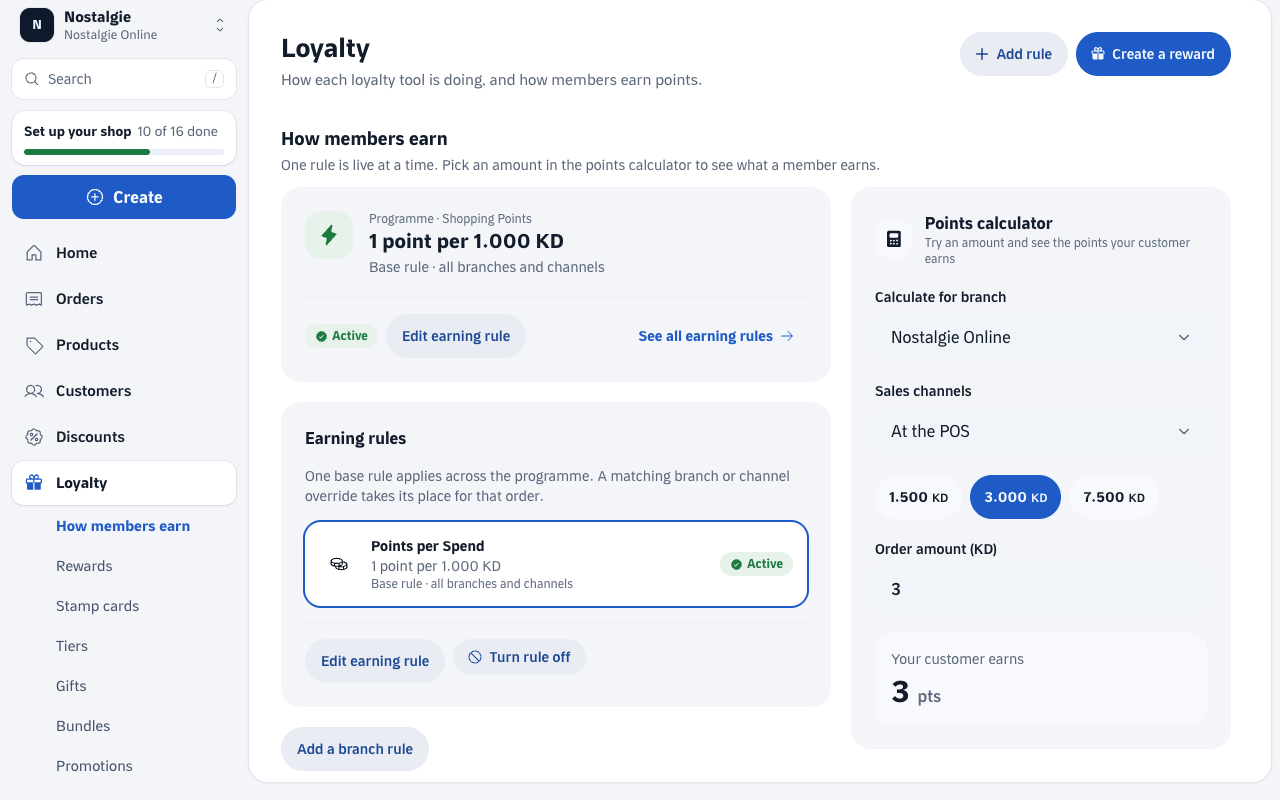
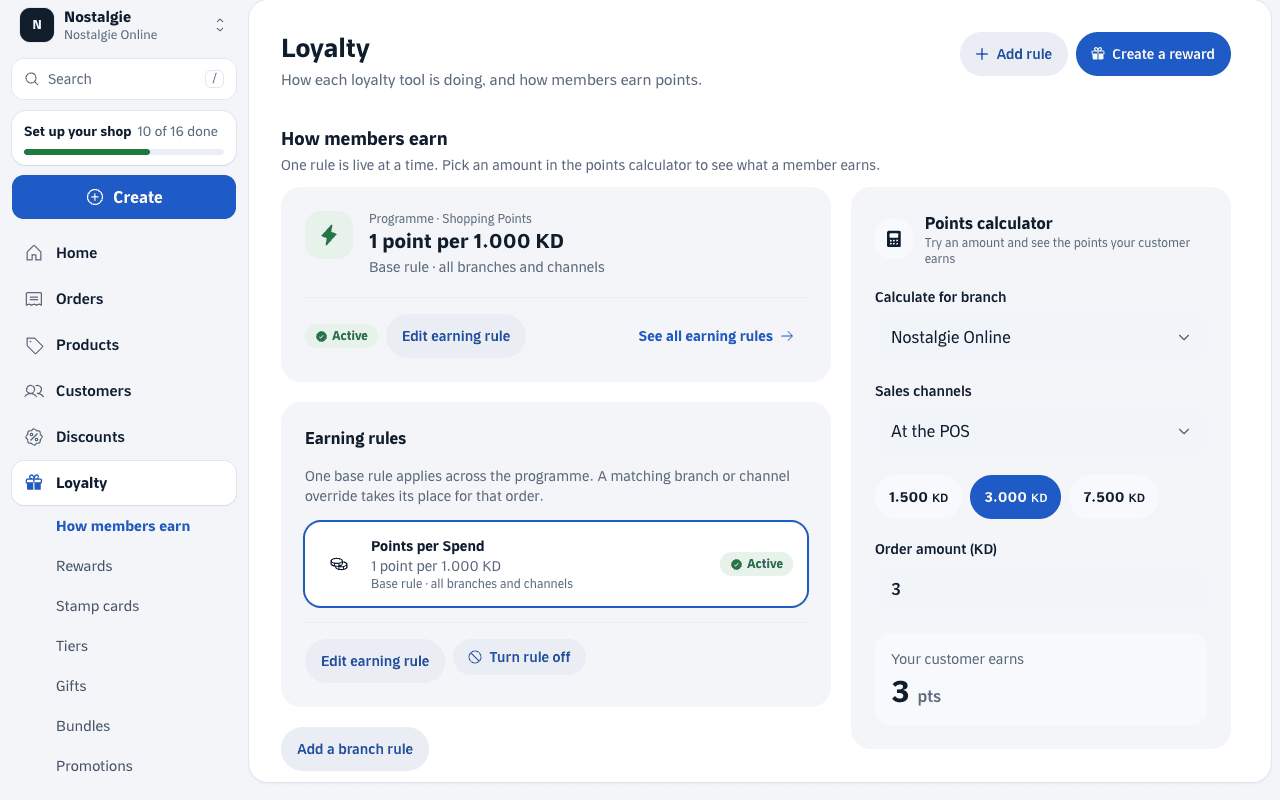
- What every order earns today, and where it applies.
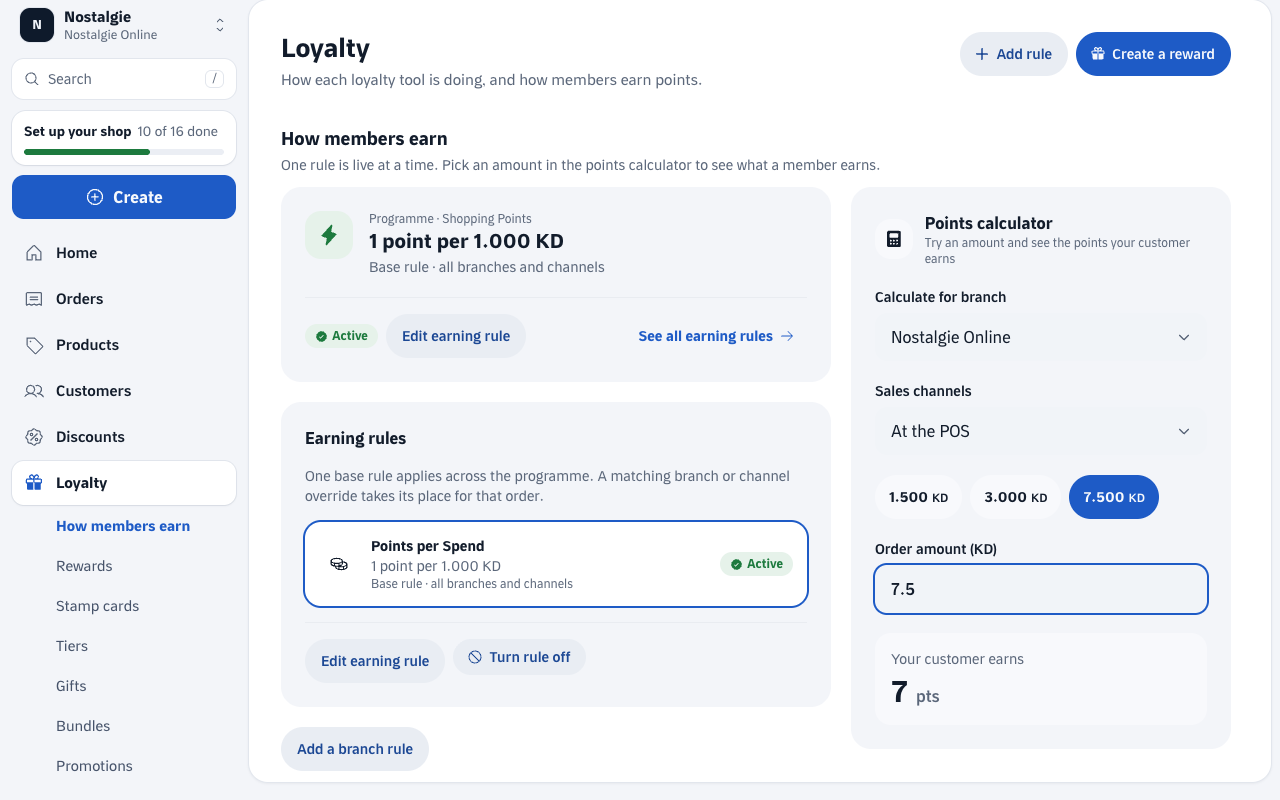
- Type an amount. Helm asks the server what that order earns: 7.500 KD earns 7 points here.
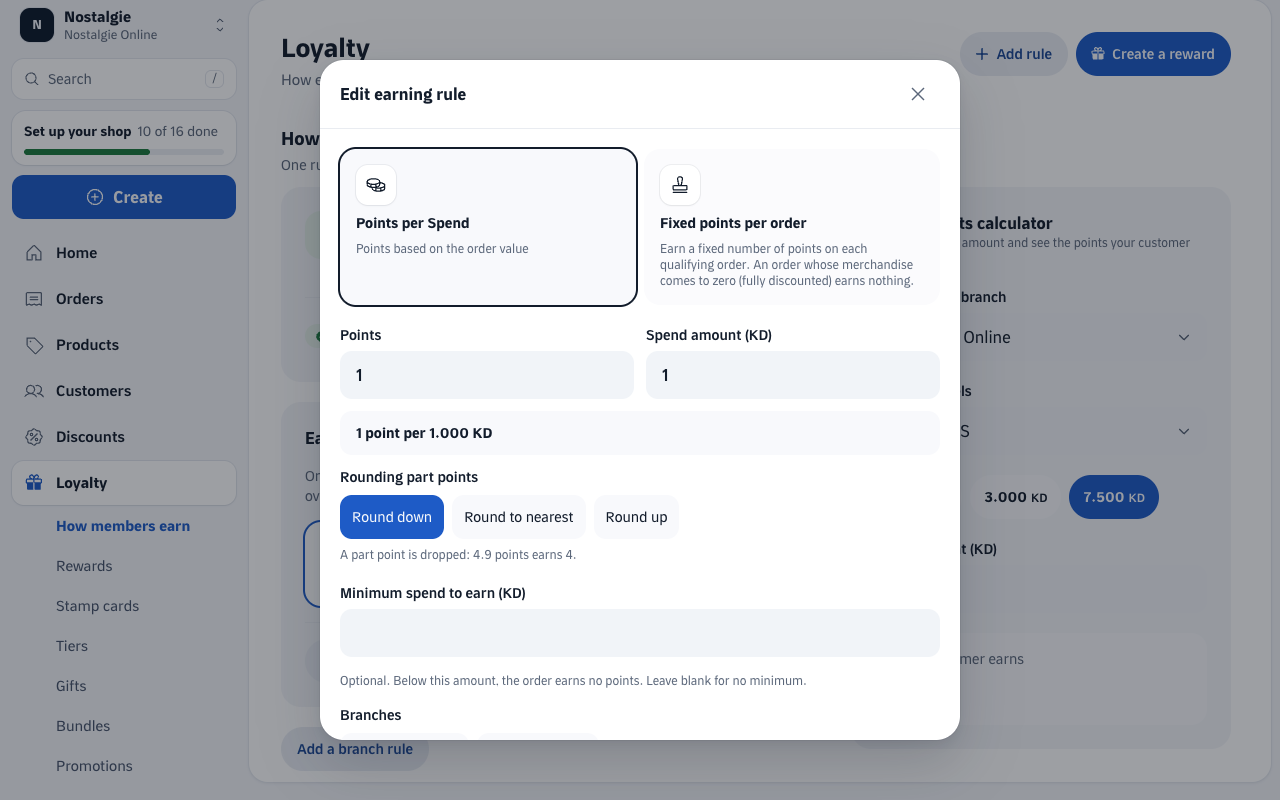
- Select Edit earning rule.
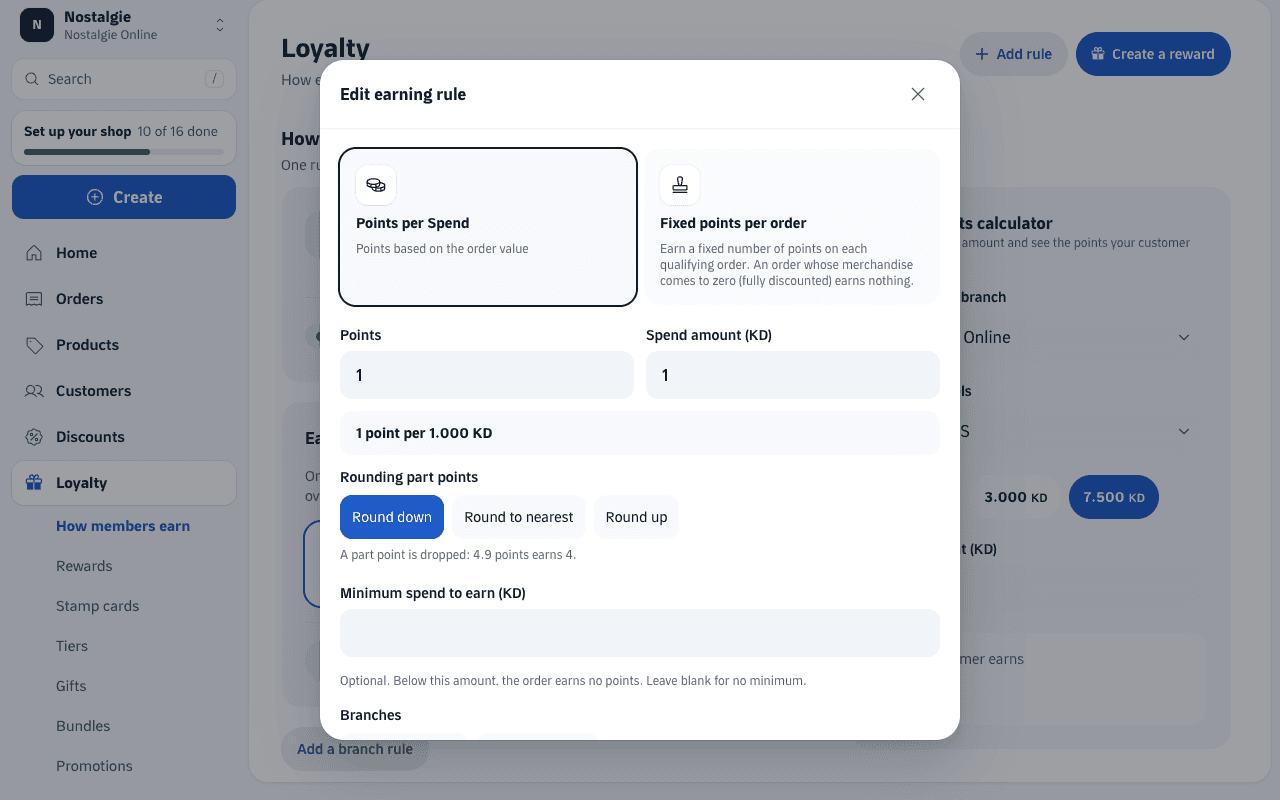
- Points for what they spend, or the same points on every order.
- Points, and the spend that earns them. The line below says it in words.
- For Points per Spend: what happens to a part point. Round down is the default.
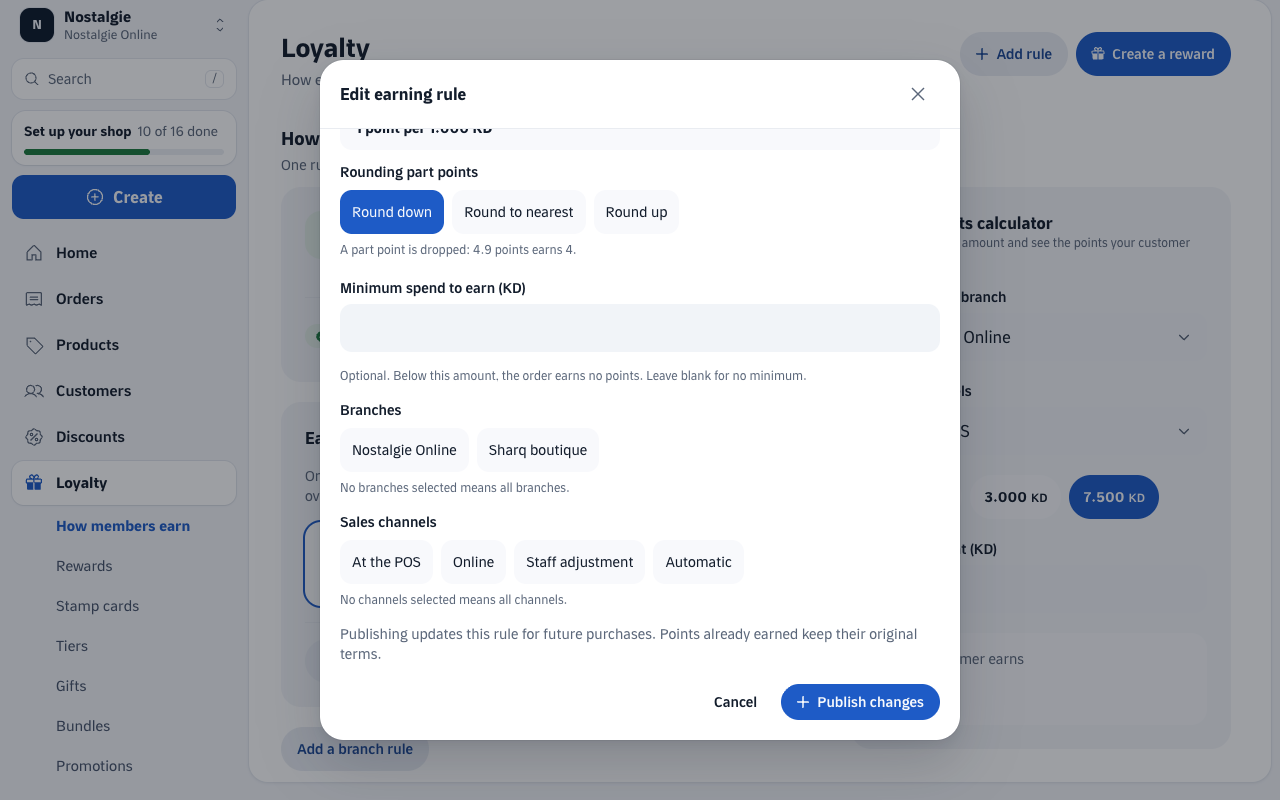
- Leave branches and channels empty for all of them.
- The new rate applies to orders from now on. Cancel keeps the old one.
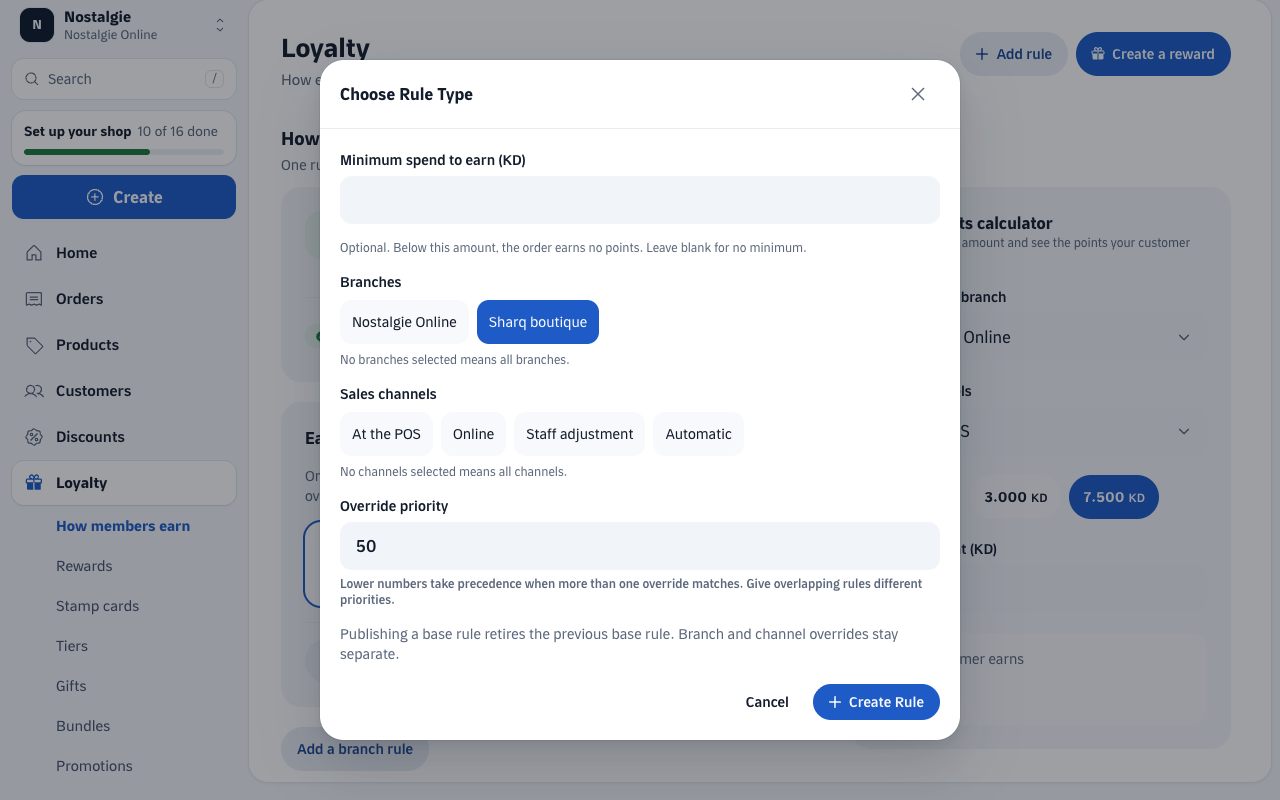
- In Choose Rule Type, opened from Add a branch rule, choose the branch, and keep or change its priority.
- It's saved as a draft. Select Activate Rule to make it live.
See how members earn now
Open the page
In the side menu:LoyaltyHow members earnThe page is called Loyalty. Scroll to How members earn.
Read the rate in force
The top card shows the rate every order earns now, such as 1 point per 1.000 KD, and Base rule · all branches and channels. If it says No rule is active, members earn nothing until you activate one.
Try an order in the points calculator
Under Points calculator, choose a branch in Calculate for branch and a channel in Sales channels. Select an amount, or type one in Order amount (KD). Your customer earns shows the points the server would give that order.
How members earn
The rate in force
Earning rules
Points calculator
Add a branch rule
Change the rate
Open the editor
Select Edit earning rule, on the top card or under the selected rule. The form Edit earning rule opens.
Choose the kind of rule
Set the rate
For Points per Spend, type the Points and the Spend amount (KD), up to three decimals. The line below says the rate in words, such as 2 points per 5.000 KD. For Fixed points per order, type Points per qualifying order. Points are whole numbers.
Choose how part points round
For Points per Spend only, under Rounding part points, choose one. A fixed award has nothing to round. The rounding is applied once, to the whole order, not to each item.
Optional: a minimum spend
In Minimum spend to earn (KD), type an amount. An order below it earns no points. It's measured on the same amount that earns points, after discounts, not on the receipt total. Leave it blank for no minimum.
Check where it applies
Under Branches and Sales channels (At the POS, Online, Staff adjustment, Automatic), leave everything unselected for the base rule. No branches selected means all branches, and no channels means all channels.
Publish
Select Publish changes. To leave without changing anything, select Cancel.
What happens next
- You see .
- Orders from now on earn at the new rate. Points already earned keep their original terms.
- The change is listed under Earn-rate history, with when it ran and who changed it.
Edit earning rule
Points per Spend
Fixed points per order
The rate in words
Rounding part points
Start a new rate or plan one for later
Select Add rule at the top of the page. The form Choose Rule Type opens. Set the rule as above, then select Create Rule. You see . A draft earns nothing.
Activate it
Select the draft in Earning rules, then Activate Rule. To throw it away instead, select Discard draft.
Choose when it replaces the current rate
If a base rate is live, Helm asks Replace your earn rate?. Read the example: it shows what an order of KD 10.000 at the POS earns under the new rate and now. Choose Publish now, or Publish on a date and set Starts on. Optional: set an End date (optional). With an end date, Helm suggests Running a limited-time offer? Create a promotion instead, so your everyday rate stays the same.
Confirm
Select Replace and publish, or Schedule replacement for a date. Without a live base rate, the draft goes live as soon as you select Activate Rule. You see .
Give a branch or channel its own rate
Open the form
Select Add a branch rule, below the earning rules. In Choose Rule Type, choose the kind of rule and its rate.
Choose where it applies
Under Branches, choose at least one branch. Optional: under Sales channels, choose one or more.
Set its priority
In Override priority, keep 50 or type another number. Helm says: Lower numbers take precedence when more than one override matches. Give overlapping rules different priorities. A branch or channel rule that matches an order always comes before the base rule.
Create and activate it
Select Create Rule, then select the draft and Activate Rule. It goes live at once.
What happens next
- The rule shows Override with its branches and channels, and the top card says how many branch or channel rules also apply.
- An order at that branch or channel earns by this rule instead of the base rule. Everywhere else, the base rule still applies.
Stop a rule
Select the rule, then Turn rule off. Type the Reason for withdrawal, then select Turn rule off. Future orders stop earning by it; points members already have don't change. To use the same rate again later, select the withdrawn rule and Use as new draft.
If something goes wrong
A number can't be used, and the button stays greyed out. Type whole points, and KD amounts with no more than three decimals.
A branch rule needs a branch. Choose one under Branches.
The draft came with your starting programme. Select Publish your starting programme and publish it there.
The calculator works only for a live rule. Select the rule marked Active.
Select Retry. Your rule isn't affected.
Nothing was changed. Try once more.
Look under Recent orders with no points on the same page. Each order shows why, for example No points: no earn rate was live. or No points: the order is too small to reach one point at this rate.
Your role doesn't hold Edit programme. The owner can add it to your role.