Customers and loyalty
See how your loyalty programme is doing
Open the Loyalty report to see who bought, who is slipping away, how points move, what your members still hold and how they spread across tiers.
Tried on a demo store on 29 November 2026
Before you start
- Your role needs the View loyalty reports permission. The owner and the manager have it.
- Loyalty is part of the Perks plans, and your programme is set up. If it isn't, start with Start and publish your loyalty programme.
- The figures count members' purchases only, from the day your programme started. Members who haven't agreed to your terms yet, and closed or removed members, are left out. A manager who covers some branches sees only those branches' members.
Watch the steps
- In the menu, select Reports, then Loyalty.
- The last 7, 30 or 90 days, or your own dates. The days end yesterday.
- All branches, or one.
- Set the same number of days just before beside them.
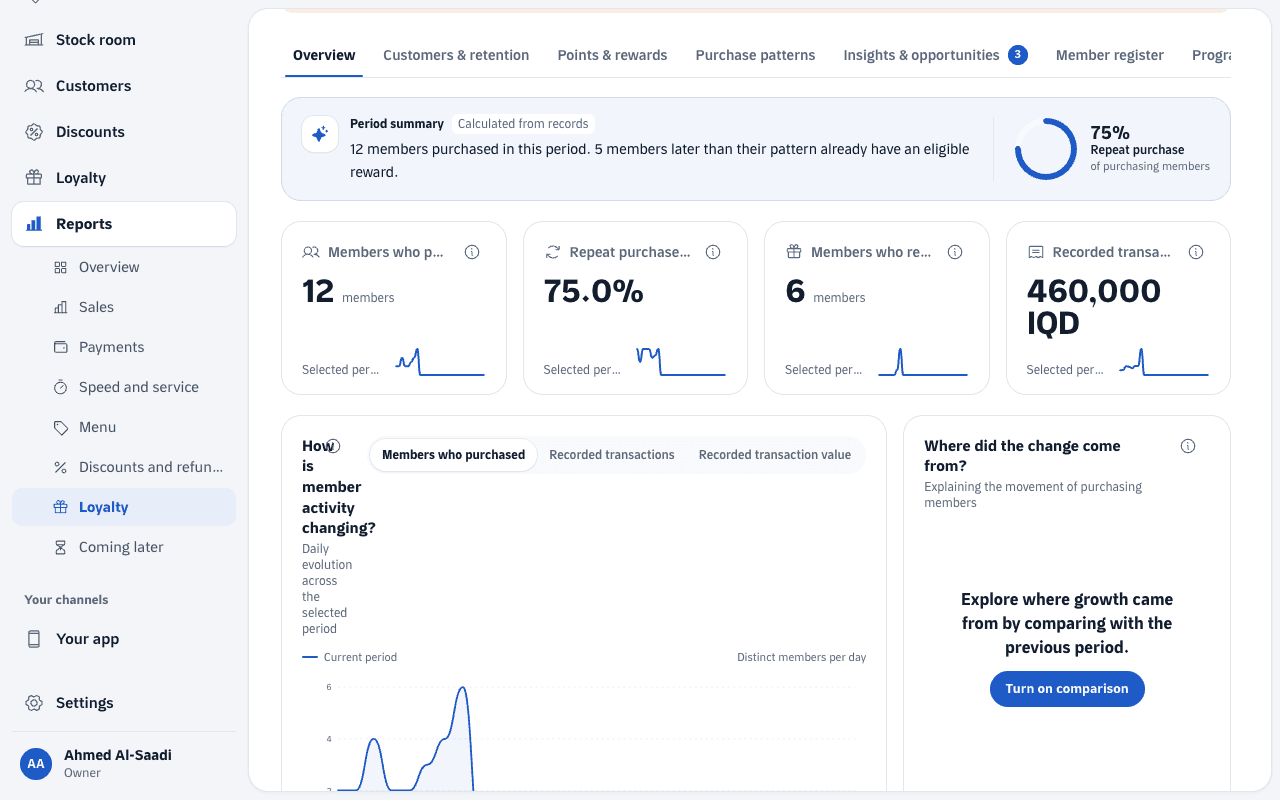
- Who bought, who came back, who used a reward, and what they spent.
- Points given, used and expired in those days.
- The balance at the end of the period, for the whole programme.
- Each group, with how many members are in it.
- Members on each tier now, and the moves up and down.
- Points and vouchers your members still hold.
- Every member, by how long ago they last bought.
Open the report and set the days
Open the Loyalty report
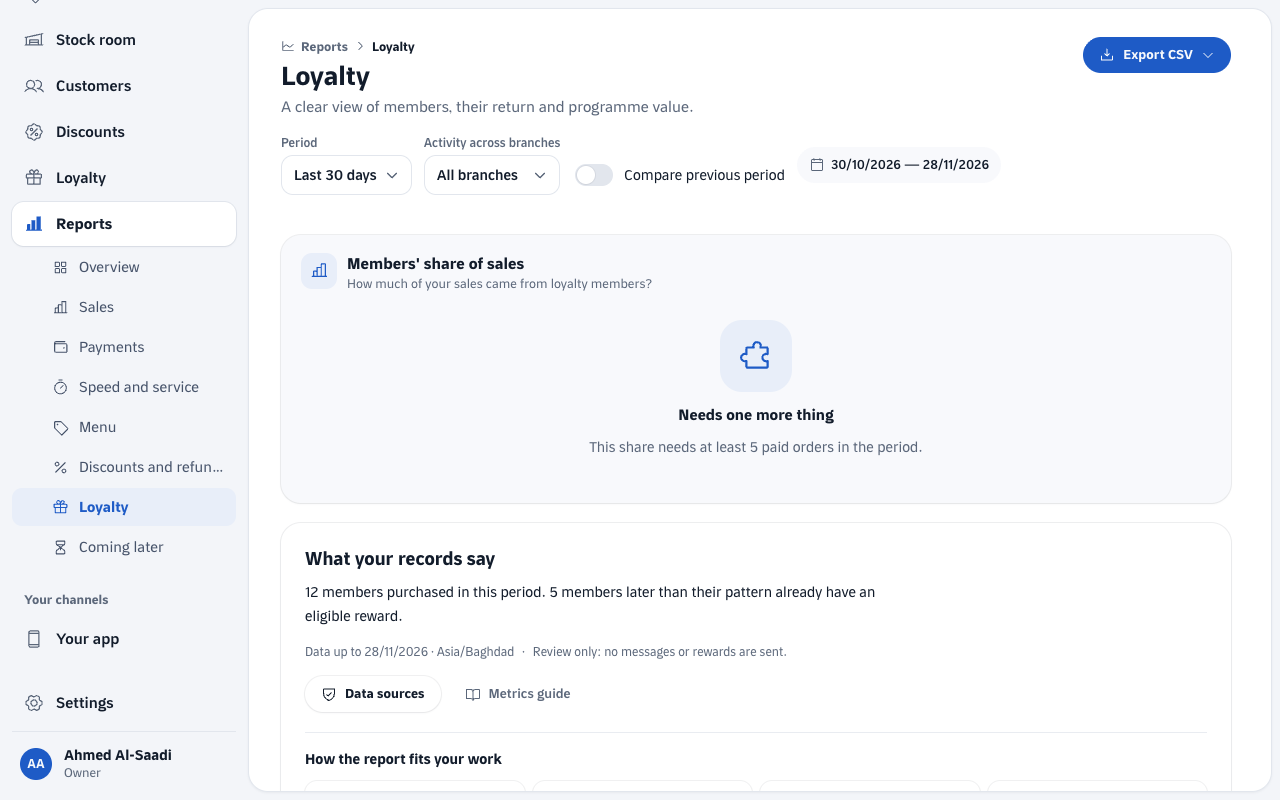
In the menu, select Reports, then Loyalty. If your store doesn't sell through Portus, Reports opens straight on this report.
Choose the days
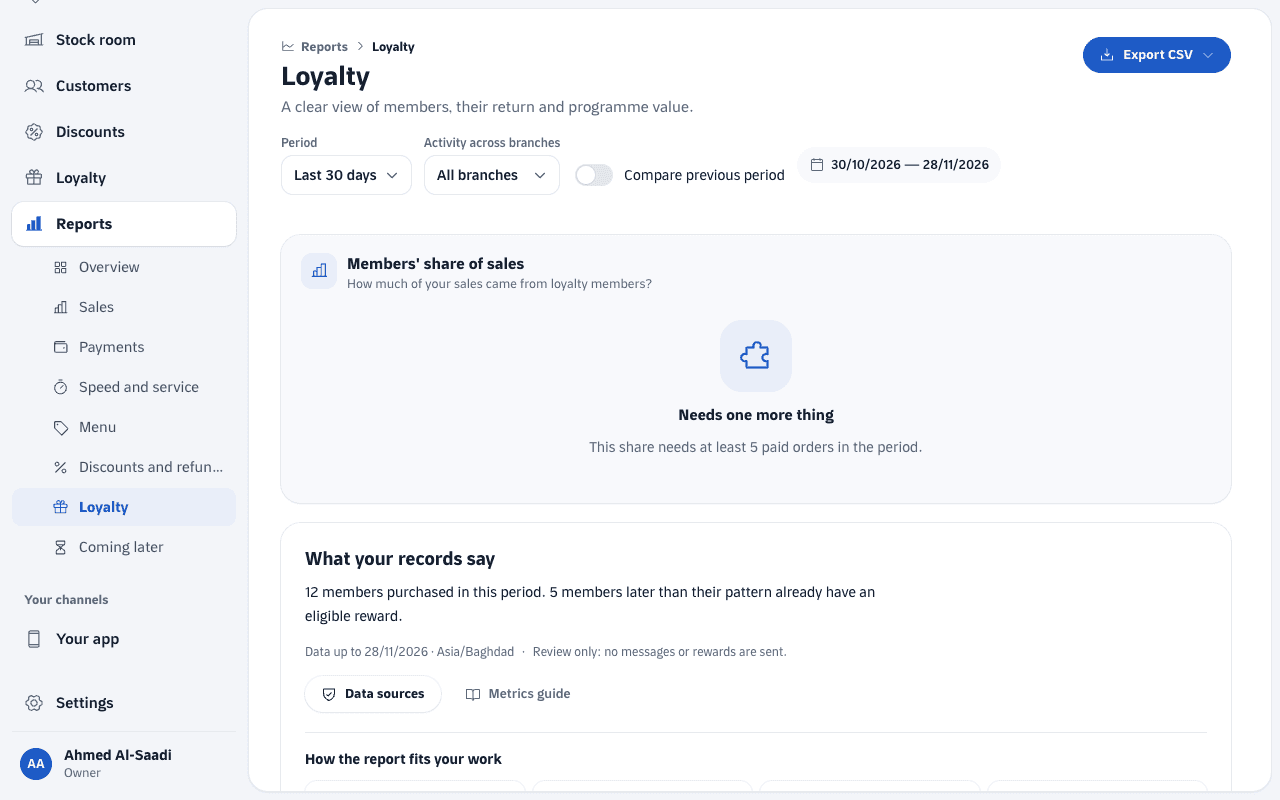
Under Period, choose Last 7 days, Last 30 days or Last 90 days. For your own dates, choose Custom, set From and To, and select Apply range. The dates you see beside the filters are the days counted.
Choose a branch
The branch filter starts on All branches. Choose one branch to count only its purchases.
Compare with the days before
Turn on Compare previous period to set the same number of days, just before yours, beside each figure. It starts off when those earlier days would reach back before your programme's first day.
Loyalty
Period
Branch
Compare previous period
The days counted
Under the filters, What your records say sums up the period in a sentence. If your store sells through Portus, the Members' share of sales card shows how much of your sales came from members; it needs at least 5 paid orders in the period and a period of up to 31 days. The report only reads: Review only: no messages or rewards are sent.
The four figures
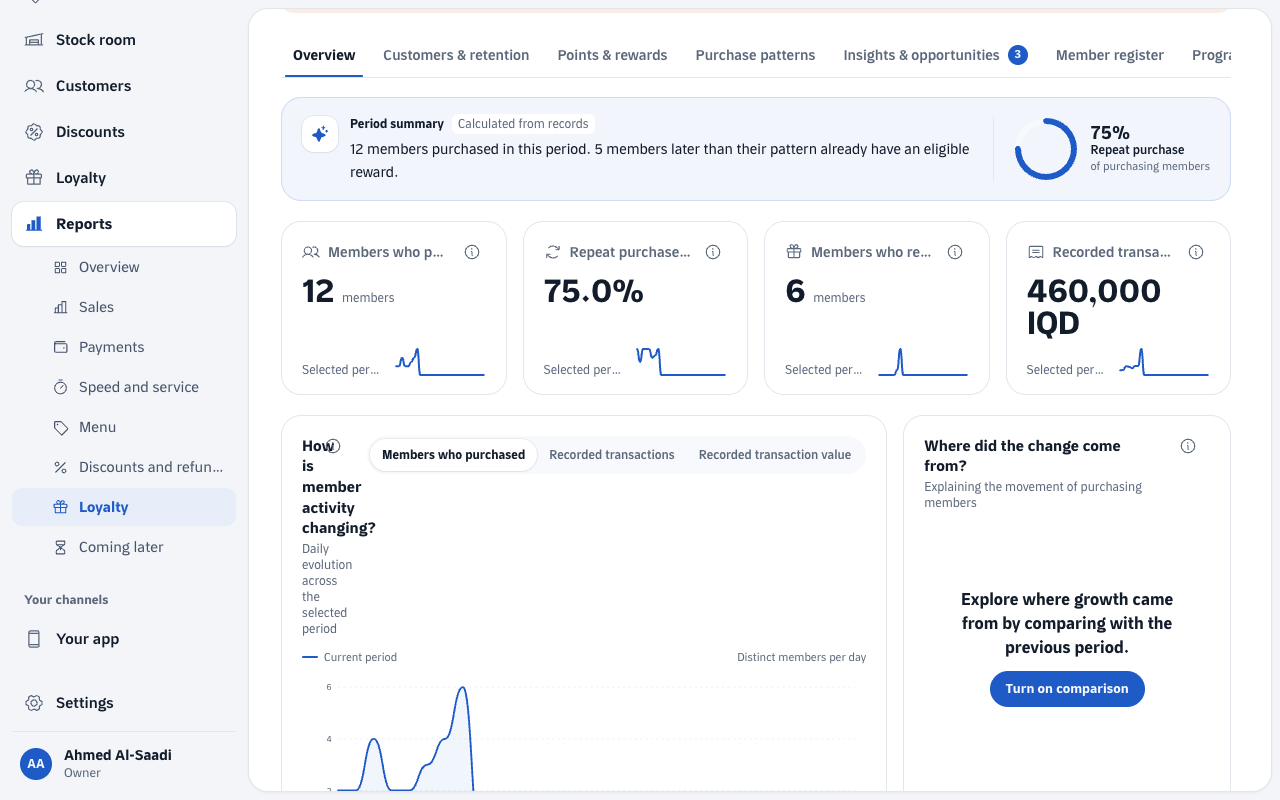
The Overview view opens first.
Overview
For Café and roastery
Select How was this calculated?, or the information button beside a figure, to see how it's counted. Metrics guide explains every figure on the page.
Points and rewards
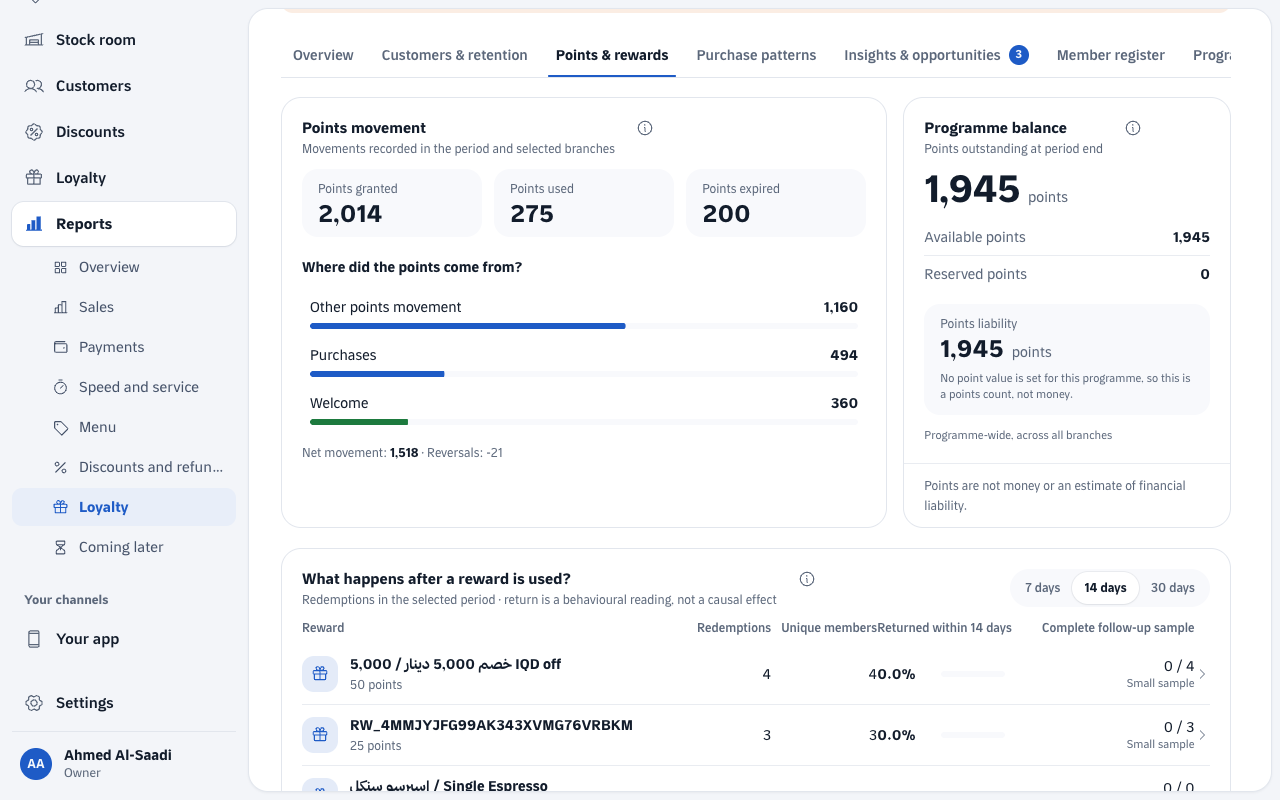
Select Points & rewards.
Points & rewards
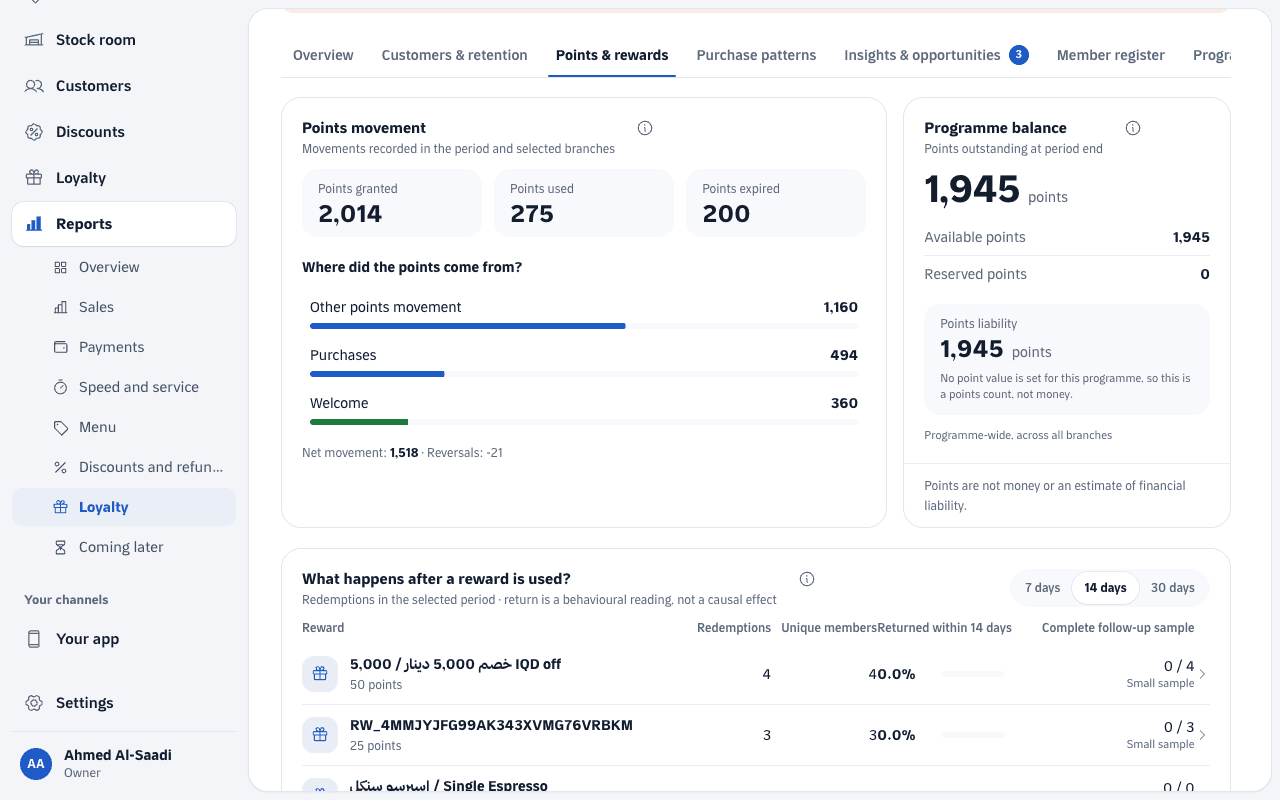
Points movement
Programme balance
Points liability
Members by their relationship
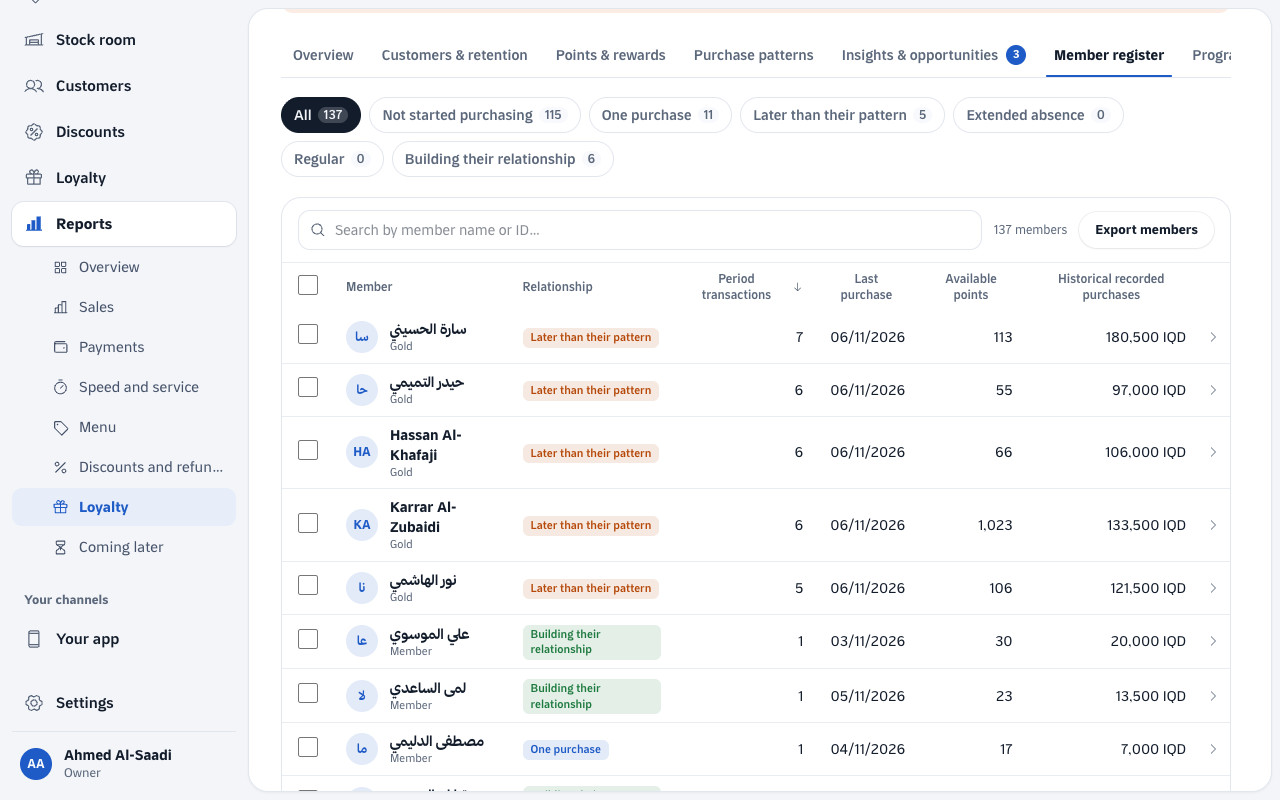
Select Member register to list every member, grouped by how they've bought so far. Select a group to see only its members.
Days are counted to the end of the period, and only purchases in the branch you chose count. Select a member's row to see their points and latest purchases. To change a member's points, see Look after a member.
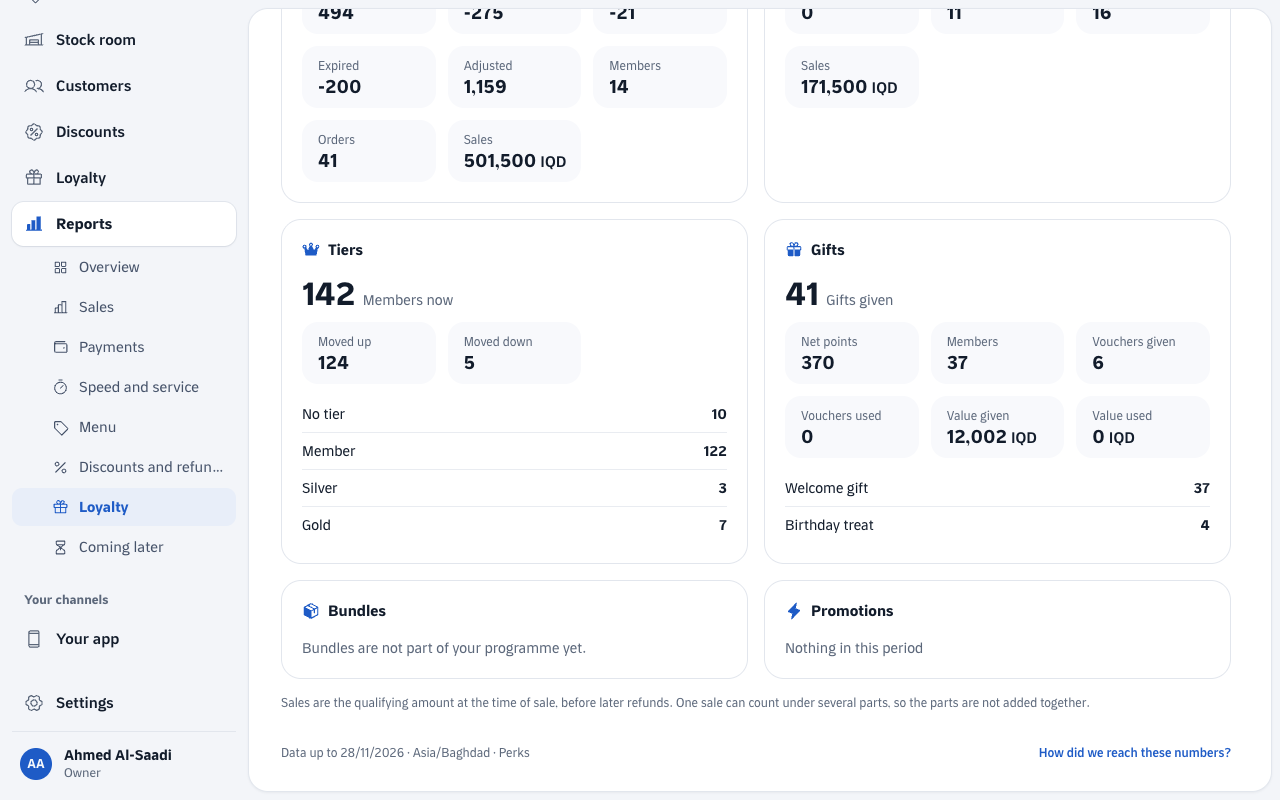
Tiers
Select Programme parts. The Tiers card shows Members now, how many members are on each tier right now, including No tier. Moved up and Moved down count the moves in the period: a member who moved twice counts twice.
Programme parts
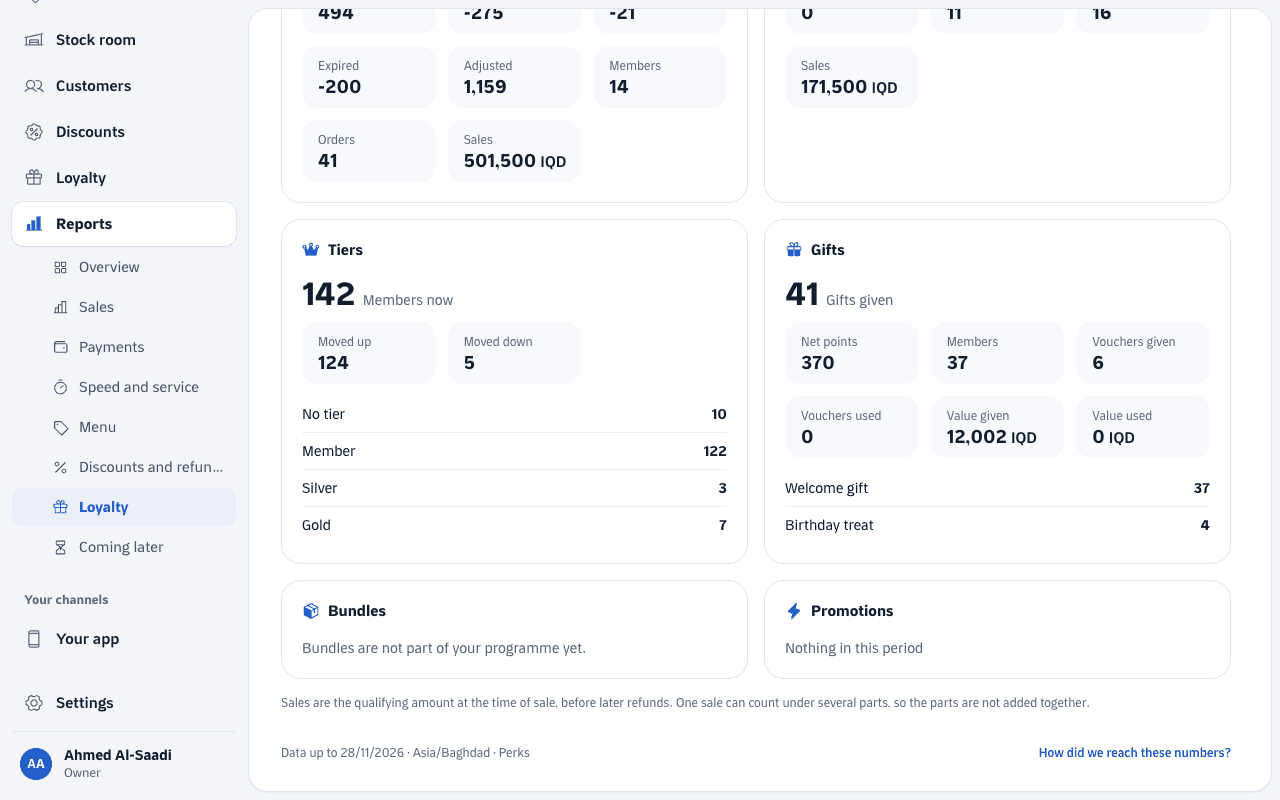
The other cards show what points, stamps, gifts, bundles and promotions brought in over the period.
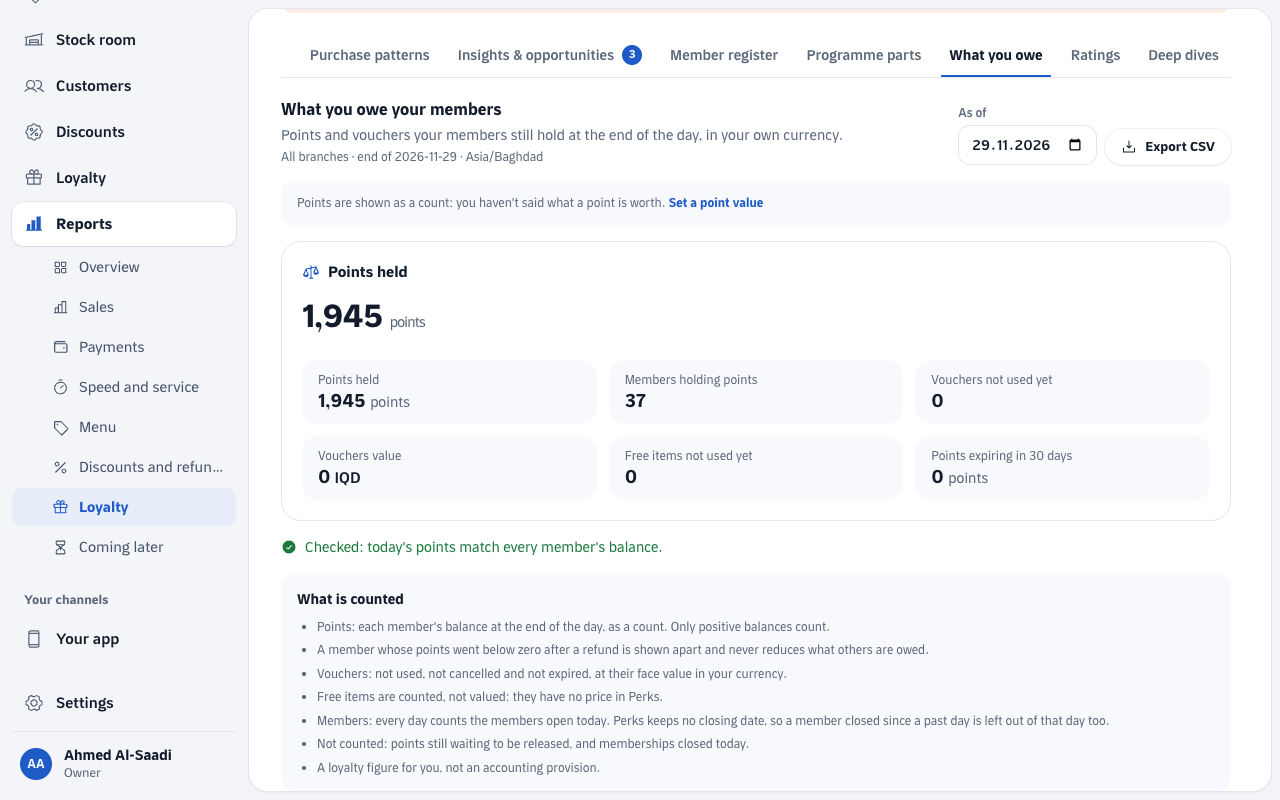
What you owe your members
Select What you owe. It shows what your members still hold at the end of the day you set under As of (today, unless you change it):
A member whose points went below zero after a refund is shown apart, under Points owed back, and never reduces what others are owed. When the figures add up, you see Checked: today's points match every member's balance.
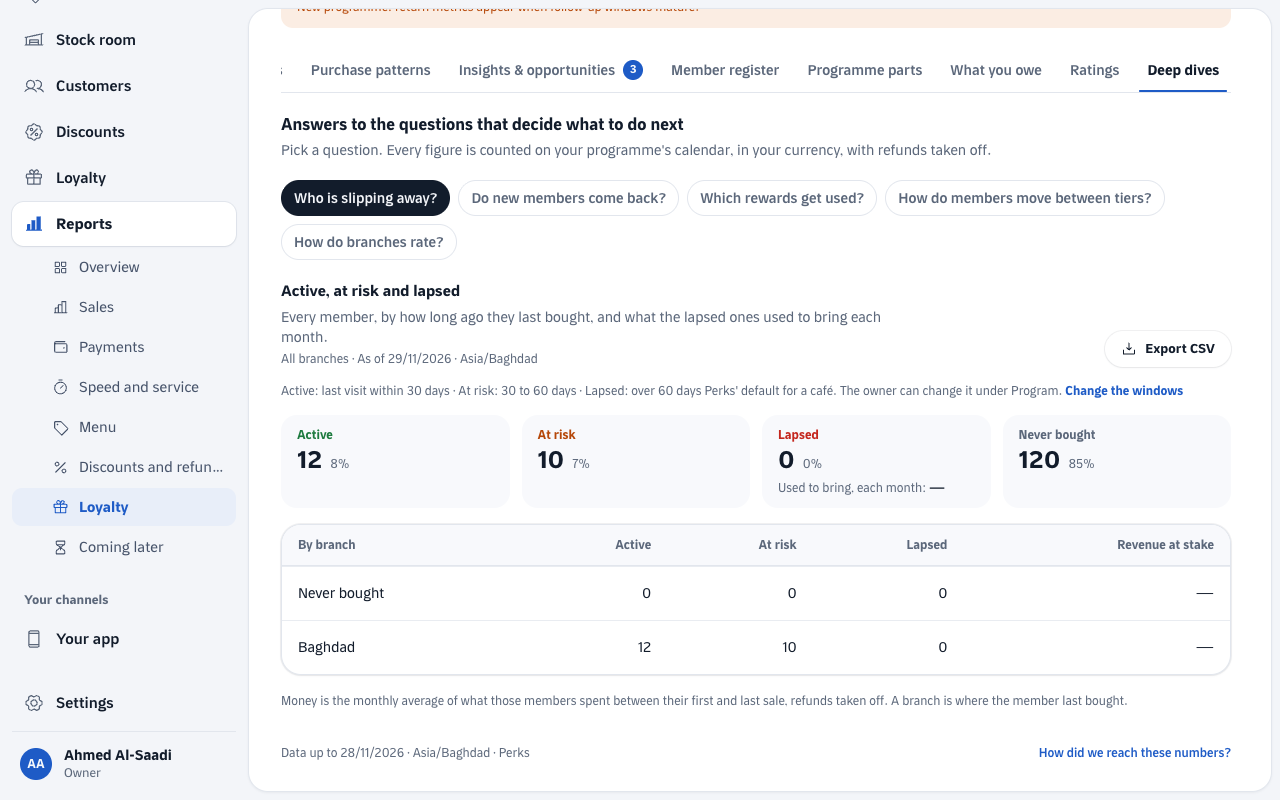
Who is slipping away
Select Deep dives, then Who is slipping away?. Every member is counted by how long ago they last bought, up to today:
For Café and roastery
Perks starts a café with windows of 30 and 60 days.
For Counter-service restaurant, Full-service restaurant
Perks starts a restaurant with windows of 45 and 90 days.
For Fragrance and cosmetics, Abaya, Fashion
Perks starts a shop with windows of 180 and 365 days.
For Salon and spa, Health and beauty shop, Pharmacy and beauty
Perks starts with your sector's windows: 30 and 60 days for a café, 45 and 90 for a restaurant, 180 and 365 for a shop, and 45 and 90 for any other sector.
The owner can select Change the windows; it needs the Set at-risk and lapsed windows permission.
The other questions in Deep dives are Do new members come back?, Which rewards get used?, How do members move between tiers? and How do branches rate?.
To save the figures, use Export CSV at the top: Summary CSV, Members CSV or Copy summary.
If something goes wrong
Your programme is young. Figures about members coming back need their full days to pass first; they fill in on their own.
Your own dates start before your programme's first day, end after yesterday, or end before they start. Choose dates inside that range.
No member bought in those days or that branch. Choose more days or All branches.
Your purchases came in without amounts in your programme's currency, so money figures are left out rather than shown wrong.
The share card covers 31 days at most. Choose a shorter period.
Helm couldn't read the report. Try again, or reload the page.
Your role doesn't hold View loyalty reports, or loyalty isn't on your plan. The owner can add the permission to your role.