Customers and loyalty
Set when points expire
Choose whether new points never expire or expire a number of months after they're earned. Points members already have keep the terms they were earned under.
Tried on a demo store on 29 November 2026
Before you start
- Your role needs the Set up and publish the programme permission. By default only the owner has it, and the owner decides who else gets it.
- Your programme is set up and counts points. If it isn't, start with Start and publish your loyalty programme.
- Loyalty is part of the Perks plans. If you don't see Loyalty in the menu, your plan doesn't include it.
Watch the steps
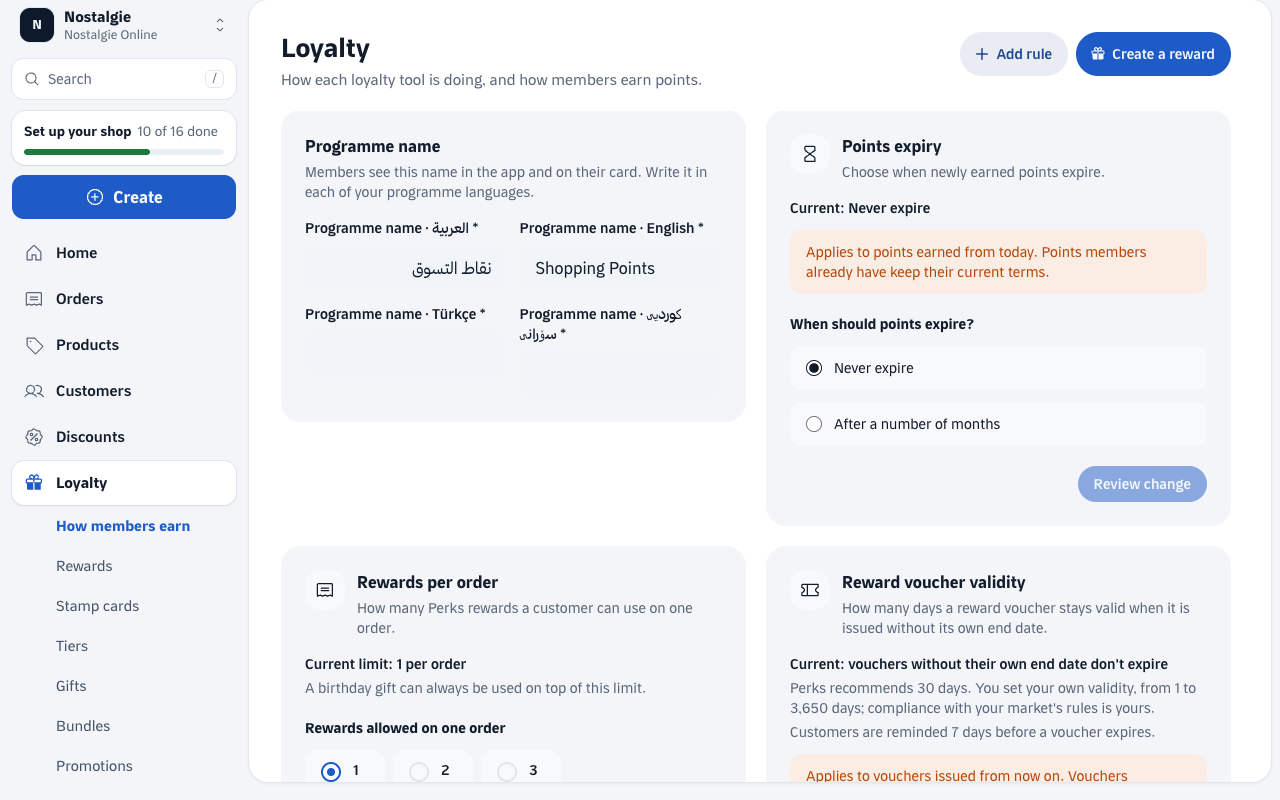
- In the menu, select Loyalty, then How members earn. Scroll down to Points expiry.
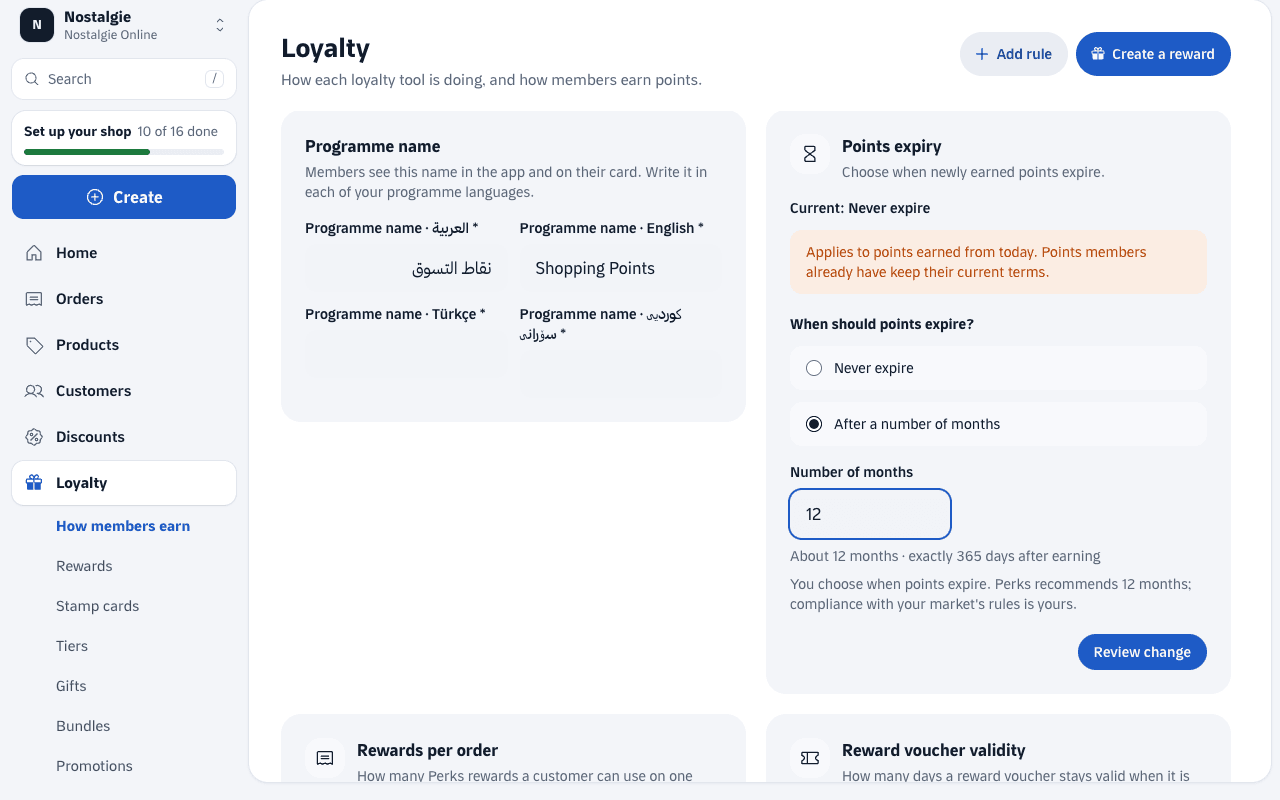
- The line that starts with Current shows today's rule. Nostalgie's points never expire.
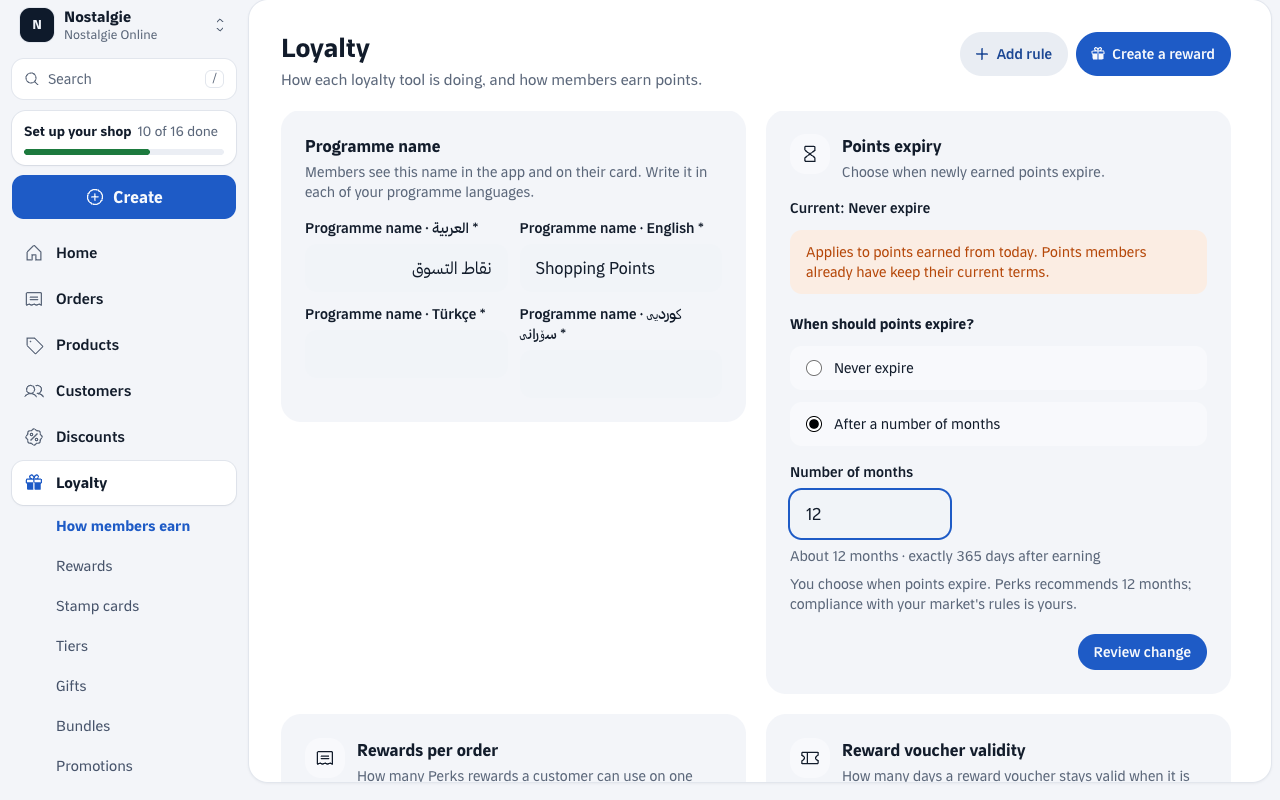
- Never expire, or After a number of months.
- Type 1 to 120. Helm shows the exact number of days: 12 months is 365 days.
- Select Review change. Nothing is saved yet.
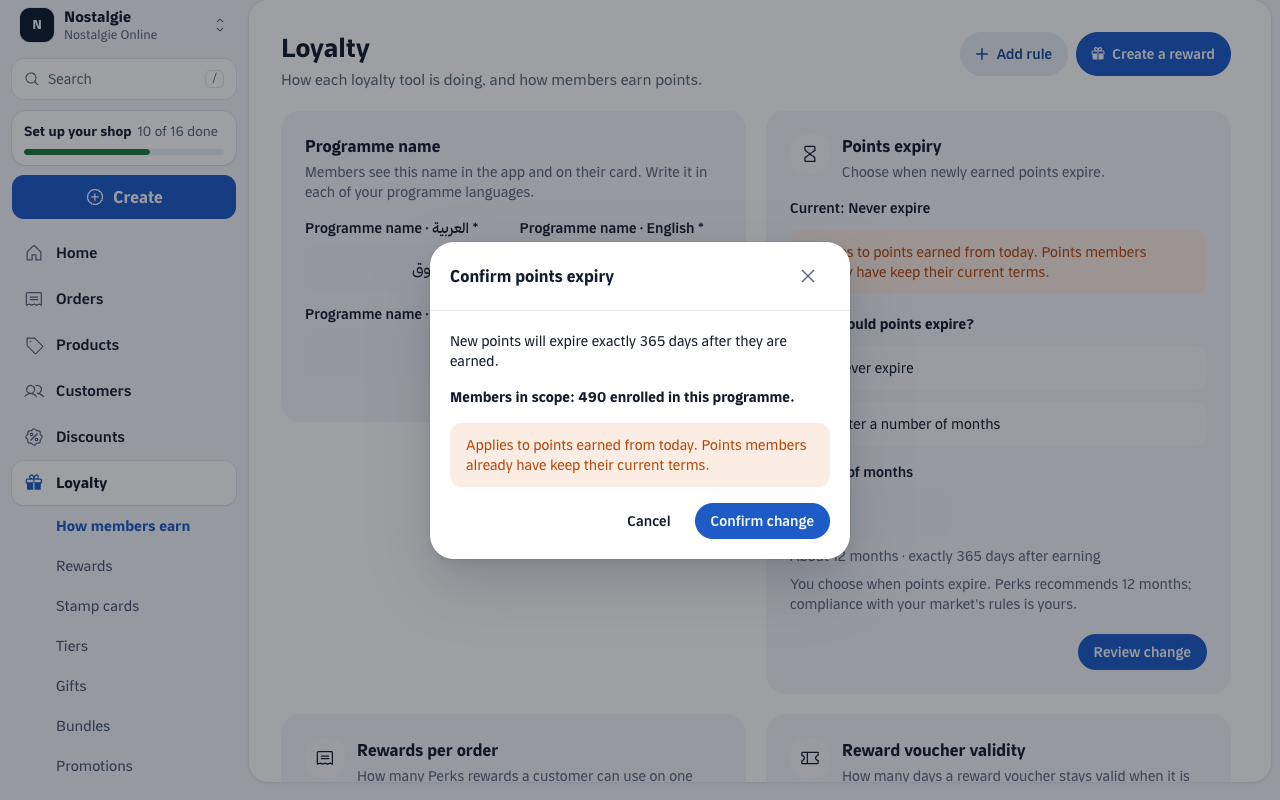
- The new rule, and how many members are enrolled in the programme.
- Select Confirm change. Cancel keeps the rule you have.
Change when points expire
Open the page
In the side menu:LoyaltyHow members earnScroll down to Programme settings, then find the Points expiry card.
Read the setting in force
The line under the card's title shows today's rule: Current: Never expire, or the number of days, such as Current: 365 days after they are earned.
Choose the rule
Under When should points expire?, choose one.
Set the number of months
For After a number of months, type the Number of months, a whole number from 1 to 120. Helm shows the exact count, such as About 12 months · exactly 365 days after earning. Points expire after that exact number of days, not on a calendar date.
Review the change
Select Review change. It stays greyed out until your choice is different from the current rule. Helm checks the change with the server, and nothing is saved yet.
Confirm
The window Confirm points expiry shows the new rule, such as New points will expire exactly 365 days after they are earned., and how many members are enrolled in the programme. Select Confirm change. To leave without changing anything, select Cancel.
Confirm it's you, if Helm asks
This change needs a recent sign-in. If Helm shows Confirm it’s you, type your 6-digit code and select Confirm, or select Use Face ID, Touch ID or a security key instead.
Points expiry
Current
Only new points
After a number of months
The exact days
What happens next
- You see
- Points earned from then on follow the new rule. Each order's points expire the exact number of days after they're earned.
- Points members already have keep the rule they were earned under. Choosing Never expire doesn't stop older points from expiring, and choosing a number of months doesn't make older points expire.
- When a member uses points, the points that expire soonest are used first. Points that never expire are used last.
- Points expire at the exact time they were earned, that many days later. From then they can't be used, and they come off the member's balance the next time Helm's expiry check runs.
If something goes wrong
Your role doesn't hold Set up and publish the programme. The owner can add it to your role.
Your choice is the same as the current rule, or the number of months isn't valid. Choose a different rule, or type a whole number of months.
Type a whole number from 1 to 120, then select Review change.
Select Review change again.
Select Confirm change again. This also shows if you closed Confirm it’s you without confirming.
Select Retry.
Contact support. We'll check that your store's points are on the system that expires them.