Customers and loyalty
Look after a member: points, tier and history
Find a member by name, phone or card, see their points, tier and history, and add or take away points with a reason when something needs putting right.

Tried on a demo store on 29 November 2026
Before you start
- Your role needs View members to find members and open their profile, and Adjust members to change a balance. The owner and managers have both; cashiers can only view.
- Loyalty is part of the Perks plans. Without it, the page lists customers but shows no points or tiers.
- Your programme is set up. If it isn't, start with Start and publish your loyalty programme.
Watch the steps
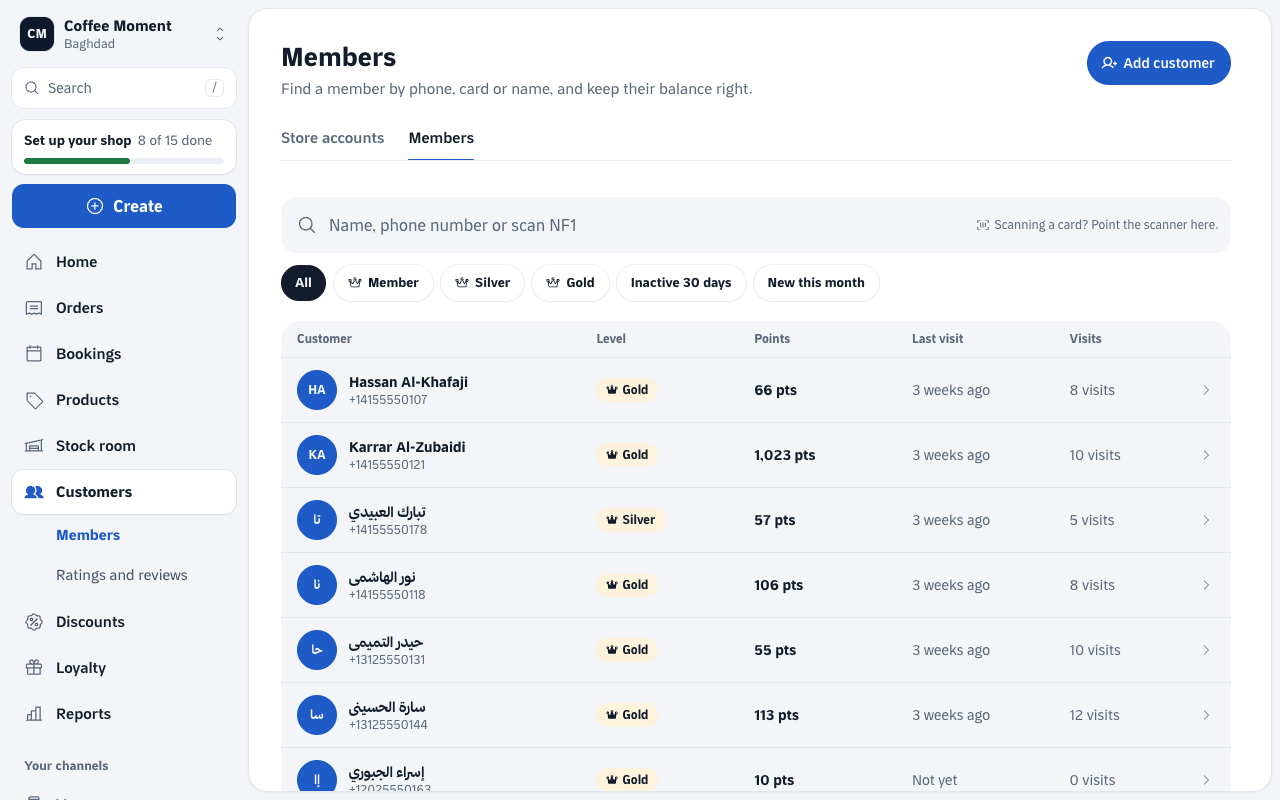
- In the menu, select Customers, then Members.
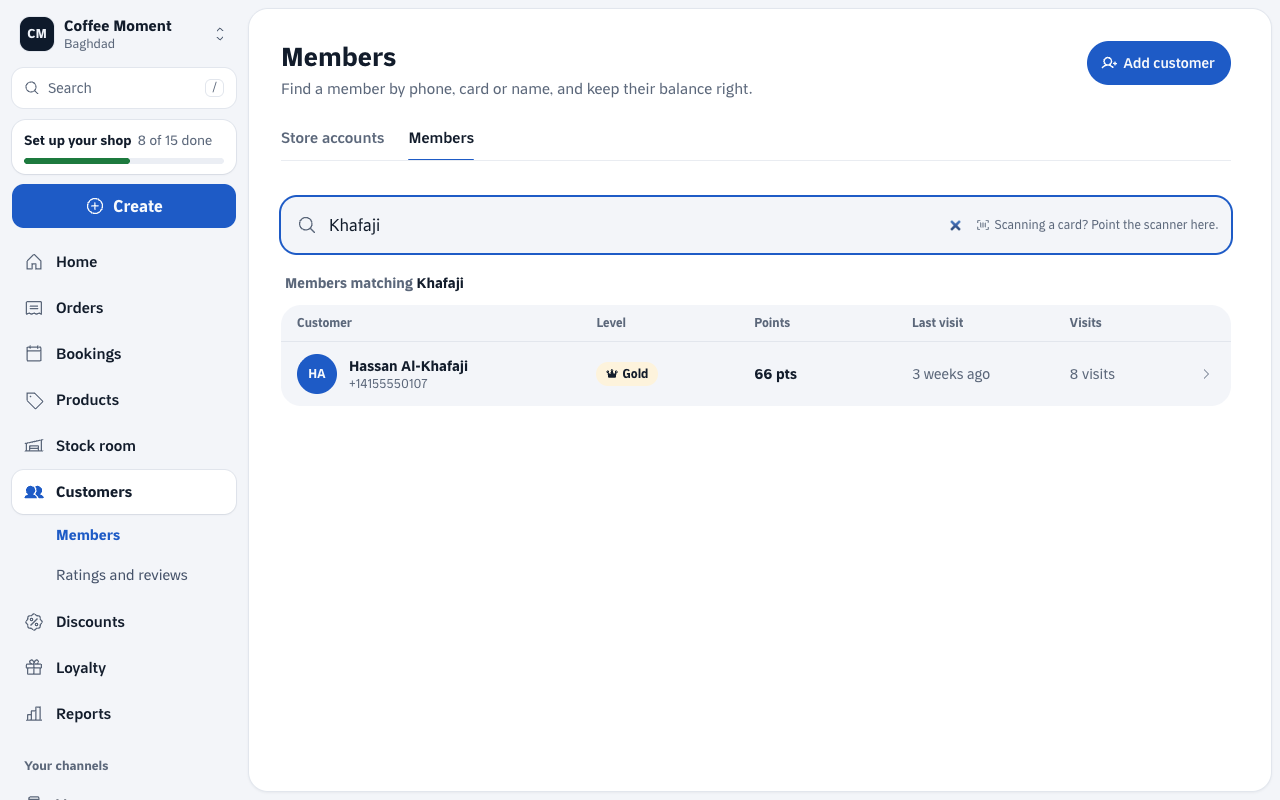
- Type a phone number or part of their name, or scan their card.
- Select their row.
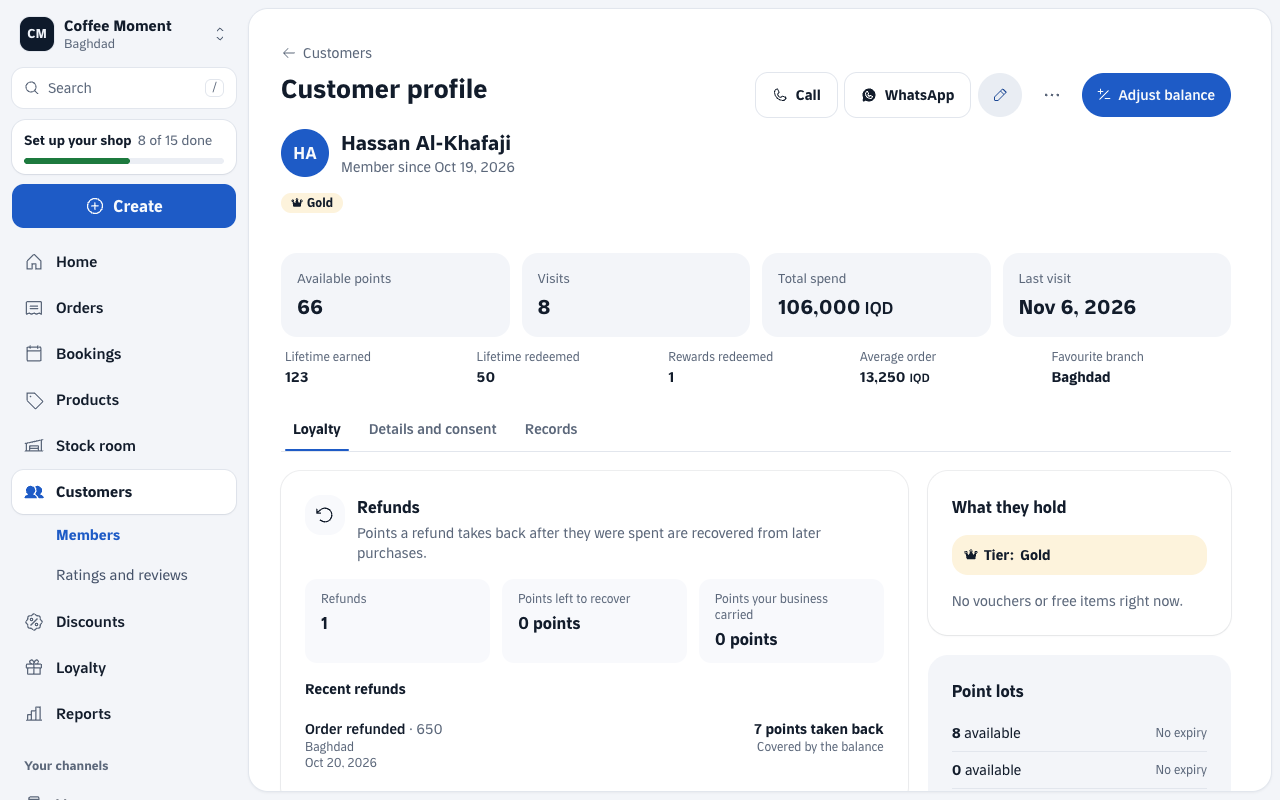
- Available points, visits, spend and last visit.
- What they hold: their tier, and any vouchers or free items.
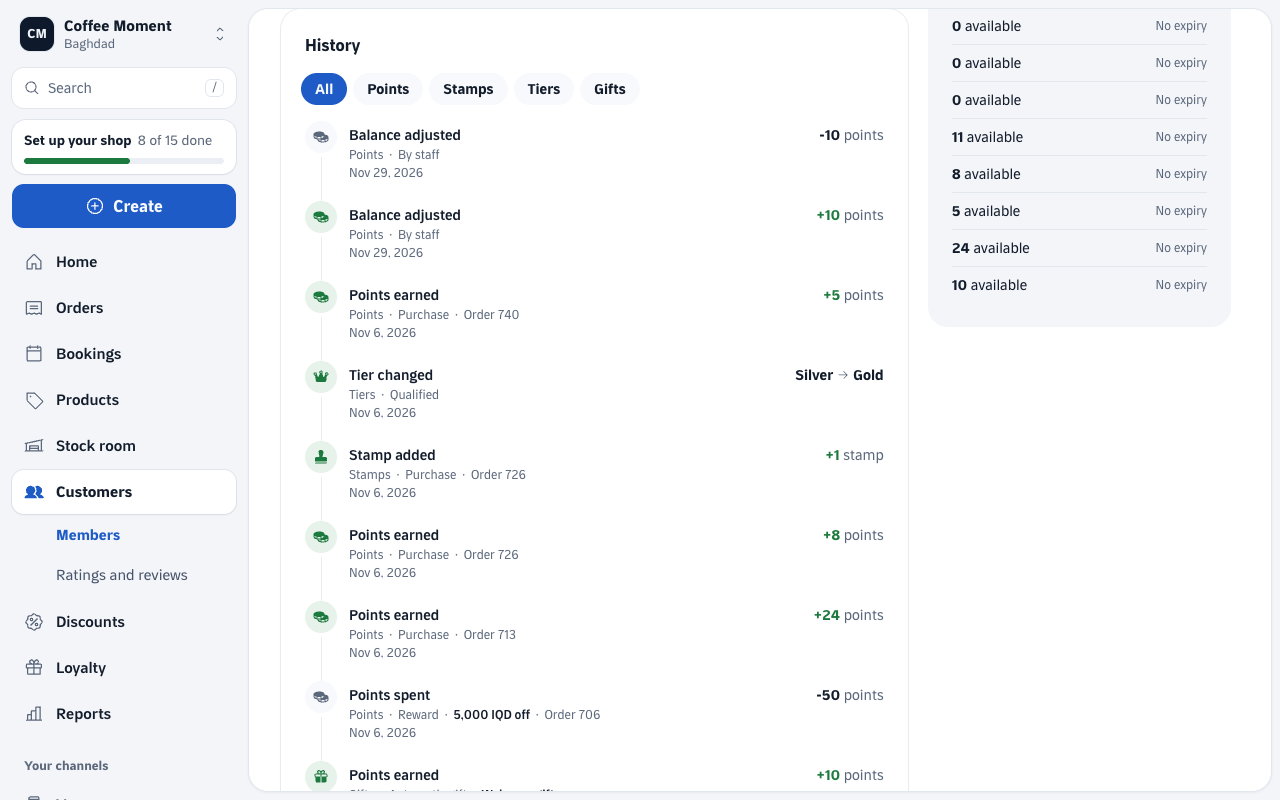
- The history, newest first. A balance change shows as Balance adjusted.
- Select Adjust balance.
- Choose Add or Deduct, enter the points, and say why.
- Helm shows the balance after the change before you confirm.
- The points move, and the change joins their history.
Find a member
Open Members
In the side menu:CustomersMembersThe page is called Members.
Search
In the search box, type their phone number or at least 2 letters of their name, or scan their card. A phone number or a card opens their profile straight away. A name lists everyone who matches, because two people can share a name.
Or browse
Without a search, the list shows your members. The chips above it narrow it down: All, one chip for each tier, Inactive 30 days and New this month.
Open their profile
Select their row. The page Customer profile opens.
Search by name
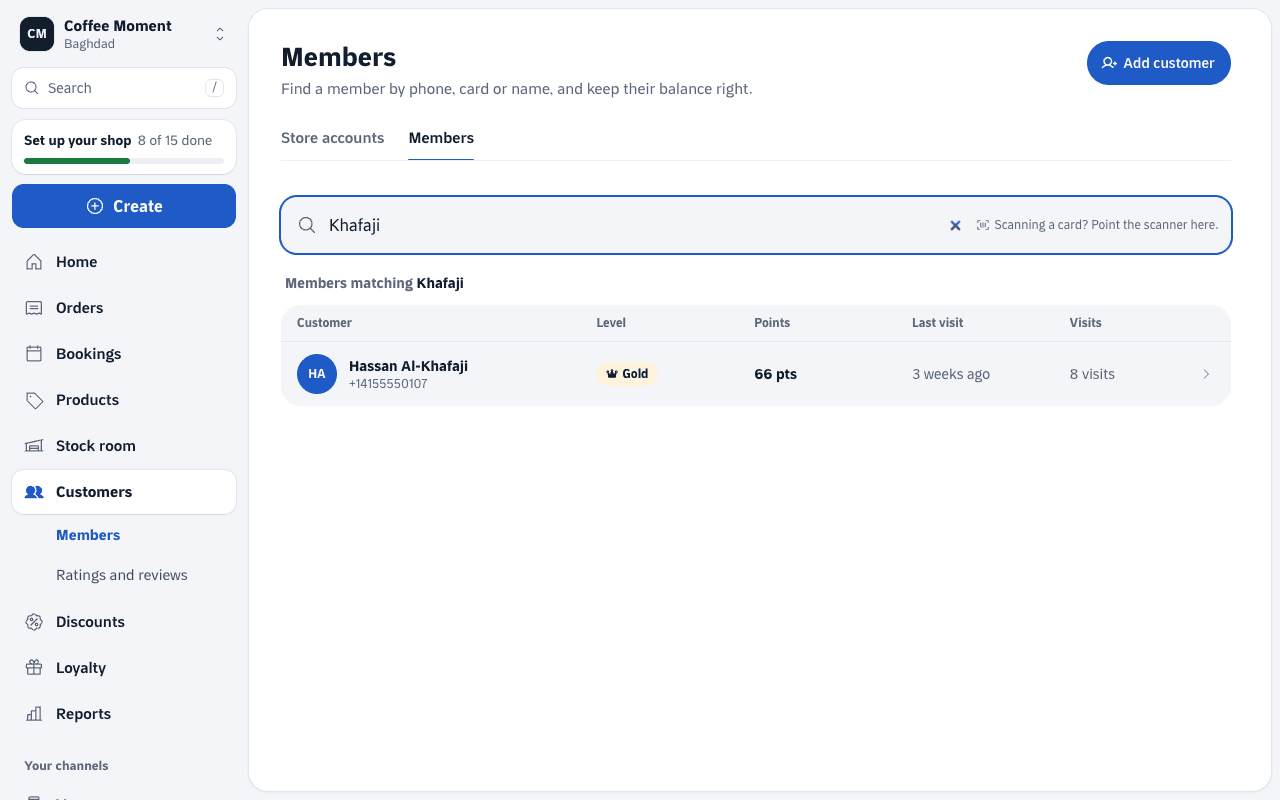
Search
The match
See their points, tier and history
The top of the profile shows Available points, Visits, Total spend and Last visit, then Lifetime earned, Lifetime redeemed, Rewards redeemed, Average order and Favourite branch. Points waiting to become available, and points about to expire, show just above as small tags.
The profile has three tabs:
Their tier shows under their name and in What they hold.
The history
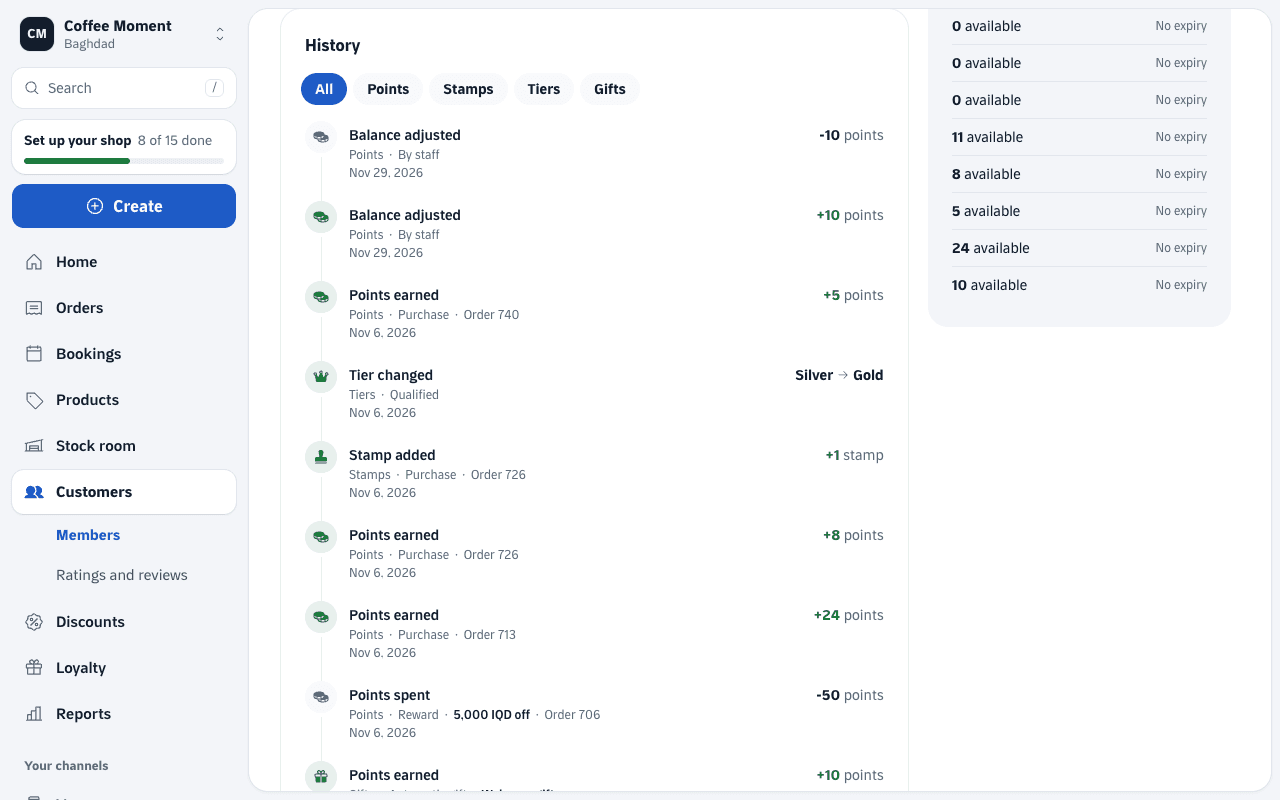
Filter the history
Balance adjusted
Add or take away points
Use this to put a balance right: points an order missed, a goodwill gesture, or points given by mistake.
Open the form
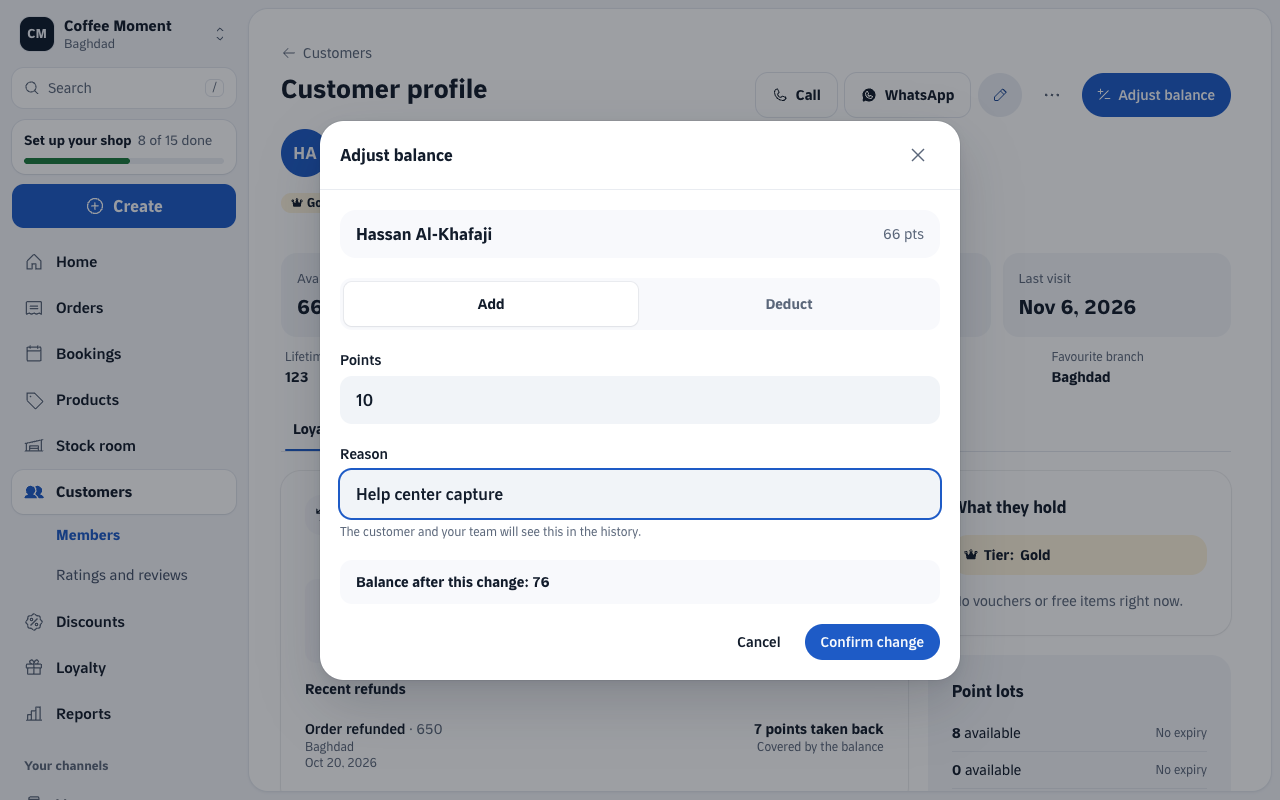
On their profile, select Adjust balance. The form Adjust balance opens with their name and current points.
Add or Deduct
Choose Add or Deduct.
How many points
Enter the number in Points.
Why
Enter the Reason. It's required, and it's saved with the change.
Check and confirm
Check the line Balance after this change, then select Confirm change. It stays off until both the points and a reason are filled in.
Taking points away
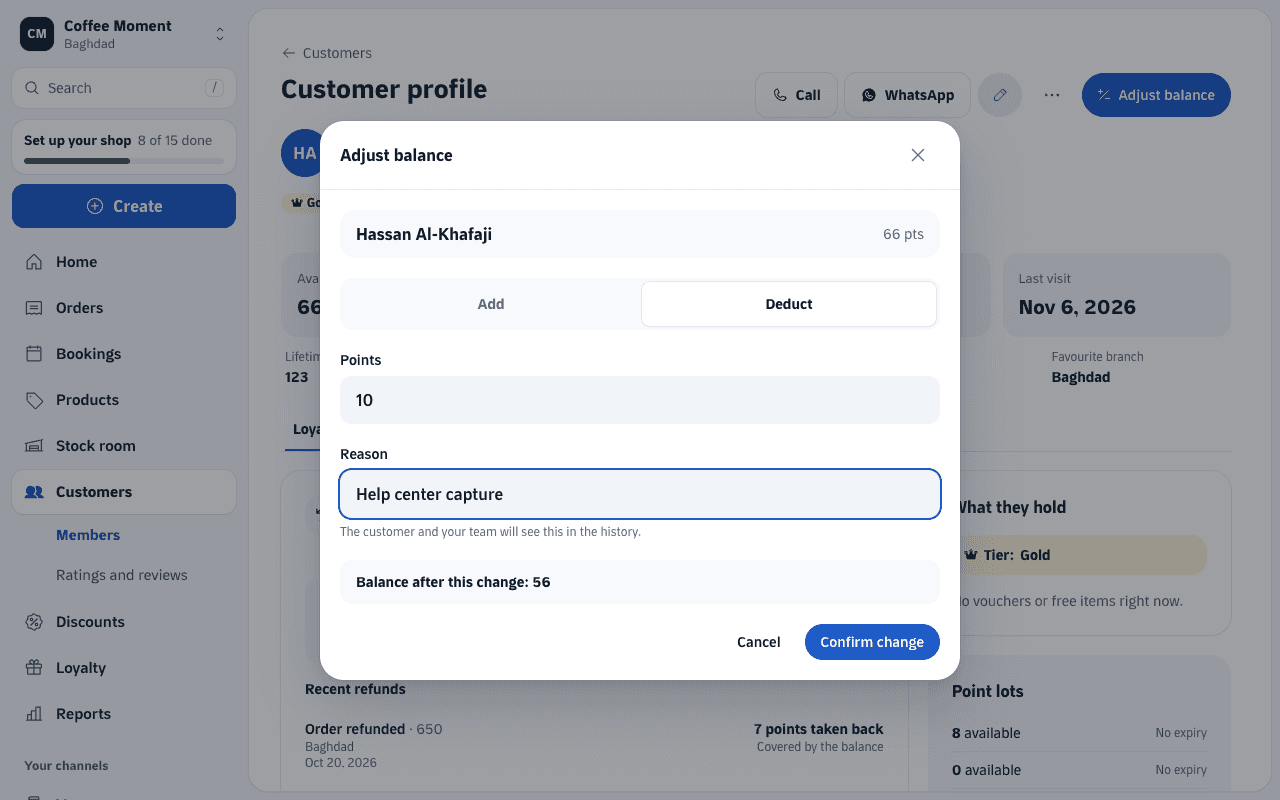
Deduct
Balance after this change
Confirm change
What happens next
- You see and Available points shows the new balance.
- The change appears at the top of their History as Balance adjusted, and under Records as Adjusted.
- If the change needs the owner's approval, you see instead, and the balance doesn't change yet.
Big changes wait for the owner
The owner can set a limit in Settings > Business details, under Team rules: Adjustment approval threshold (points). Balance changes above this many points wait for an owner's approval. At 0 there is no limit.
- The owner's own changes always apply at once.
- A change above the limit from someone without Make large balance adjustments waits. Only the owner has it unless they give it to another role.
- Waiting changes show at the top of the Members page for whoever holds Make large balance adjustments, for example 2 balance changes are waiting for you, with Approve and Reject on each. Nothing changes until you decide.
More for a member
The ⋯ menu on the profile holds Give a reward, Give a VIP tier and Suspend member. Giving a reward and suspending need Suspend members and give goodwill; a VIP tier needs Grant a member a tier. By default only the owner has them; a manager doesn't.
If something goes wrong
Deduct fewer points. A deduction can't take the balance below zero.
Split it into smaller changes, each with its reason.
Nothing changed. Select Confirm change again.
Check the number, or search by name instead.
Your role doesn't hold Adjust members, or the member is suspended or hasn't agreed to your terms yet.