Customers and loyalty
Set the programme's rules for rewards and refunds
Choose how many rewards a customer can use on one order, how long a reward voucher stays valid, and what happens to points when a refunded purchase's points were already spent.

Tried on a demo store on 29 November 2026
Before you start
- Your role needs the Set up and publish the programme permission. By default only the owner has it, and the owner decides who else gets it.
- Your programme is set up. If it isn't, start with Start and publish your loyalty programme.
- Loyalty is part of the Perks plans. If you don't see Loyalty in the menu, your plan doesn't include it.
Watch the steps
- In the menu, select Loyalty, then How members earn. Scroll down to Programme settings.
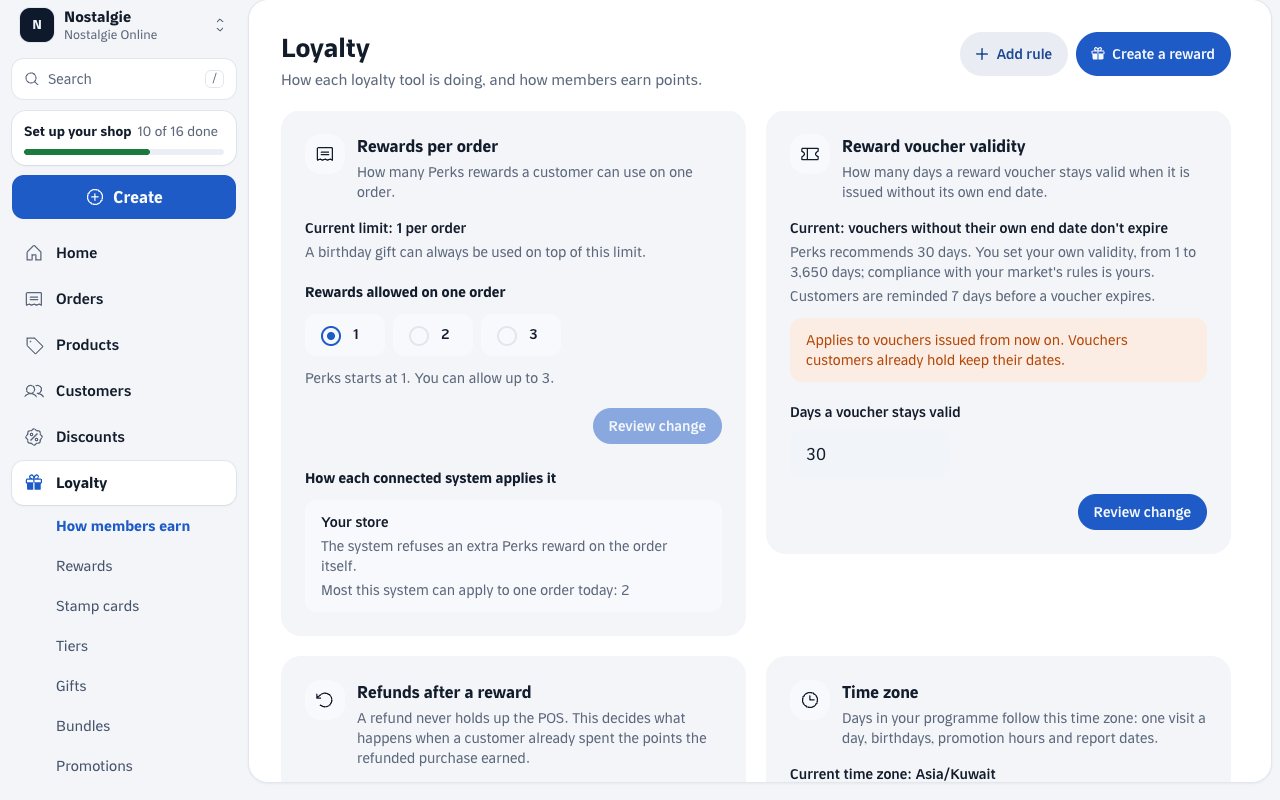
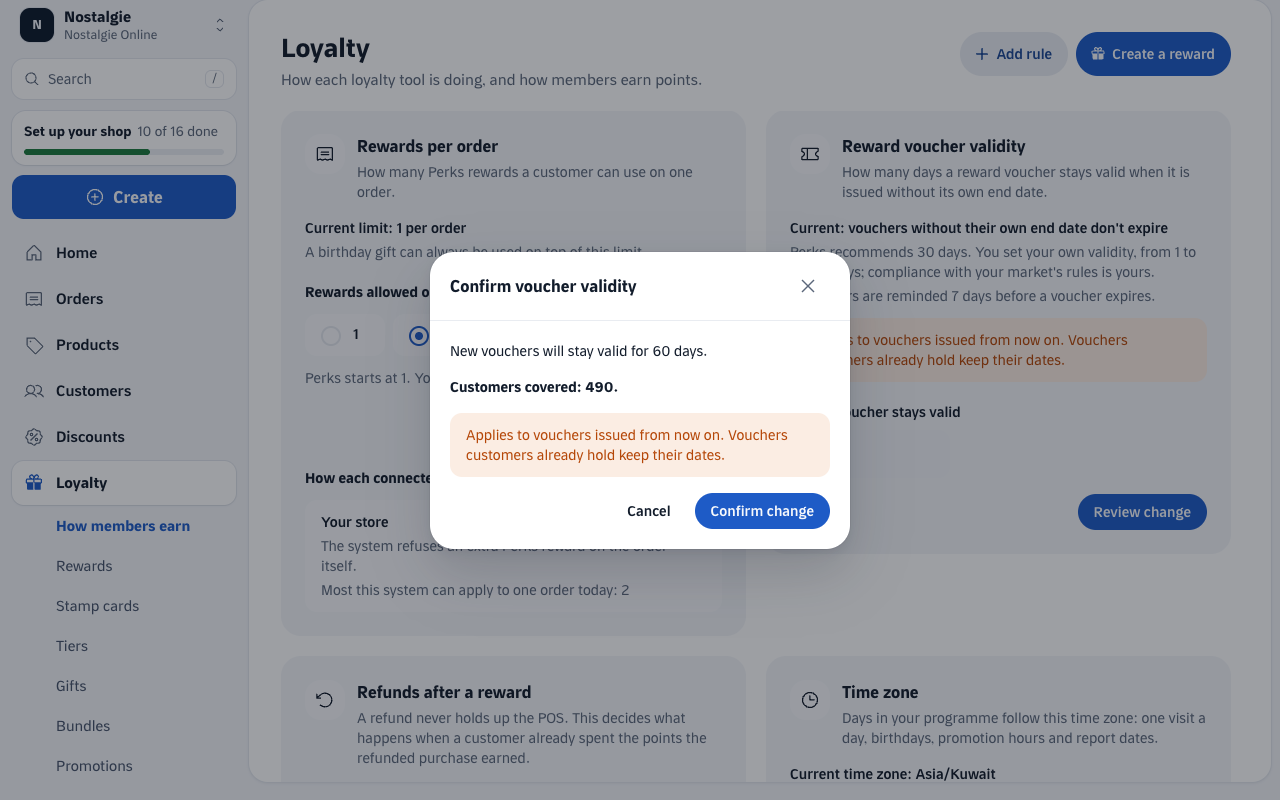
- Nostalgie allows 1 reward per order. A birthday gift can always be used on top.
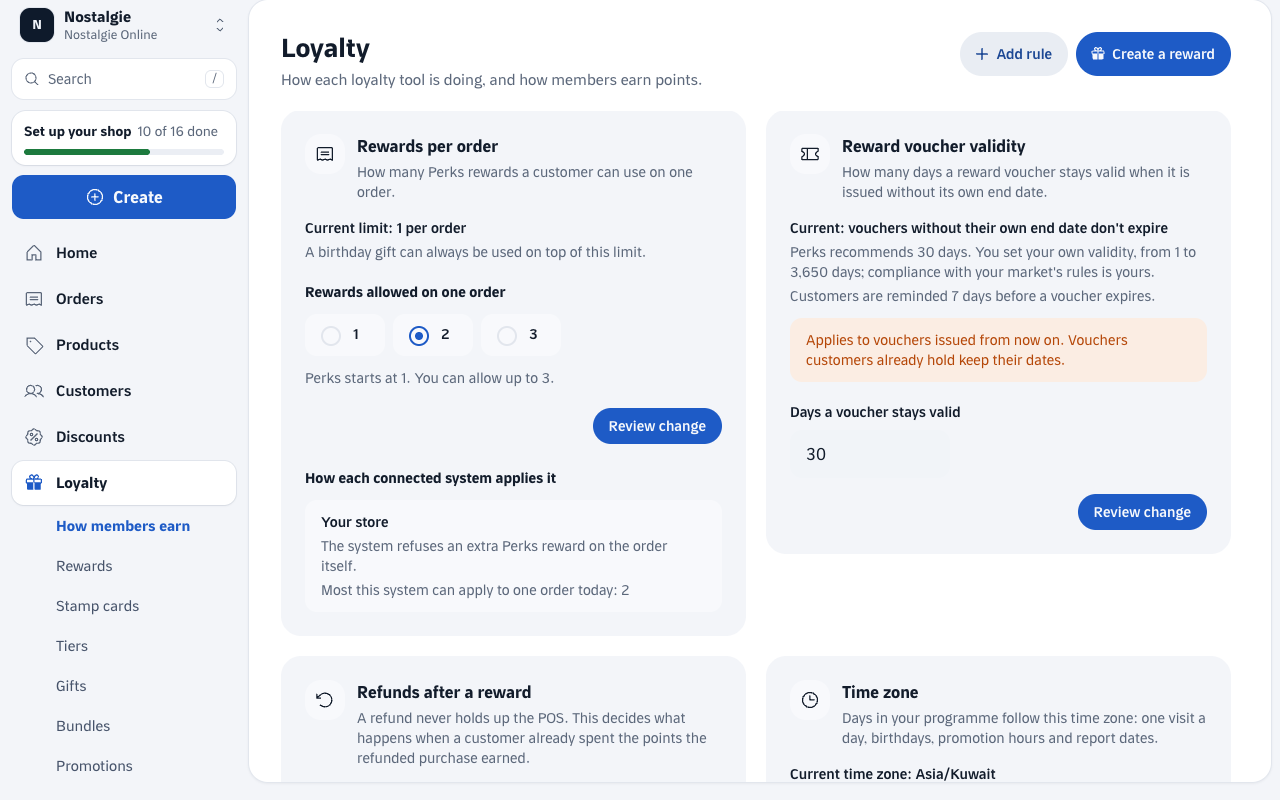
- 1, 2 or 3 rewards on one order.
- Each connected system, and the most it can apply to one order today.
- Select Review change. Nothing is saved yet.
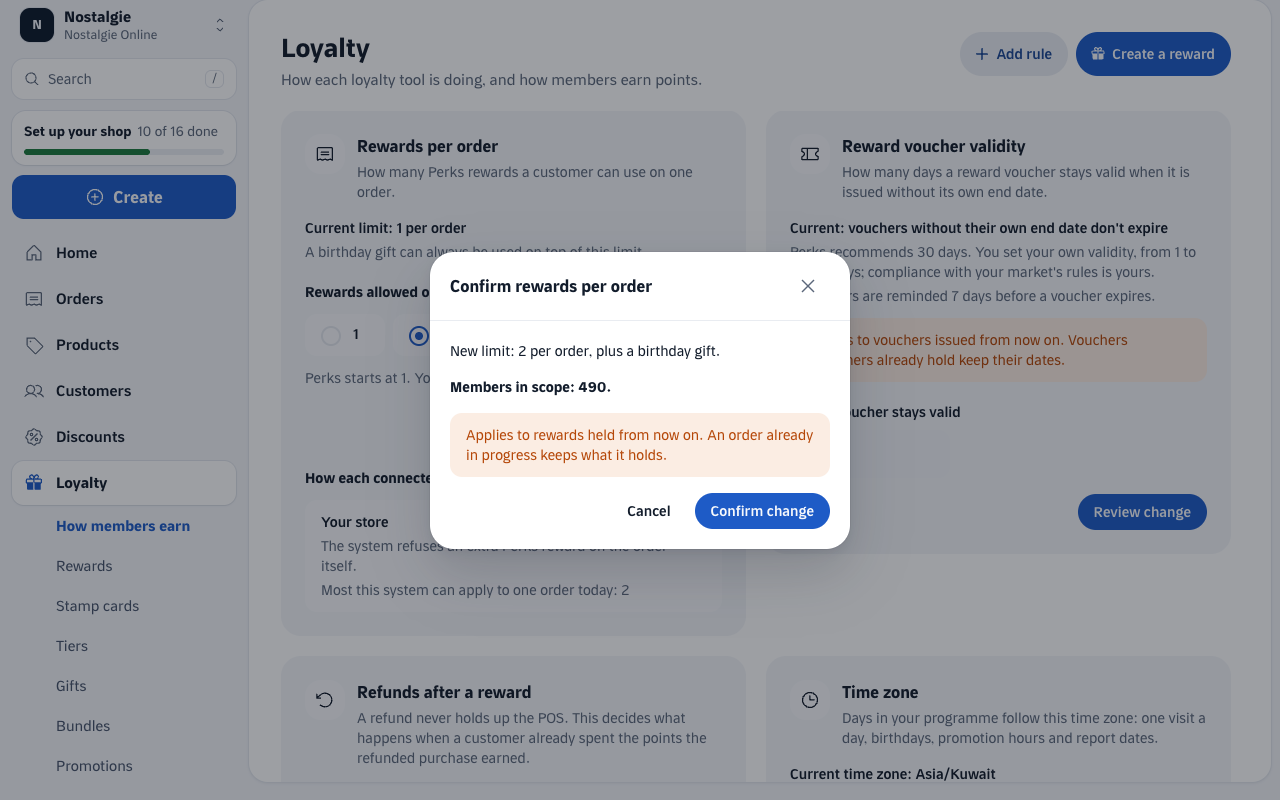
- The new limit and the members it covers. Select Confirm change, or Cancel.
- Here, vouchers without their own end date don't expire.
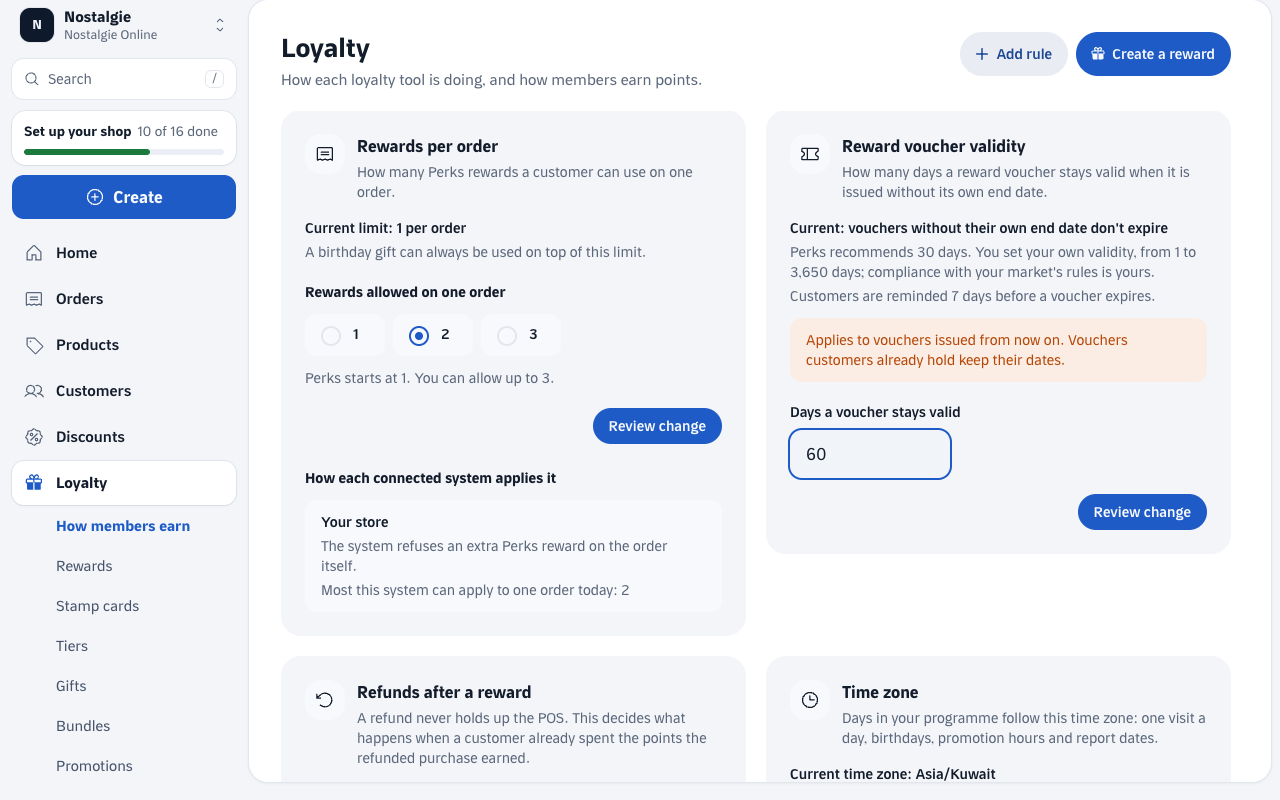
- From 1 to 3,650. Perks recommends 30. Then select Review change.
- Only vouchers issued from now on get the new validity.
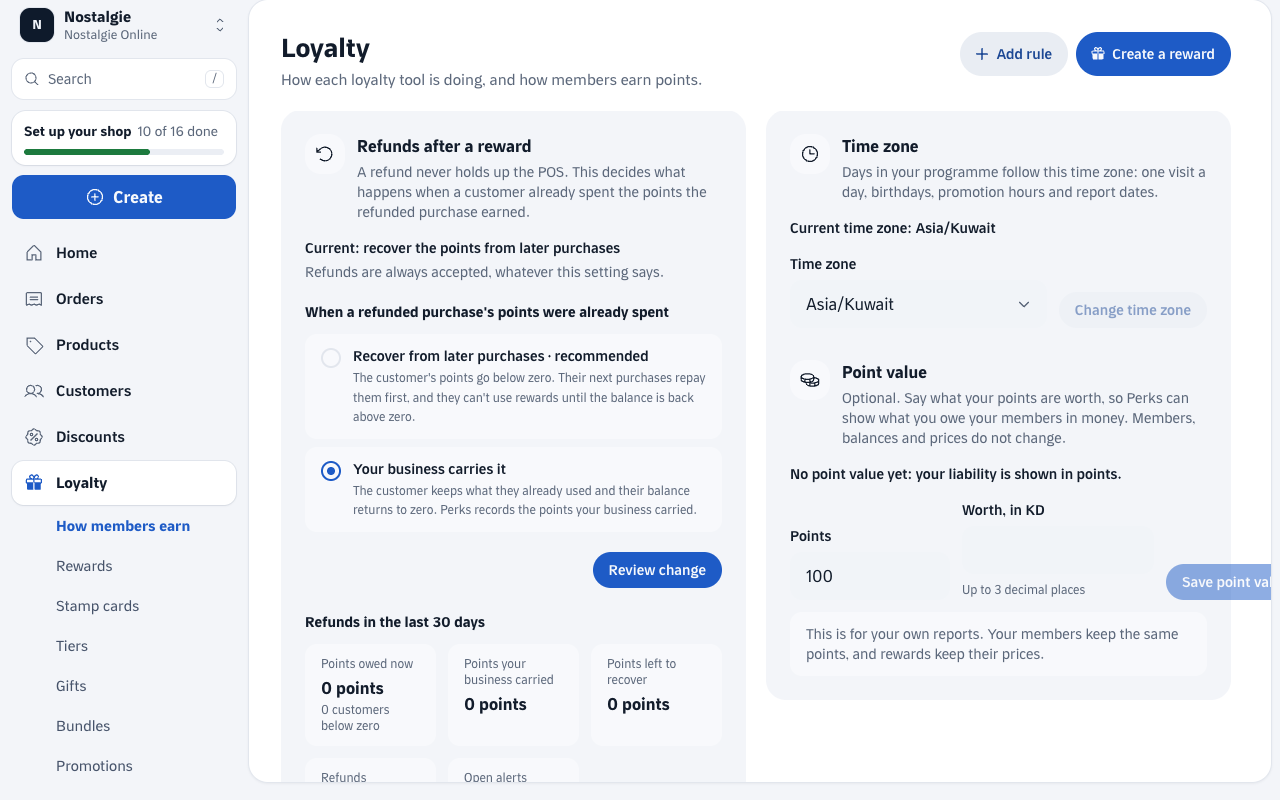
- Nostalgie recovers the points from later purchases.
- Recover from later purchases, or your business carries it.
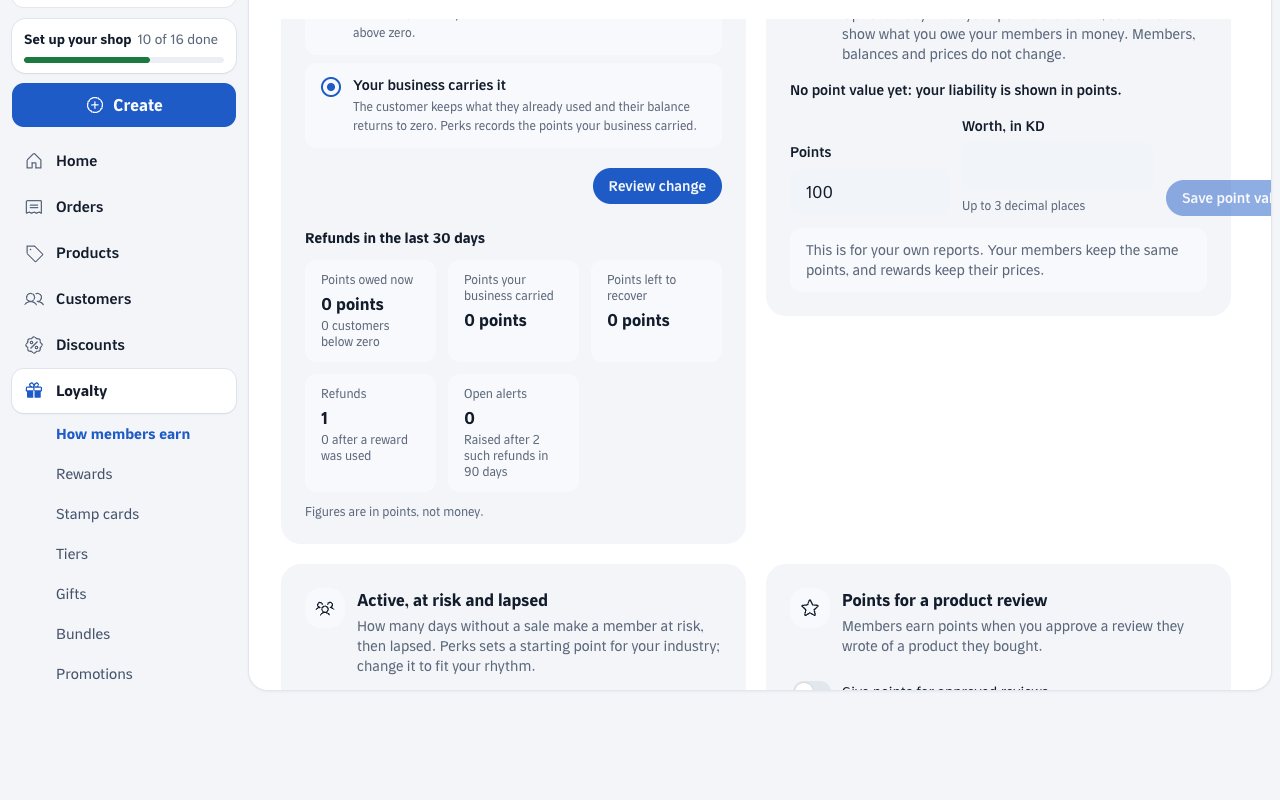
- The last 30 days, in points, not money.
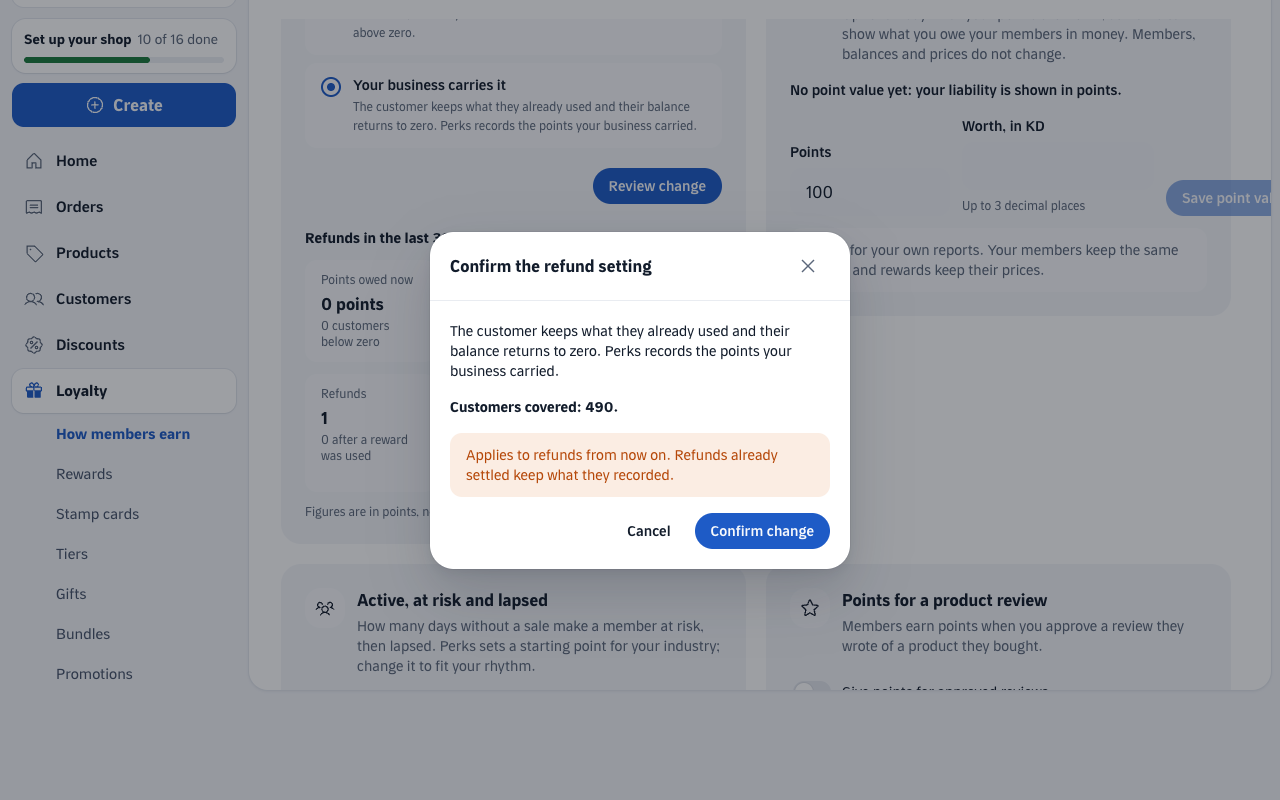
- Only refunds from now on follow the new choice.
Find the programme's rules
Open the page
In the side menu:LoyaltyHow members earnScroll down to Programme settings. The three rules in this article each have a card: Rewards per order, Reward voucher validity and Refunds after a reward.
Set how many rewards fit on one order
Read the limit in force
On the Rewards per order card, the first line shows it, such as Current limit: 1 per order. Perks starts every programme at 1.
Choose the new limit
Under Rewards allowed on one order, choose 1, 2 or 3. A reward bought with points and a reward voucher each count as one.
Check how your systems apply it
Under How each connected system applies it, each system that takes your orders has a line.
A line such as Most this system can apply to one order today: 2 is that system's own ceiling, whatever limit you choose.
Review and confirm
Select Review change. The window Confirm rewards per order shows the new limit, such as New limit: 2 per order, plus a birthday gift., and the number of members in scope. Select Confirm change, or Cancel to leave it as it is.
Set how long a reward voucher stays valid
Read the validity in force
On the Reward voucher validity card, the first line shows it: Current: vouchers without their own end date don't expire, or the number of days, such as Current: 30 days from the day a voucher is issued. It applies only to vouchers issued without their own end date.
Type the number of days
In Days a voucher stays valid, type a whole number from 1 to 3,650. Perks recommends 30, and the box starts at 30 until you save your own.
Review and confirm
Select Review change. The window Confirm voucher validity shows New vouchers will stay valid for 60 days. (with your number) and the number of customers covered. Select Confirm change, or Cancel.
Choose what a refund does to spent points
A refund always takes back the points the refunded purchase earned. This setting decides what happens when the customer has already spent those points.
Read the setting in force
On the Refunds after a reward card, the first line shows it: Current: recover the points from later purchases or Current: your business carries the points.
Choose what happens
Under When a refunded purchase's points were already spent, choose one.
Review and confirm
Select Review change. The window Confirm the refund setting repeats what your choice does and shows the number of customers covered. Select Confirm change, or Cancel.
Refunds in the last 30 days
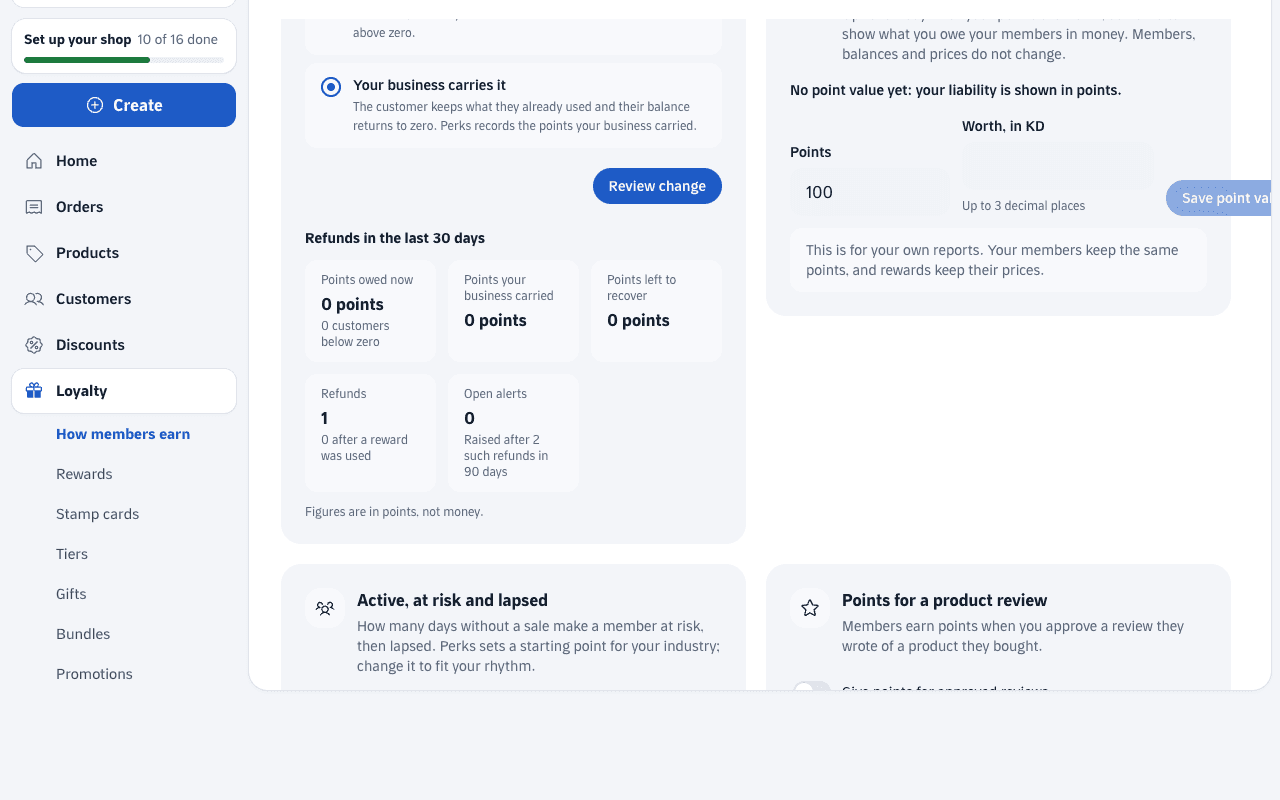
Points owed now
Points your business carried
Points left to recover
Refunds
Open alerts
What happens next
- You see , or
- A new rewards-per-order limit applies to rewards held from then on. An order already in progress keeps what it holds.
- A new voucher validity applies to vouchers issued from then on. Each voucher keeps the end date it was issued with.
- A new refund setting applies to refunds from then on. Refunds already settled keep what they recorded.
- If an order is refunded in full, the points spent on rewards used on that order come back, and a voucher used on it is replaced by a new one with the same terms.
- When a customer refunds after using a reward a second time within 90 days, Helm raises a refund alert. The Refund alerts list appears on the Customers page only while there is an open alert, and only for roles with the Edit settings permission. Select Dismiss once you've looked at it.
If something goes wrong
Your role doesn't hold Set up and publish the programme. The owner can add it to your role. Without it you also don't see the Reward voucher validity and Refunds after a reward cards.
The card shows only for a programme that counts points, and only to roles with Set up and publish the programme.
Your choice is the same as the one in force, or the number of days isn't valid. Choose a different value.
Type a whole number from 1 to 3,650, then select Review change.
Select Review change again.
Select Confirm change again. The same kind of message shows for rewards per order and the refund setting. It also shows if you closed Confirm it’s you without confirming.
Select Retry. The voucher and refund cards show their own message and a Retry button too.
Their balance is below zero under Recover from later purchases. Their next purchases repay it first, and then they can use rewards again.