Customers and loyalty
Add offers: promotions, gifts, stamp cards and bundles
Four kinds of offer under Loyalty. A promotion boosts the points orders earn on your schedule, a gift arrives at a moment you choose, a stamp card fills towards a reward, and a bundle sells prepaid units your POS counts.

Tried on a demo store on 29 November 2026
Before you start
- The owner can do everything here. Other roles need these permissions in the role editor: Edit promotions (and View promotions to see the page) for promotions, Edit gifts for gifts, and Edit programme for stamp cards and bundles.
- A manager sees Gifts, Stamp cards and Bundles by default, view only. Promotions shows only to someone the owner gave promotions to, for example with Manage access on the Promotions page.
- Your programme needs a way to earn points. See Set how members earn points.
- Stamp cards and bundles pick from your products. Add your products first.
- Loyalty is part of the Perks plans. If you don't see Loyalty in the menu, your plan doesn't include it.
Helm keeps four kinds of offer under Loyalty, each on its own page:
This article has four parts: Run a points promotion, Send automatic gifts, Create a stamp card, Sell a prepaid bundle.
Rewards that members buy with points are in a separate article: Create rewards and tiers.
Run a points promotion
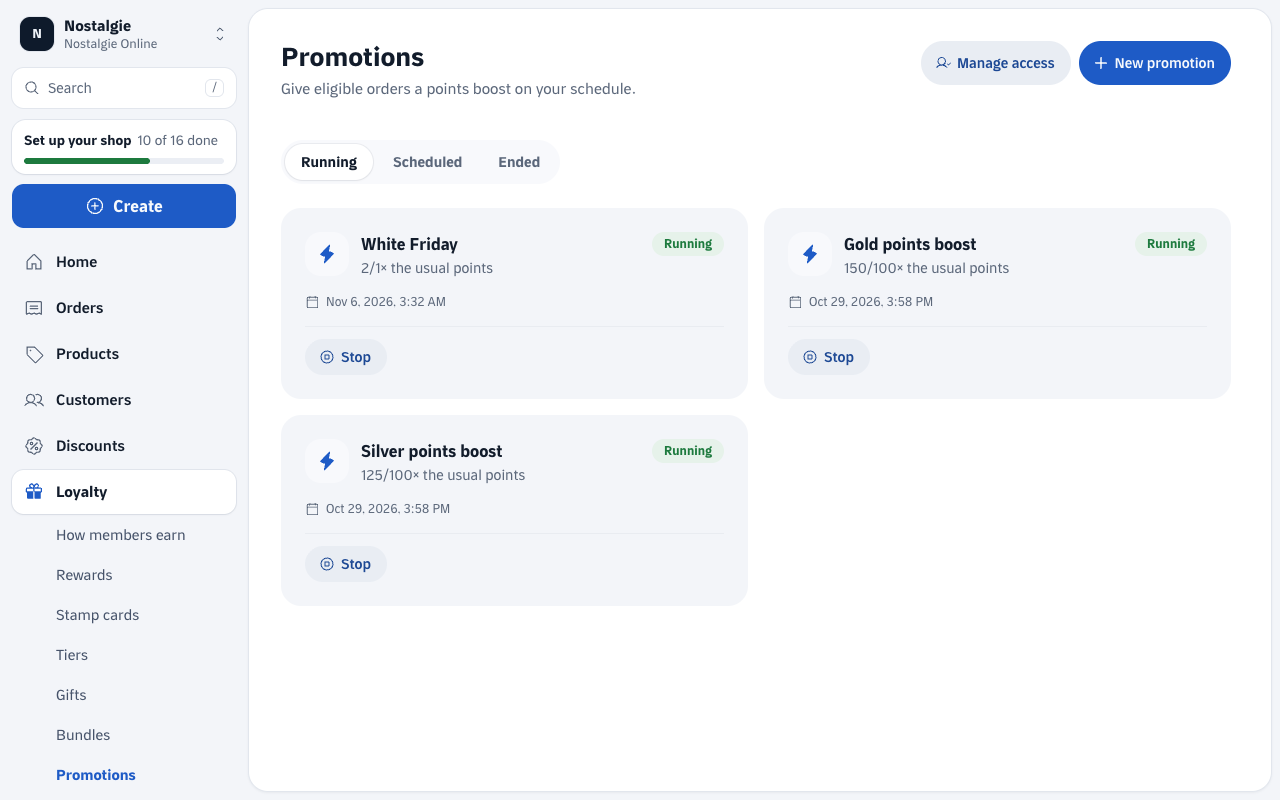
- In the menu, select Loyalty, then Promotions.
- Select New promotion. It takes five short steps.
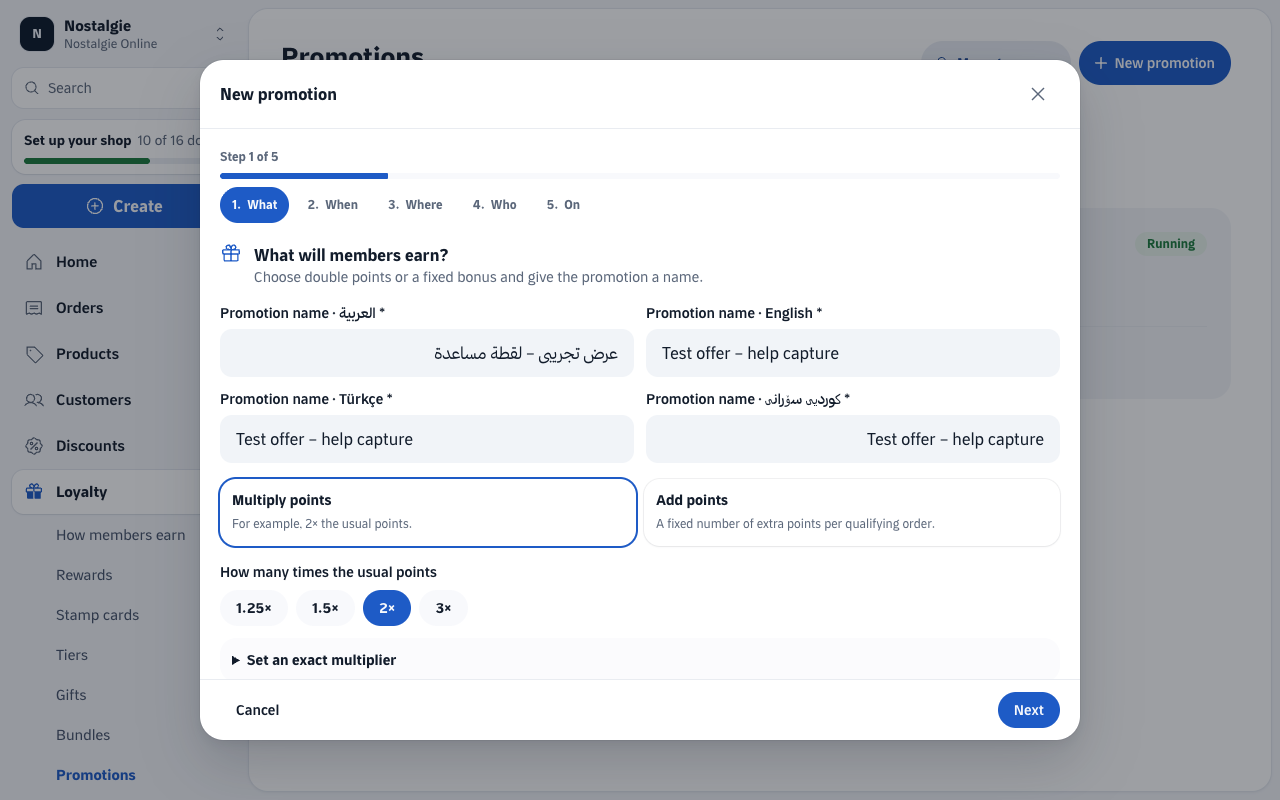
- In every language your store offers. Members see this name.
- Multiply the usual points, here 2×, or add a fixed number of points.
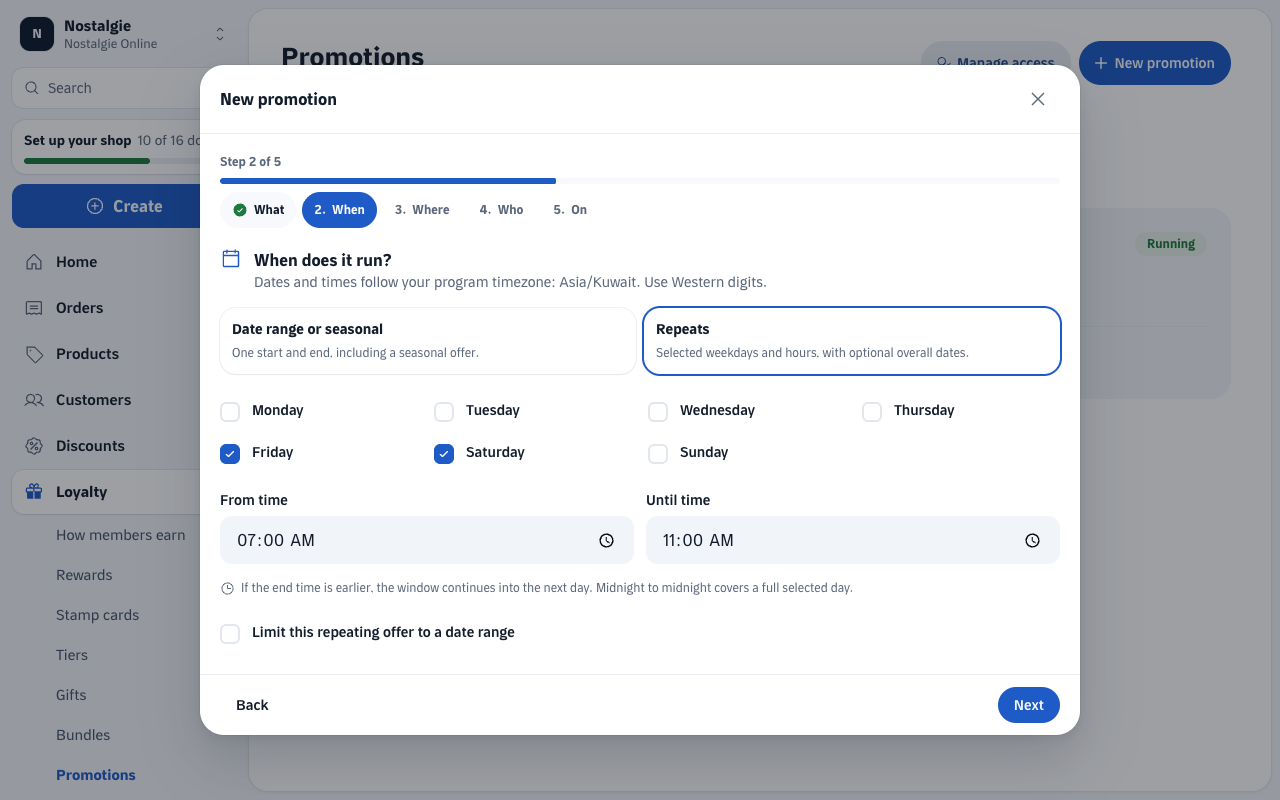
- One date range, or chosen days and hours every week.
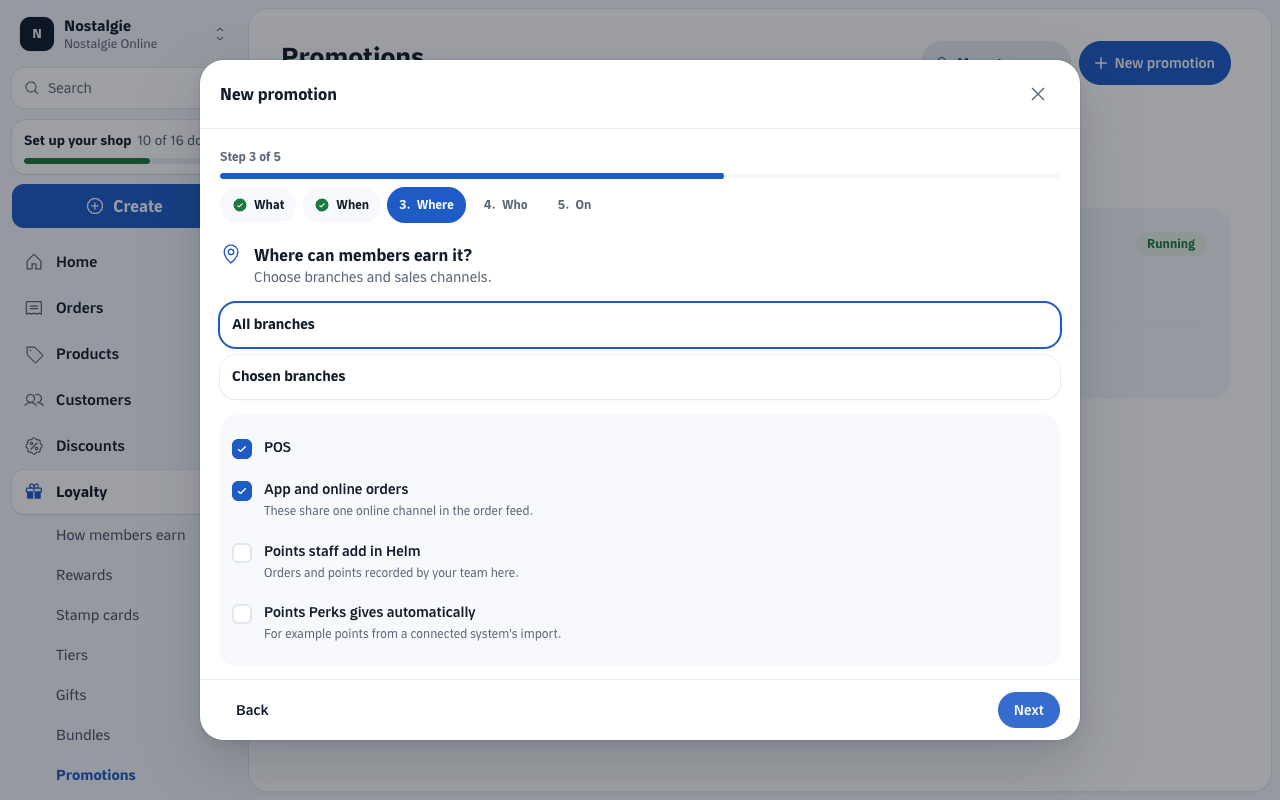
- All branches or chosen ones, and the sales channels.
- Everyone, or members in chosen tiers.
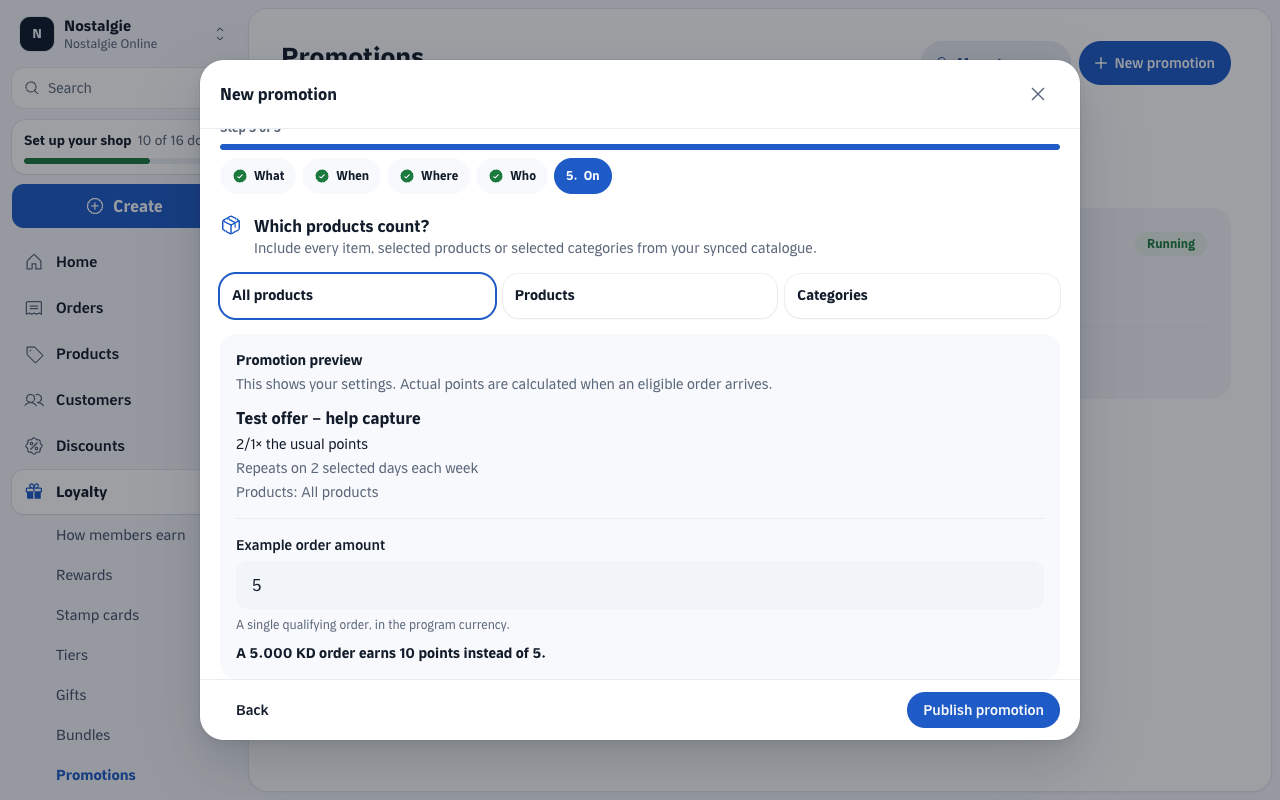
- All products, chosen products or chosen categories.
- Type an order amount to see the points it earns.
- Publish promotion puts it live. There is no draft.
Open Promotions
In the side menu:LoyaltyPromotionsThe tabs show Running, Scheduled and Ended promotions.
Start a new one
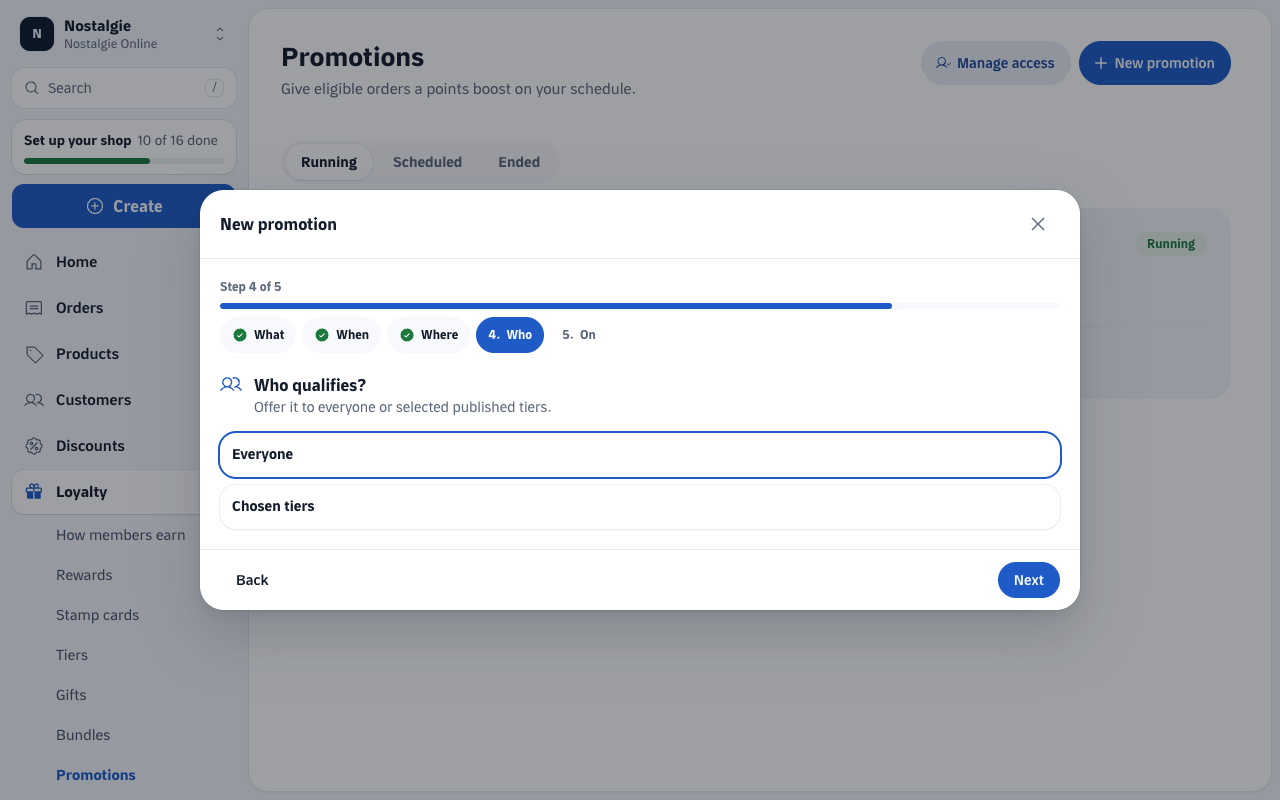
Select New promotion. The steps are What, When, Where, Who and On. Select Next after each.
What members earn
Enter the Promotion name in every language your store offers. Then choose one:
Order when promotions overlap starts at 100. Lower numbers apply first, and it can't change once the promotion is published.
When it runs
Choose Date range or seasonal for one start and end, or Repeats for chosen weekdays between a From time and an Until time. Times follow your programme's timezone, not your device's.
Where it counts
Choose All branches or Chosen branches. Under the channels, POS and App and online orders are ticked to start with. You can add Points staff add in Helm and Points Perks gives automatically.
Who qualifies
Everyone, or Chosen tiers to limit it to members in published tiers.
Which products count
All products, or pick Products or Categories. Under Promotion preview, enter an Example order amount to see the points it earns.
Publish
Select Publish promotion.
What happens next
- You see . It shows under Running, or Scheduled if it starts later.
- Qualifying orders earn the extra points while it runs.
- To end it early, select Stop on its card, then Stop again. Points already earned stay recorded.
Send automatic gifts
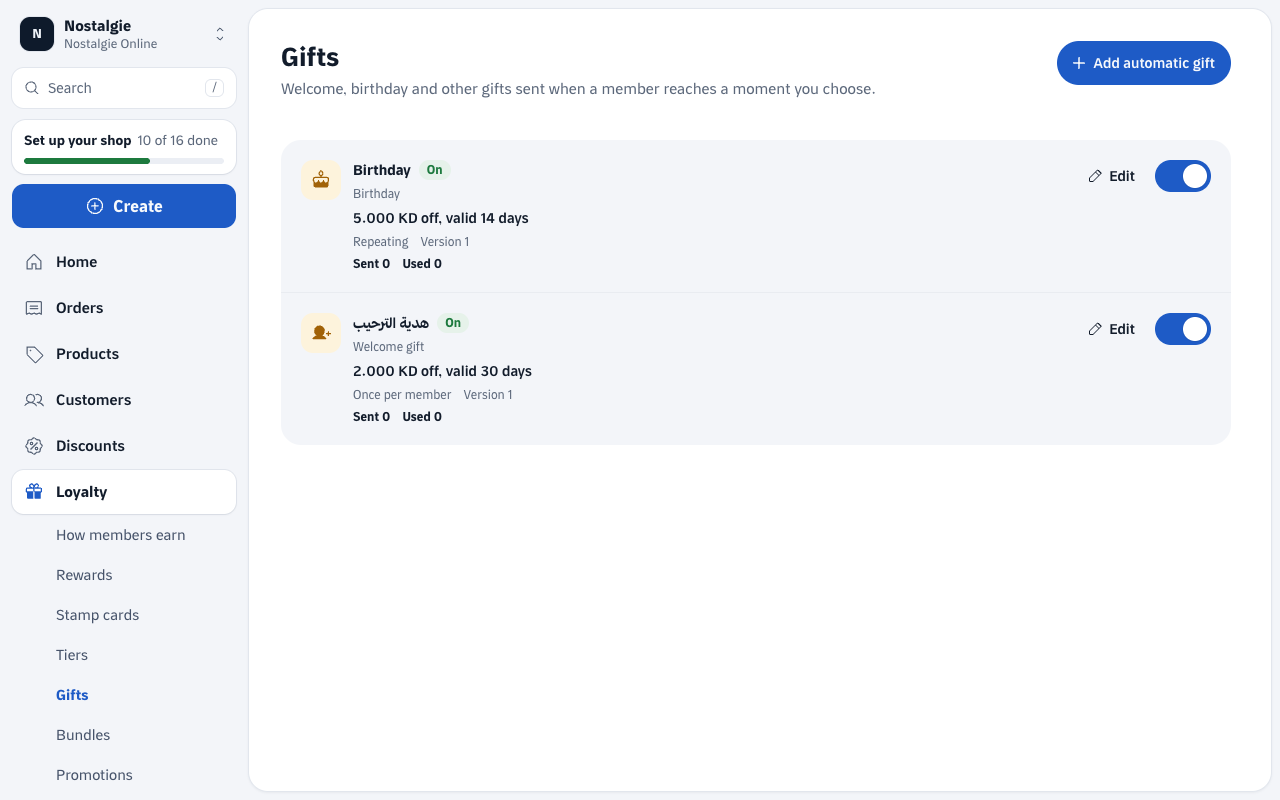
- Under Loyalty, select Gifts.
- Each gift has its own switch.
- Select Add automatic gift.
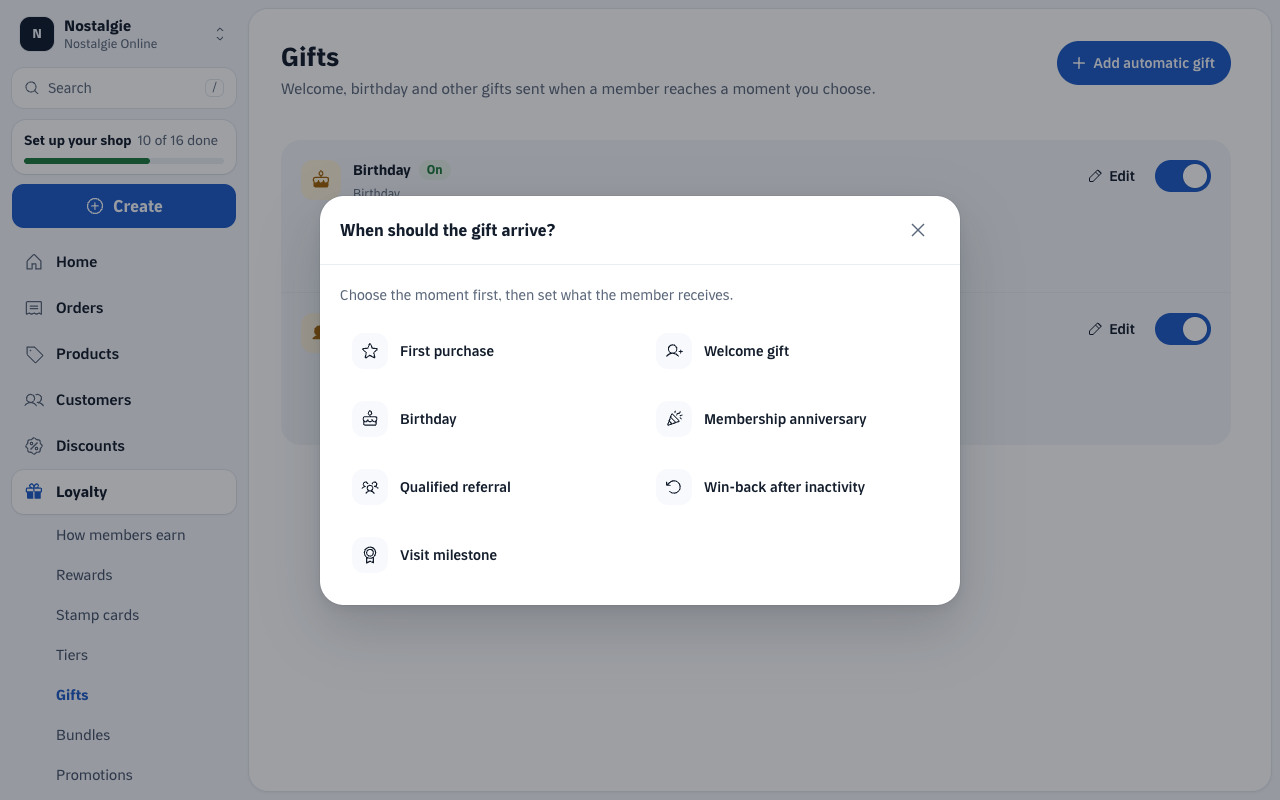
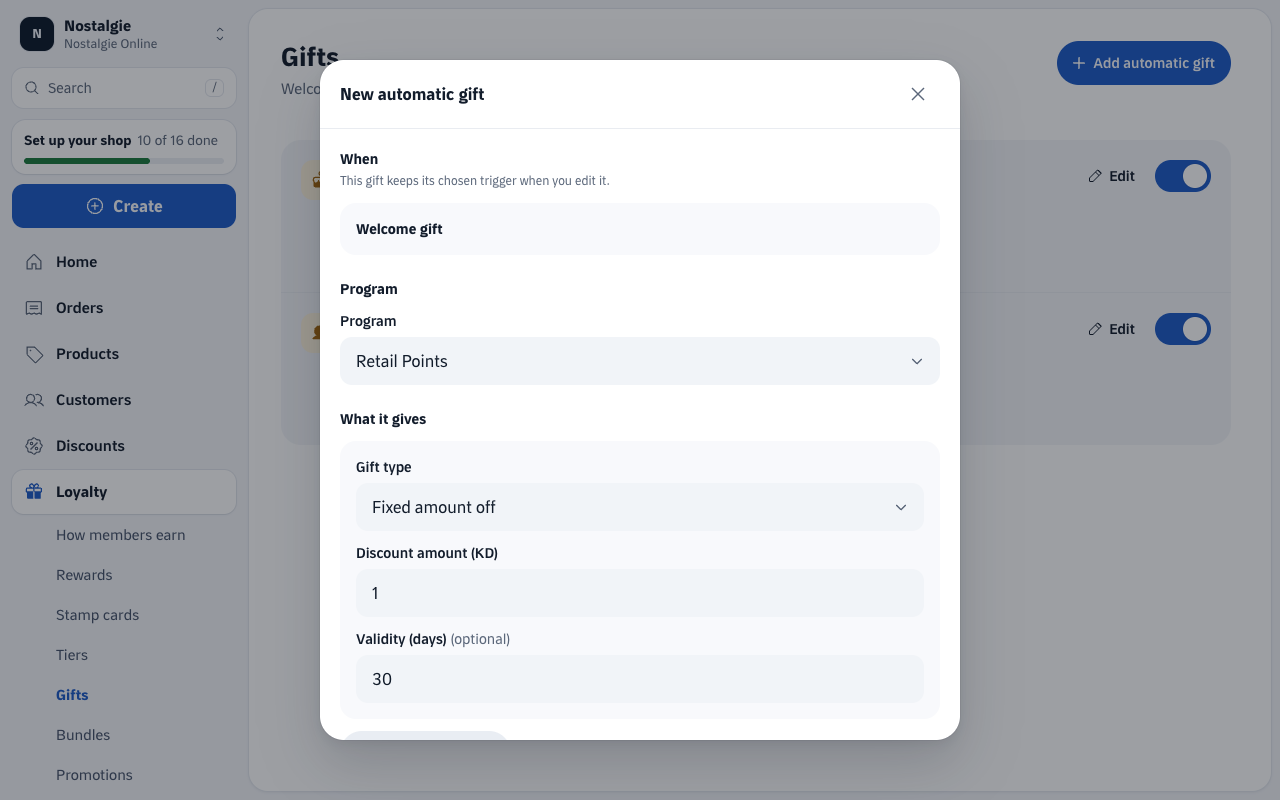
- When the gift arrives. You can't change it later.
- An amount off, points, or a free item, service, add-on, upgrade or delivery.
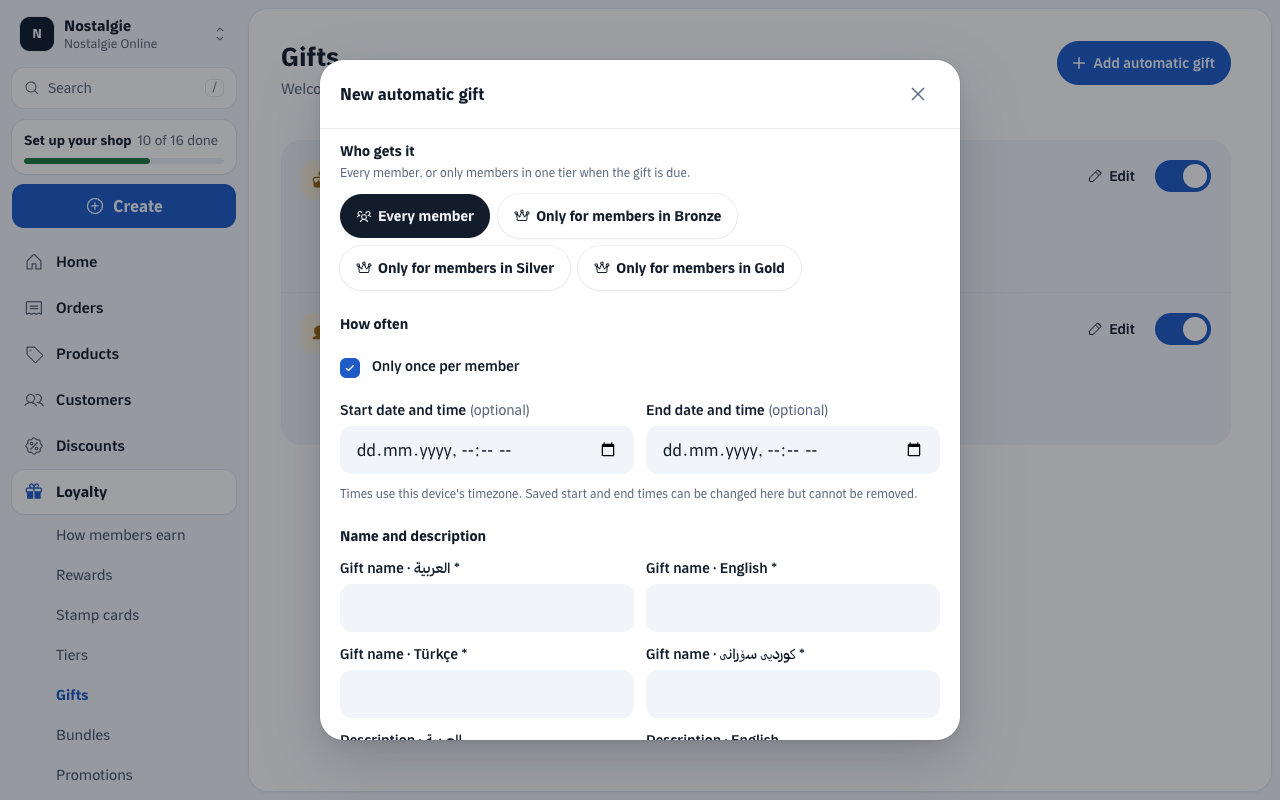
- Every member or one tier, once per member or more, and optional dates.
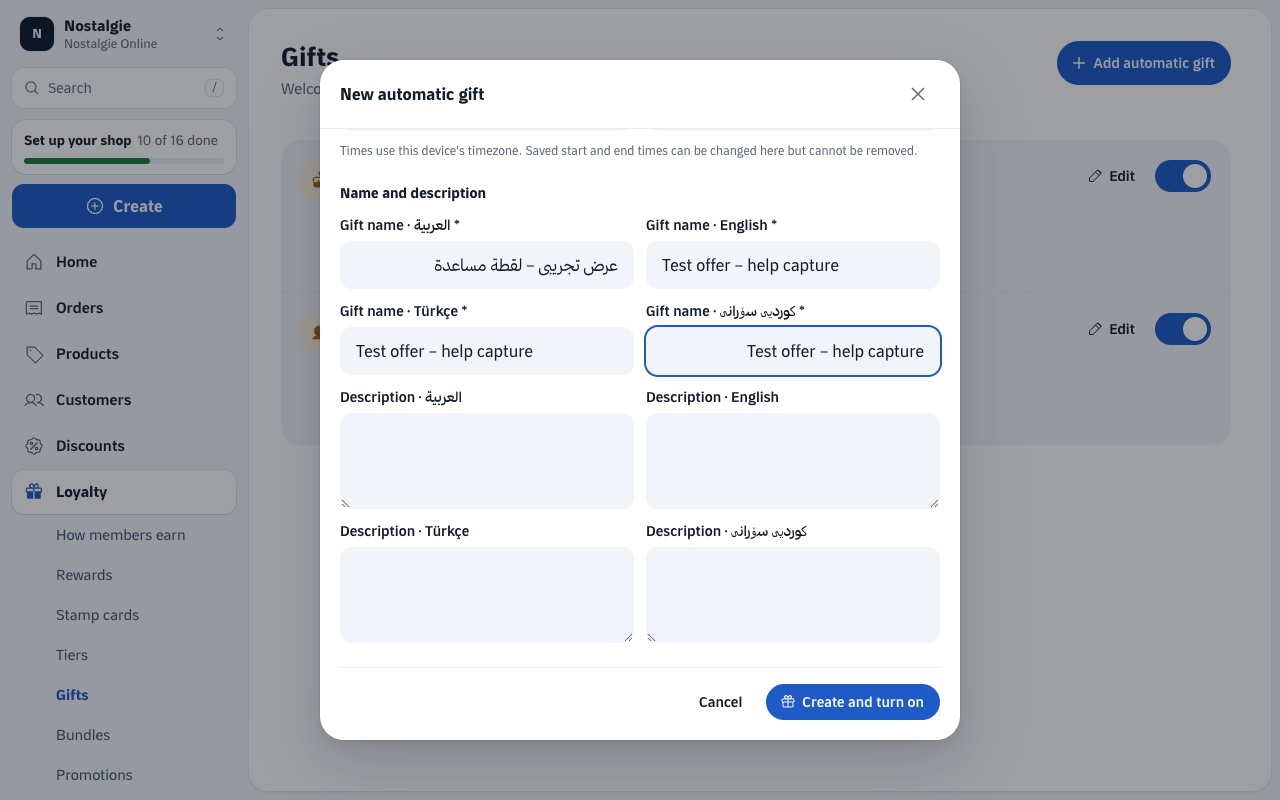
- The gift starts at once. Name it in every language first.
Open Gifts
In the side menu:LoyaltyGiftsChoose the moment
Select Add automatic gift. Under When should the gift arrive?, choose one:
What it gives
Under Program, check the loyalty programme the gift belongs to. Then under What it gives, choose the Gift type:
Select Add another thing to give up to 5 things in one gift.
Who and how often
Under Who gets it, keep Every member or pick one tier. Under How often, Only once per member is ticked for a welcome or first-purchase gift. Untick it to set a Maximum gifts per member. Optional: a Start date and time and an End date and time. Helm says: Times use this device's timezone. Saved start and end times can be changed here but cannot be removed.
Name it
Enter the Gift name in every language. The Description is optional; if you write one, write it in every language.
Turn it on
Select Create and turn on.
What happens next
- The gift appears on the list as On, with how many were Sent and Used.
- Members get it when they reach its moment.
- To stop it, turn its switch off. To change an off gift, turn it on first.
Create a stamp card
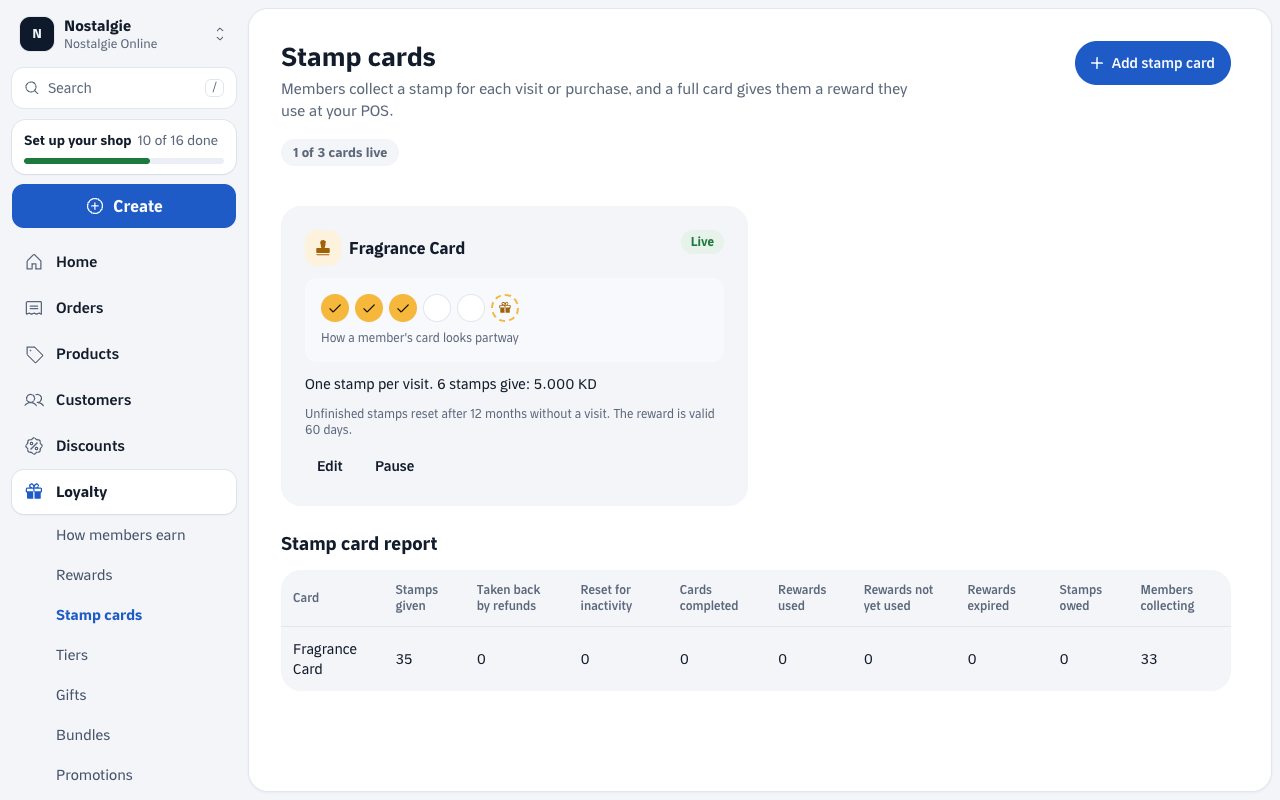
- Under Loyalty, select Stamp cards. Up to 3 can be live.
- It starts from buy 9, get a free item.
- What members read on the card, in every language.
- Each visit, chosen products or categories, and how many stamps fill the card.
- A free item or an amount off, its name and how long it's valid.
- Save draft keeps it hidden. Publish puts it live.
Open Stamp cards
In the side menu:LoyaltyStamp cardsThe page shows how many cards are live, for example 1 of 3 cards live.
Start a card
Select Add stamp card. It starts with 9 stamps per visit for a free item.
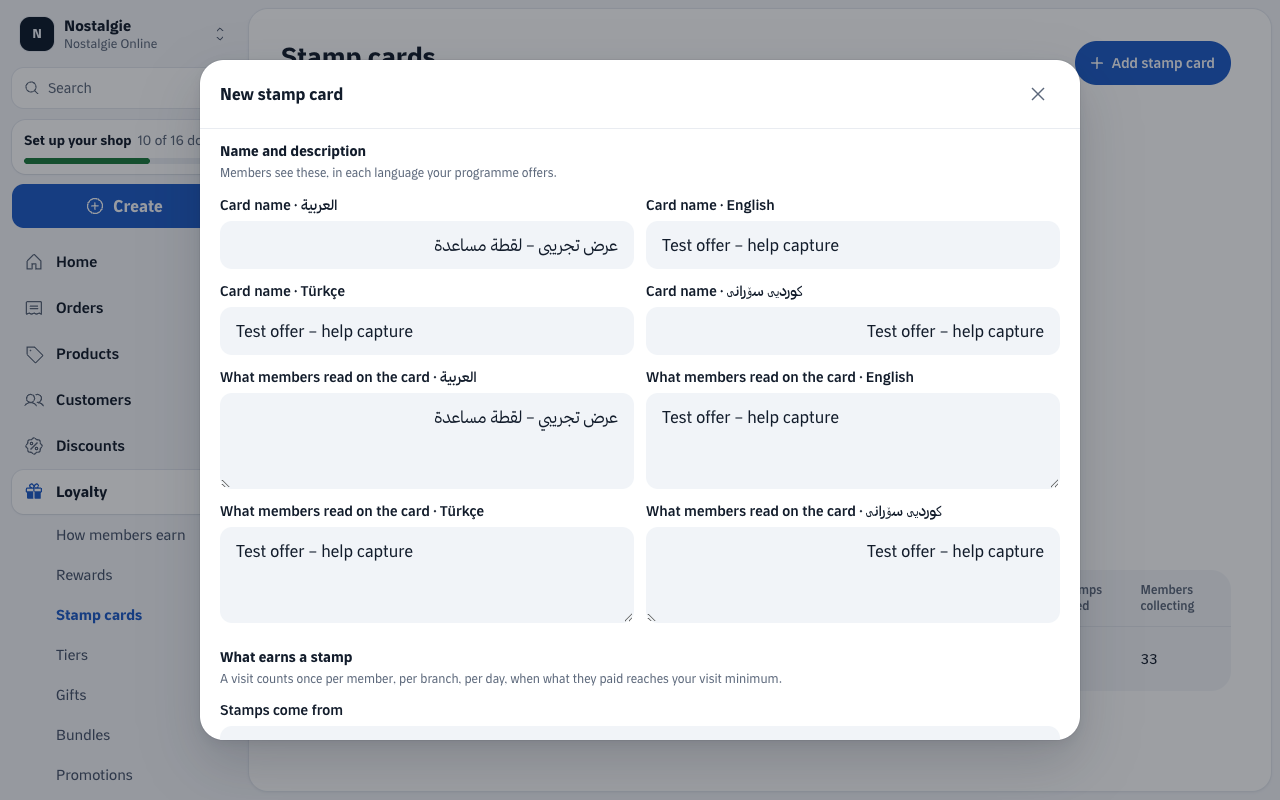
Name and description
Enter the Card name and What members read on the card in every language.
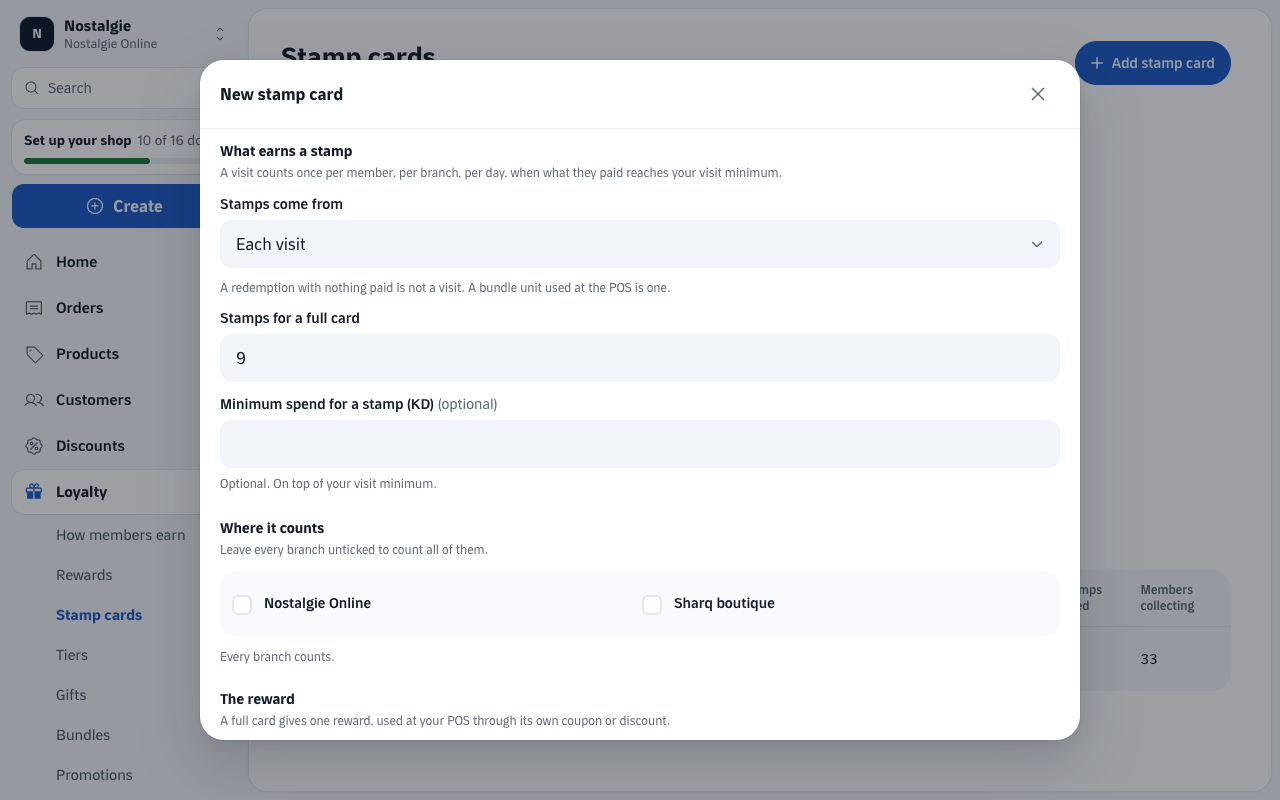
What earns a stamp
Under Stamps come from, choose Each visit, Chosen products or Products in chosen categories. Set Stamps for a full card, from 1 to 50. Optional: a Minimum spend for a stamp (KD), on top of your visit minimum.
For Each visit, Helm says: A visit counts once per member, per branch, per day, when what they paid reaches your visit minimum. And: A redemption with nothing paid is not a visit. A bundle unit used at the POS is one.
Where it counts
Under Where it counts, leave every branch unticked to count all of them, or tick the branches that count.
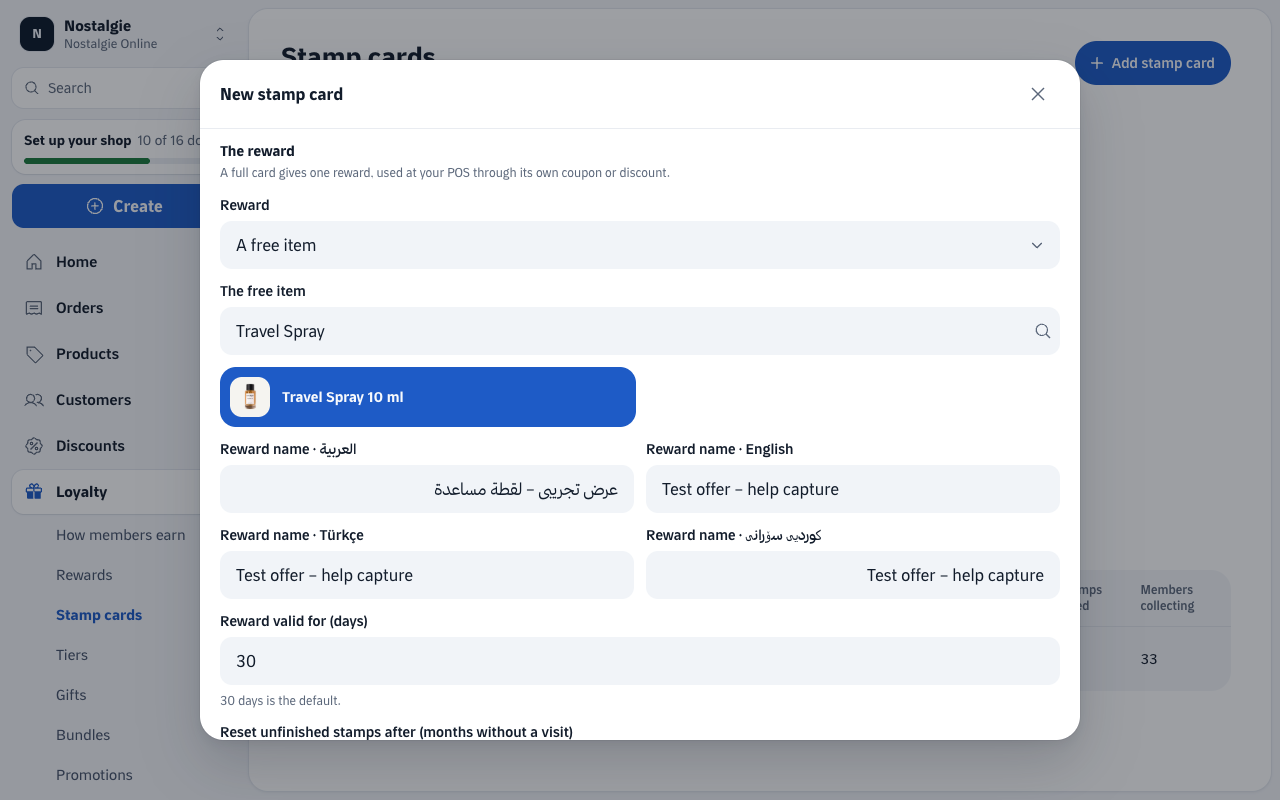
The reward
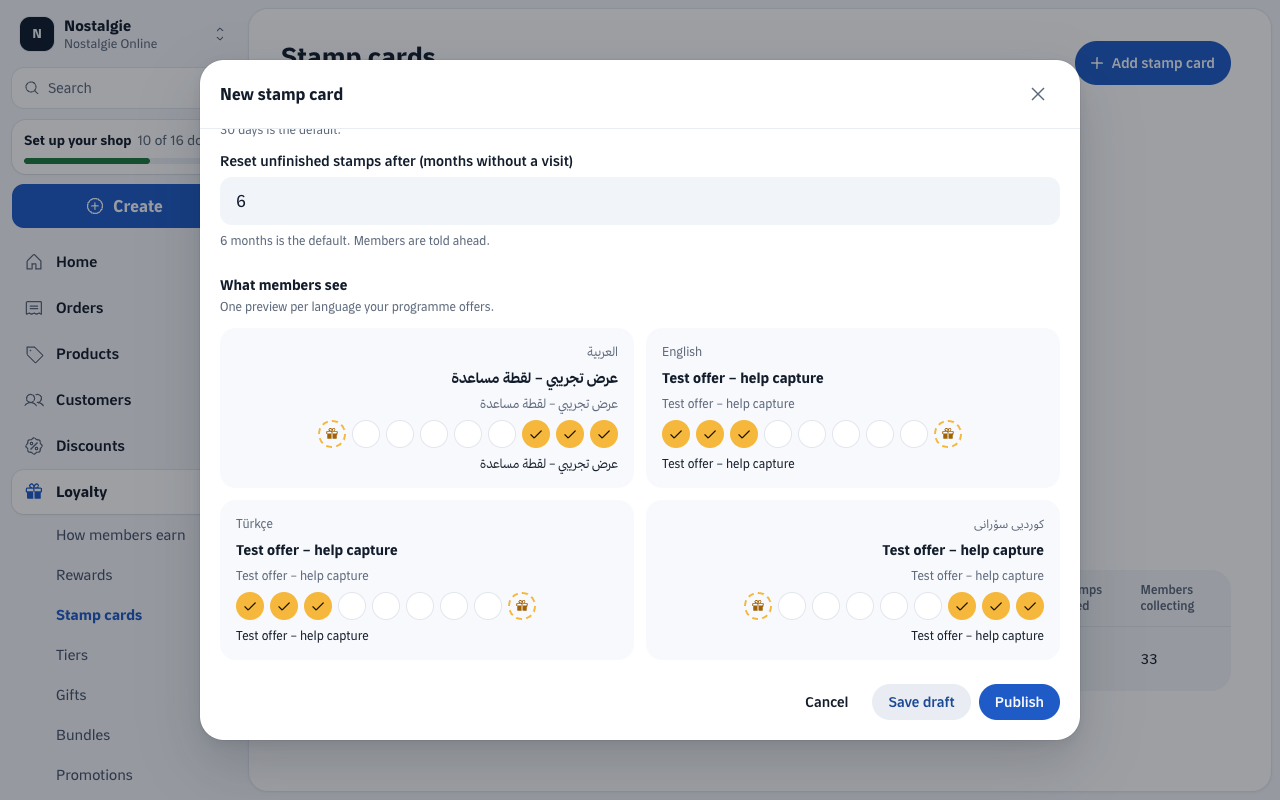
Under Reward, choose A free item and pick it, or An amount off and enter the amount. Enter the Reward name in every language. Reward valid for (days) starts at 30, and Reset unfinished stamps after (months without a visit) at 6. Members are told ahead.
Save or publish
Check What members see, one preview per language. Then select Save draft to finish later, or Publish.
For Fragrance and cosmetics
What happens next
- The card shows Live. A draft shows Draft, with a Publish button on its card; publishing from there shows
- Pause pauses the card. Members keep the stamps they already have. Resume puts it live again.
- When you edit a live card, the changes stay in a draft until you publish them.
- The Stamp card report shows stamps given, cards completed and rewards used. It needs the Edit programme permission, so only the owner sees it by default.
What members see
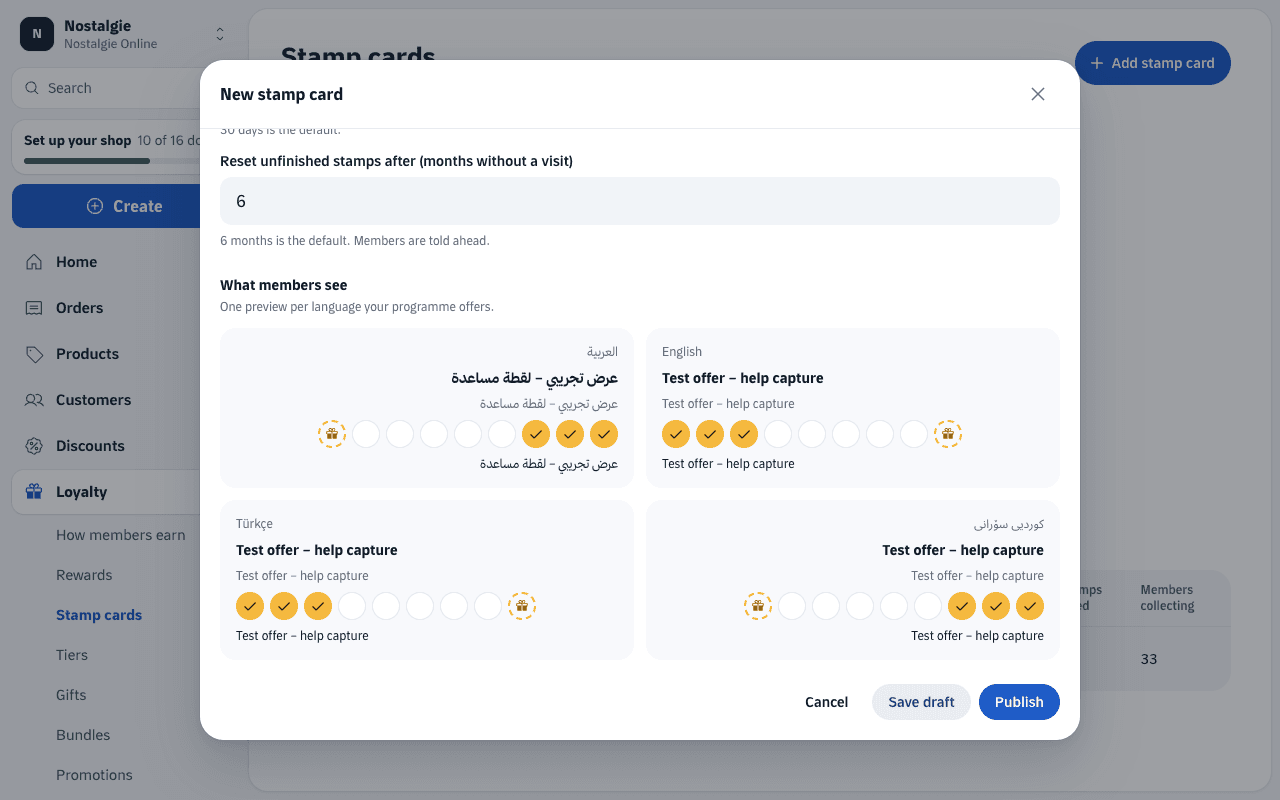
What members see
Save draft
Publish
Sell a prepaid bundle
- Under Loyalty, open Bundles, then select Add bundle.
- The bundle, what one unit is called, and what members read.
- The product your POS sells, and how many units it gives.
- The product one unit gives at the POS, and how long units last.
- What buying the bundle, and using a unit, earns.
- Save draft or Publish.
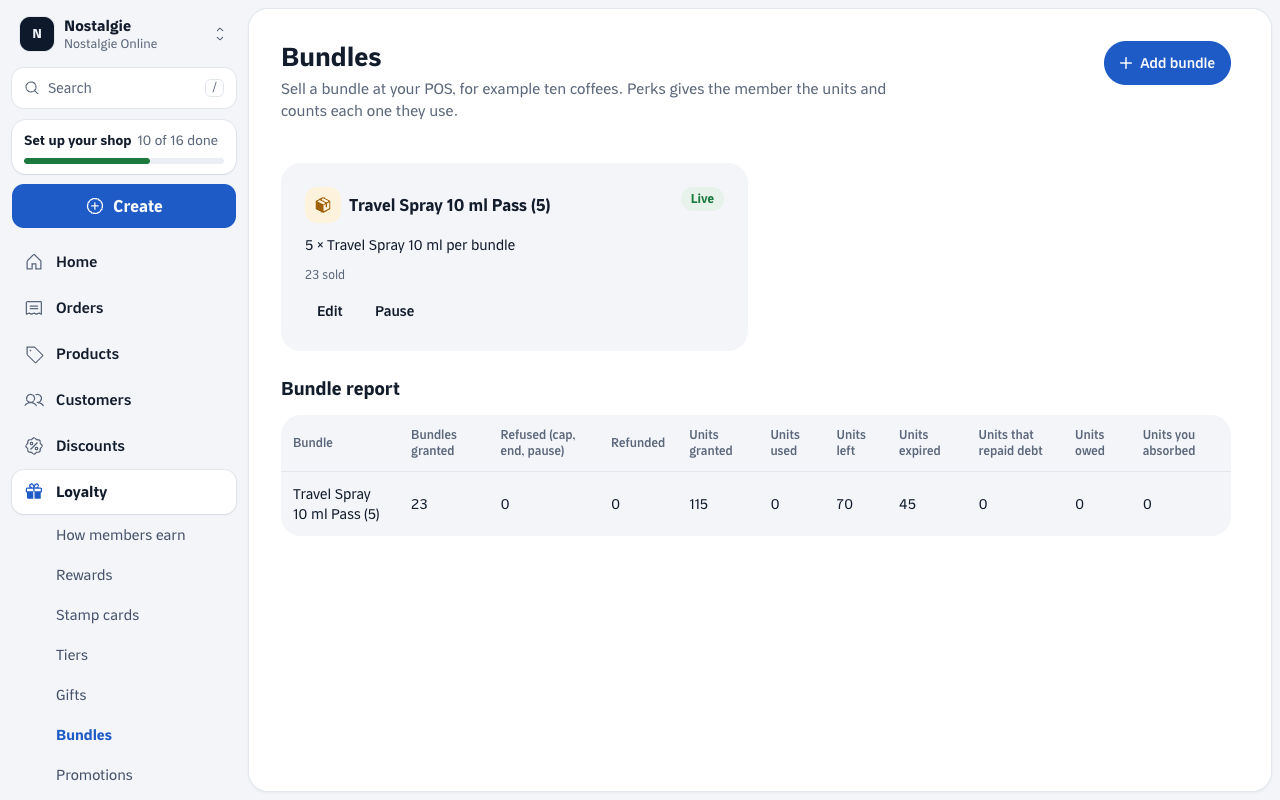
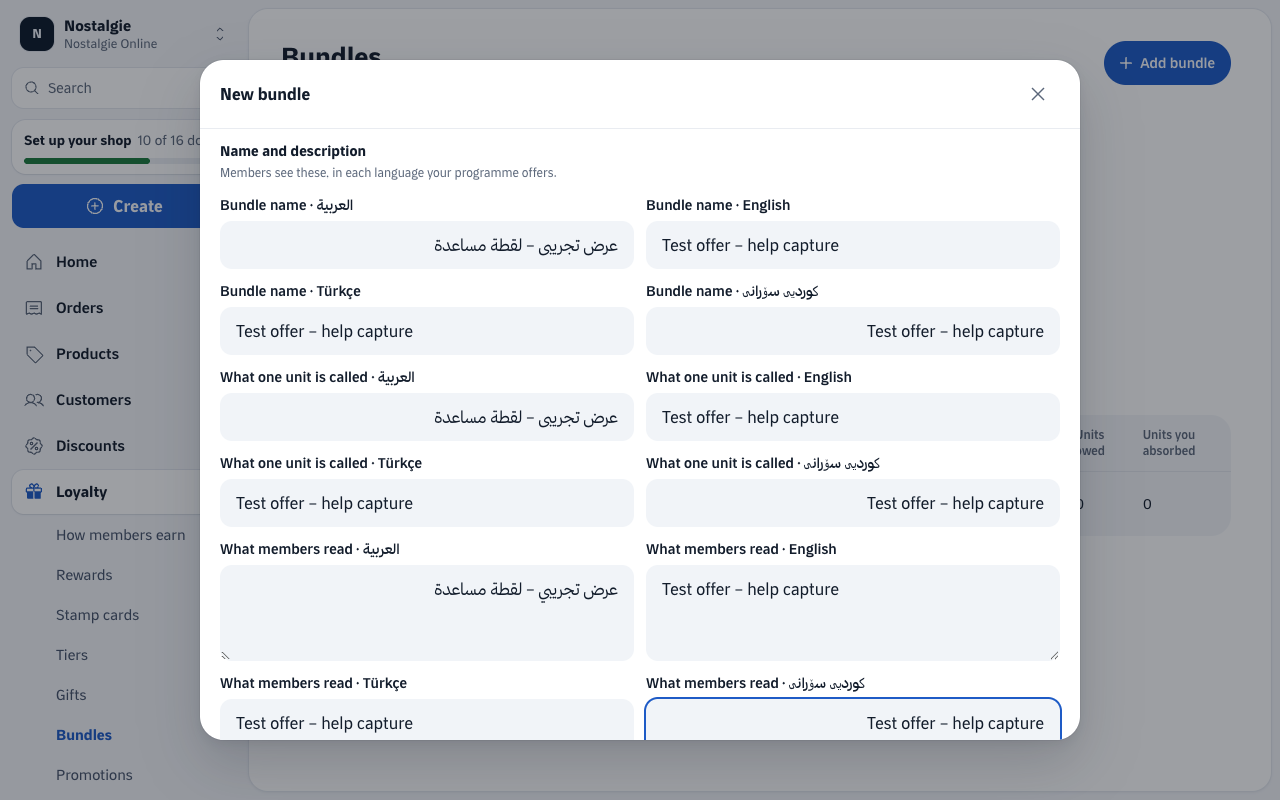
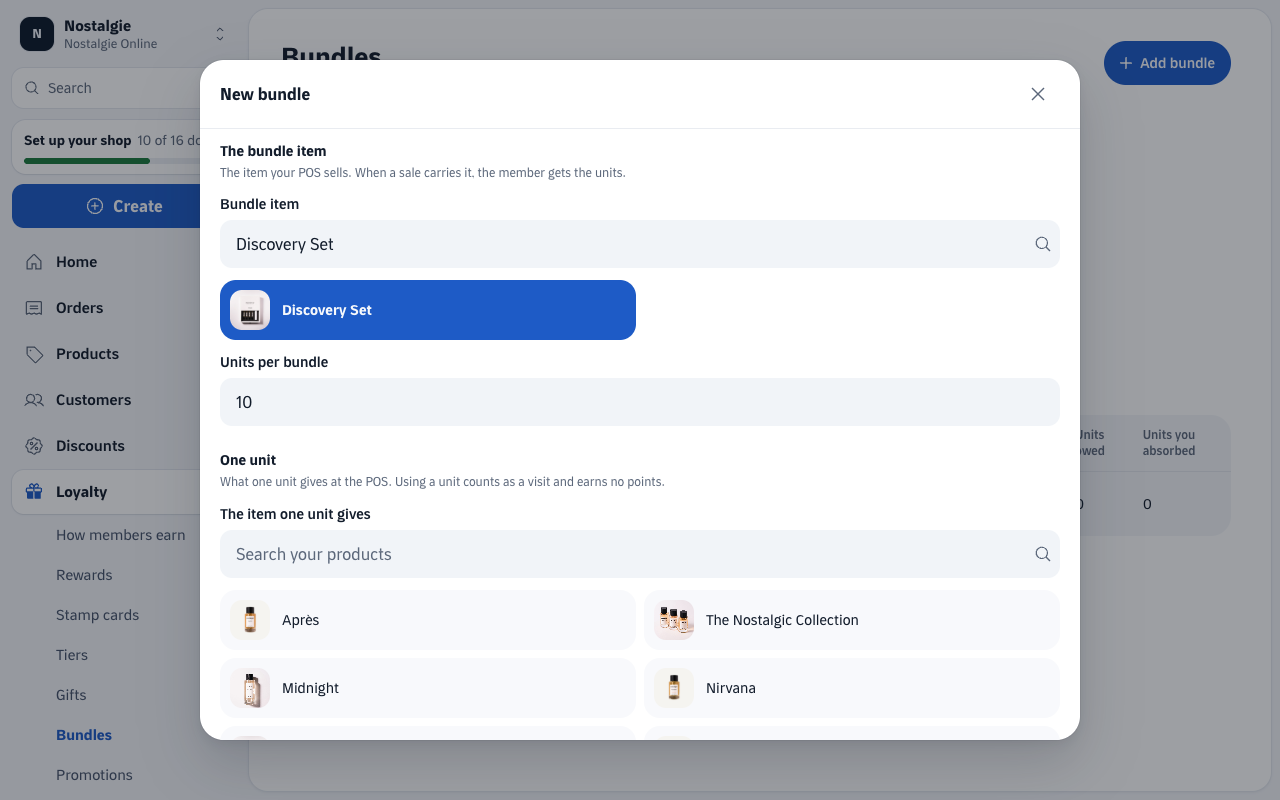
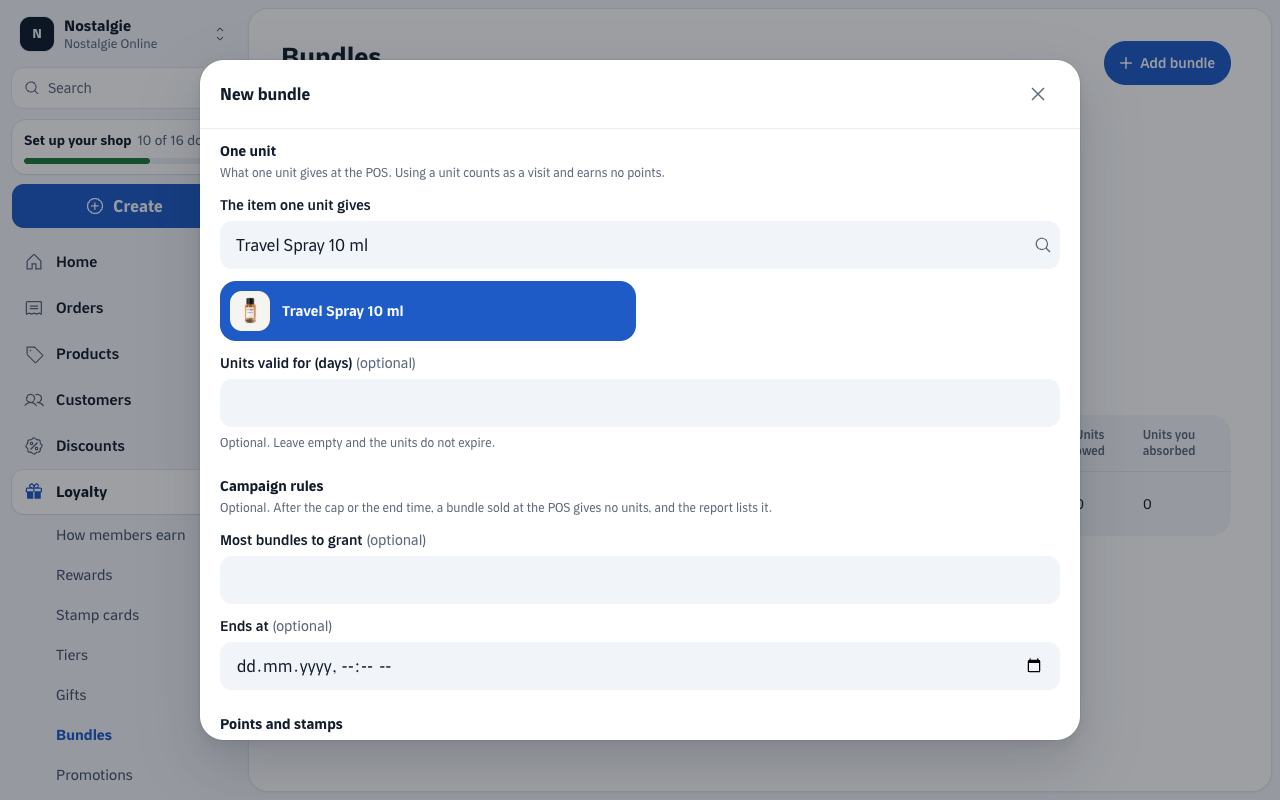
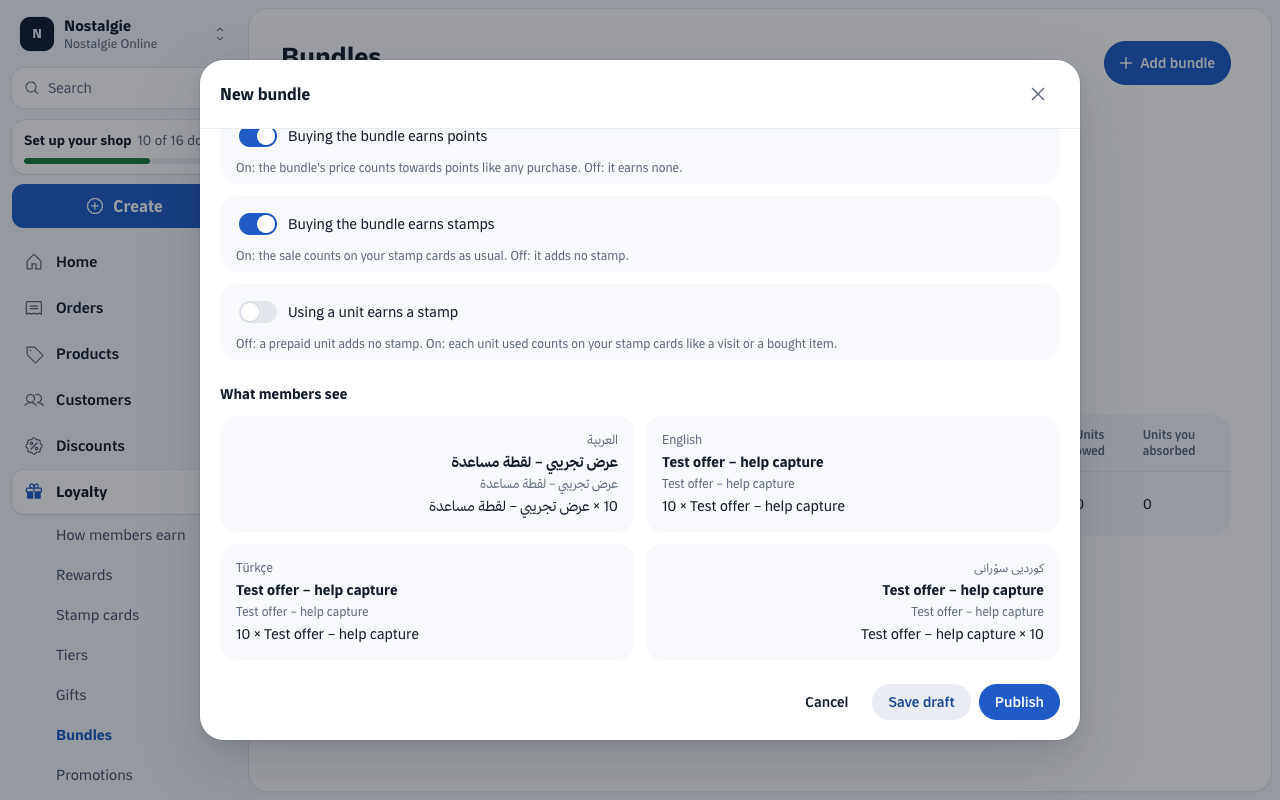
A bundle is a product you already sell, such as a pass for five of one product. Your POS takes the payment. Perks gives the member the units and counts each one they use at the POS.
Open Bundles
In the side menu:LoyaltyBundlesSelect Add bundle.
Name it
Enter the Bundle name, What one unit is called and What members read in every language.
The bundle item
Under Bundle item, pick the product your POS sells as the bundle. Set the Units per bundle, from 1 to 100 (10 to start with).
One unit
Under The item one unit gives, pick a different product. Optional: Units valid for (days). Leave it empty and the units don't expire.
Campaign rules
Optional: Most bundles to grant and Ends at. After the cap or the end, a bundle sold at the POS gives no units.
Points and stamps
Buying the bundle earns points and Buying the bundle earns stamps are on to start with. Using a unit earns a stamp is off.
Save or publish
Select Save draft, or Publish.
For Fragrance and cosmetics
What happens next
- The bundle shows Live, with how many were sold. A draft shows Draft, with a Publish button on its card.
- When the POS sells the bundle item to a member, they get the units. Using a unit counts as a visit and earns no points.
- Pause stops new bundles giving units. Members keep the units they have.
- The Bundle report shows bundles granted, units used and units left. It needs the Edit programme permission, so only the owner sees it by default.
If something goes wrong
In a promotion's When step, the end date or time is before the start. For Repeats, the from and until times are the same: choose different times, or midnight to midnight for a whole day.
Repeats needs at least one weekday ticked.
Tick at least one sales channel in the Where step.
You chose Products or Categories without picking any.
The preview needs a way to earn points. See Set how members earn points. You can still publish.
Nothing went live. Check each step and try again.
A referral gift needs the referrer, the referred member, or both.
Select Save and turn on draft.
Only 3 stamp cards can be live. Pause one first.
Pick a reward or unit product your POS or online store sells.
The bundle item was removed. Pick it again.
A name, description or reward name is missing in one of your store's languages, or a product isn't picked. For a bundle, the bundle item and the unit must be two different products.
Nothing was saved. Try once more.