Customers and loyalty
Start and publish your loyalty programme
Review the starting programme Perks prepared for you and publish it, or create a programme as a draft and make it live. Members earn nothing until you publish.
Tried on a demo store on 29 November 2026
Before you start
- Your role needs the Set up and publish the programme permission. The owner has it, and decides who else gets it.
- To edit the parts first, your role also needs Edit programme. A role without them sees the starting programme read-only.
- Loyalty is part of the Perks plans. If you don't see Loyalty in the menu, your plan doesn't include it.
- Publishing the starting programme may ask for your 6-digit sign-in code again.
Watch the steps
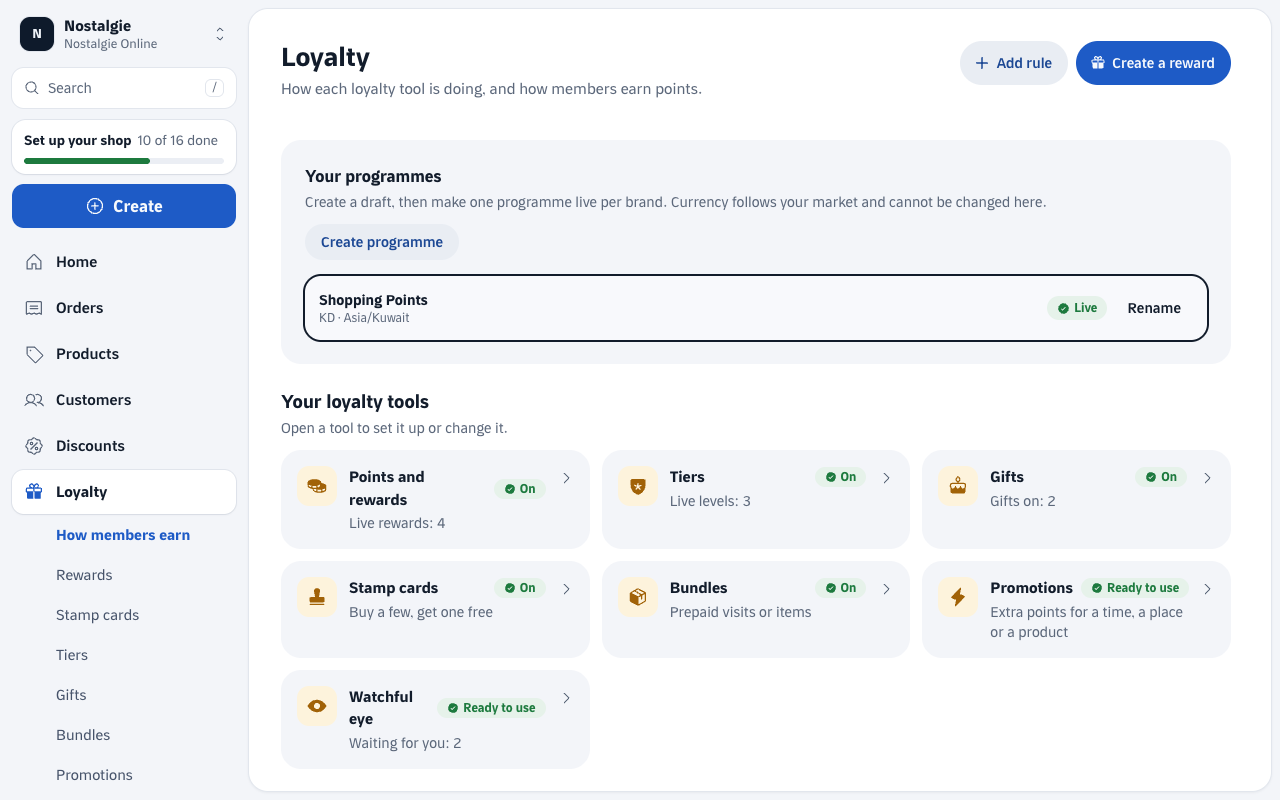
- In the menu, select Loyalty, then How members earn.
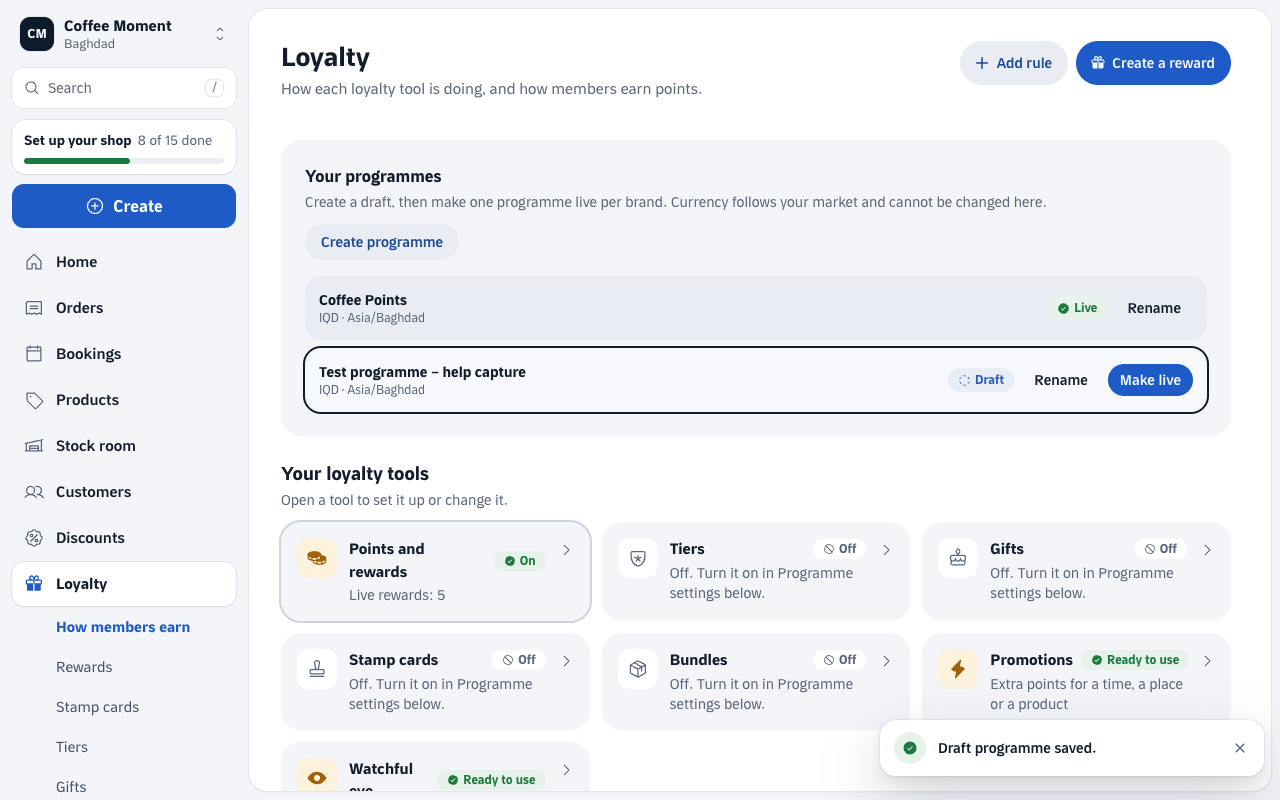
- Every programme you have, with its status: Live, Draft, Live (paused) or Archived.
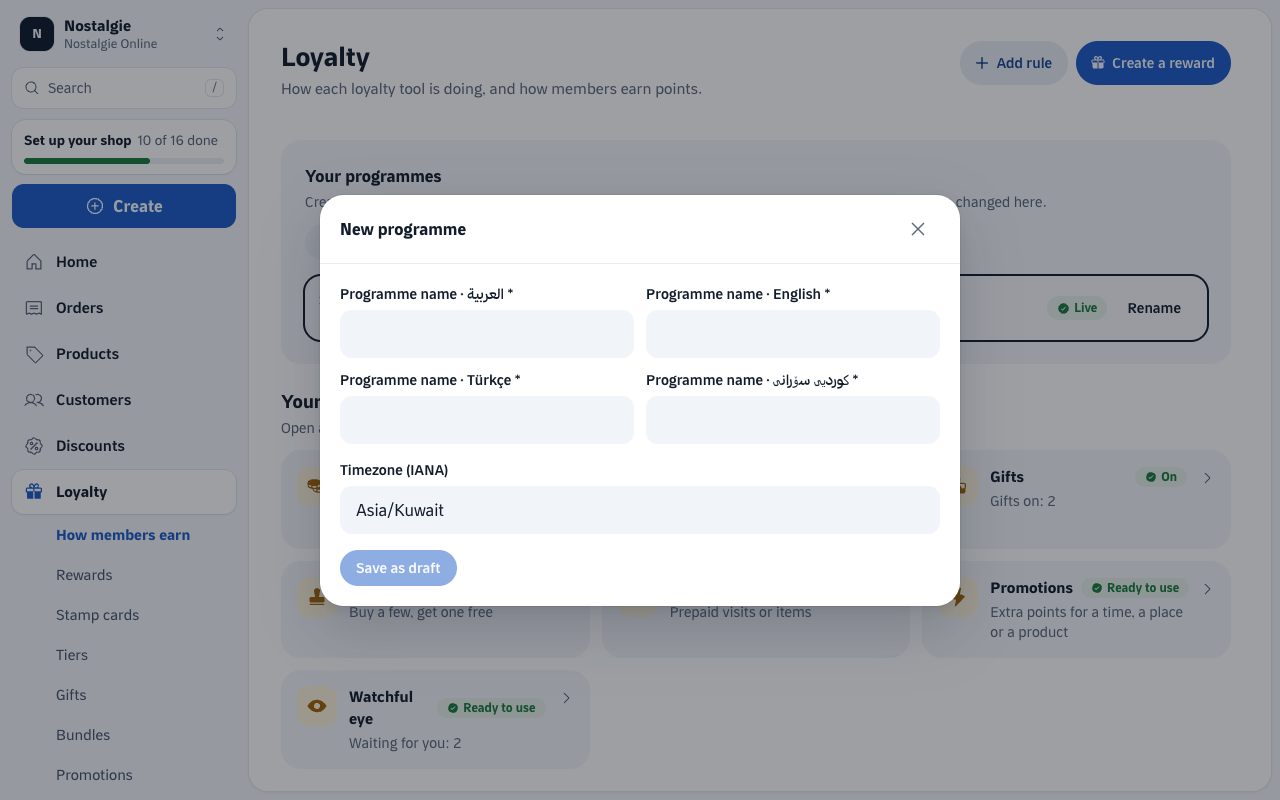
- Select Create programme to start a new one as a draft.
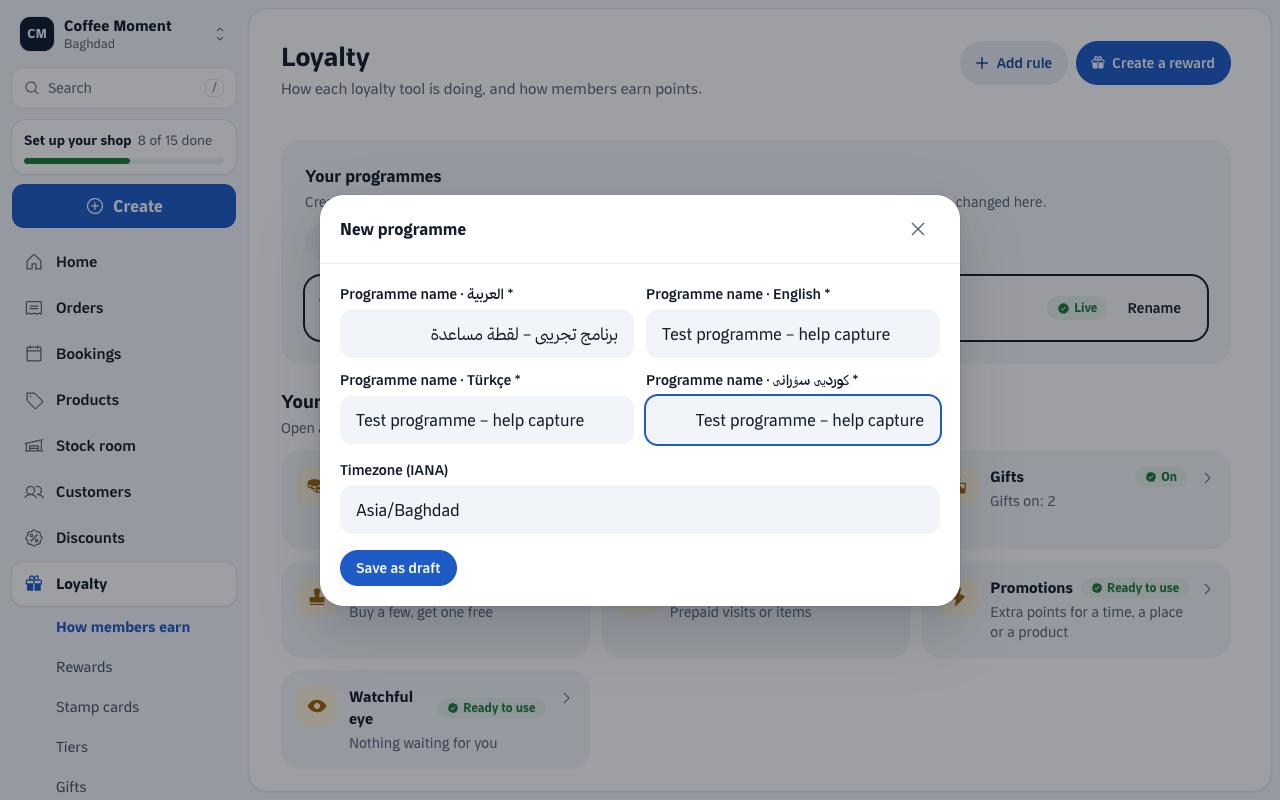
- Type the programme's name in each of your store's languages. Every one is needed.
- Helm copies it from your current programme (Asia/Kuwait if you have none). It must be a real name like Asia/Kuwait, never blank.
- A draft earns nothing.
- It joins the list marked Draft, and you see "Draft programme saved."
- When it's ready, select Make live on its row.
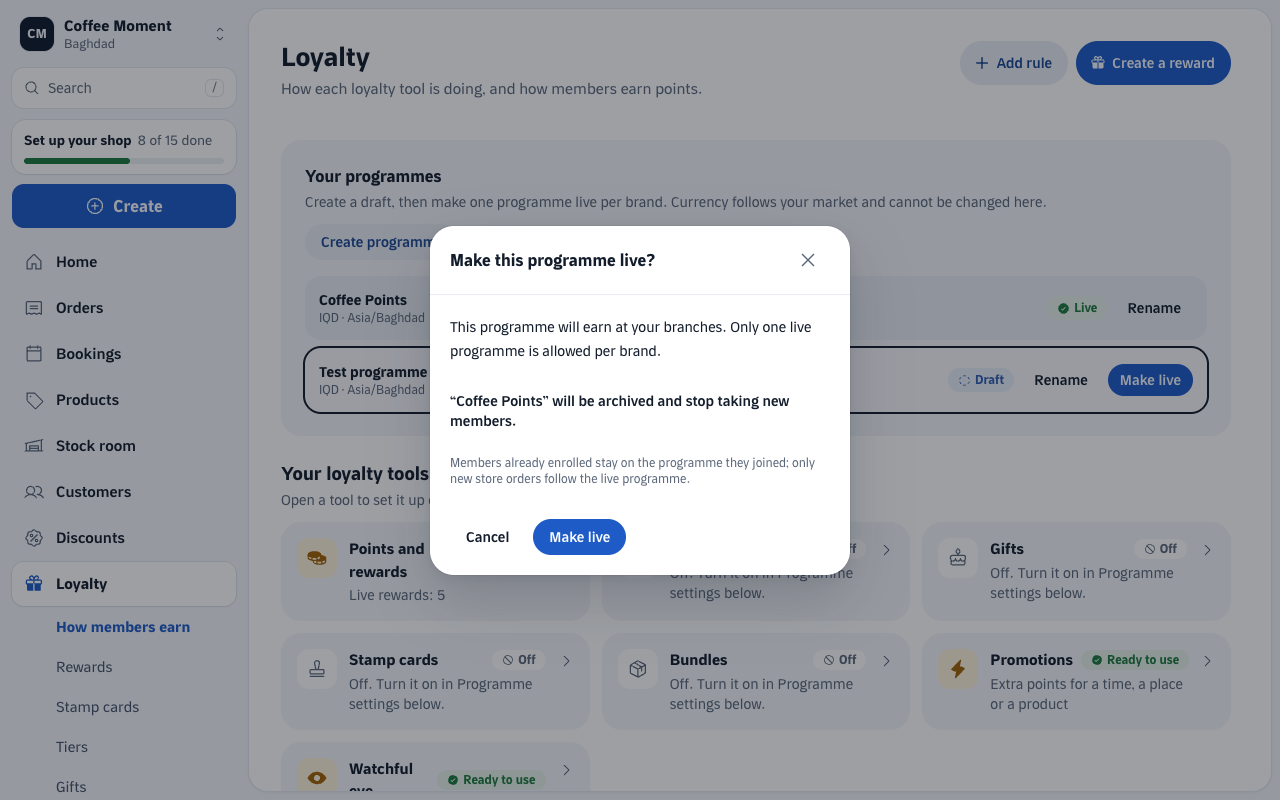
- The programme that's live now will be archived. Select Make live to go ahead, or Cancel.
Publish your starting programme
When your store is set up, Perks may prepare a starting programme for your kind of business: how members earn, and for some businesses tiers, a reward, a welcome or birthday gift, or a stamp card. Every part is a draft until you publish.
Open the card
On Home, select Perks prepared your starting programme.
Open the starting programme
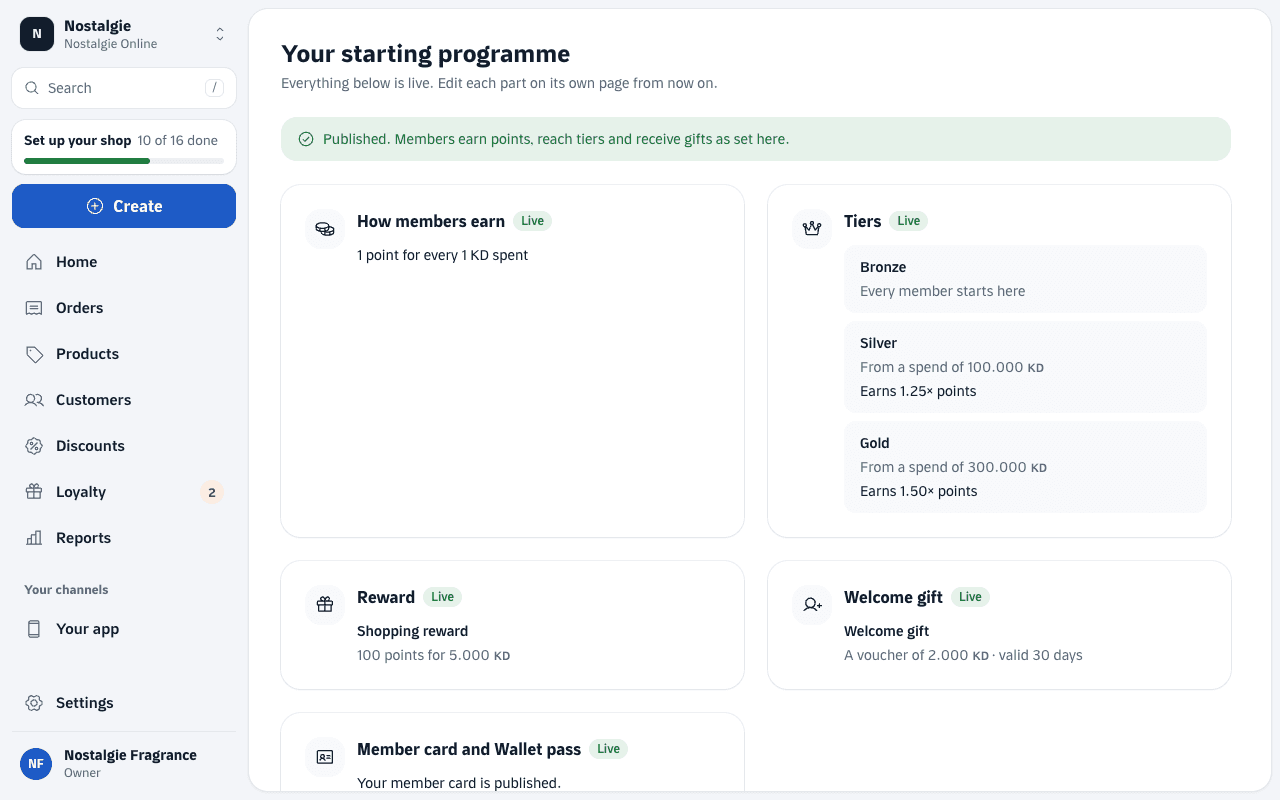
Select Review. The page is called Your starting programme.
You also reach it from Publish your starting programme on a draft earning rule under How members earn.
Check each part
Each card has a status: Draft, Live, or Coming soon for the stamp card. To change a part, select Edit on its card, change it, then select Save draft. Your change stays in draft until you publish.
Finish what's missing
If you see Finish these before you publish, complete each line first. A name may need its text in one of your languages, and your member card and Wallet pass design may need publishing (select Open the member card).
Start publishing
Select Review and publish.
Publish
In Publish your starting programme?, select Publish.
Confirm it's you, if asked
If Helm shows Confirm it's you, enter your 6-digit code and select Confirm.
For Fragrance and cosmetics
What happens next
- You see
- Members earn points, reach tiers and receive the gifts shown, in your own currency.
- The page now says Published. Members earn points, reach tiers and receive gifts as set here. From now on you change each part on its own page.
- The stamp card is added when stamp cards arrive. Publishing doesn't wait for it.
Your starting programme
Published
How members earn
Tiers
Reward
Create a programme and make it live
Open Your programmes
In the side menu:LoyaltyHow members earnThe page is called Loyalty. Your programmes is at the top.
Start a new programme
Select Create programme. New programme opens.
Name it
Enter the Programme name in each of your store's languages.
Check the time zone
Check Timezone (IANA). It must be a real name like Asia/Kuwait, not blank, or the programme can't be made live later.
Save it as a draft
Select Save as draft. The currency follows your market and can't be changed here.
A new draft starts empty: it has its name and time zone, and no earning rules, rewards, tiers or gifts are copied from your current programme. Set it up before you make it live.
You see The new programme joins the list marked Draft, with Rename and Make live on its row.
Make it live
On the draft's row, select Make live. Make this programme live? opens. It says the programme will earn at your branches, names the live programme that will be archived, and reminds you that members already enrolled stay on the programme they joined.
Confirm
Select Make live, or Cancel to leave it as a draft.
What happens next
- You see Its row shows Live.
- The programme earns at your branches.
- Members already enrolled stay on the programme they joined; only new store orders follow the live programme.
If something goes wrong
Publishing the starting programme didn't finish. Select Review and publish again.
Something is missing, such as a name in one of your languages or the member card. Complete each line, then publish.
An edit to a part wasn't saved. Check the numbers you typed, then select Save draft again.
Your programme was set up without a prepared starting programme. Select Open the Programme page and use Your programmes instead.
Creating the draft or making it live didn't work. The most likely cause on Make live: the programme's time zone is blank or not a real name. Create the draft again with a time zone like Asia/Kuwait. If the time zone is right, try once more.
A programme name is empty. Type it in every language shown.
Your role doesn't hold Set up and publish the programme. The owner can add it to your role.