Customers and loyalty
Protect points from misuse
Set the rules that hold or flag unusual earns, then approve, decline or review them in the Watchful eye, so no one earns points for themselves on customers' purchases.

Tried on a demo store on 29 November 2026
Before you start
- To see the Watchful eye, your role needs View watchful eye. The owner and managers have it; a manager sees only their own branches.
- To change the rules, your role needs Fraud controls. By default only the owner has it.
- Loyalty is part of the Perks plans. If you don't see Loyalty in the menu, your plan doesn't include it.
Perks watches every sale that earns points. Two kinds of rule protect you:
Every business starts at the values Perks recommends for its type of business. Nothing in the Watchful eye accuses anyone: each item says what happened, in numbers.
Watch the steps
- In the menu, select Loyalty, then Watchful eye.
- Earns held for a decision, flags to look at, and recent POS scans.
- Who, where, the sale, the points, and the rule that held it.
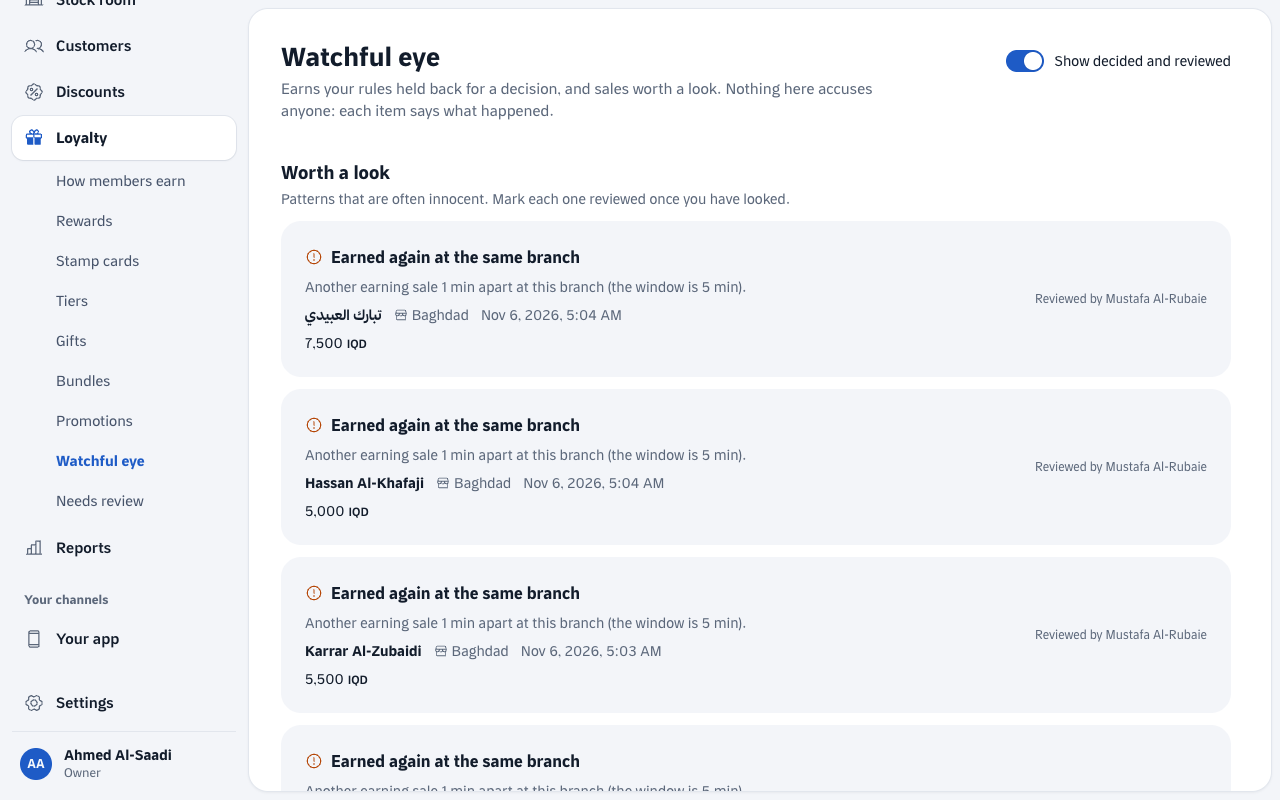
- Sales a flag picked out. Mark each one reviewed once you've looked.
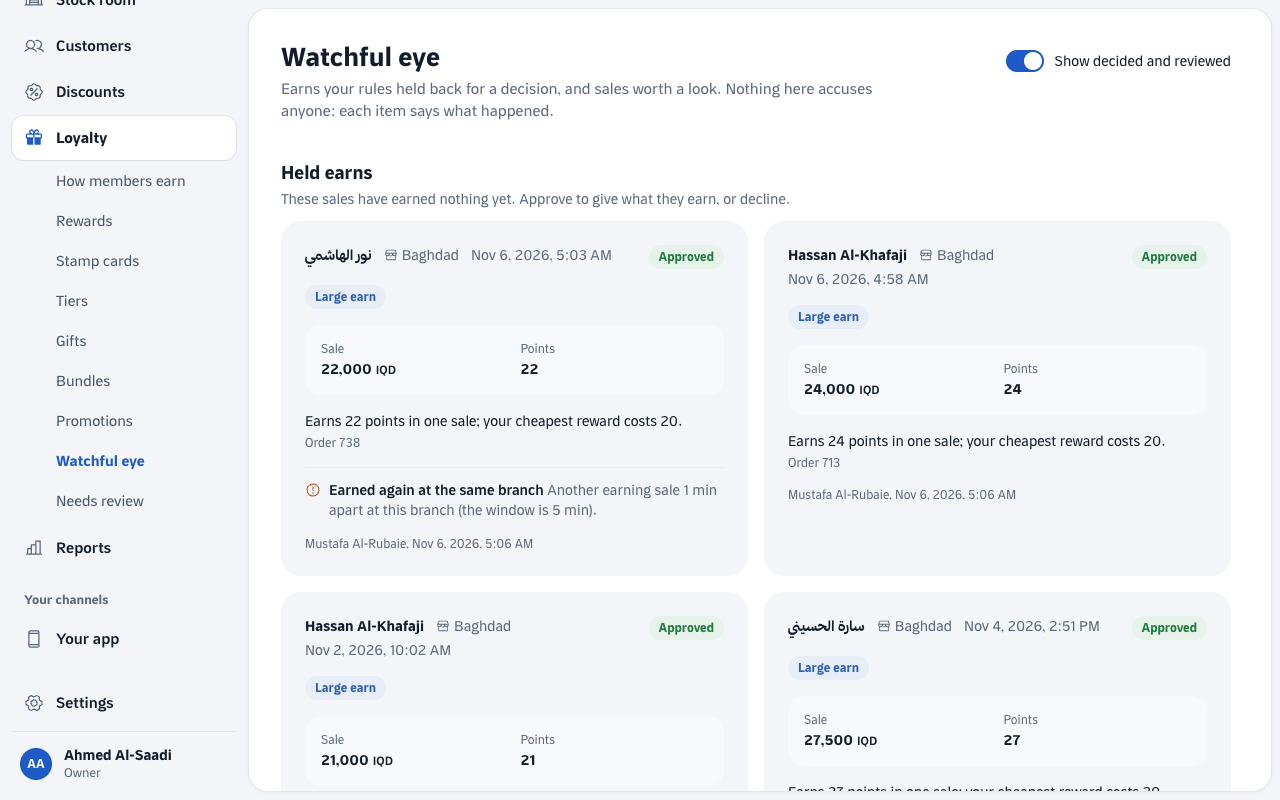
- Turn on Show decided and reviewed to see past decisions too.
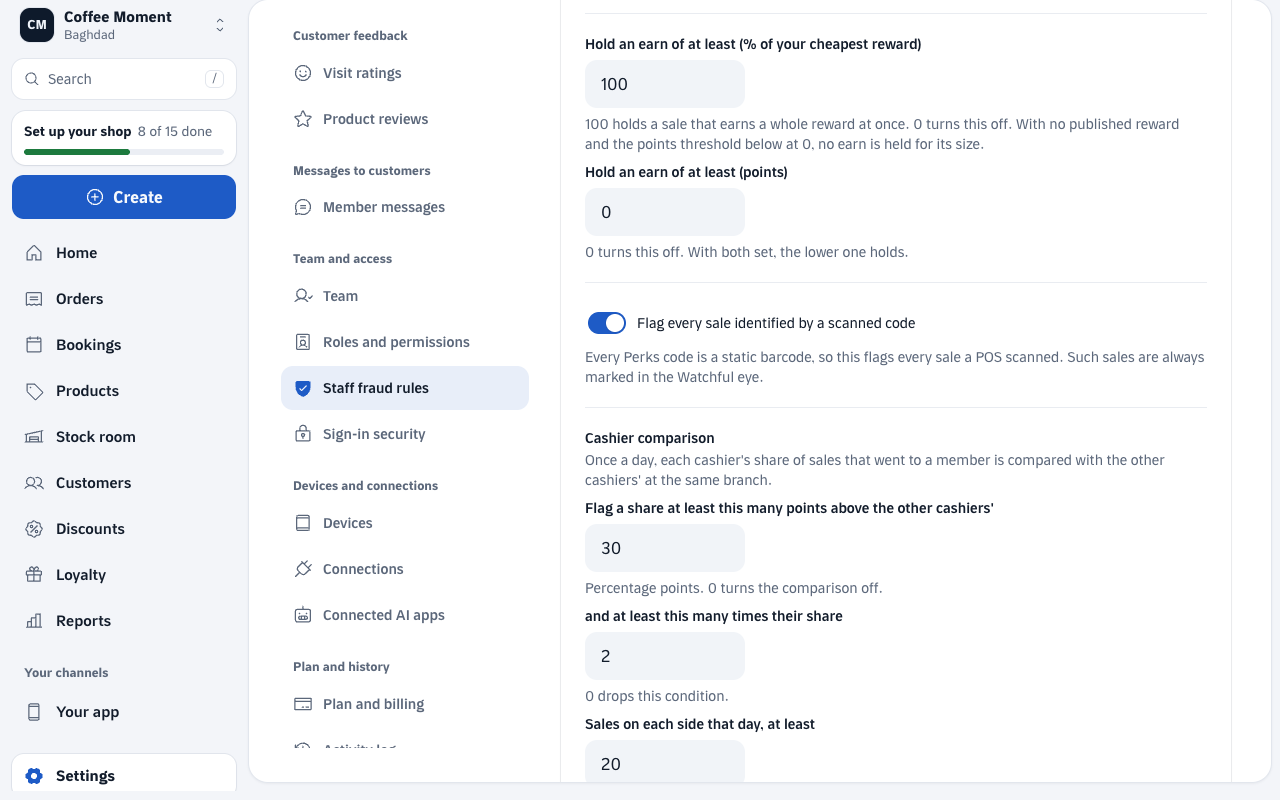
- In Settings, under Team and access, select Staff fraud rules.
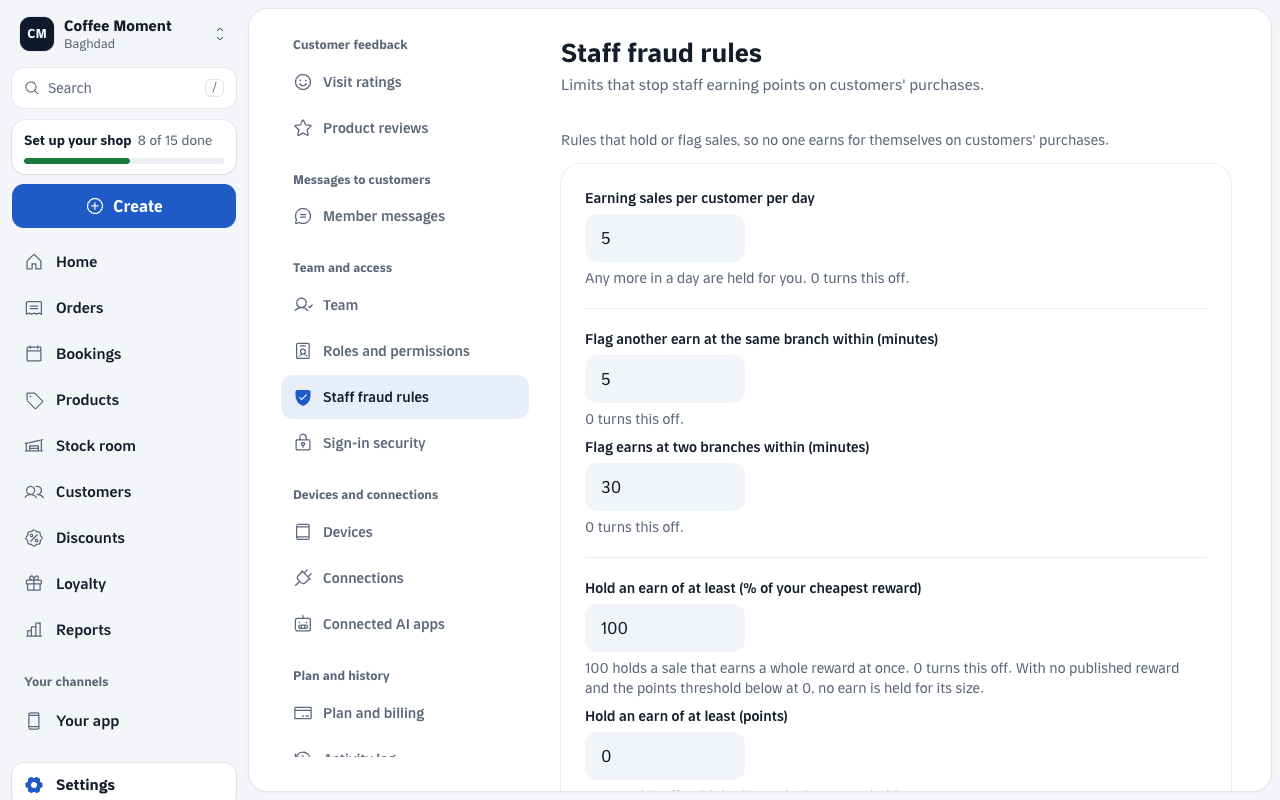
- How many earning sales one customer can have in a day before the rest are held.
- Flag a second earn at the same branch, or at two branches, within these minutes.
- Hold a sale that earns a lot of points at once.
- Flag every sale where the POS scanned the member's code.
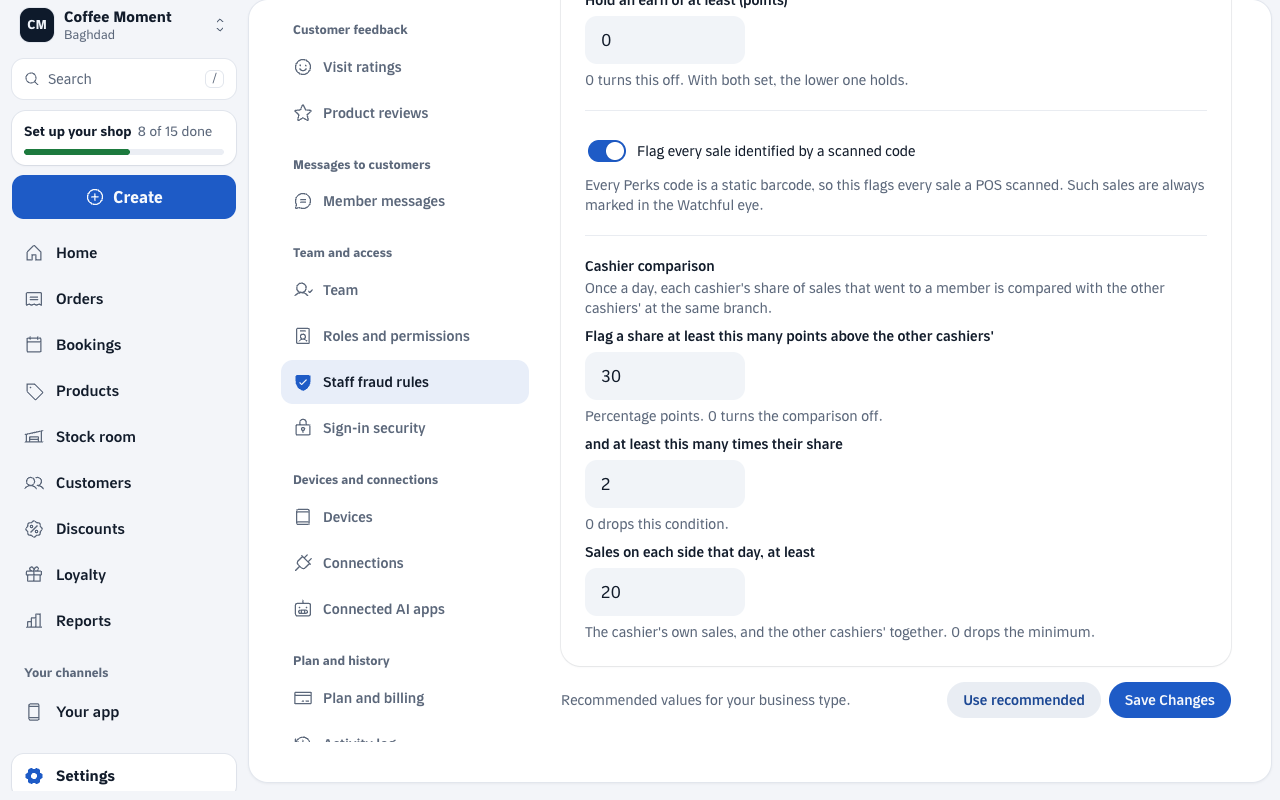
- Once a day, compare each cashier with the others at their branch.
- Select Save Changes, or Use recommended to go back to Perks' values.
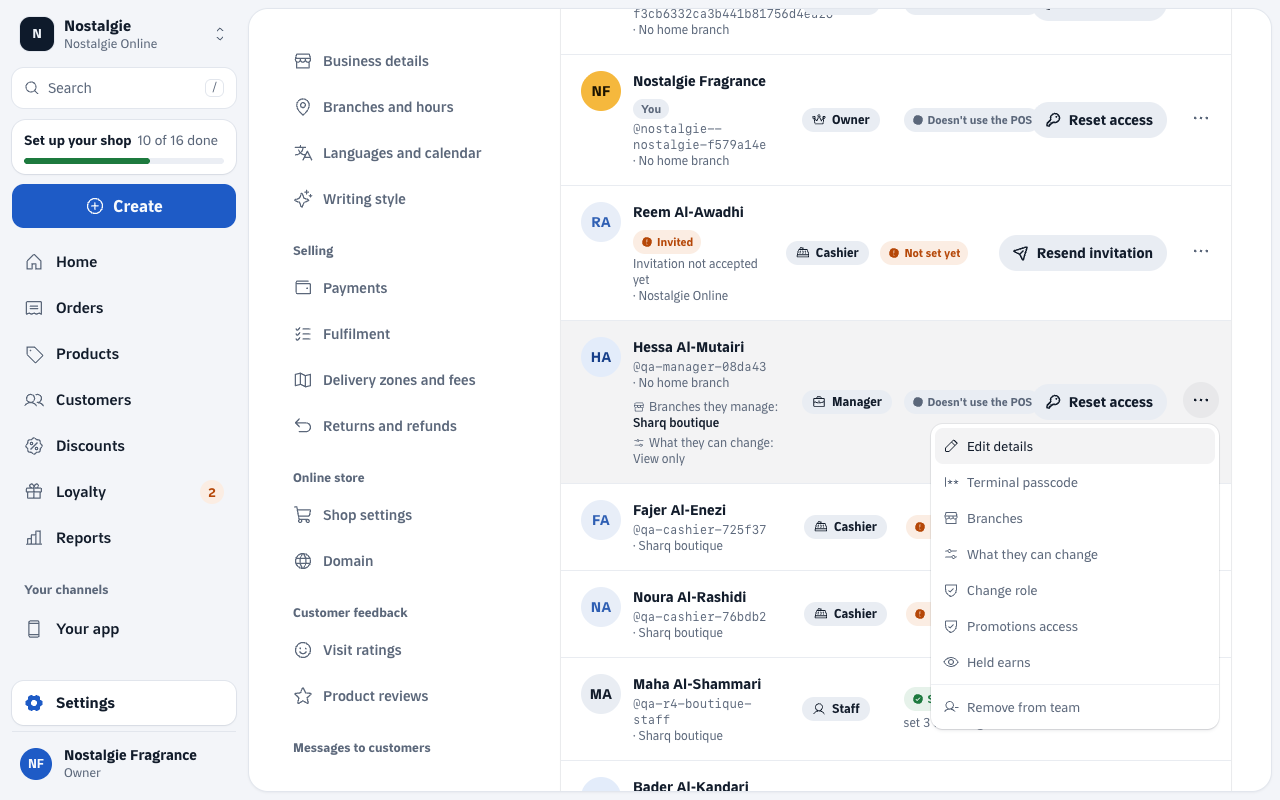
- On Team, open a manager's ⋯ menu and select Held earns.
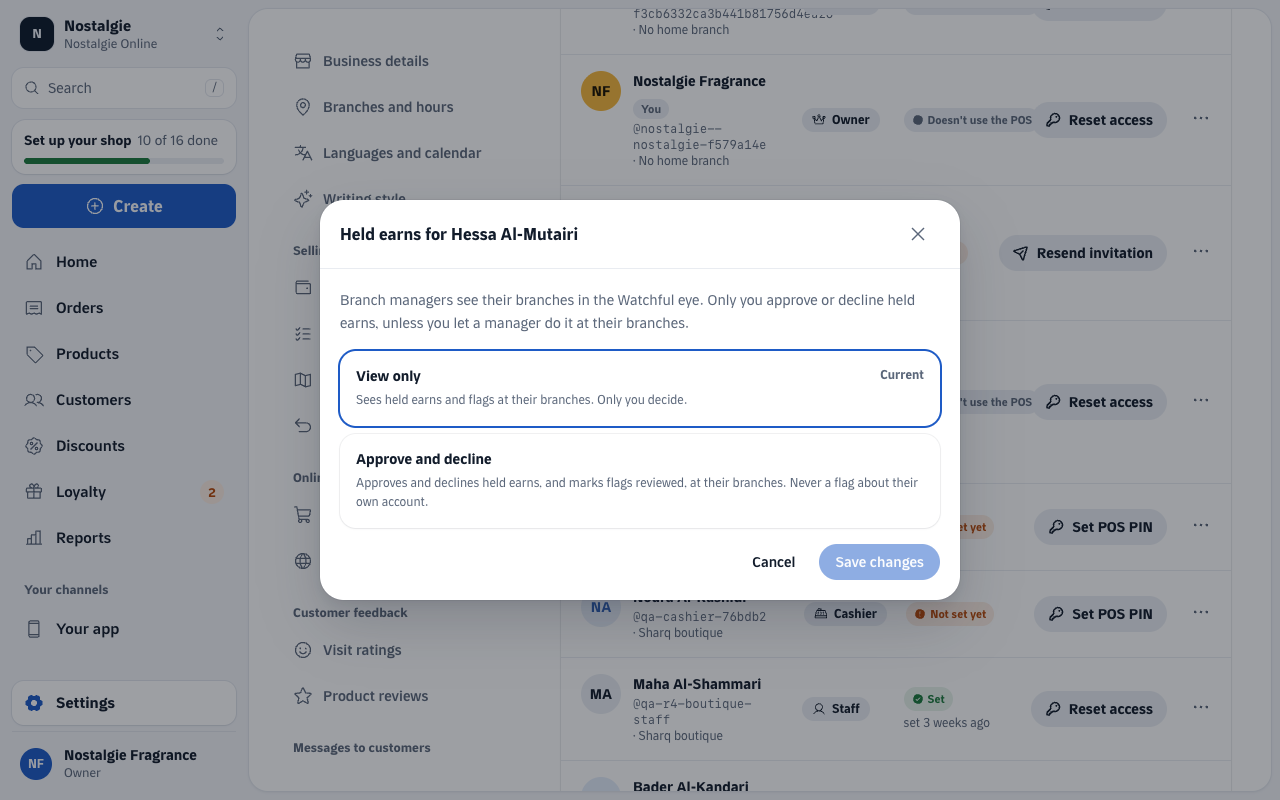
- Choose, then select Save changes.
Check the Watchful eye
Open it
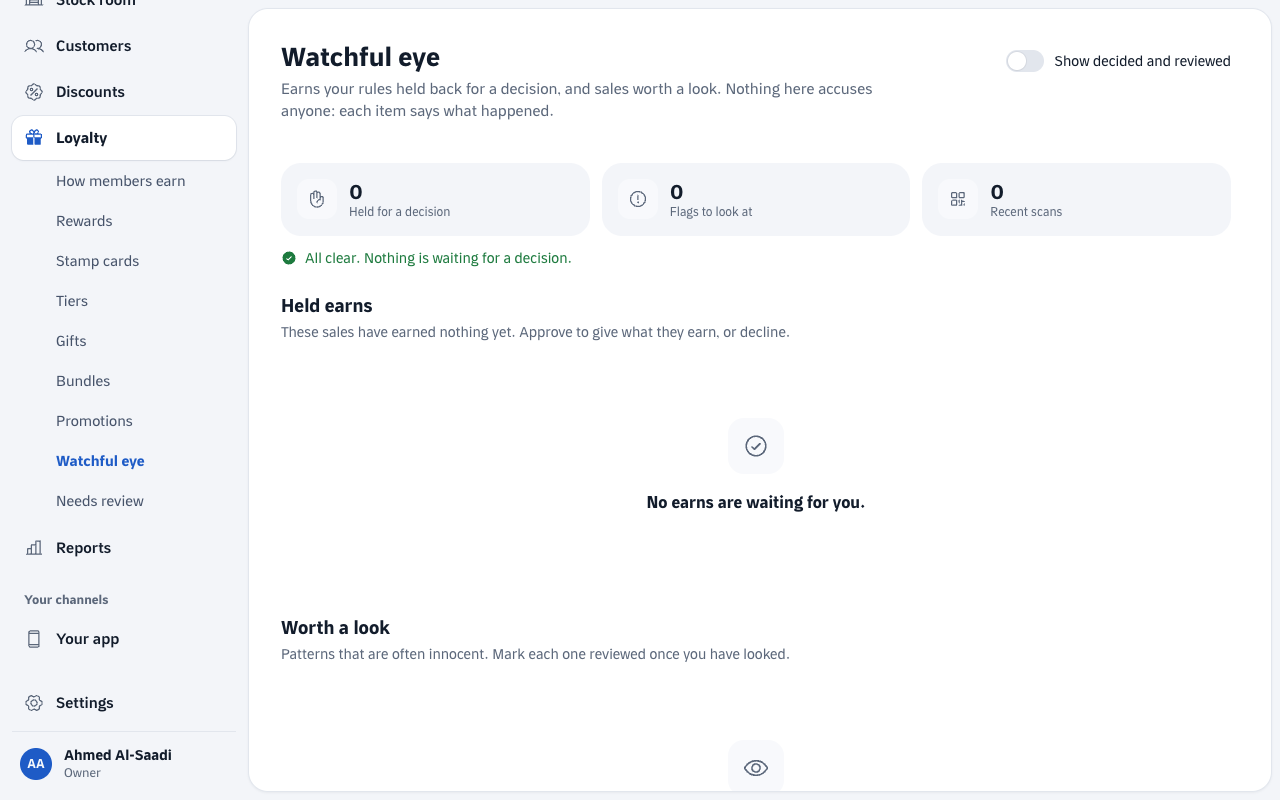
In the side menu:LoyaltyWatchful eyeThree counts sit at the top: Held for a decision, Flags to look at and Recent scans. Select a count to jump to its part of the page. When nothing waits, you see All clear. Nothing is waiting for a decision.
Decide each held earn
Under Held earns, each card shows the member, the branch, the time, the Sale and its Points, and why it was held: Daily limit or Large earn, with a line such as Earns 22 points in one sale; your cheapest reward costs 20. Any flag on the same sale shows at the bottom of the card.
Select Approve or Decline. Helm asks once more:
- Approve this earn? The member gets the points and everything else this sale earns, now.
- Decline this earn? This sale earns nothing. The member keeps everything else they have.
Select Approve or Decline again to confirm, or Cancel.
Look at each flag
Under Worth a look, read what happened, then select Mark reviewed. A flag changes nothing on the member's account.
See the POS scans
POS scans lists each time a POS scanned a member's code, newest first: who, where and when.
Held earns
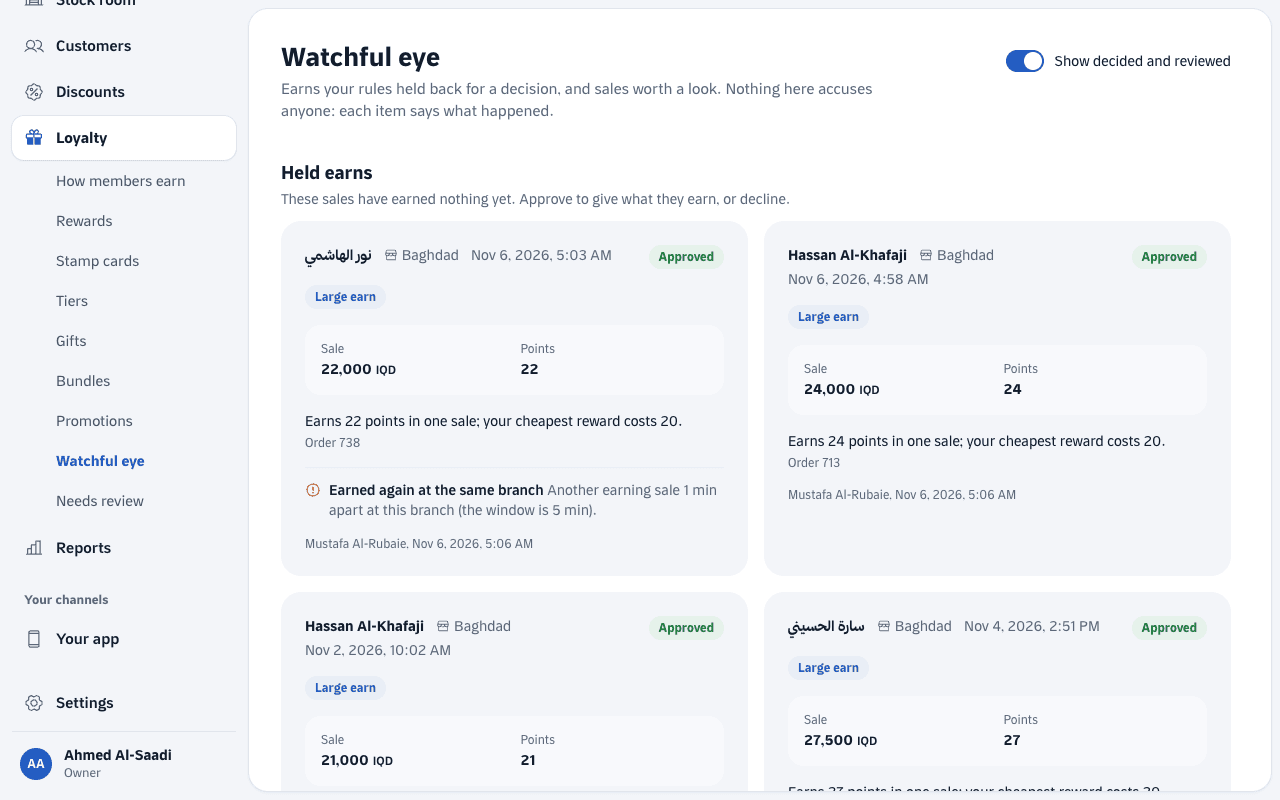
Why it was held
The rule's numbers
A flag on the same sale
Its state
The flags Helm can raise:
Set the rules
Open the rules
In the side menu:SettingsStaff fraud rulesThe page is under Team and access. It says: Rules that hold or flag sales, so no one earns for themselves on customers' purchases.
Change a value
Type a whole number in any box. 0 turns that rule off.
Save
Select Save Changes. It shows once you have changed something. To go back to Perks' values, select Use recommended, then Save Changes.
Staff fraud rules
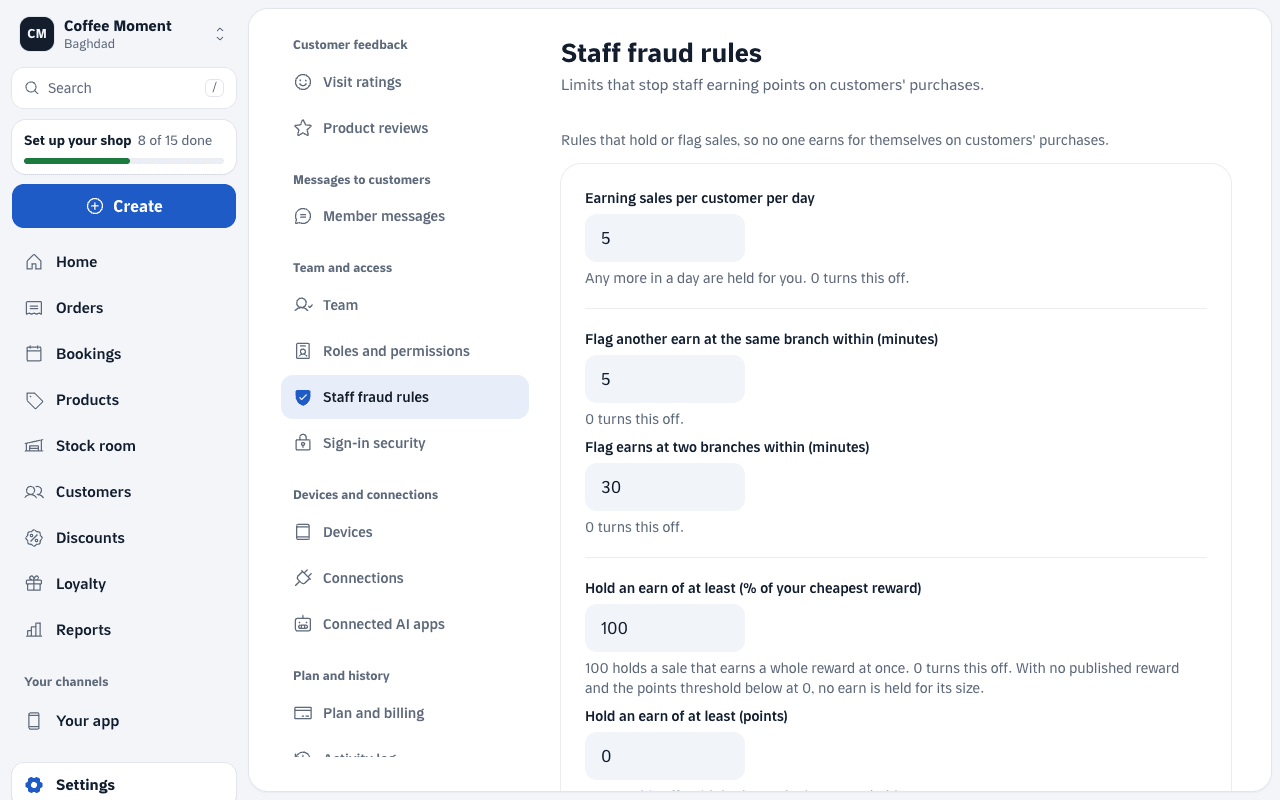
Daily limit
Same branch
Two branches
Perks' recommended values depend on your type of business:
For Café and roastery
- Earning sales per customer per day: 5 for a café.
- Same branch: 5 minutes. Two branches: 30 minutes.
For Counter-service restaurant, Full-service restaurant
- Earning sales per customer per day: 3 for a restaurant.
- Same branch: 5 minutes. Two branches: 60 minutes.
For Fragrance and cosmetics, Abaya, Fashion
- Earning sales per customer per day: 3 for retail.
- Same branch: 5 minutes. Two branches: 30 minutes.
For Salon and spa
- Earning sales per customer per day: 2 for beauty services.
- Same branch: 5 minutes. Two branches: 60 minutes.
For Health and beauty shop, Pharmacy and beauty
- Earning sales per customer per day: café 5, restaurant 3, retail 3, beauty services 2, any other business 5.
- Same branch: 5 minutes. Two branches: 60 minutes for a restaurant or beauty services, 30 for everyone else.
- Large earn: 100% of your cheapest reward; no fixed number of points.
- Scanned code: off.
- Cashier comparison: 30 points above, twice their share, 20 sales on each side.
Let a manager decide at their branches
A branch manager sees held earns and flags at their branches, but only you decide, unless you let them.
Open the Team page
In the side menu:SettingsTeamOpen the manager's menu
On the manager's row, select ⋯, then Held earns. The window Held earns for and their name opens.
Choose
- View only: sees held earns and flags at their branches. Only you decide. This is where every manager starts.
- Approve and decline: approves and declines held earns, and marks flags reviewed, at their branches. Never a flag about their own account.
Save
Select Save changes, or Cancel to leave it as it is.
Held earns for a manager
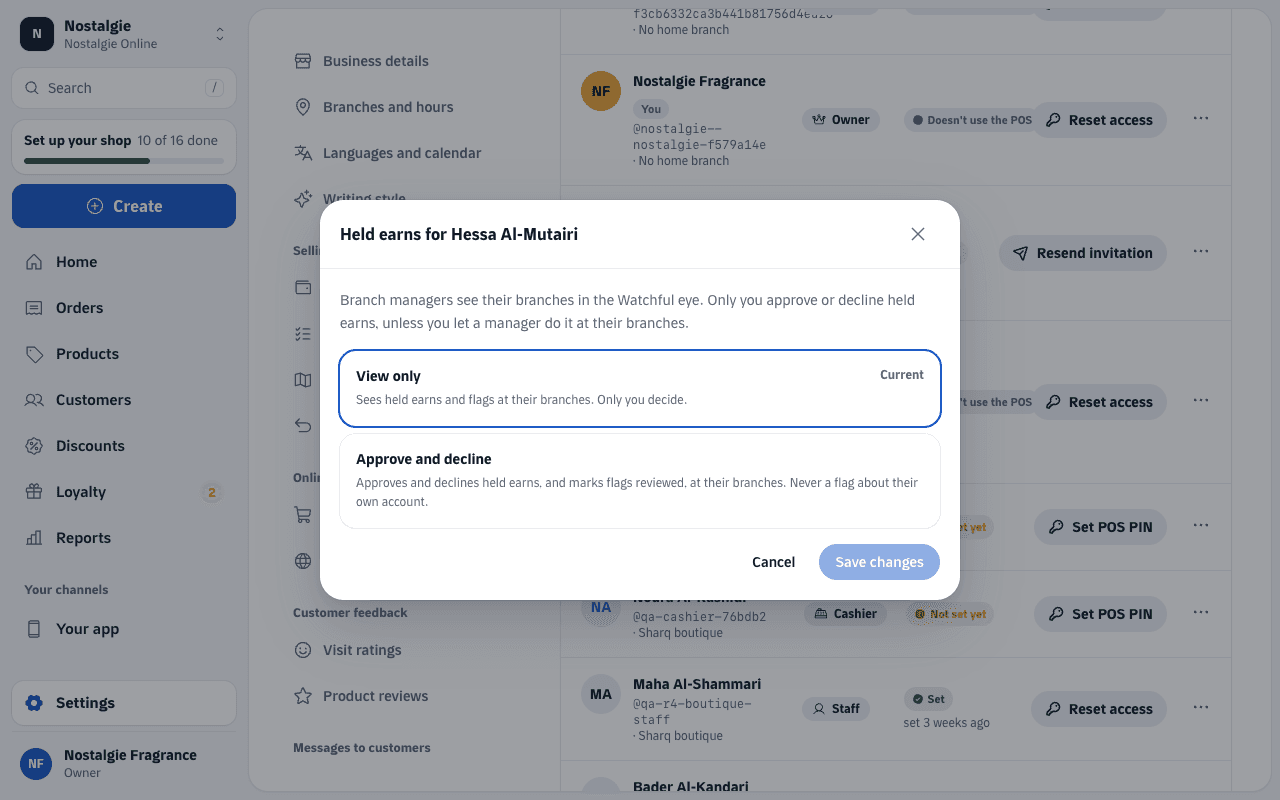
View only
Approve and decline
A manager allowed to decide shows Approves held earns under their name on the Team page.
When a team member is also a member
A manager, cashier or staff member who also collects points at your business can link their own member account on Your account, under My member account: they enter Your member phone number and select Link my account. From then on their own earns are flagged as A staff member's own account. If their sign-in phone already belongs to a member, Helm says so and their earns are already flagged.
A manager never decides a hold or reviews a flag about their own account. The owner decides every hold.
What happens next
- After Approve, you see
- After Decline, you see
- After Mark reviewed, you see , and the flag shows Reviewed by and the name.
- If the order is cancelled or refunded before anyone decides, the hold closes on its own: The order was cancelled before anyone decided. or The order was refunded before anyone decided.
- New rules apply to sales from then on. After saving, you see
If something goes wrong
The decision wasn't saved. Select Approve or Decline again.
The box holds a fraction, a negative number or more than the rule allows. Type a whole number within the limits above.
Your role doesn't hold Fraud controls. The rules show, but can't be changed.
Nothing changed. Select Save Changes again.
Only the owner, or a manager the owner allowed, can decide. A manager without that sees The owner approves, declines and marks reviewed. at the top of the page. A flag about your own account is never yours to review.